Orders (Full Guide)
To see your 'Orders', from the store dashboard go to:
> Orders
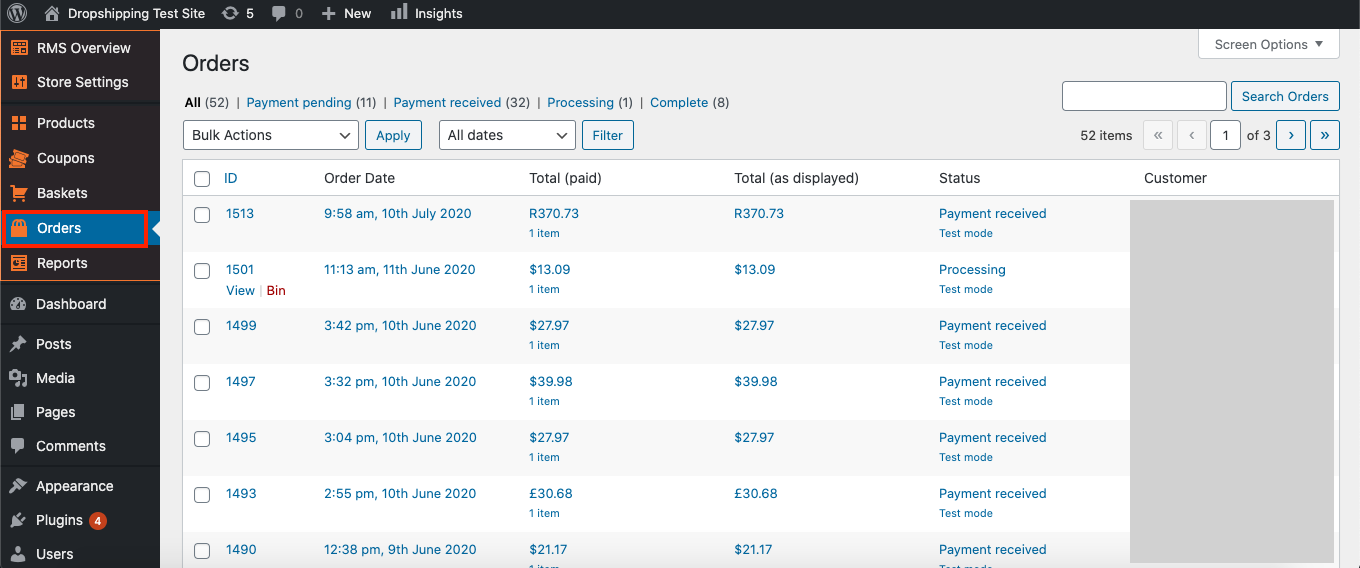
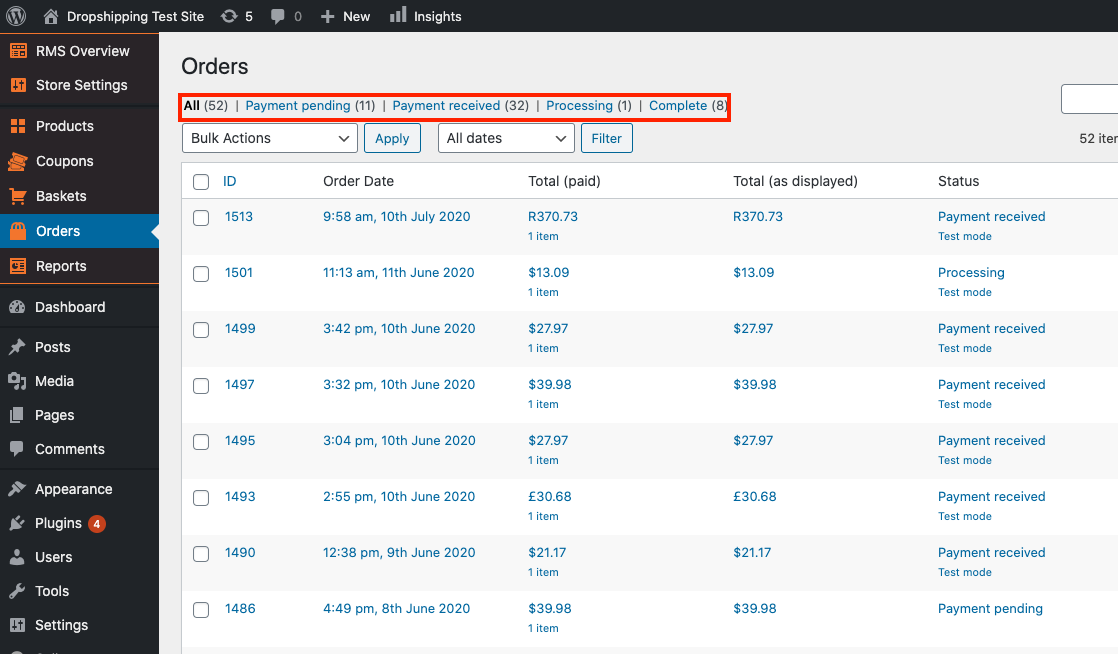
From within this page you can see all the customers who placed an 'Order' with you and their status will be pooled at the top in various categories for quick and easy access:
Clicking on an orders 'ID' number will open up another page with more information about the order:
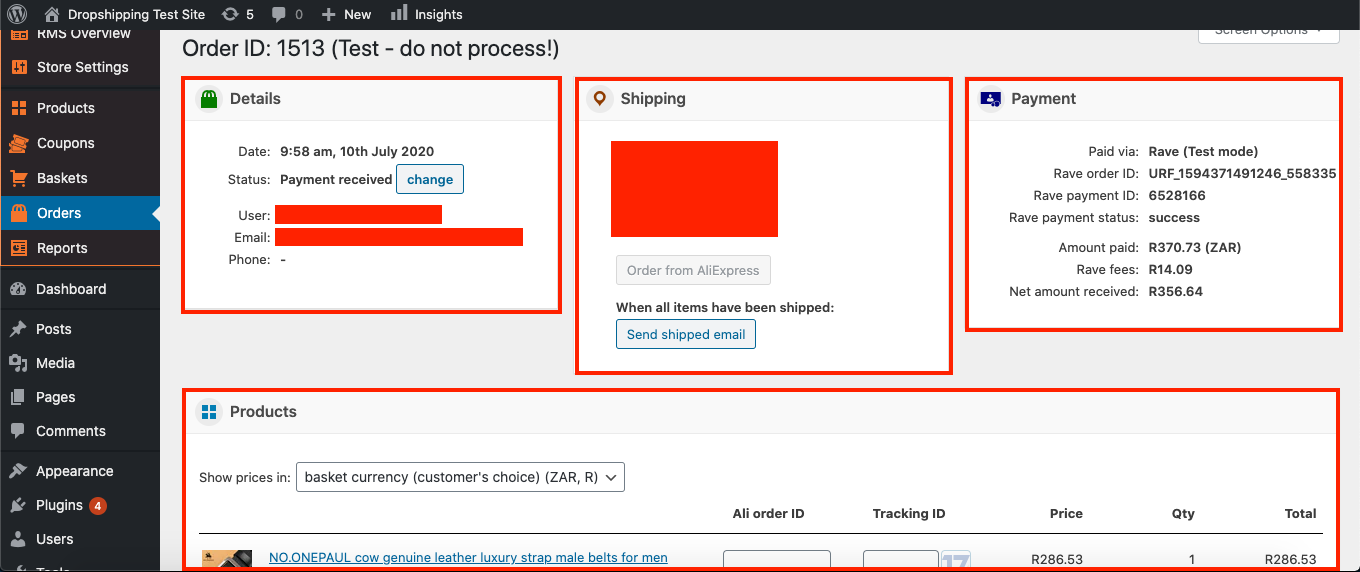
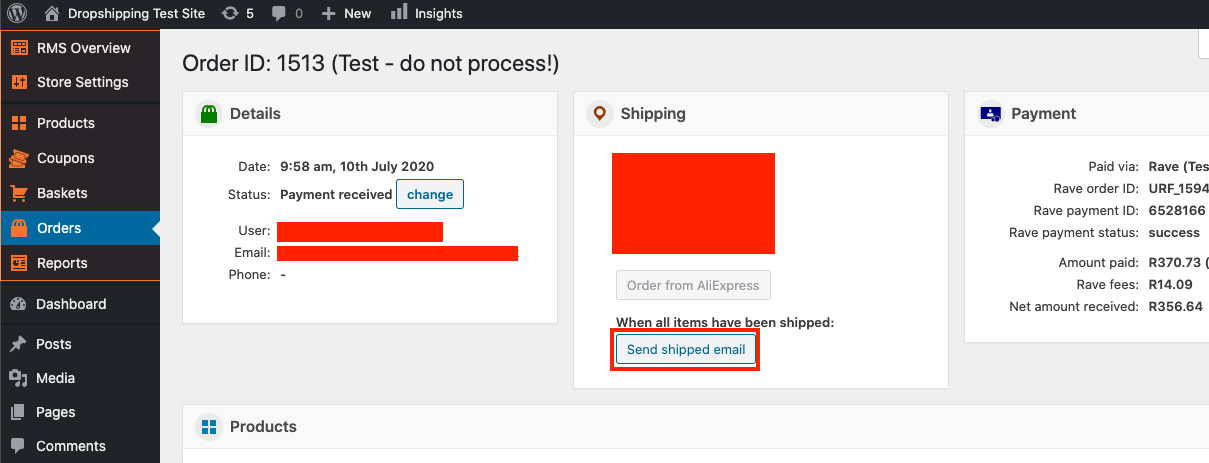
Here you can learn what the customers email and/or phone number is (useful for retargeting), what their shipping address is (useful for analyzing where the bulk of your orders come from), the payment status, the amount paid, and what was purchased.
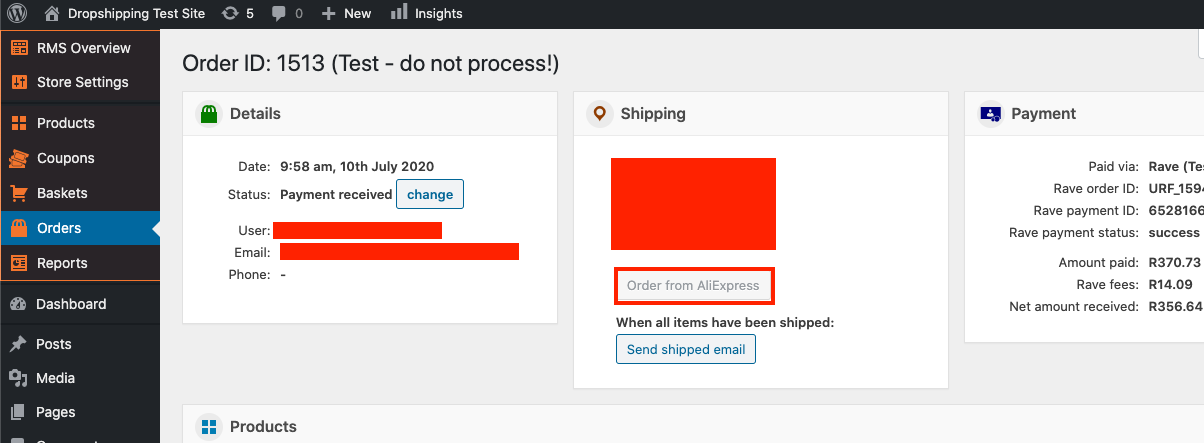
The 'Order from AliExpress' button can be used to process your orders (the customers details will be filled in automatically):
The 'Send shipped email' button can be used when all items have been shipped:
The 'Send shipped email' can be edited by following this guide.
Below the order details under the heading 'Products', you'll find 'Ali order ID' and 'Tracking ID'. These will be updated automatically after the AliExpress supplier receives the order (Ali order ID updates) and ships the item (Tracking ID updates):
*If the 'Ali Order ID' and/or the 'Tracking ID' doesn't update itself automatically, you will have to manually fulfil these IDs yourself*
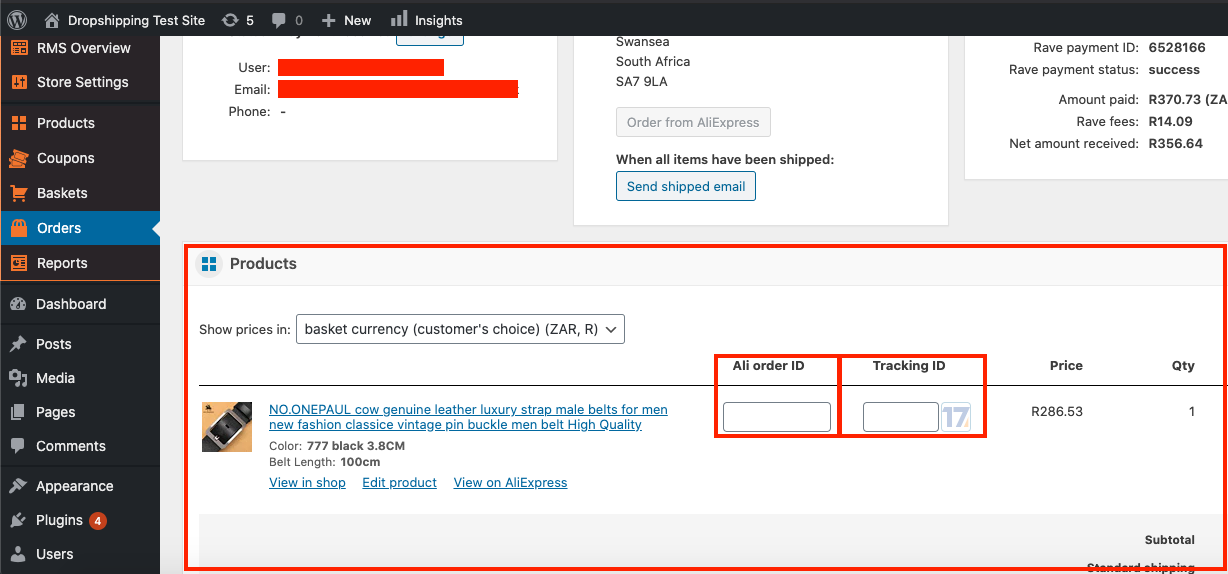
Each item purchased by your customer will have its own unique 'Tracking ID' as different products come from different suppliers that ship separately.
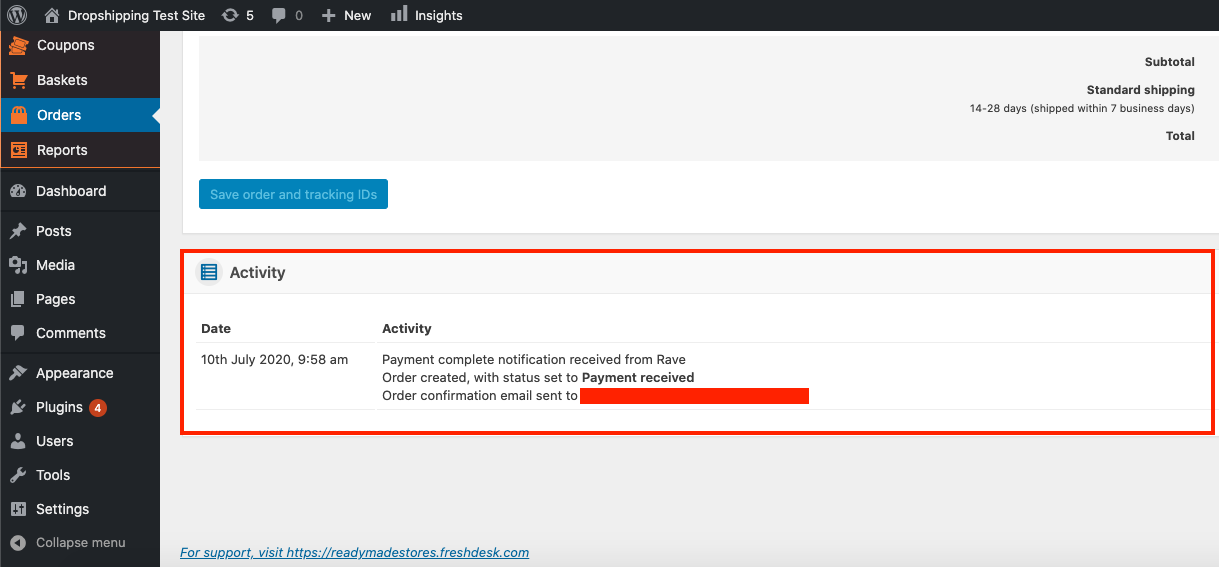
The 'Activity' heading at the bottom of the page shows and dates the order process:
Related Articles
Sales Report (Full Guide)
Sales Report (Full Guide) To see your 'Sales Report', from the store dashboard go to: > Reports > Sales Report From within this page you can track and analyse the key indicators of your business. The 'Overview' provides a summary of your total orders ...How To Get Instagram Shoutouts: A Complete Guide For Drop Shipping Business
Instagram shoutouts are a simple but promising way to promote a dropshipping store. We have been using it since 2016 and we still get great results! In this step-by-step complete guide you’ll learn how to effectively use this advertising method. ...Activity Report (Full Guide)
Activity Report (Full Guide) To see your 'Activity Report', from the store dashboard go to: > Reports > Activity Report From within this page you can see all the changes you've made since the beginning.Baskets (Full Guide)
Baskets (Full Guide) To see your 'Add to Baskets', from the store dashboard go to: > Baskets From within this page you can see all the customers who added to basket but didn't checkout. With this information you can retarget those customers so that ...Traffic Report (Full Guide)
Traffic Report (Full Guide) To see your 'Traffic Report', from the store dashboard go to: > Reports > Traffic Report From within this page you can track, measure and analyze a great range of data, the first being the 'Overview Report': In this graph ...