Sales Report (Full Guide)
Sales Report (Full Guide)
To see your 'Sales Report', from the store dashboard go to:
> Reports > Sales Report
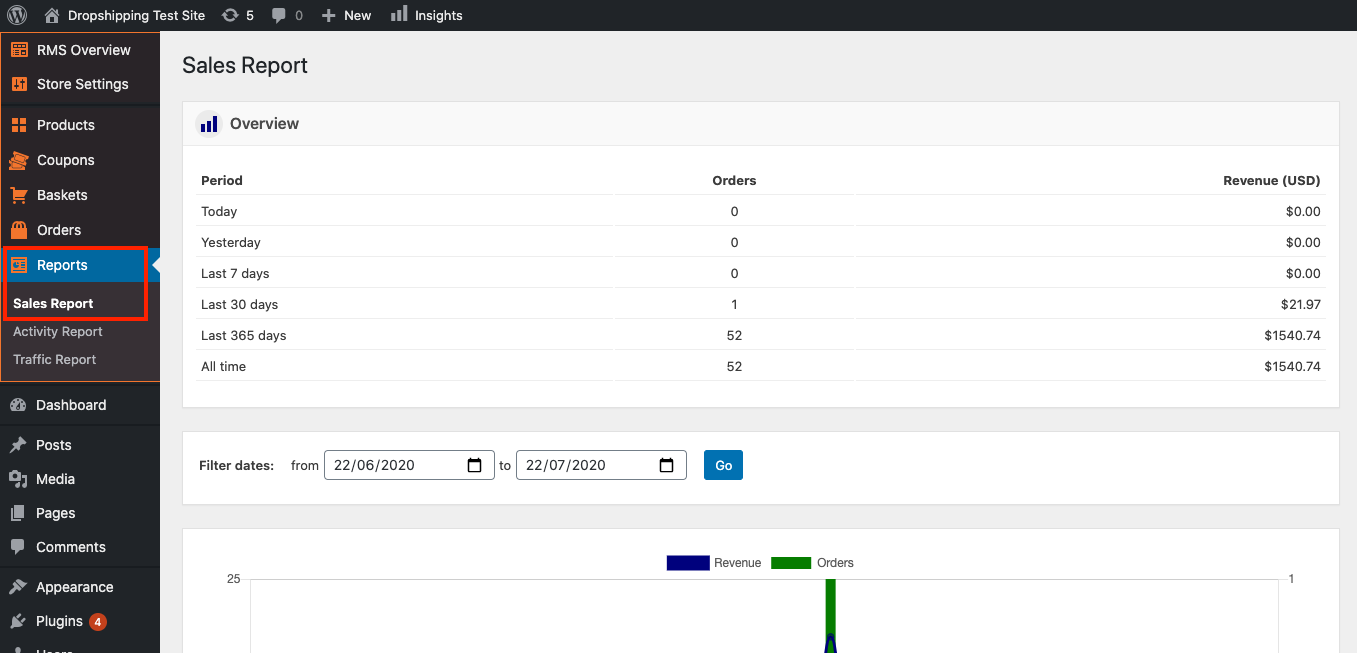
From within this page you can track and analyse the key indicators of your business.
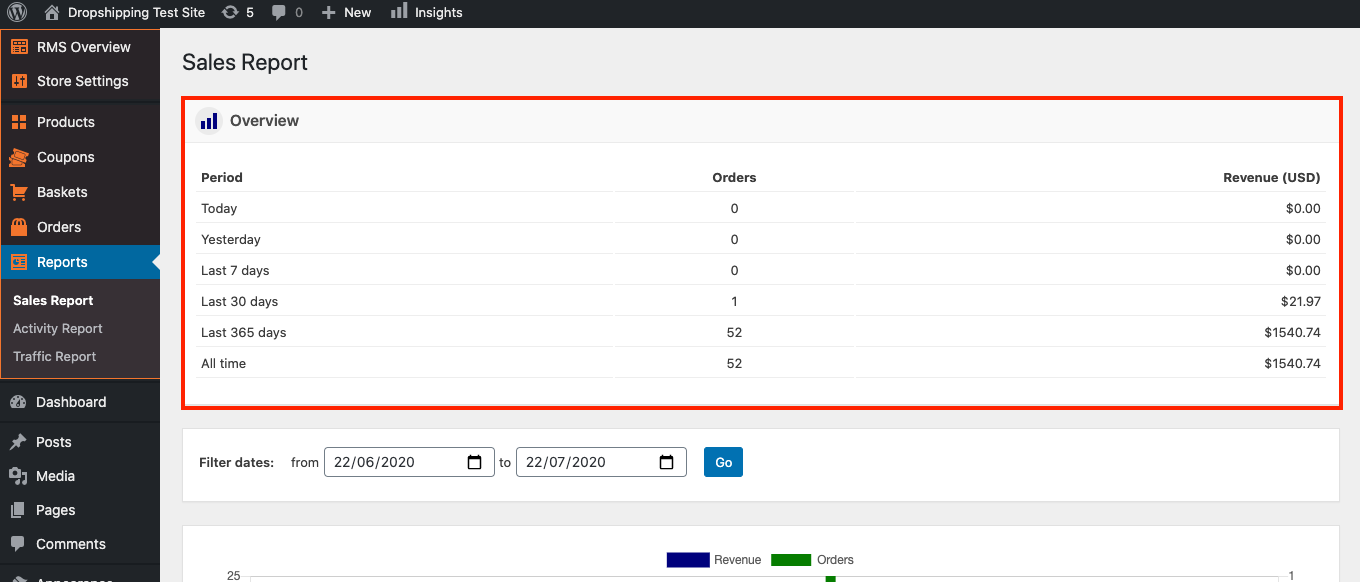
The 'Overview' provides a summary of your total orders and revenue to date:
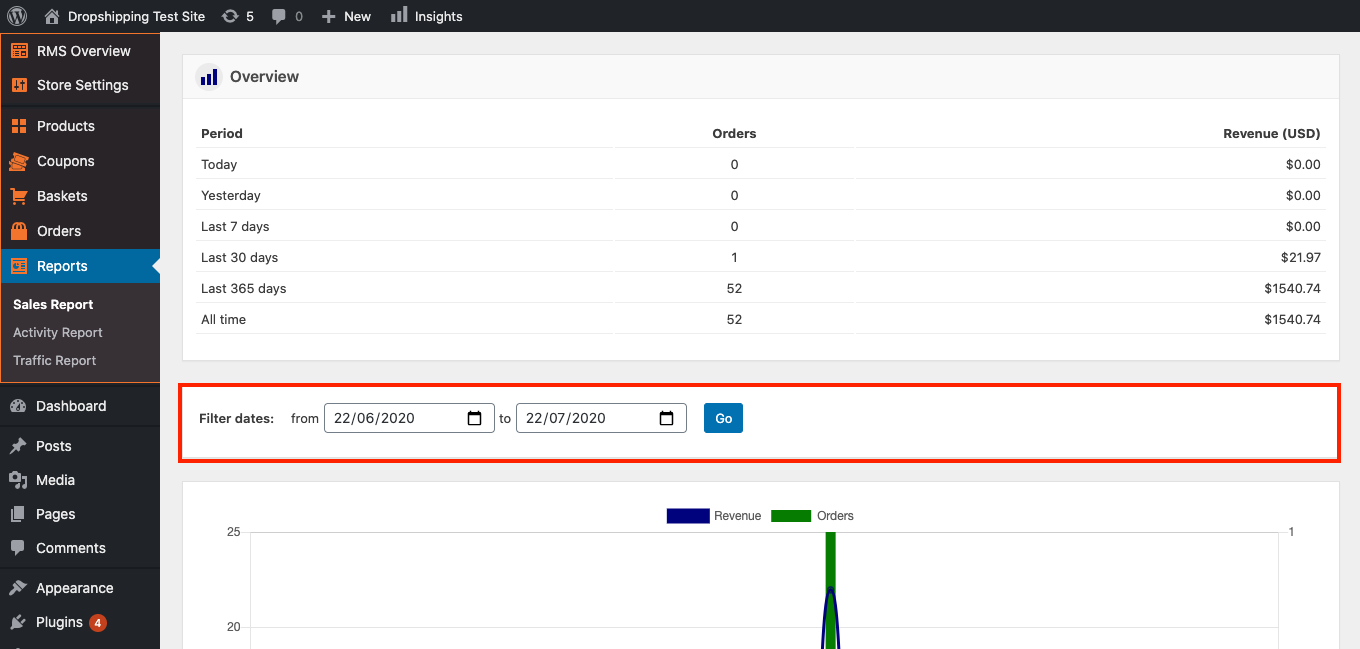
Below you can 'Filter dates' from one date to another:
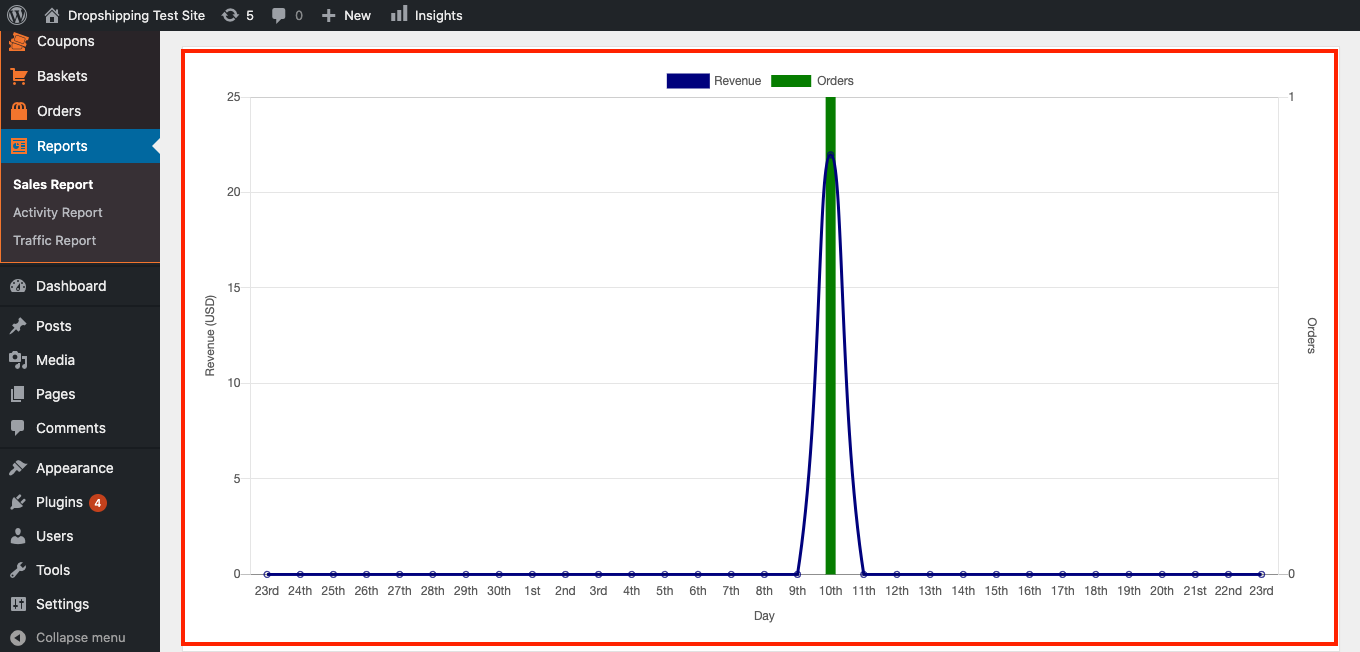
Filtering dates will define the graph below (blue being 'Revenue' and green being 'Orders'):
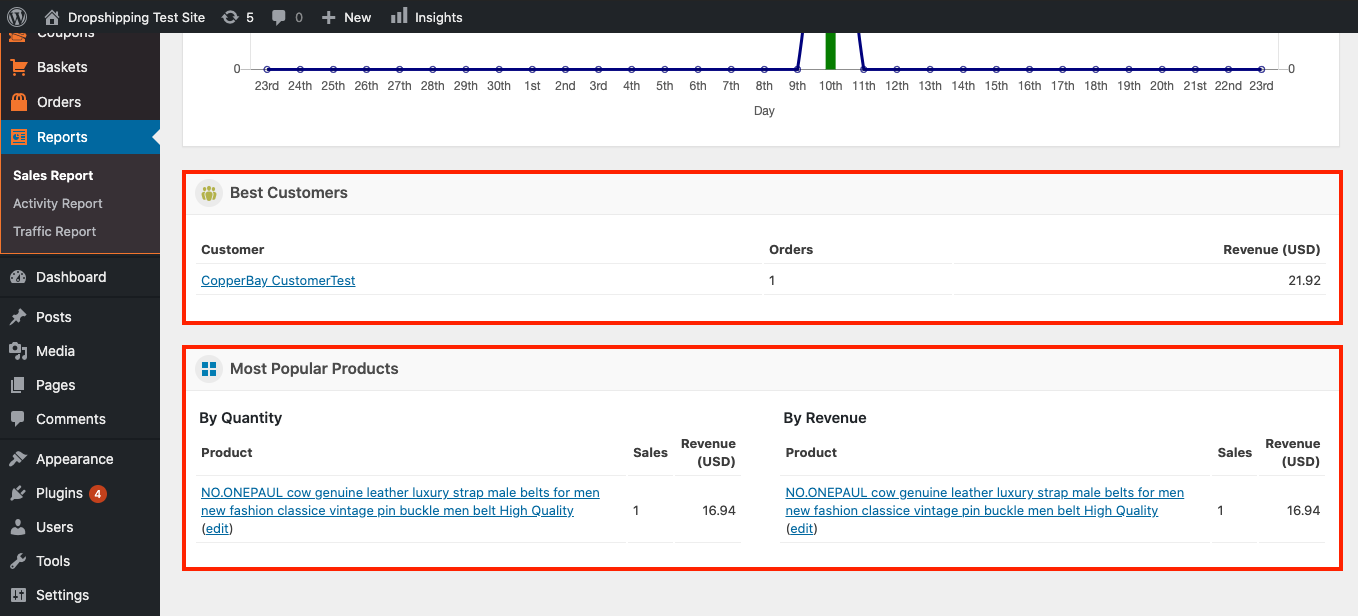
Below the graph you'll find your 'Best Customers' and 'Most Popular Products' defined by the number of orders and revenue:
Related Articles
Activity Report (Full Guide)
Activity Report (Full Guide) To see your 'Activity Report', from the store dashboard go to: > Reports > Activity Report From within this page you can see all the changes you've made since the beginning.Traffic Report (Full Guide)
Traffic Report (Full Guide) To see your 'Traffic Report', from the store dashboard go to: > Reports > Traffic Report From within this page you can track, measure and analyze a great range of data, the first being the 'Overview Report': In this graph ...Sales Report
Sales Report There is a simple way to track you sales and analyze the key indicators of your business. Go to AliDropship => Reports => Sales report. Set a time period that you want your sales report to be shown: First, you see Summary chart that ...Sales Report
The report contains information about all clicks, searches, purchases and clients brought in by the affiliate. The table contains the following columns: Visitors – Number of unique people who have started searching for a flight/hotel on Jetradar or ...Baskets (Full Guide)
Baskets (Full Guide) To see your 'Add to Baskets', from the store dashboard go to: > Baskets From within this page you can see all the customers who added to basket but didn't checkout. With this information you can retarget those customers so that ...