How To Upload Products To Google Merchant Center?
To upload products to the 'Google Merchant Center', from the store dashboard, navigate to:
> Products > Export
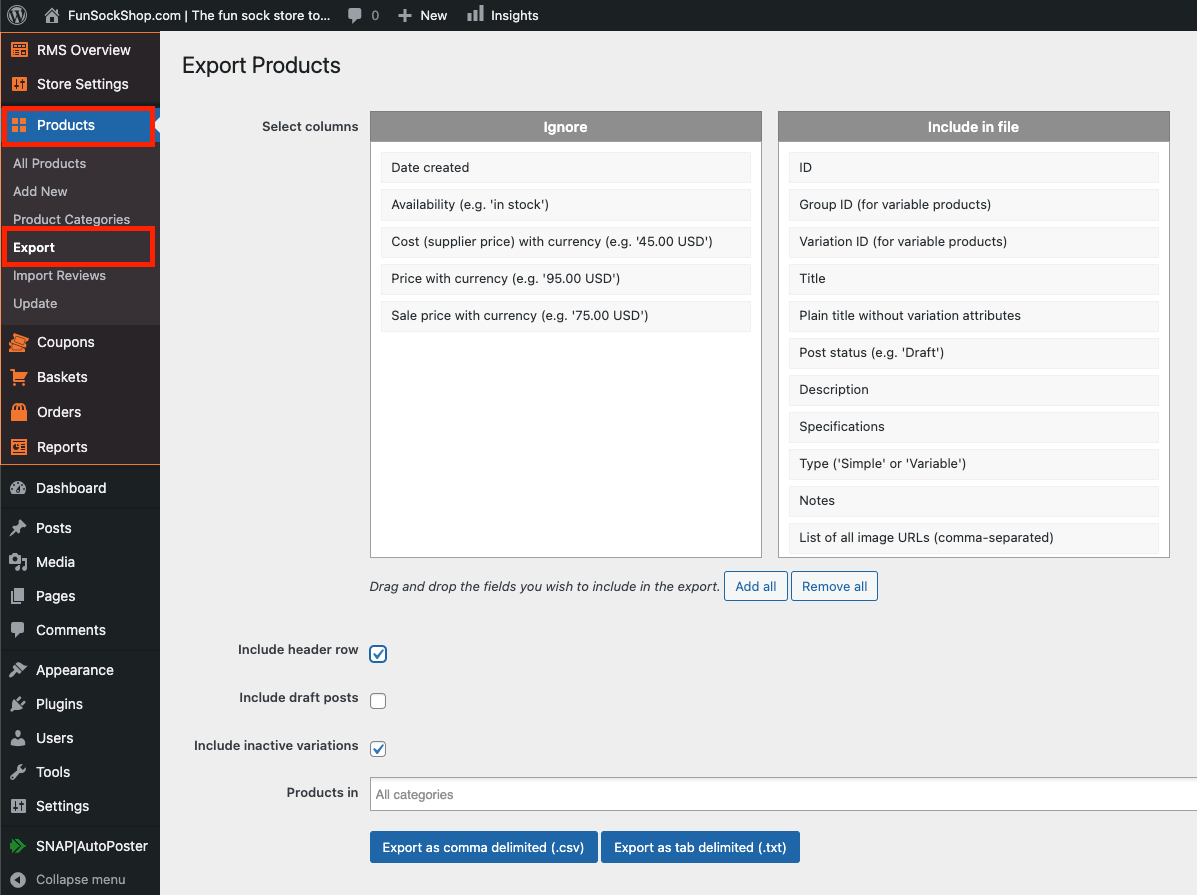
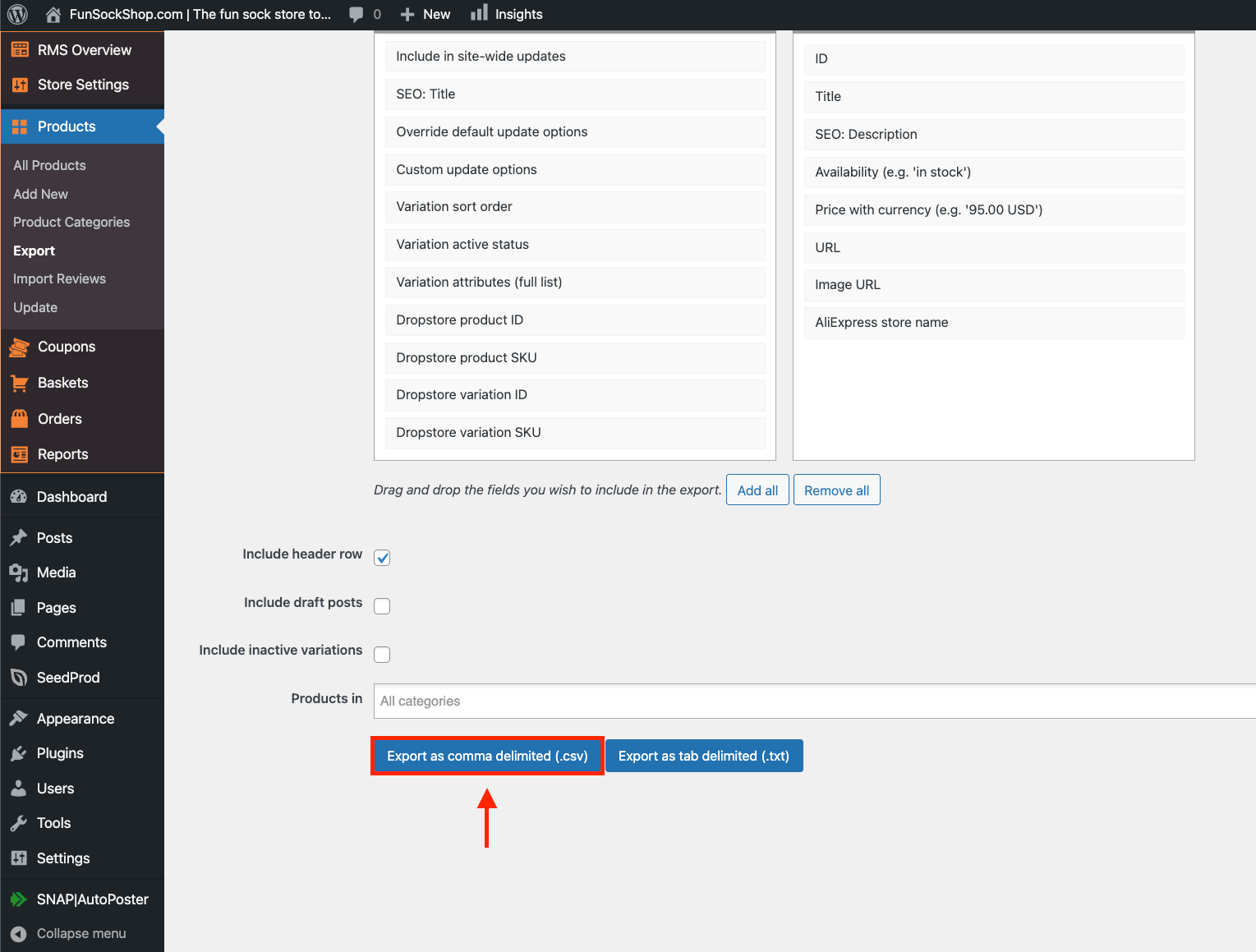
Add the following fields to the 'Include in file' column (follow the exact same order):
(1. ID) (2. Title) (3. SEO: Description) (4. Availability) (5. Price with currency) (6. URL) (7. Image URL) (8. AliExpress store name)
To learn how to move fields from 'Ignore' to 'Include in file', please see here:
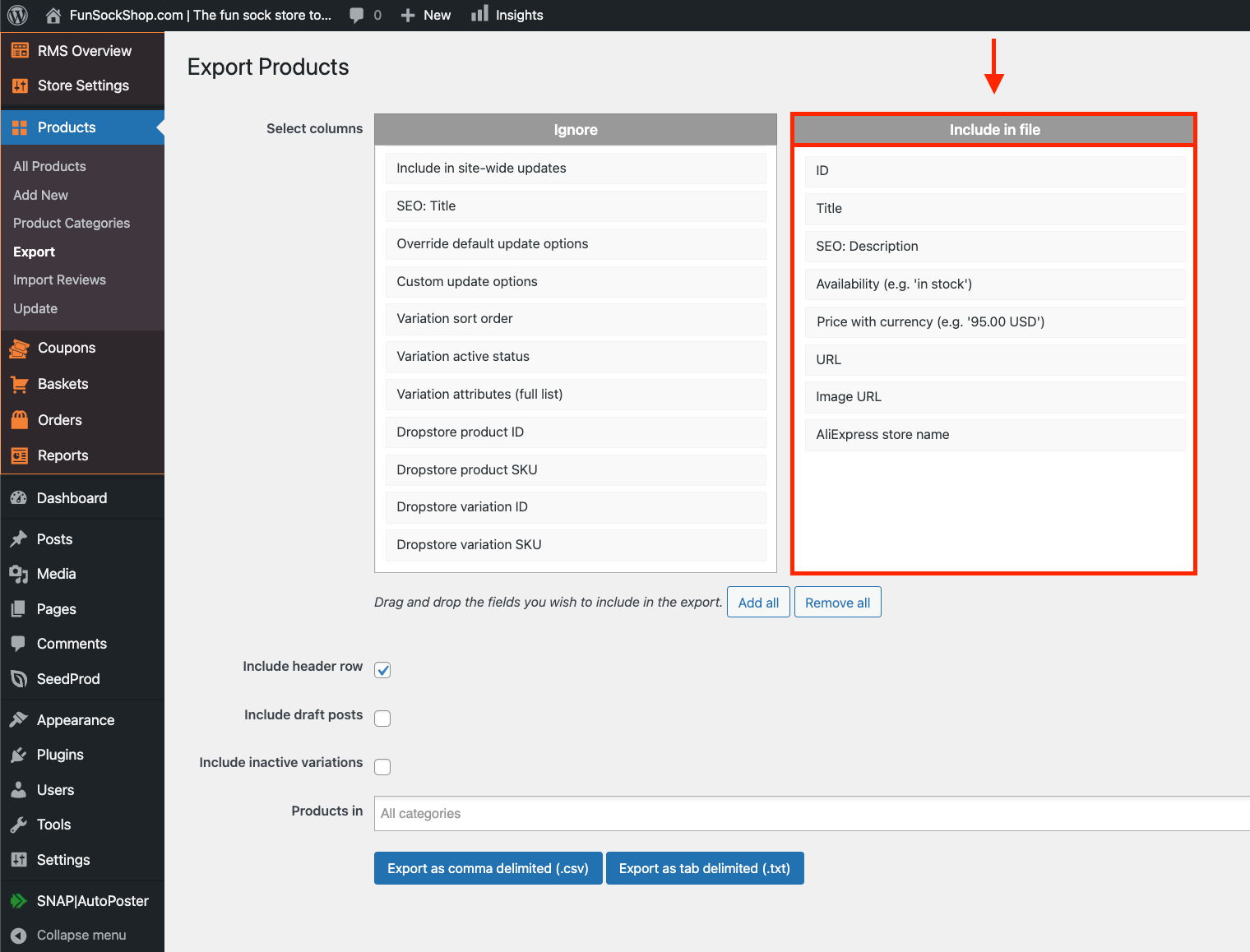
Tick the checkbox labelled 'Include header row' and ensure that the other tick-boxes (beneath) are left unchecked:
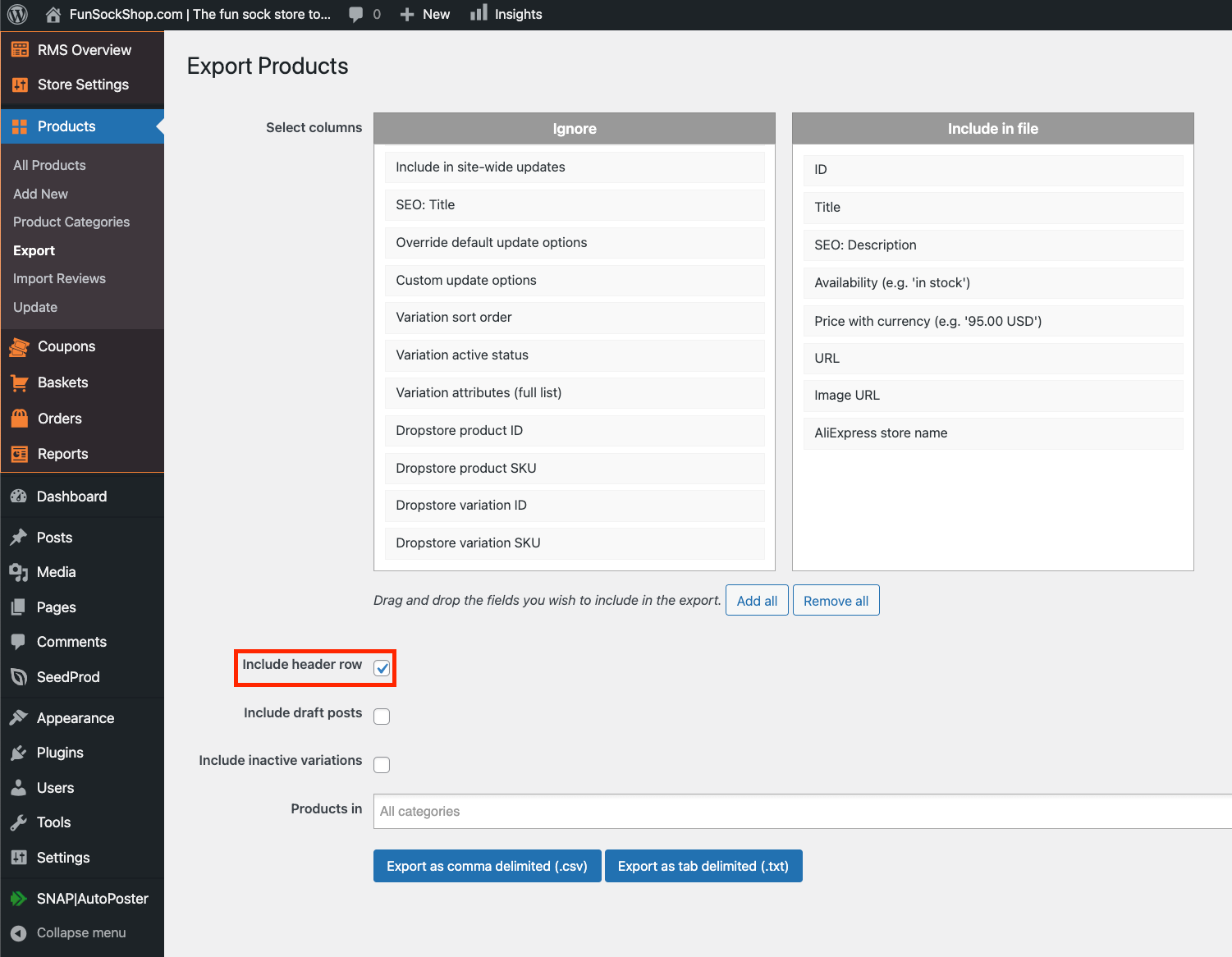
Optional: choose specific product categories, or click 'All'/leave blank within 'Products in' to upload products featured in all categories:
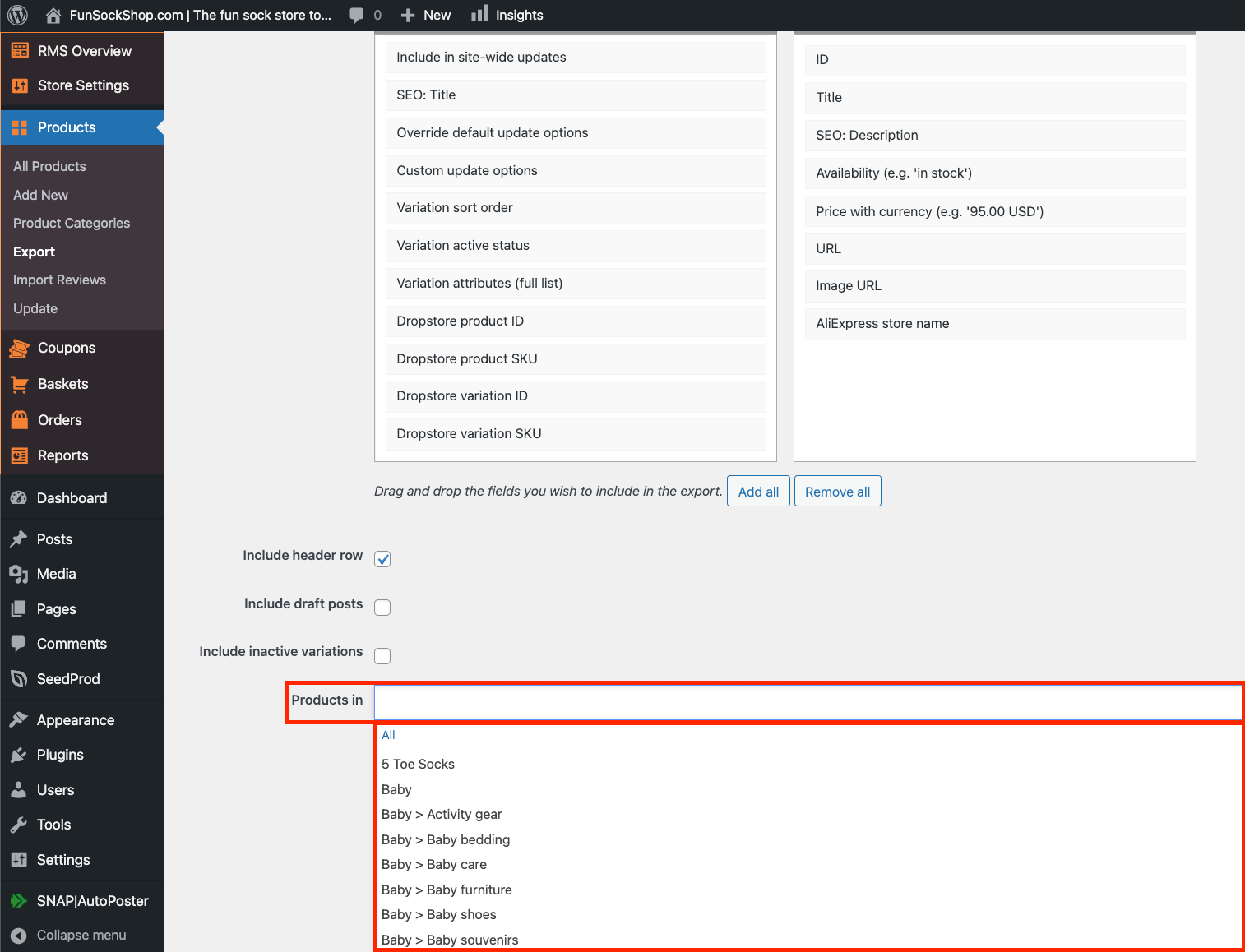
Click 'Export as comma delimited (.csv)' at the bottom:
Please note: the time it takes to export is dependant on how many products are contained within a store, how many product categories are selected within 'Products in', and signal strength.
Once exported, the '.csv' file will more than likely be in your 'Downloads' folder, unless downloads have been defaulted to another location:
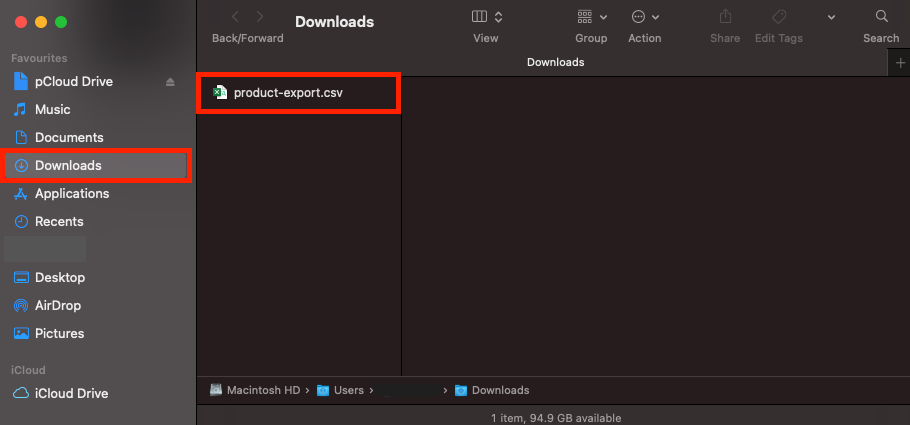
Please note: for those who do not have Microsoft Excel, you will need to upload the '.csv' file to 'Google Drive' to be able to open it.
Click this link to arrive at Google Drive: https://drive.google.com
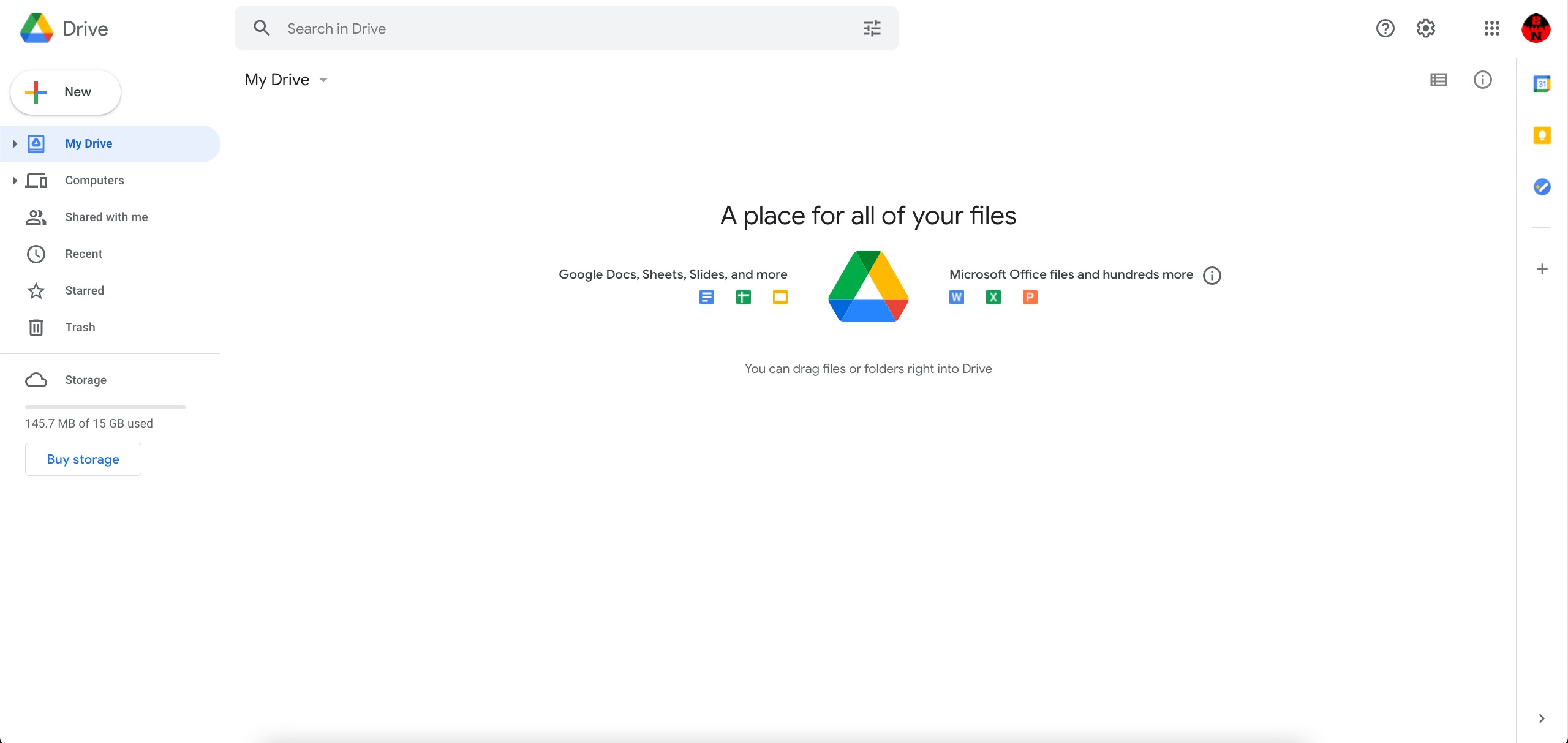
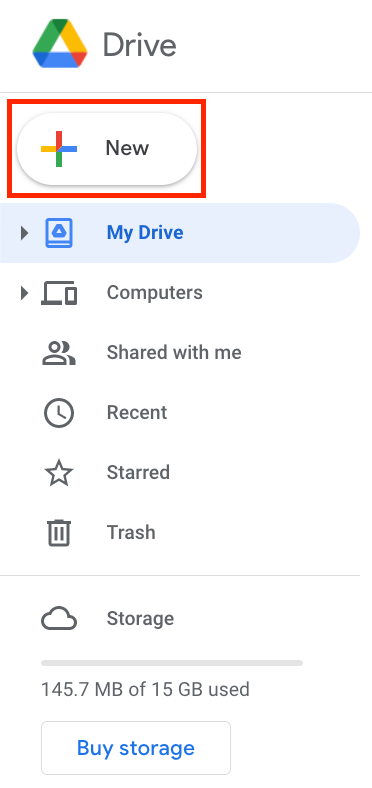
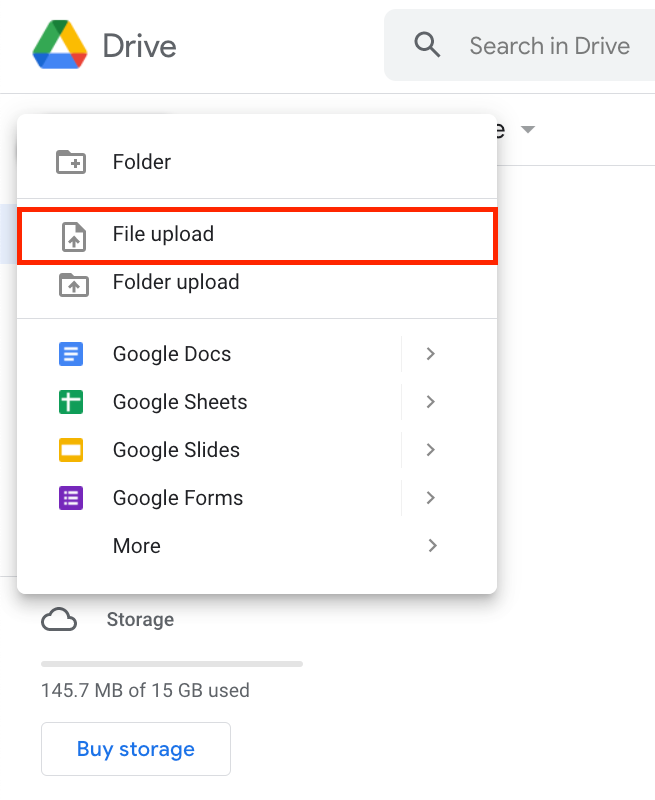
Click 'New':
Click 'File upload':
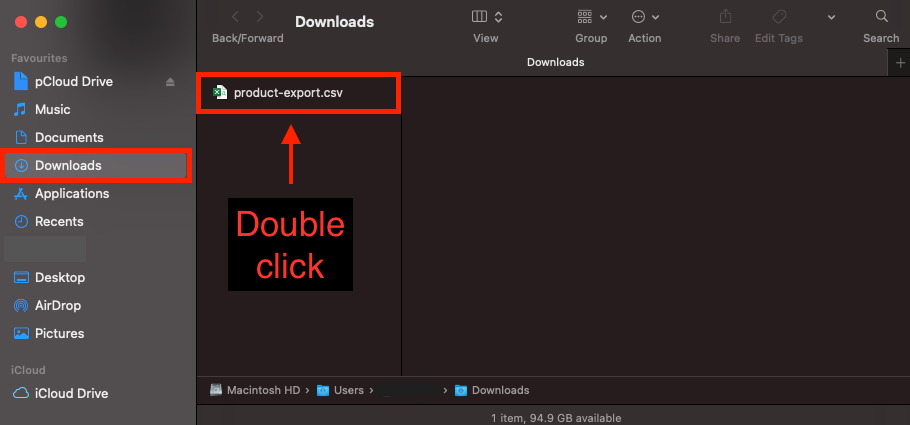
Navigate to your 'Downloads' folder (or wherever the '.csv' file was downloaded to) and double click it:
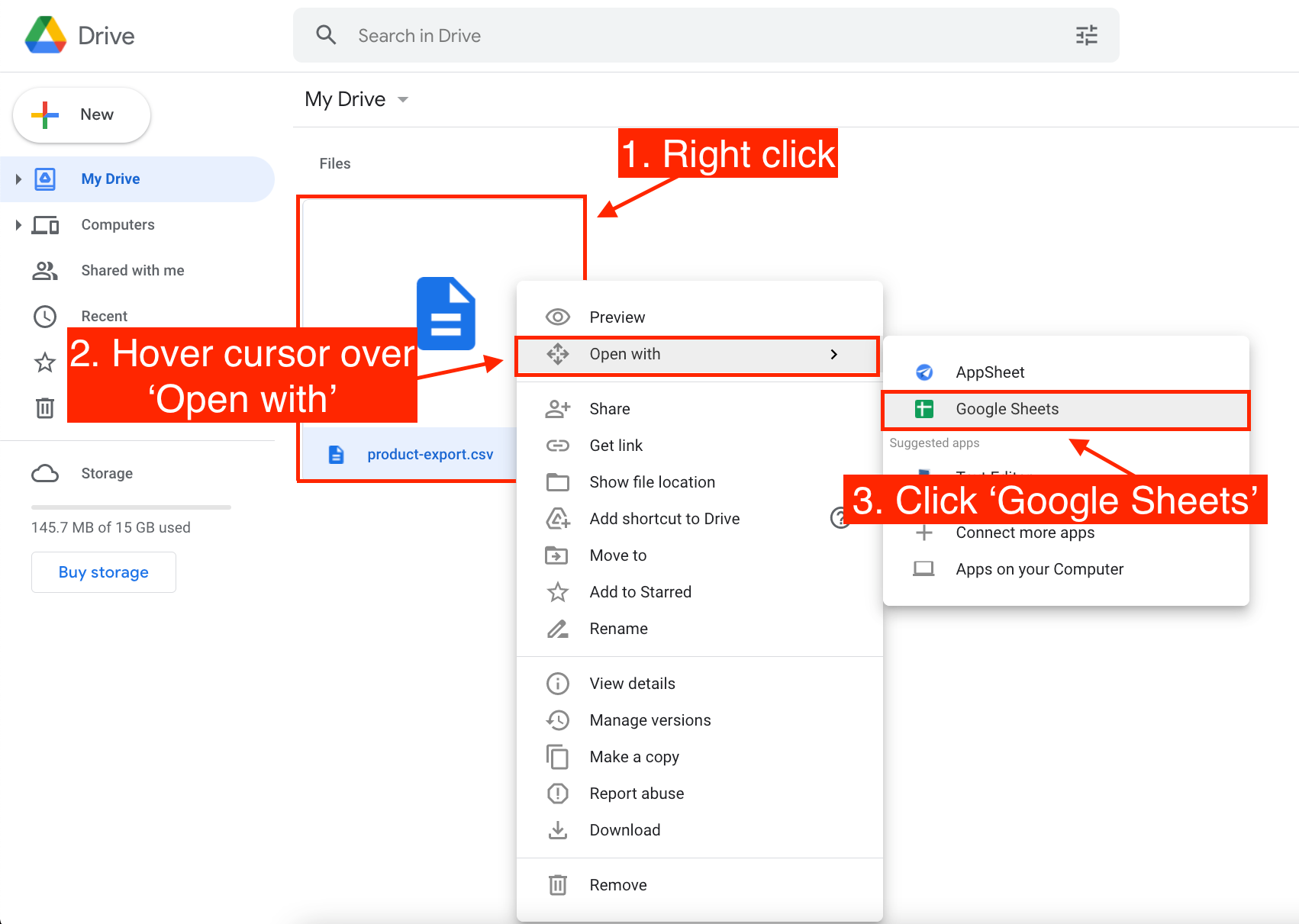
Once your '.csv' file has uploaded to 'Google Drive':
(1. Right click on it) > (2. Hover your cursor over 'Open With') > (3. Click 'Google Sheets')
The Google Sheet will then open like this:
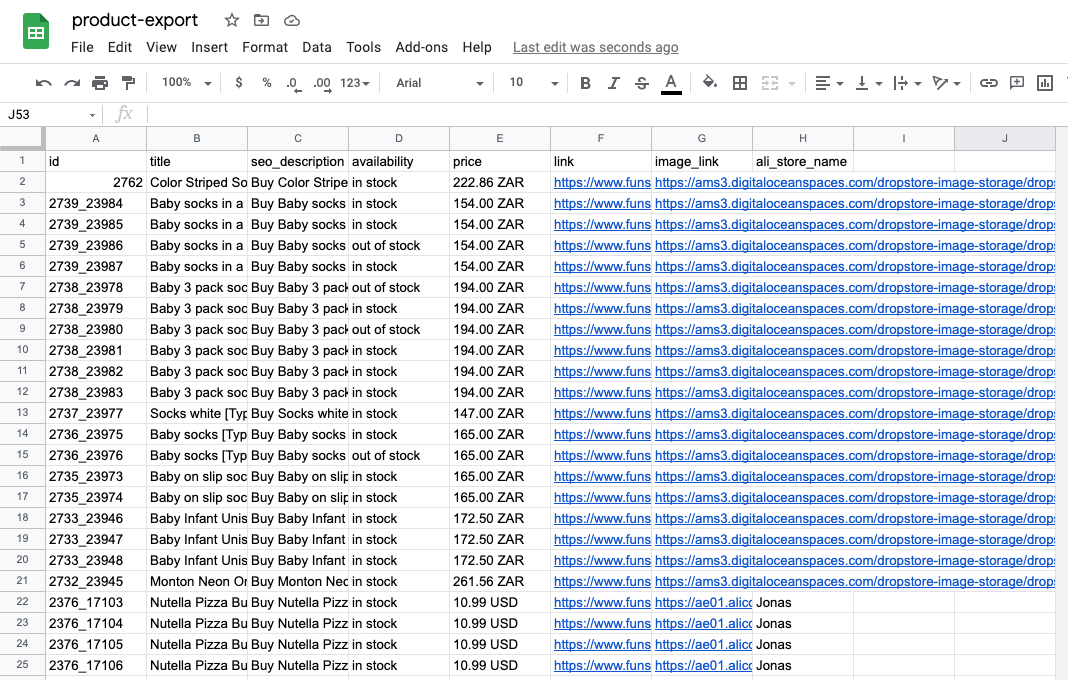
Double click the heading 'seo_description' to edit it:
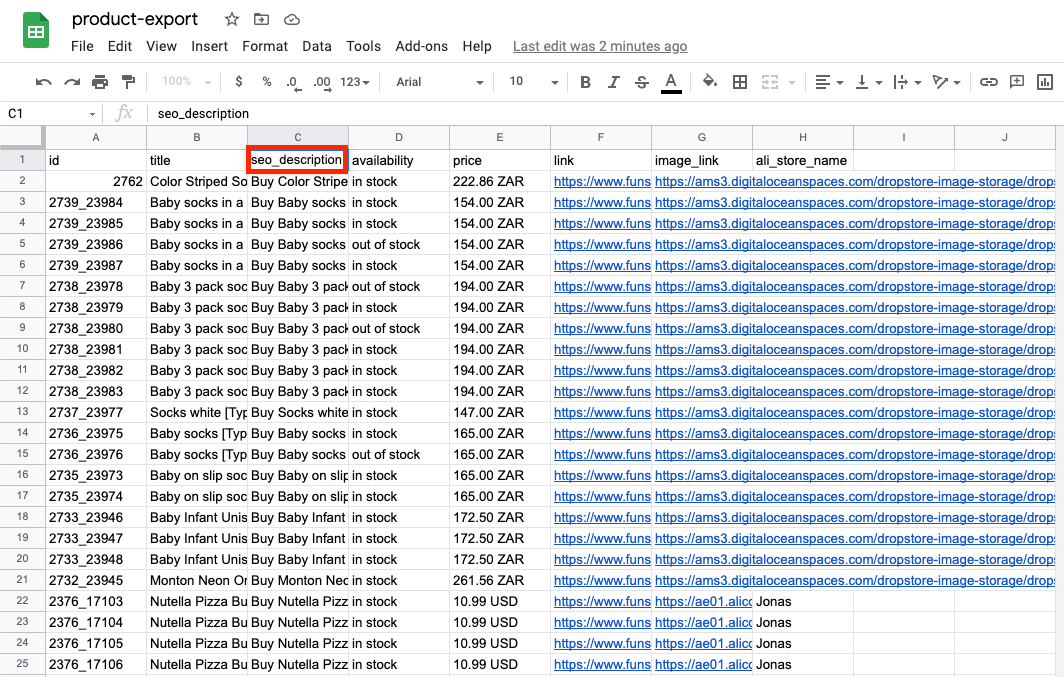
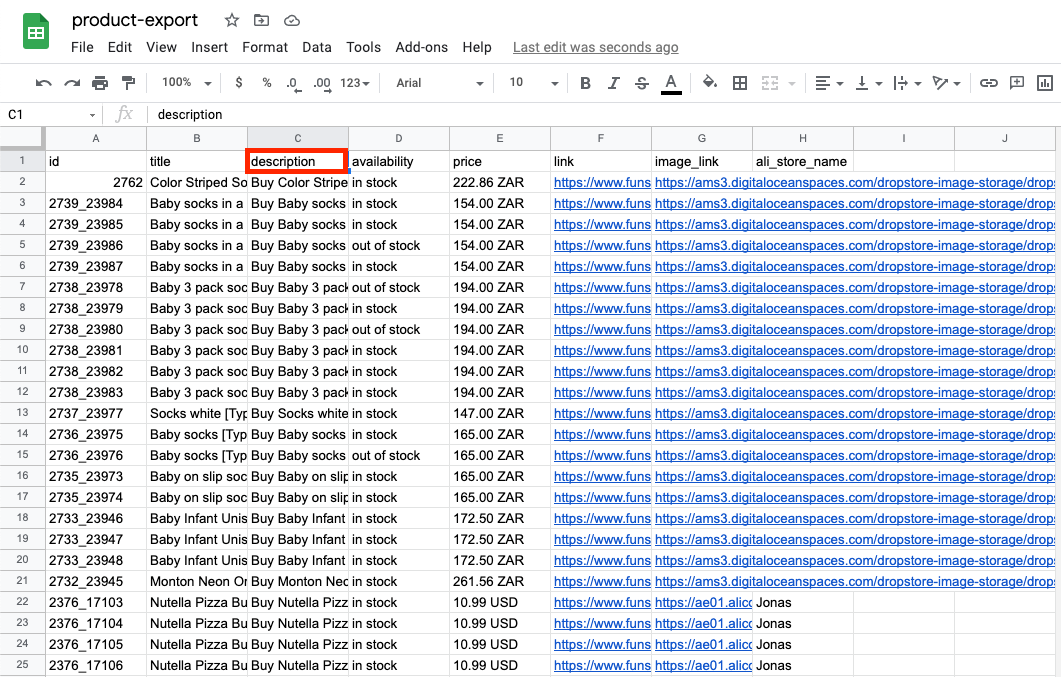
Change 'seo_description' to 'description':
Double click the heading 'ali_store_name' to edit it:
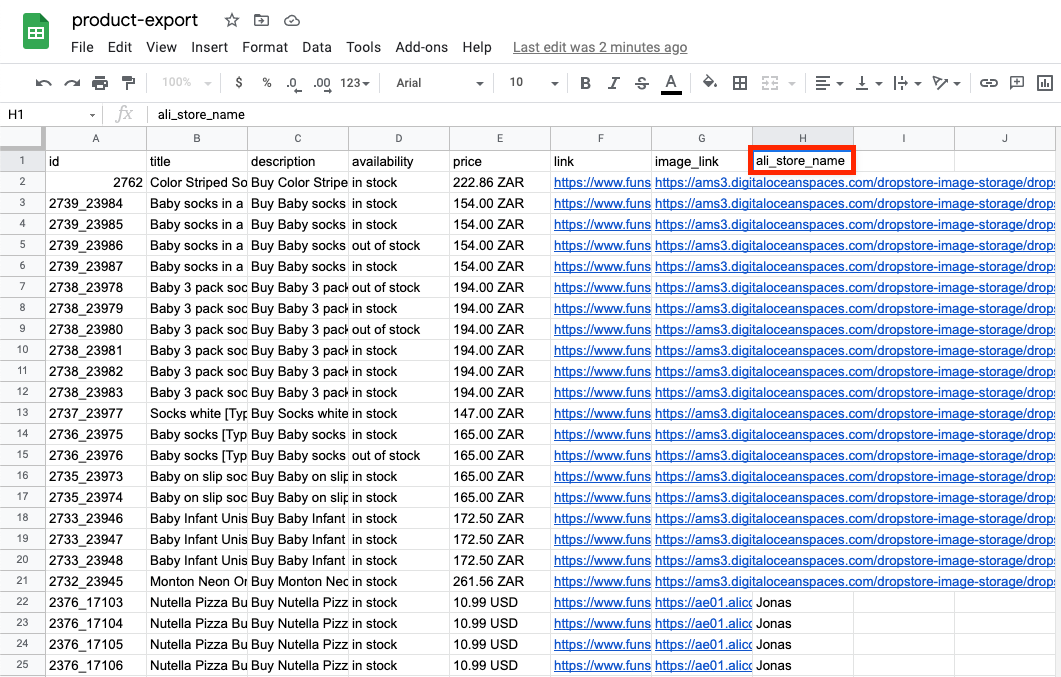
Change 'ali_store_name' to 'brand':
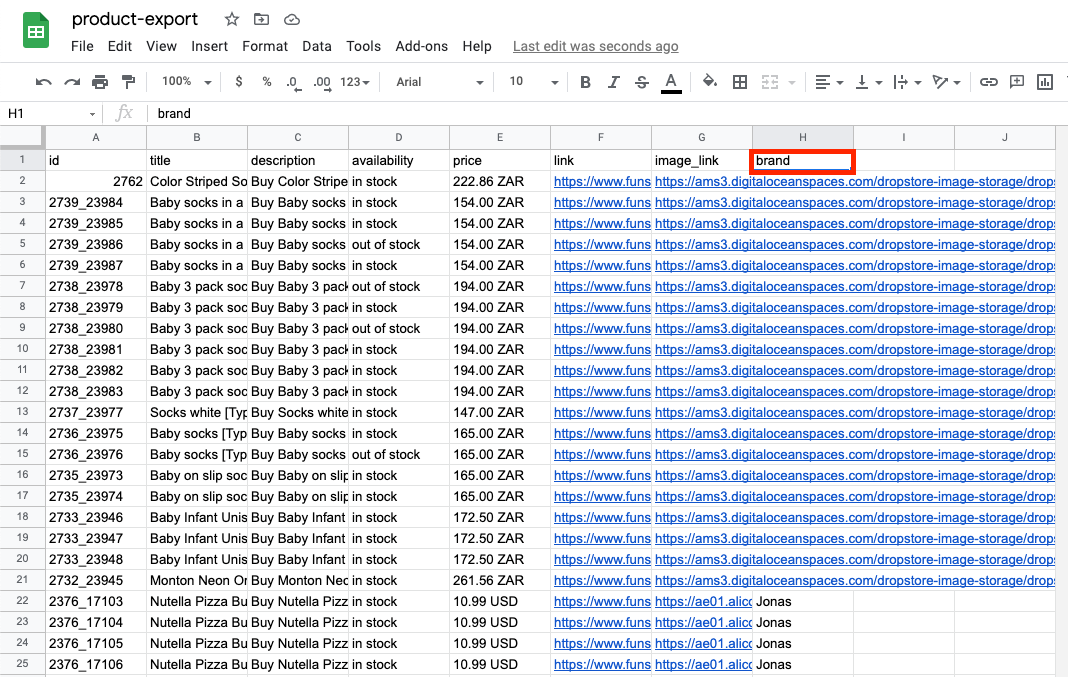
After the above amendments have been made:
(1. Click 'File') > (2. Hover your cursor over 'Download') > (3. Click 'Tab-separated values')

Please note: if you haven't already done so, create a Google Merchant account by following this guide:
https://support.google.com/merchants/answer/188924
Click this link to arrive at Google Merchant Center: https://merchants.google.com/
Please note: if you are not already logged into your Google Merchant Account, you will be prompted to do so.
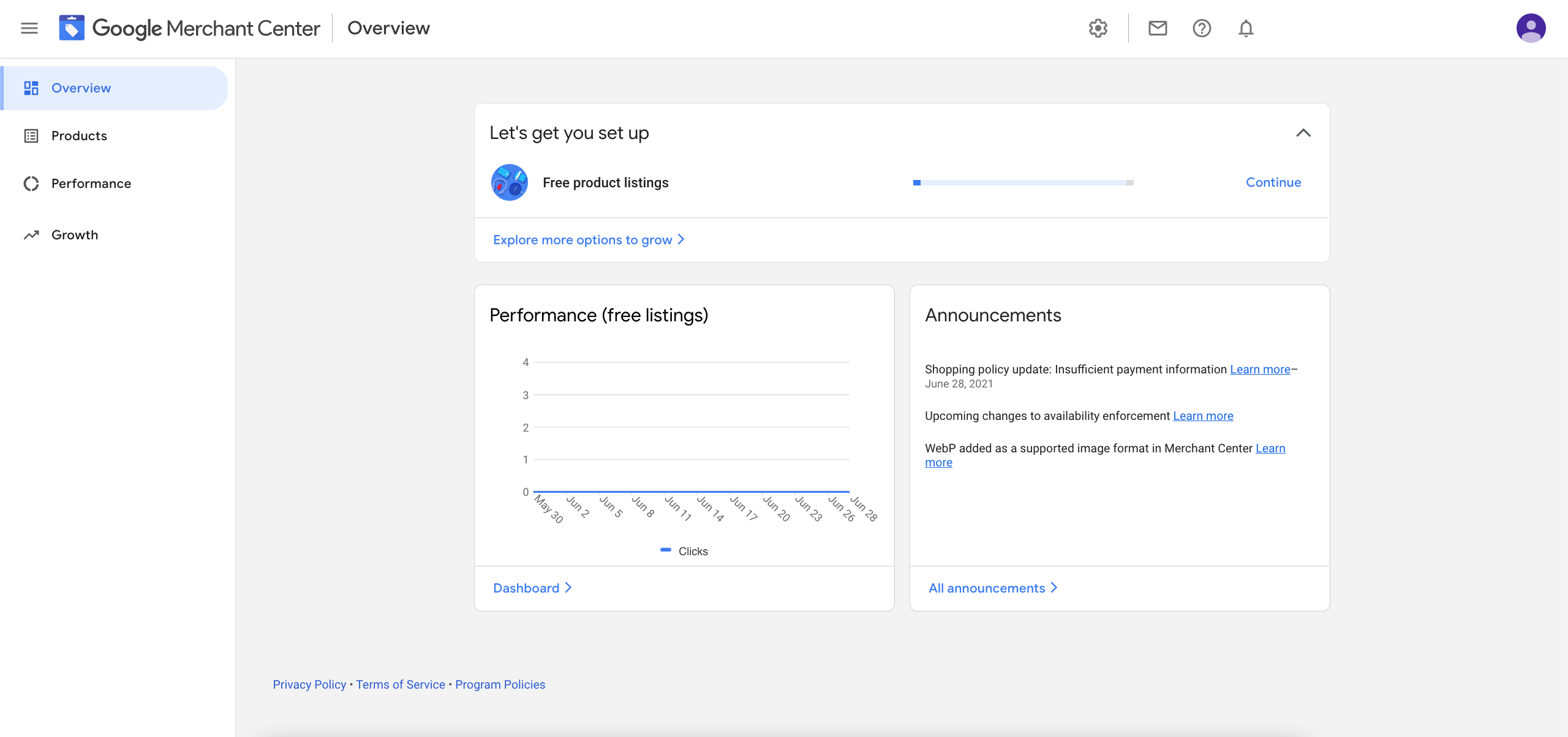
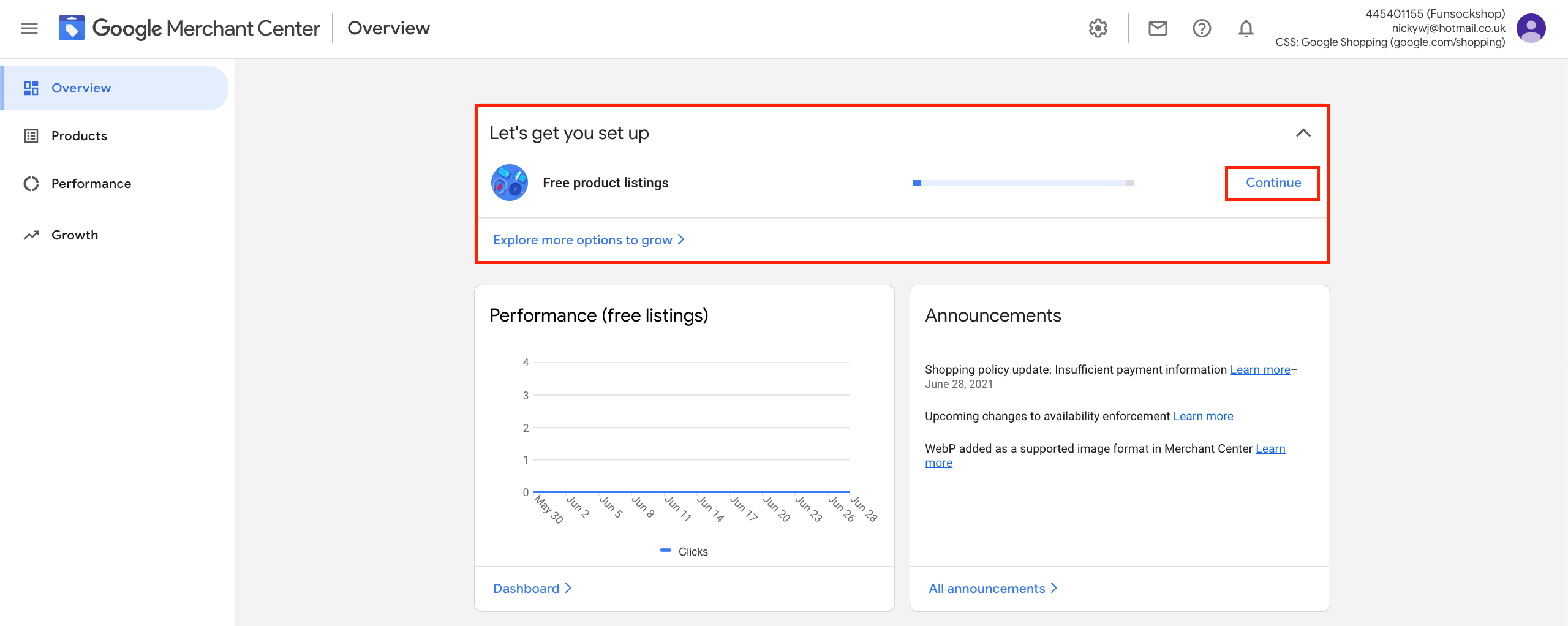
Under 'Let's get you set up', click 'Continue':
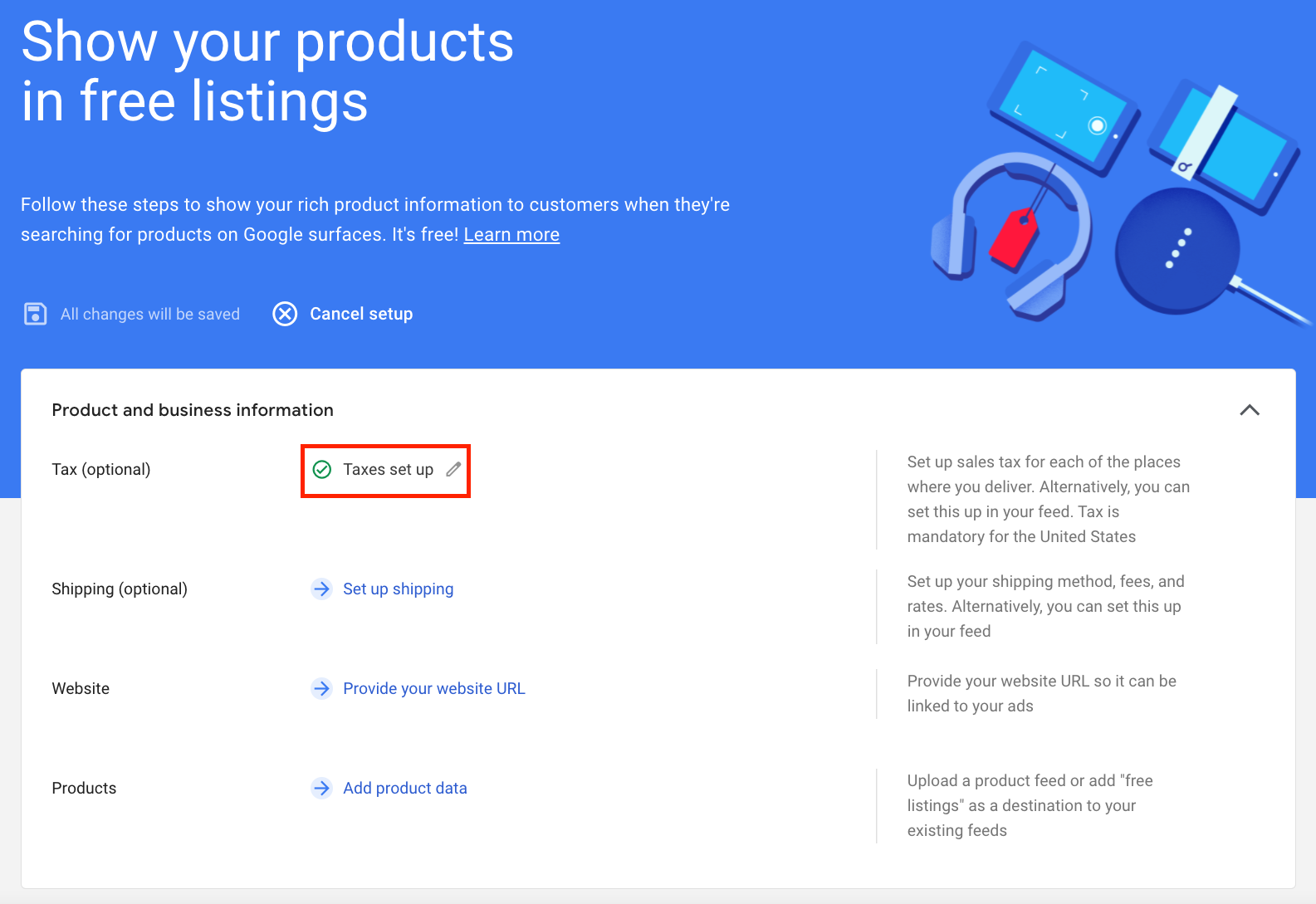
Click on 'Taxes' to edit it:
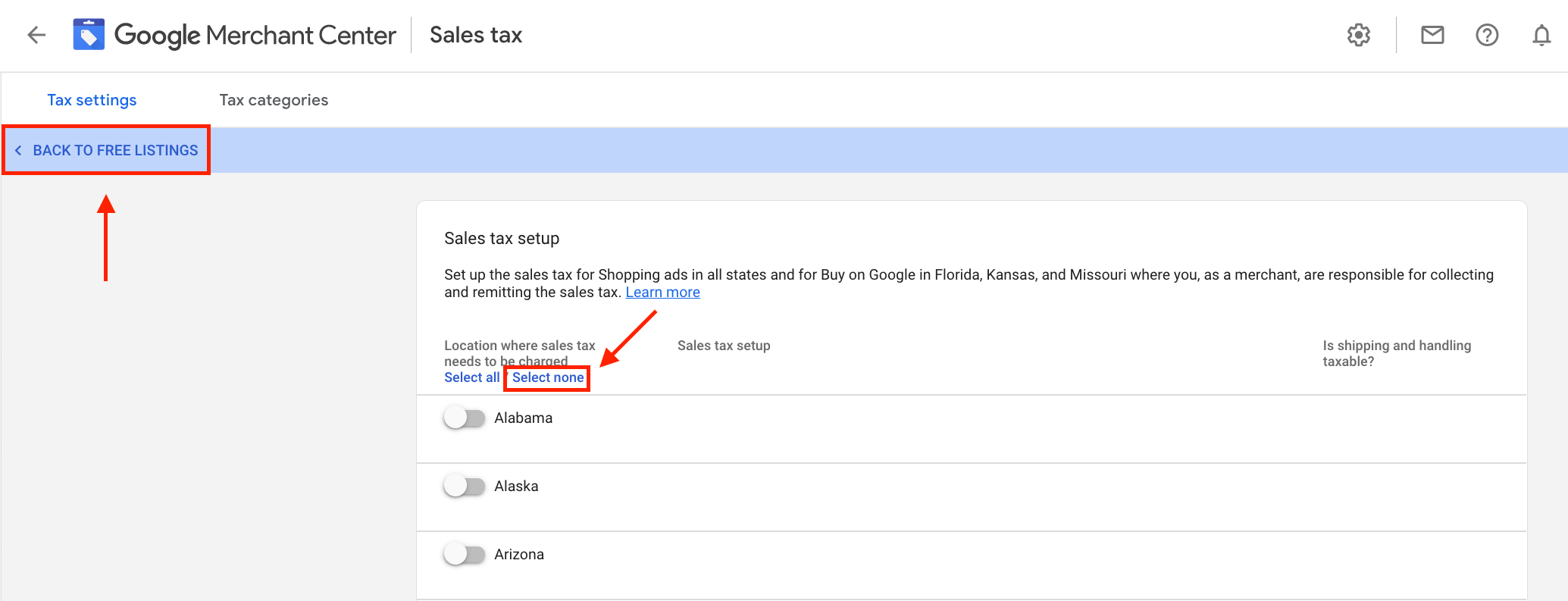
Click 'Select none' and then click 'BACK TO FREE LISTINGS':
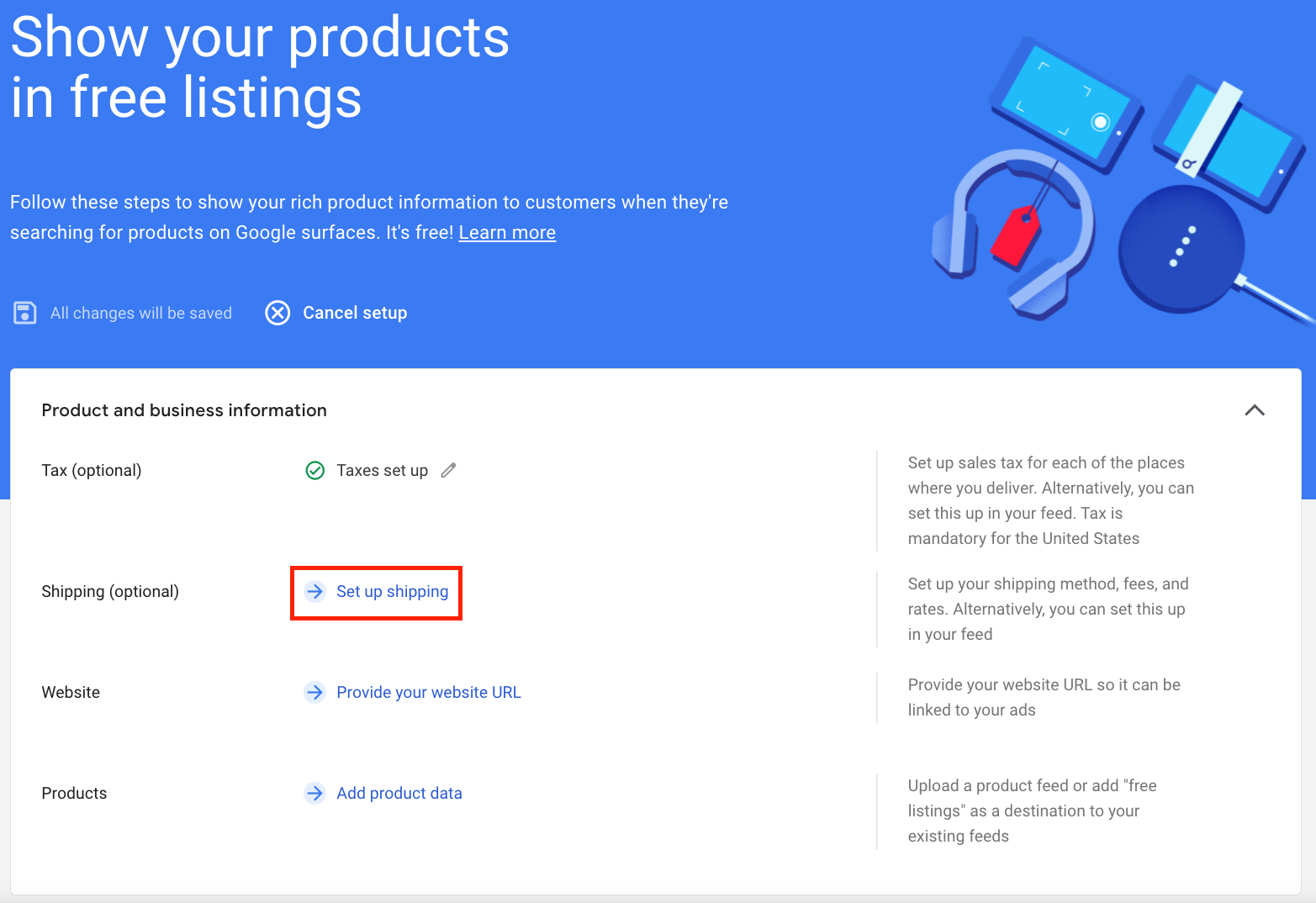
Click 'Set up shipping':
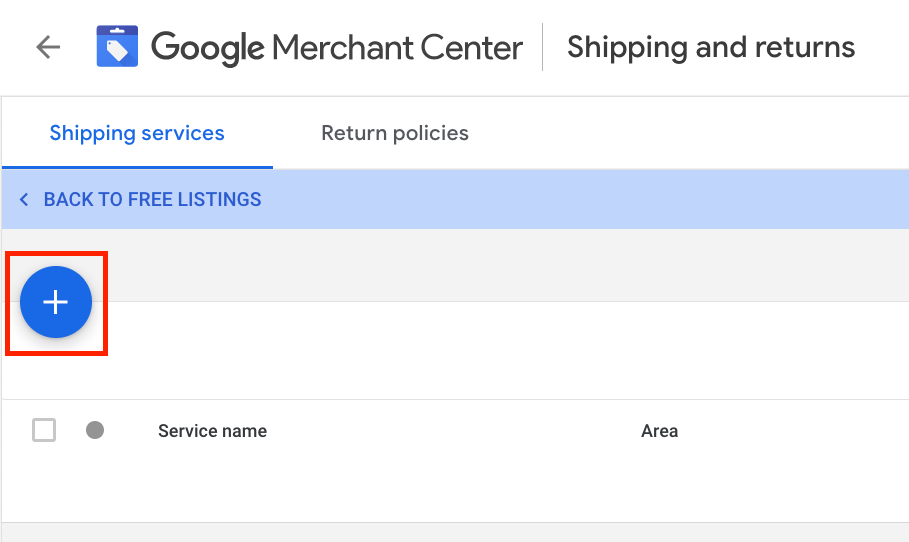
Click the '+' icon:
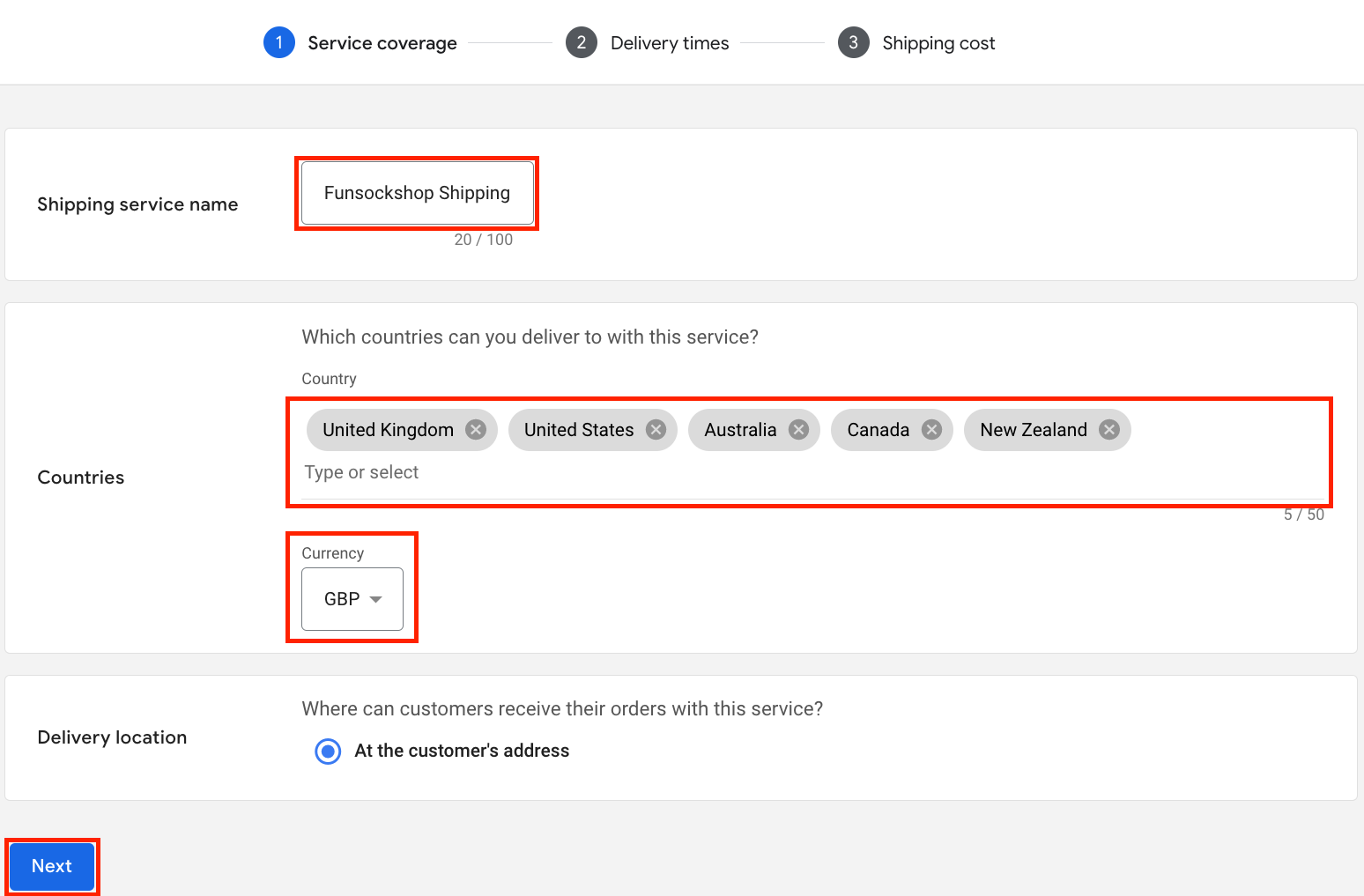
Name the 'Shipping service name' whatever you wish, select which 'Countries' your store ships to and the 'Currency' of your store, and click 'Next':
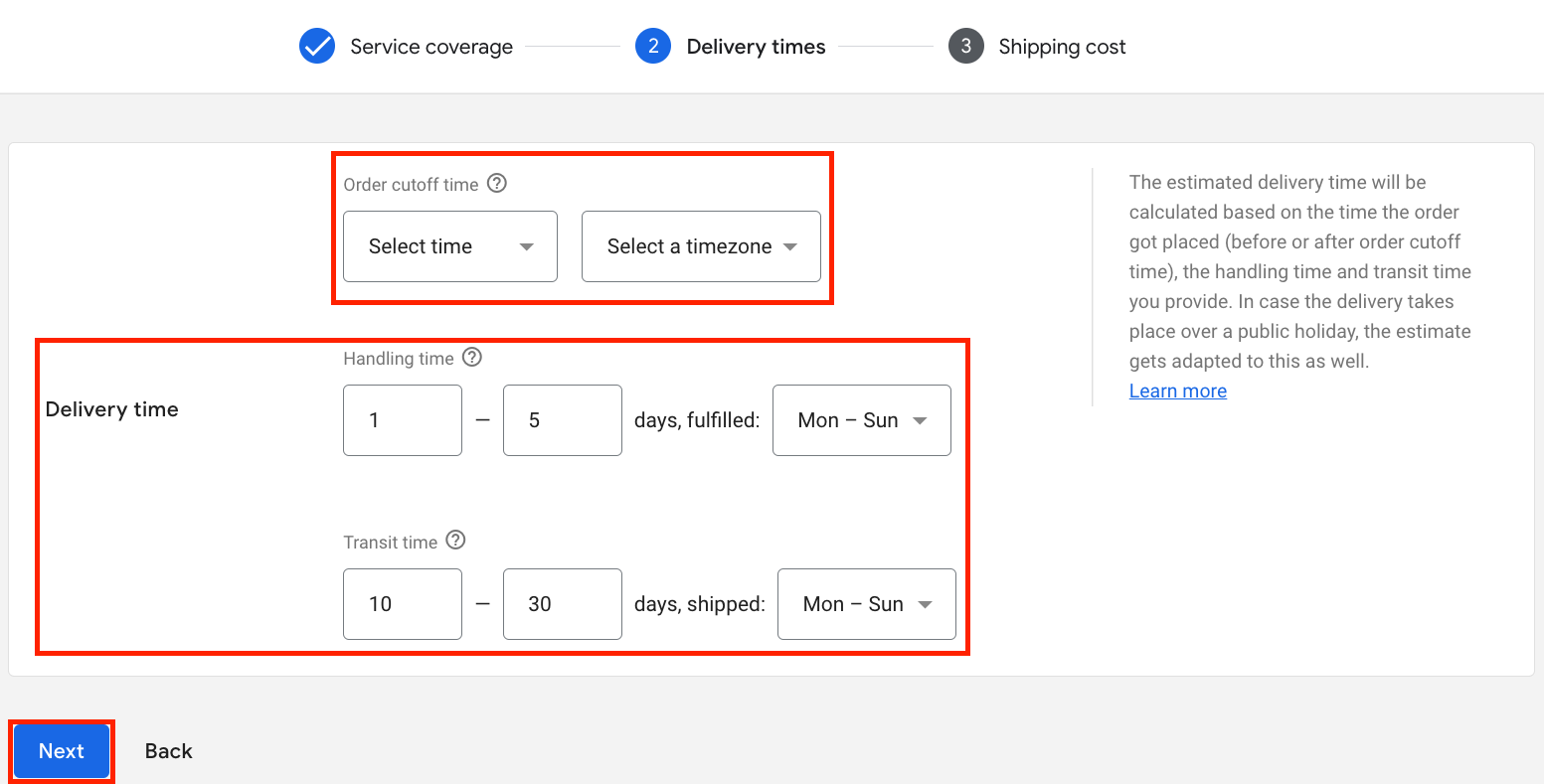
Choose an 'Order cutoff time' (or leave blank if no cutoff), copy the 'Delivery time' below (if products are from AliExpress) and click 'Next':
Handling time:
1 - 5 days, fulfilled Mon - Sun
Transit time
10 - 30 days, shipped Mon - Sun
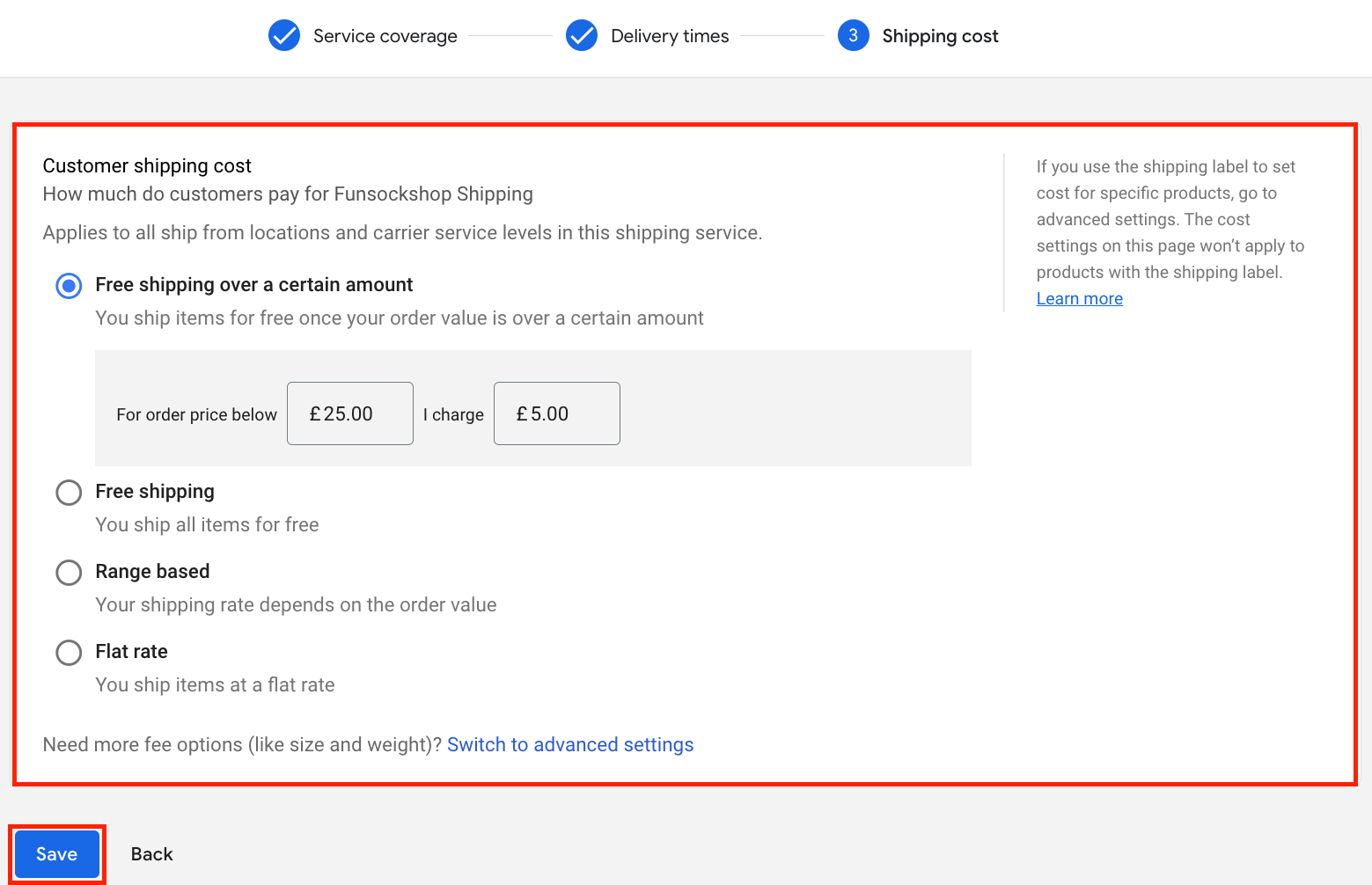
Select the 'Customer shipping cost' that your store offers and click 'Save':
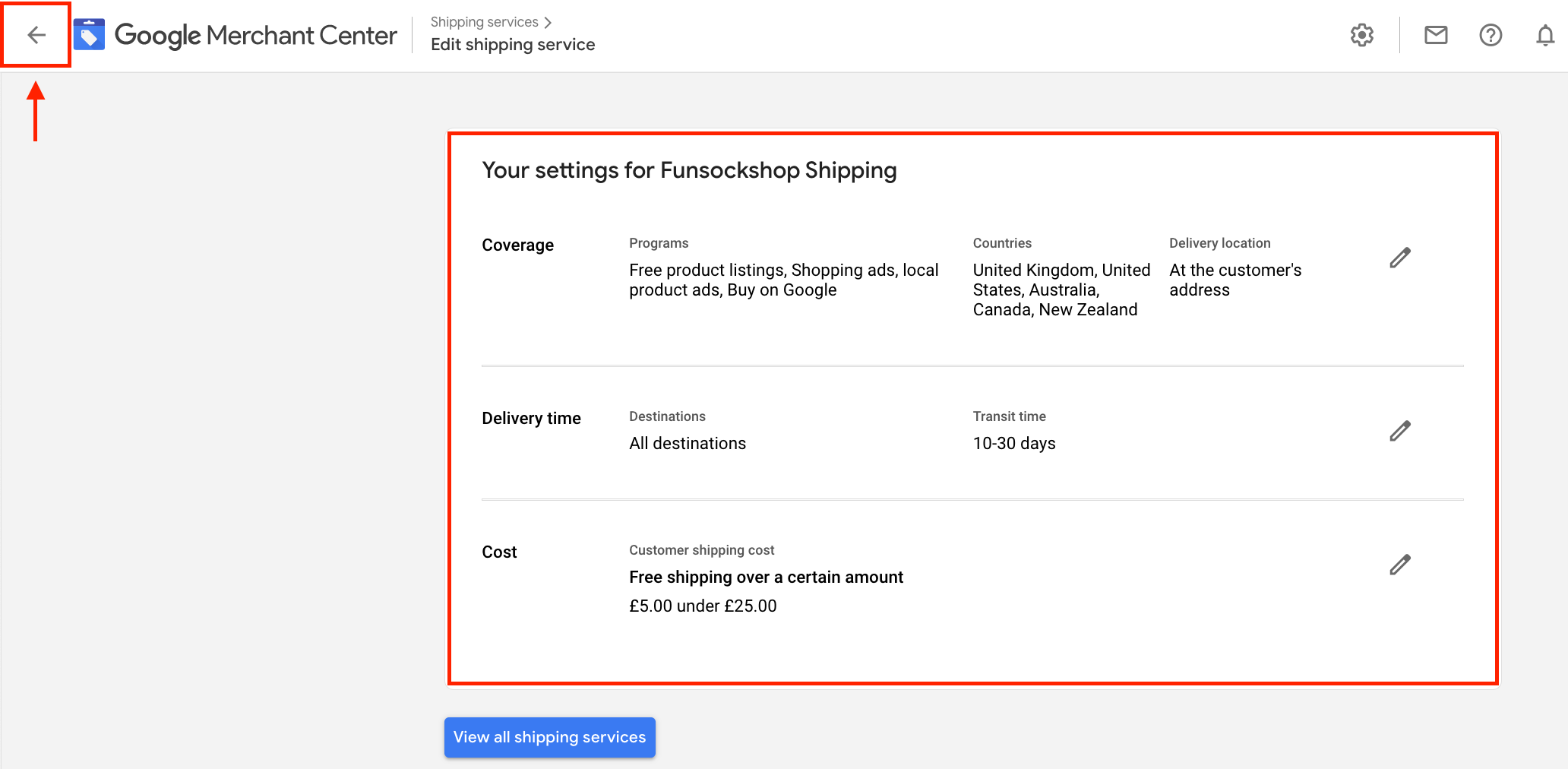
Review your shipping settings, and when happy, click this back arrow:
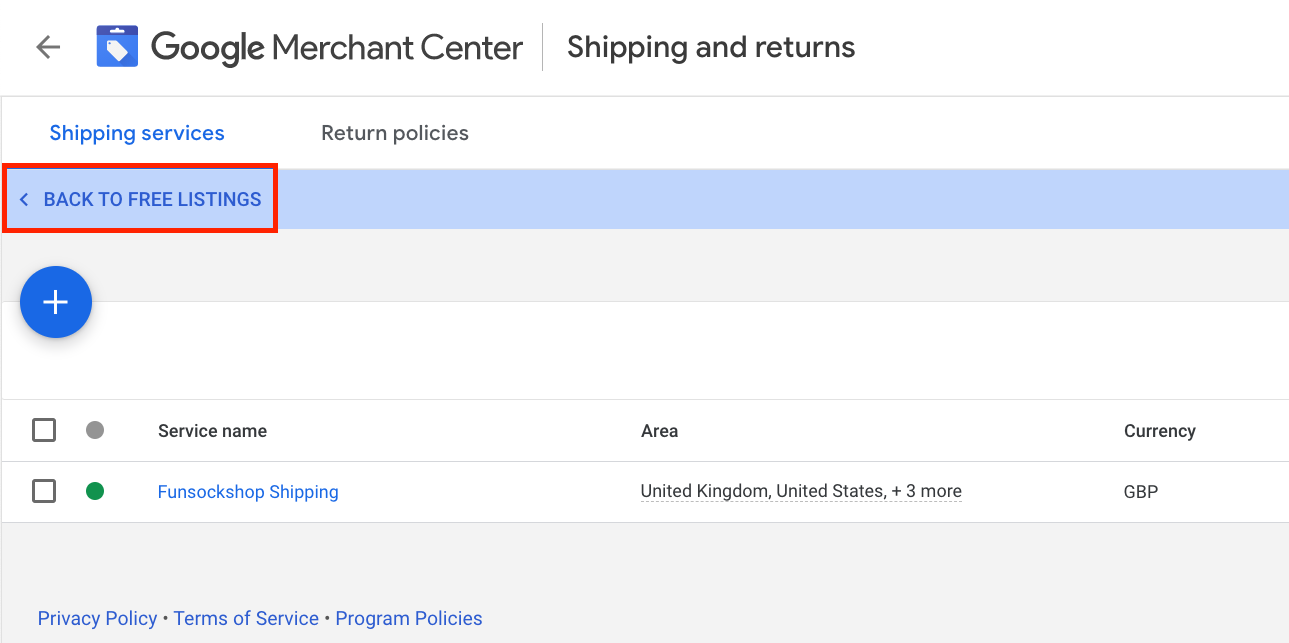
Click 'BACK TO FREE LISTINGS':
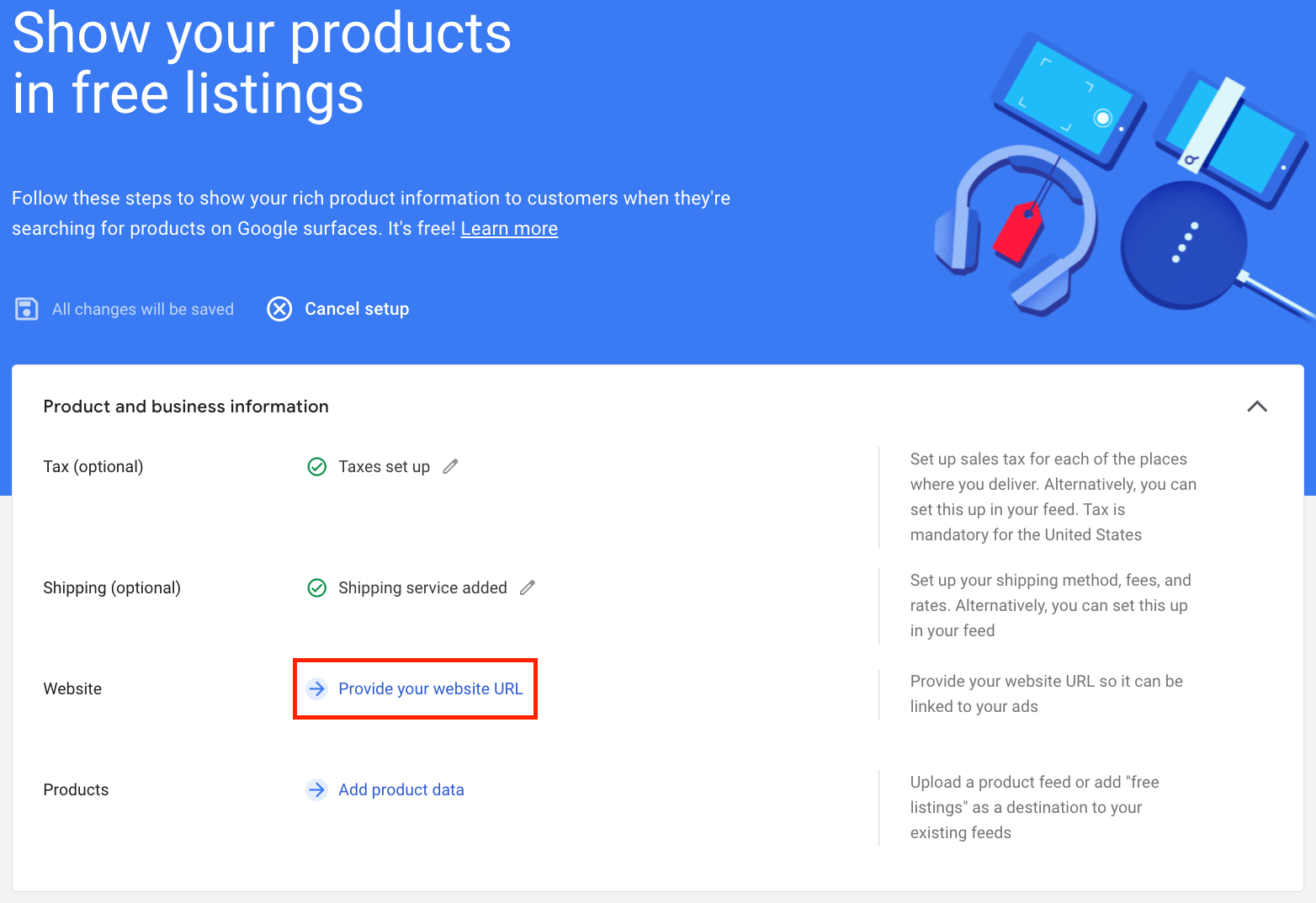
Click 'Provide your website URL':
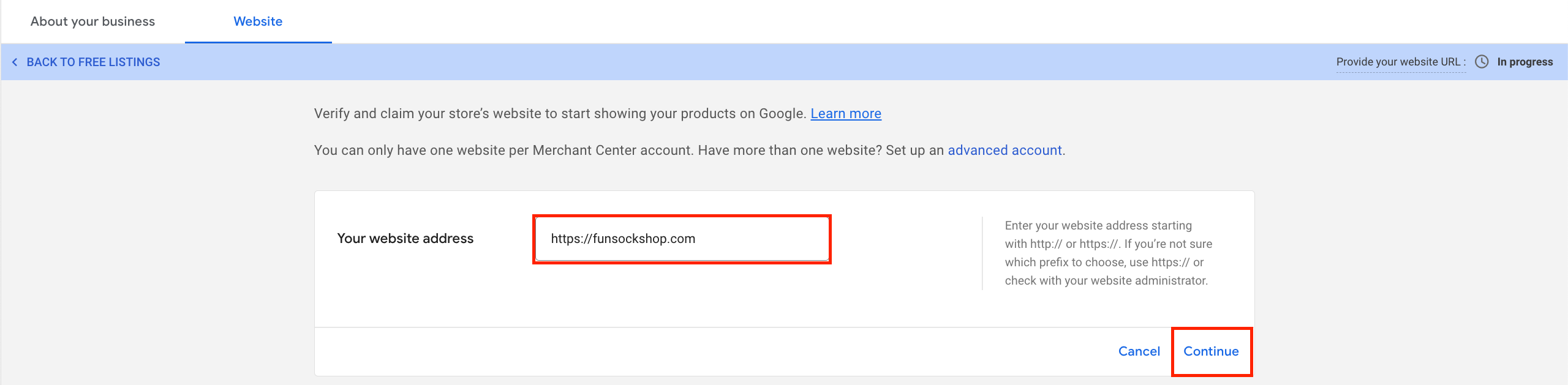
Enter 'Your website address' and click 'Continue'
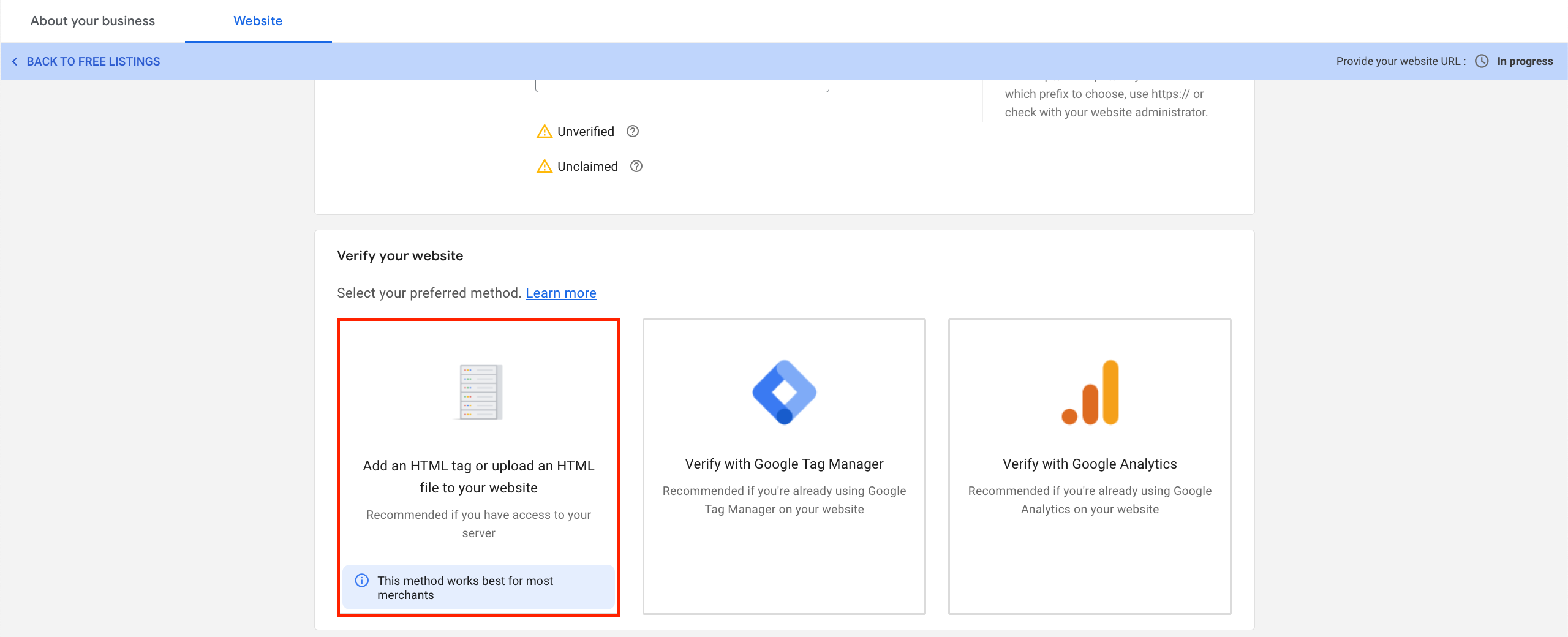
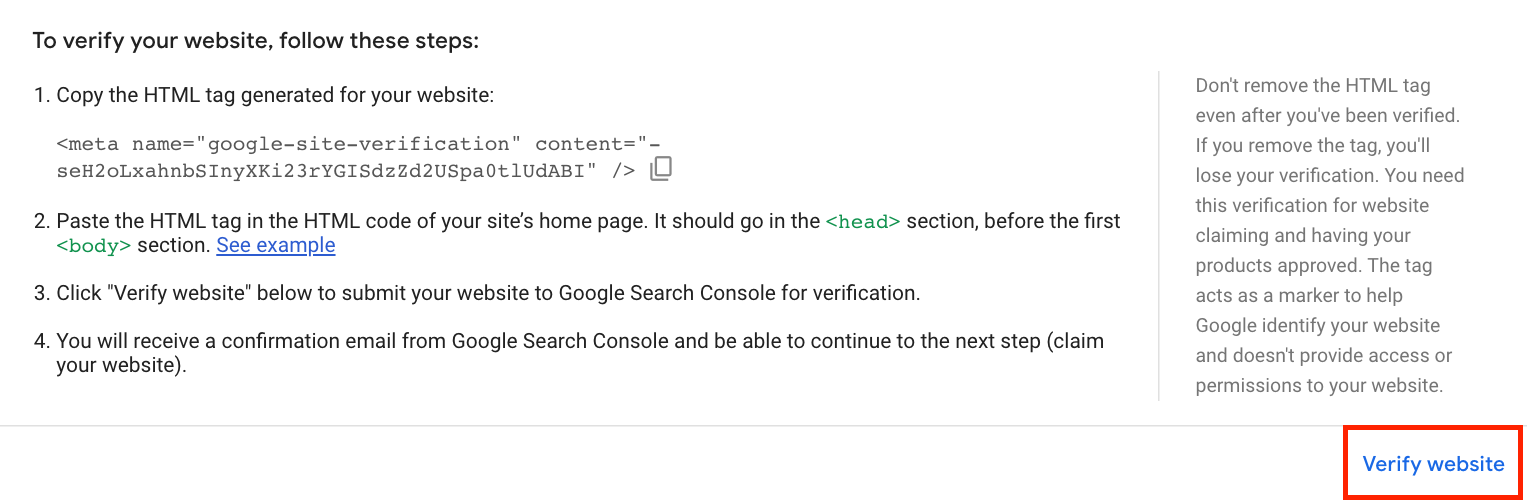
Scroll down and under the heading 'Verify your website', choose 'Add an HTML tag or upload an HTML file to your website':
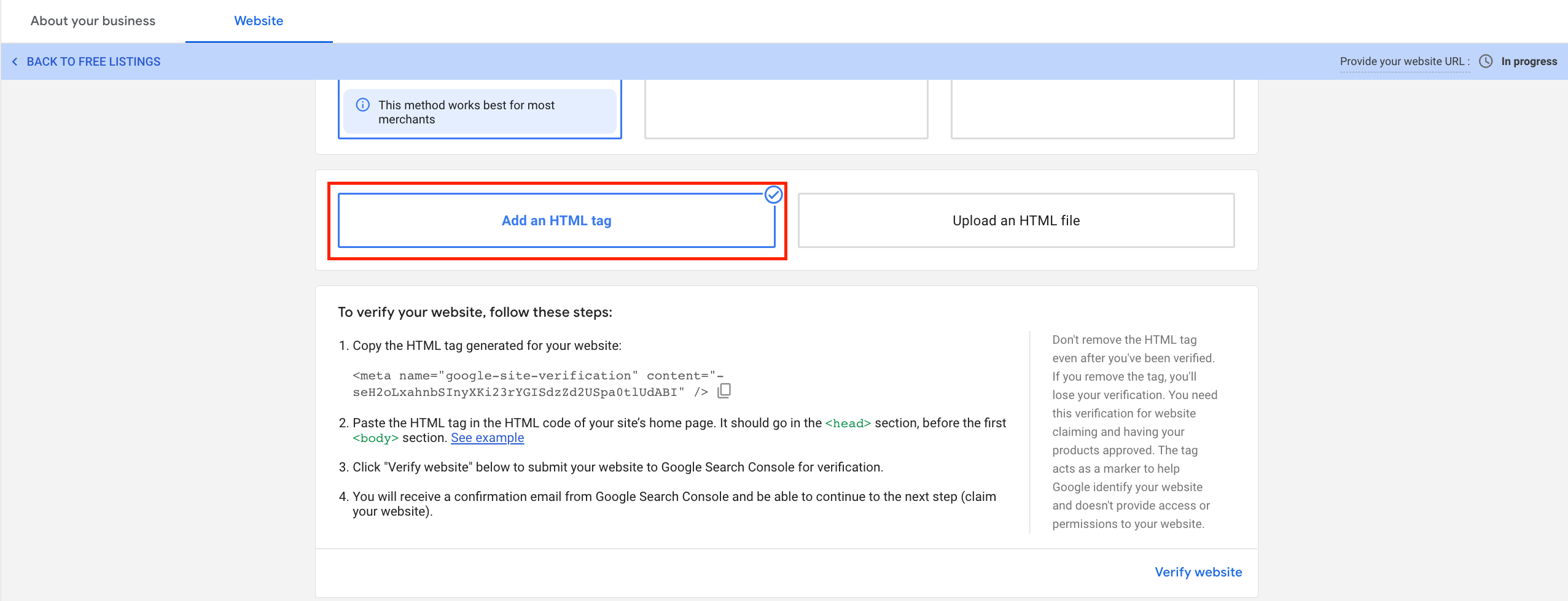
Scroll down and click 'Add an HTML tag':
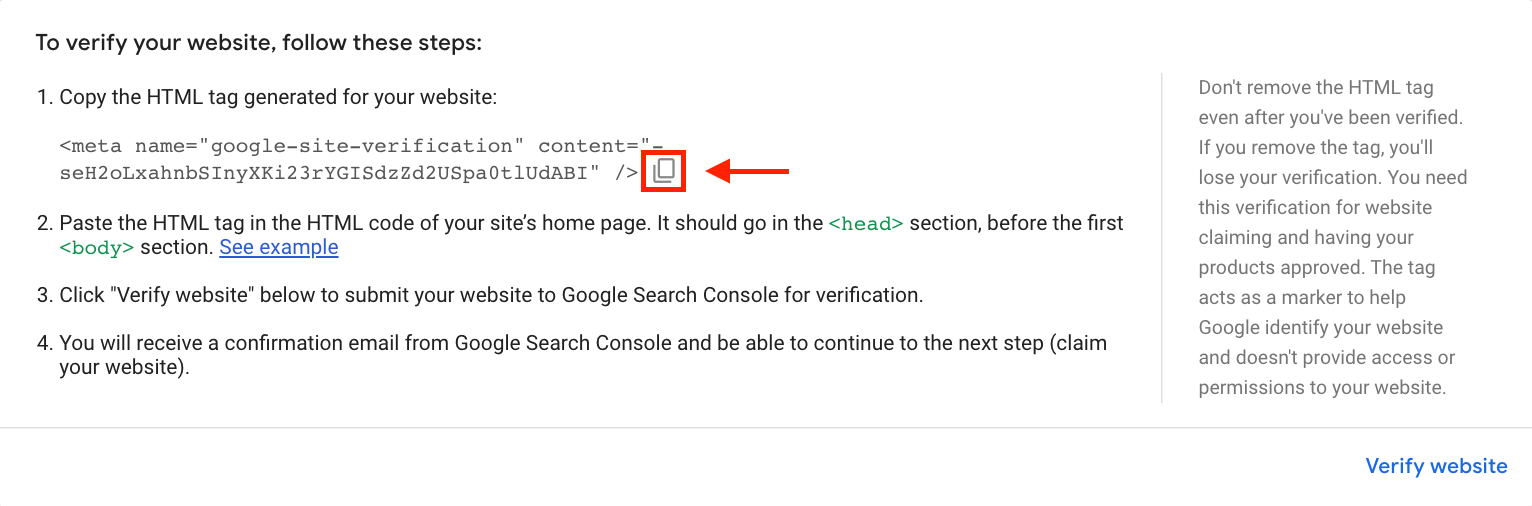
Click this icon to copy the 'HTML tag':
Open a new tab in your browser and log into your store backend:
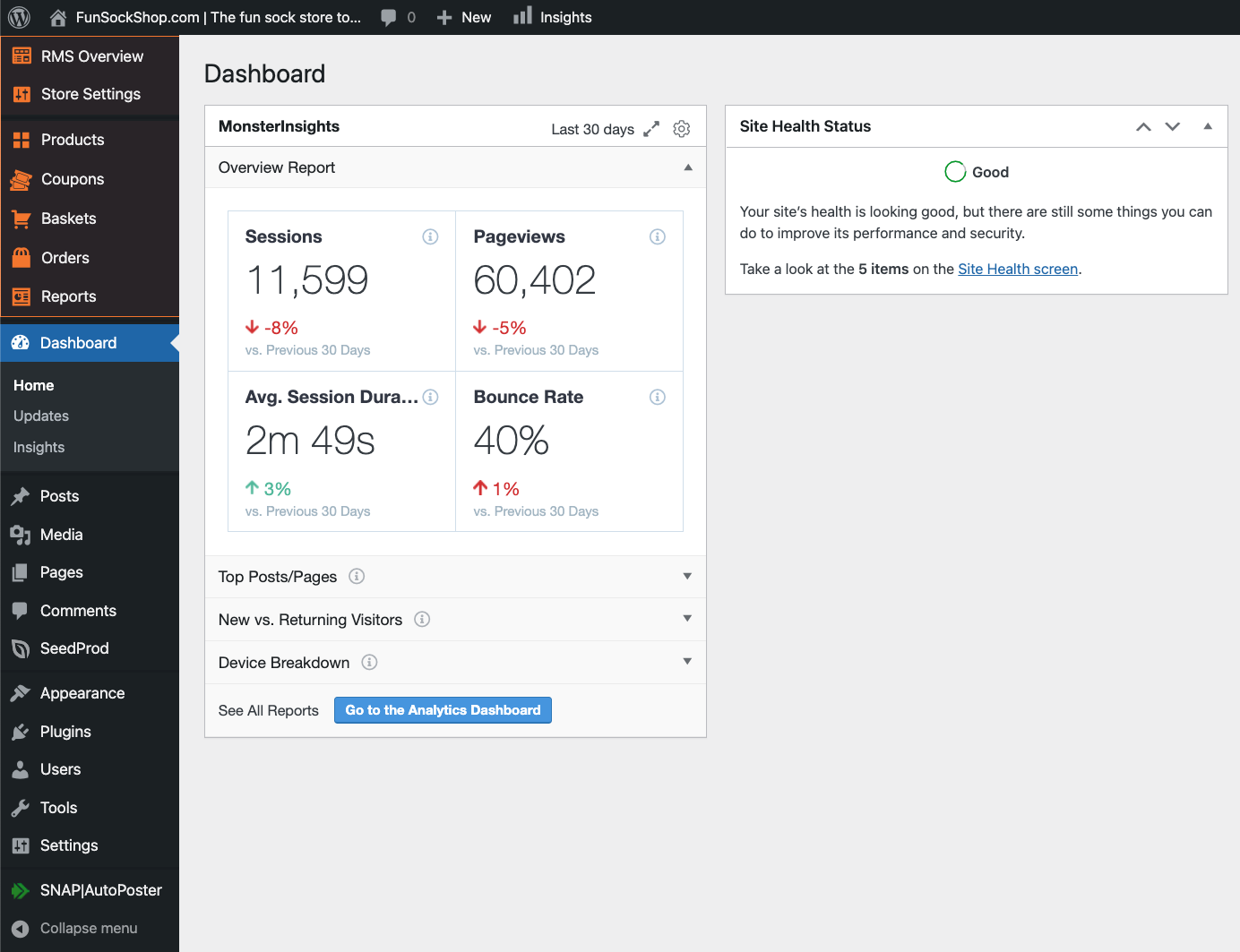
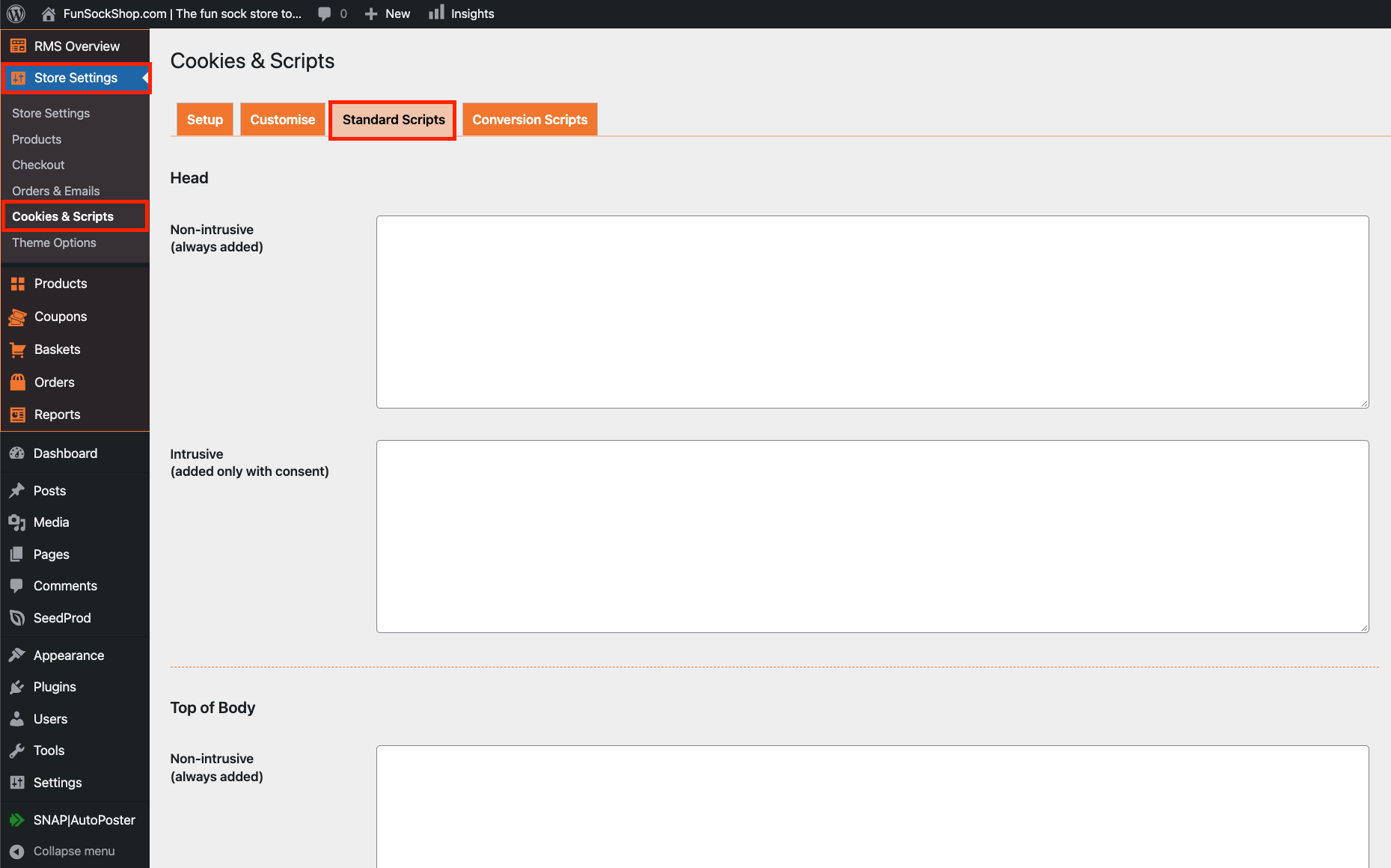
From your store backend, navigate to:
> Store Settings > Cookies & Scripts > Standard Scripts
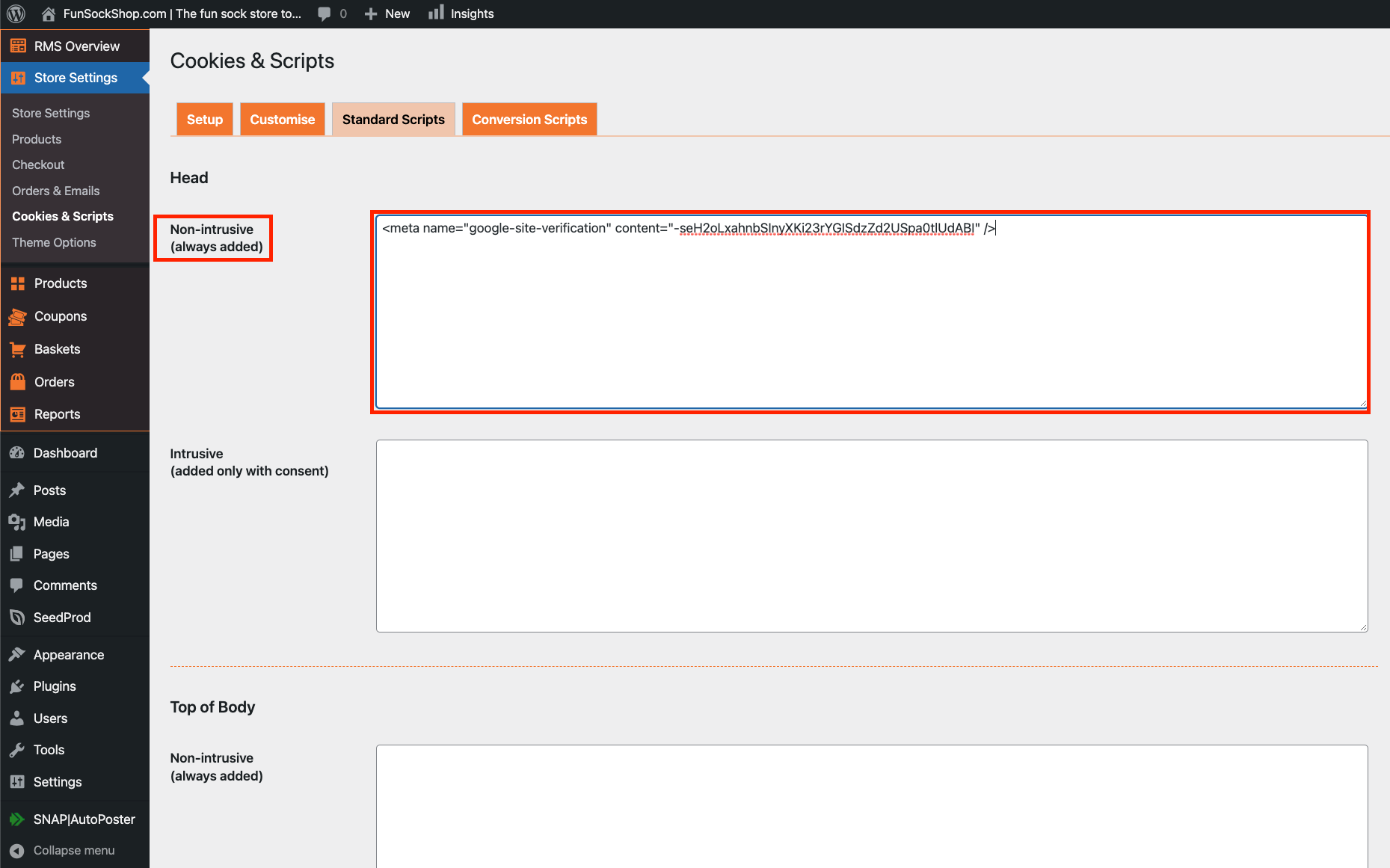
Right click inside the top box ('Non-intrusive') and paste:
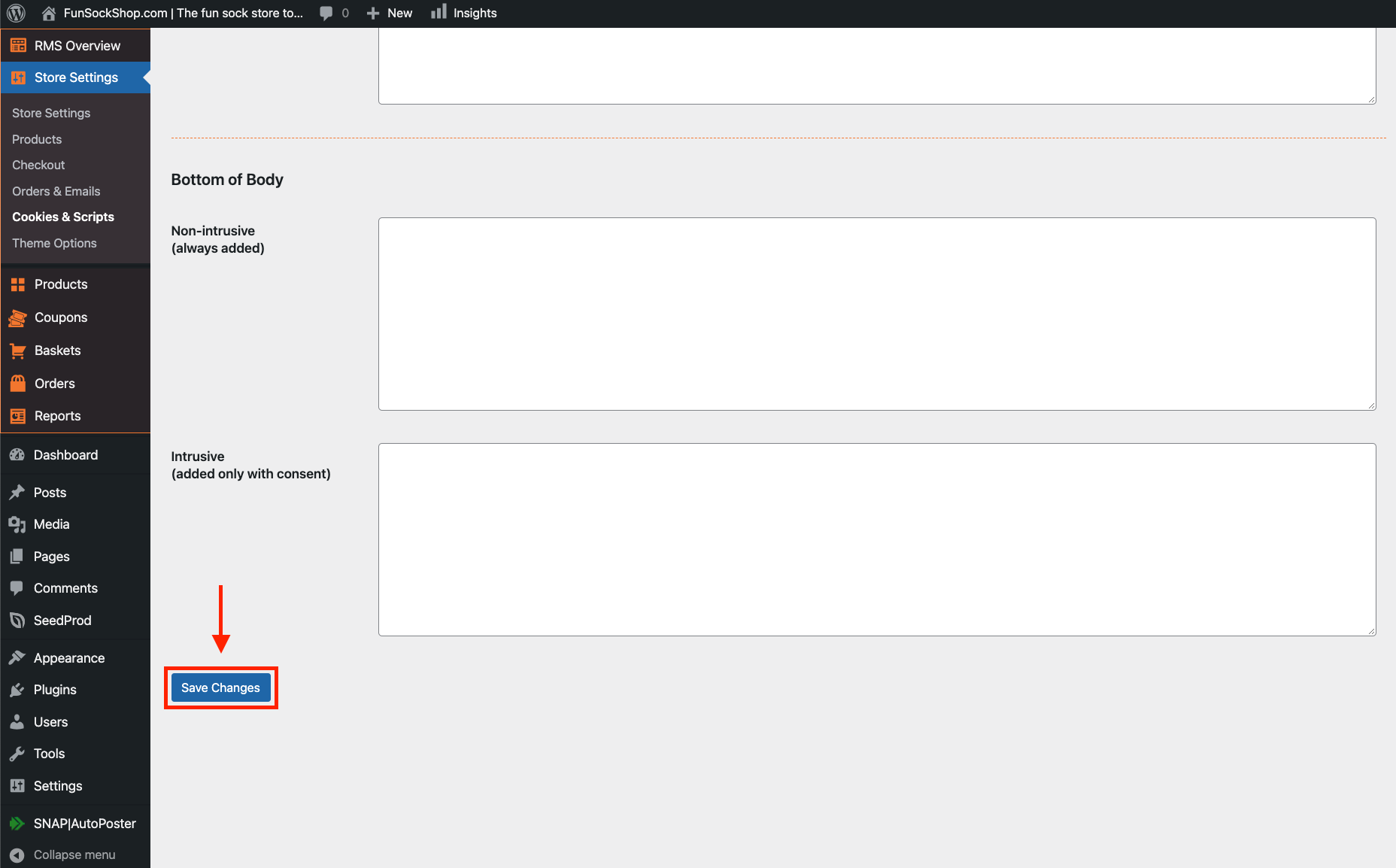
Scroll down to the bottom and click 'Save Changes':
Return to the tab containing 'Google Merchant Center' and click 'Verify website':
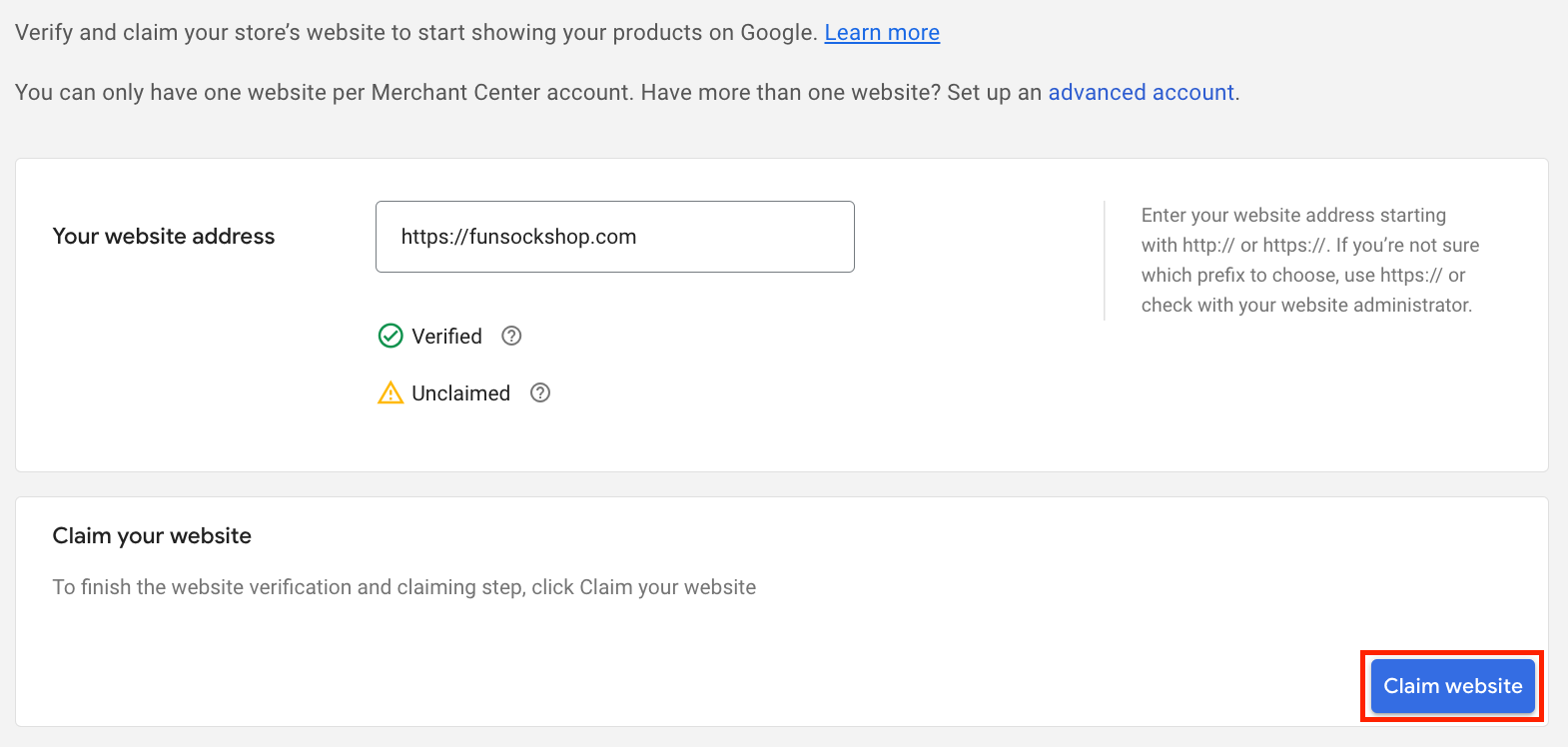
Click 'Claim website':
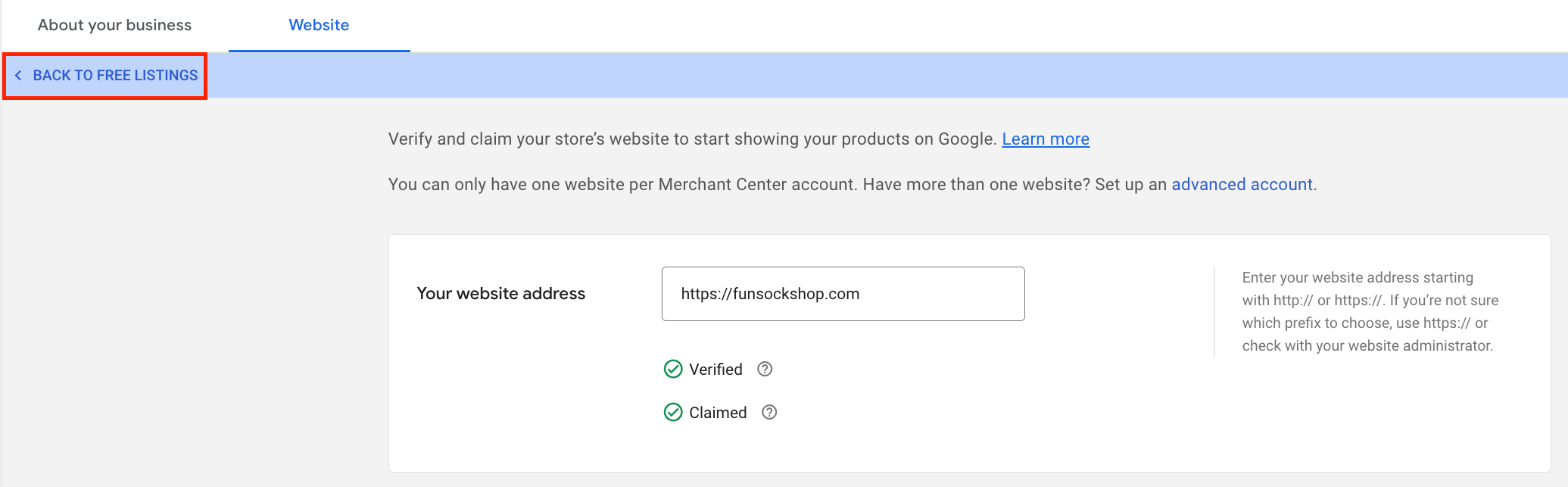
Click 'BACK TO FREE LISTINGS':
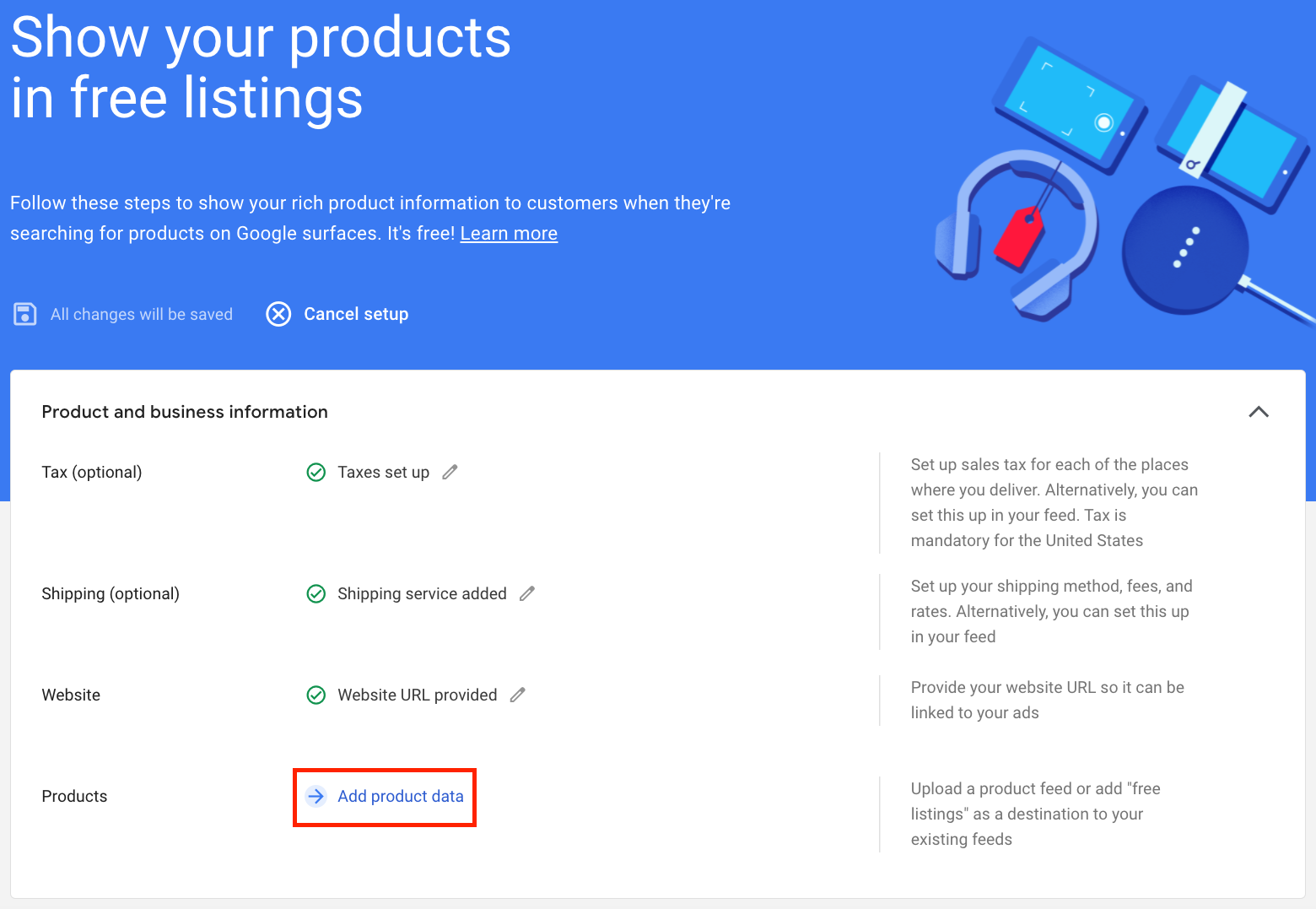
Click 'Add product data':
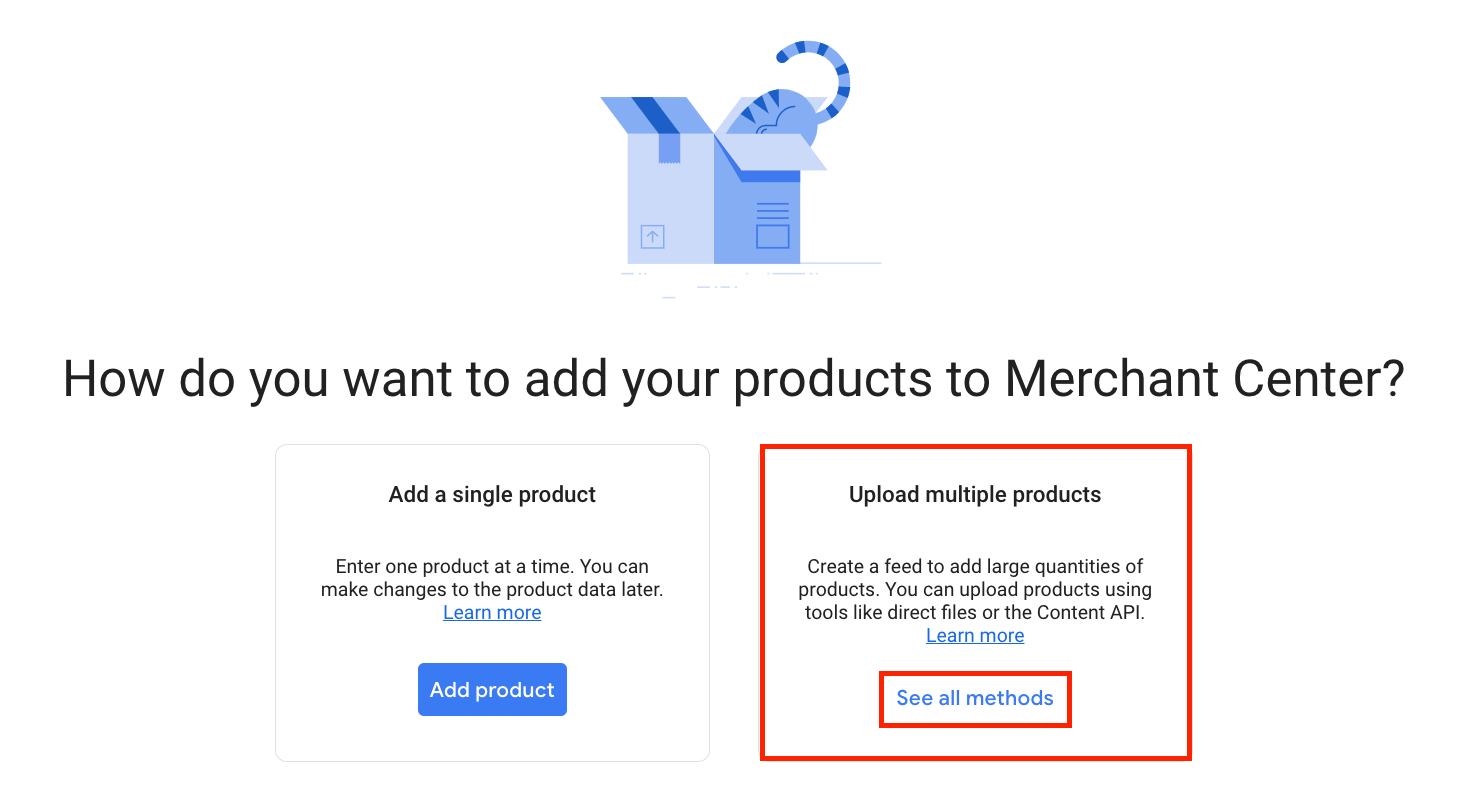
Under 'Upload multiple products', click 'See all methods':
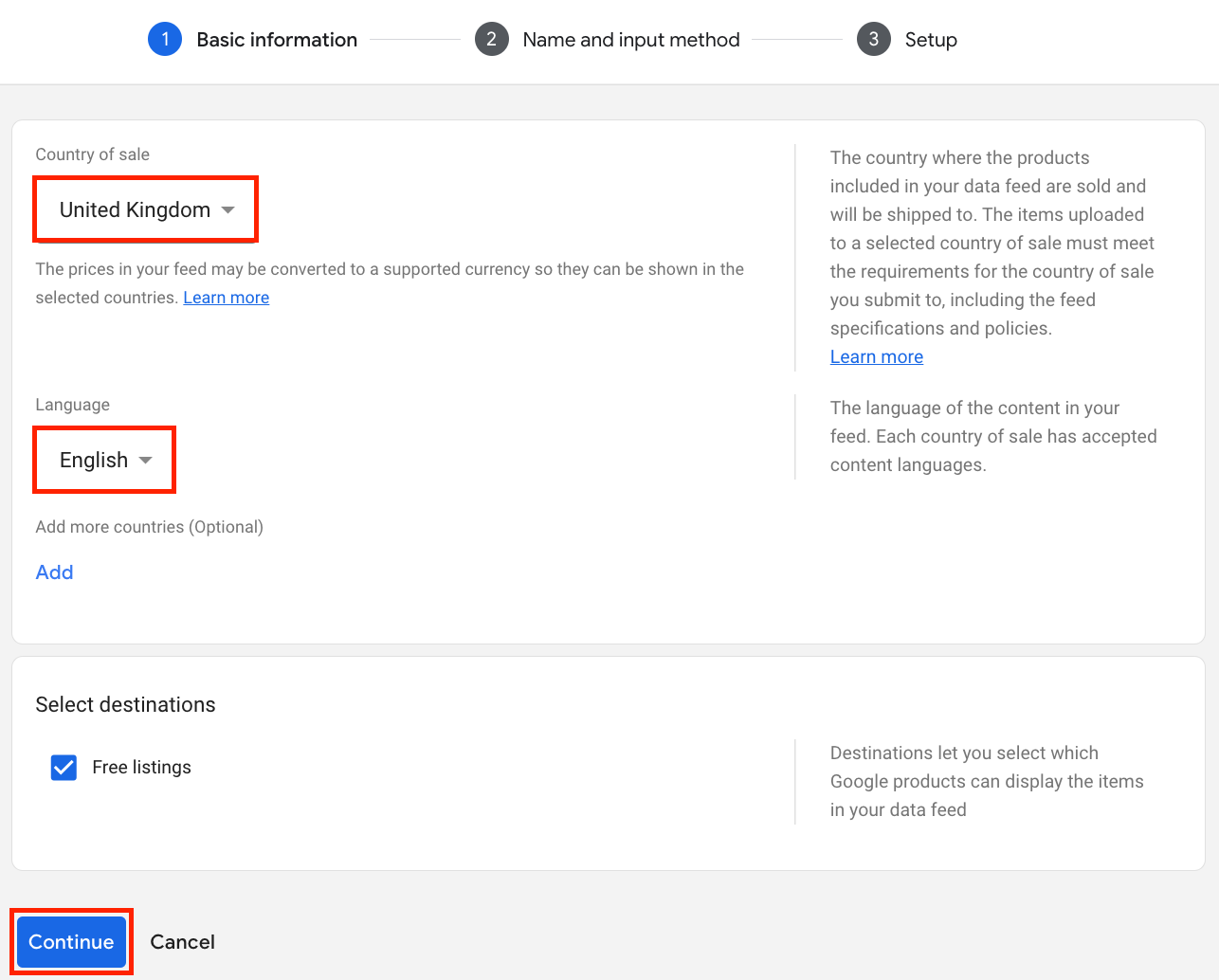
Select the 'Country of sale', 'Language' and click 'Continue':
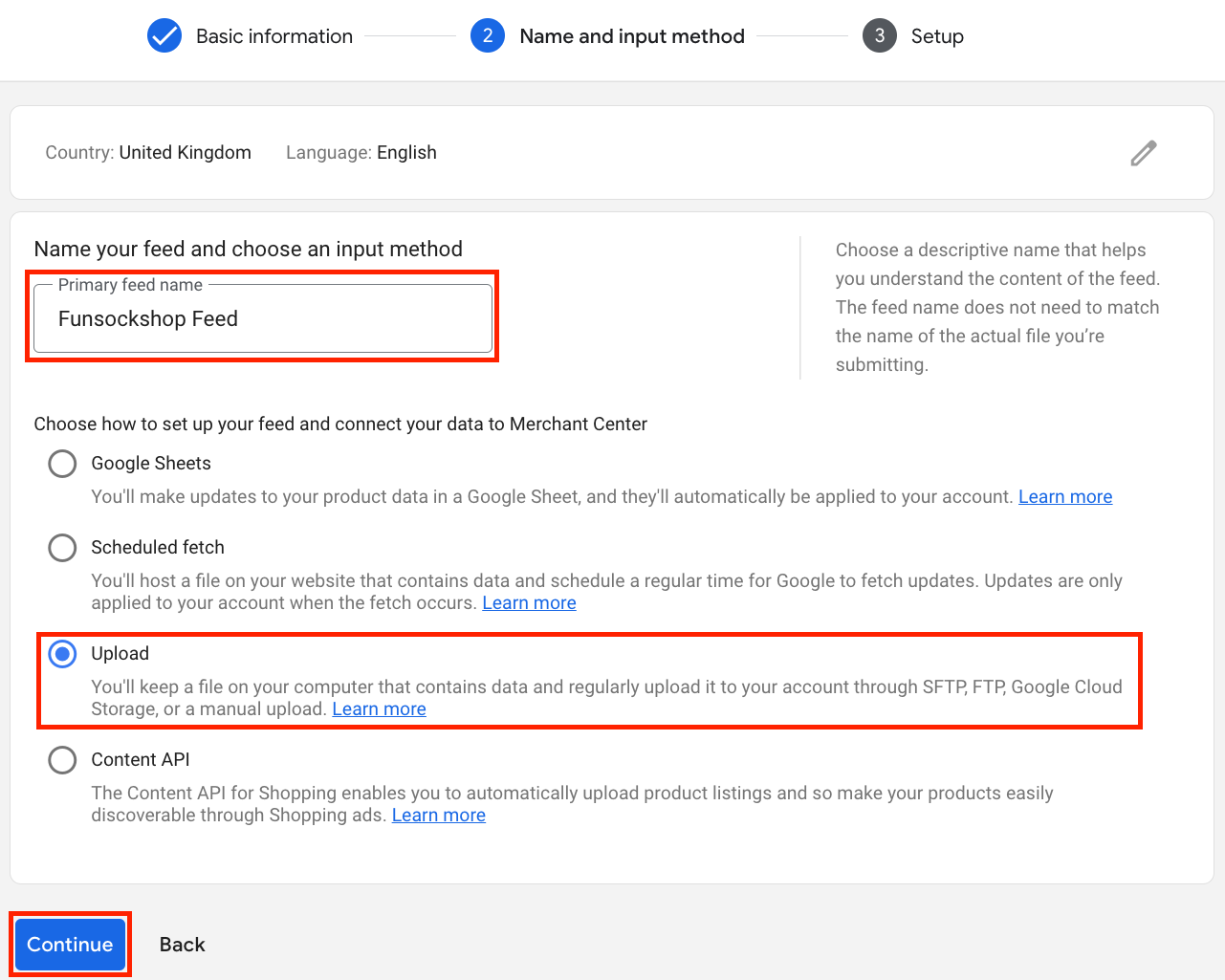
'Name your feed', select 'Upload' from the available options, and click 'Continue':
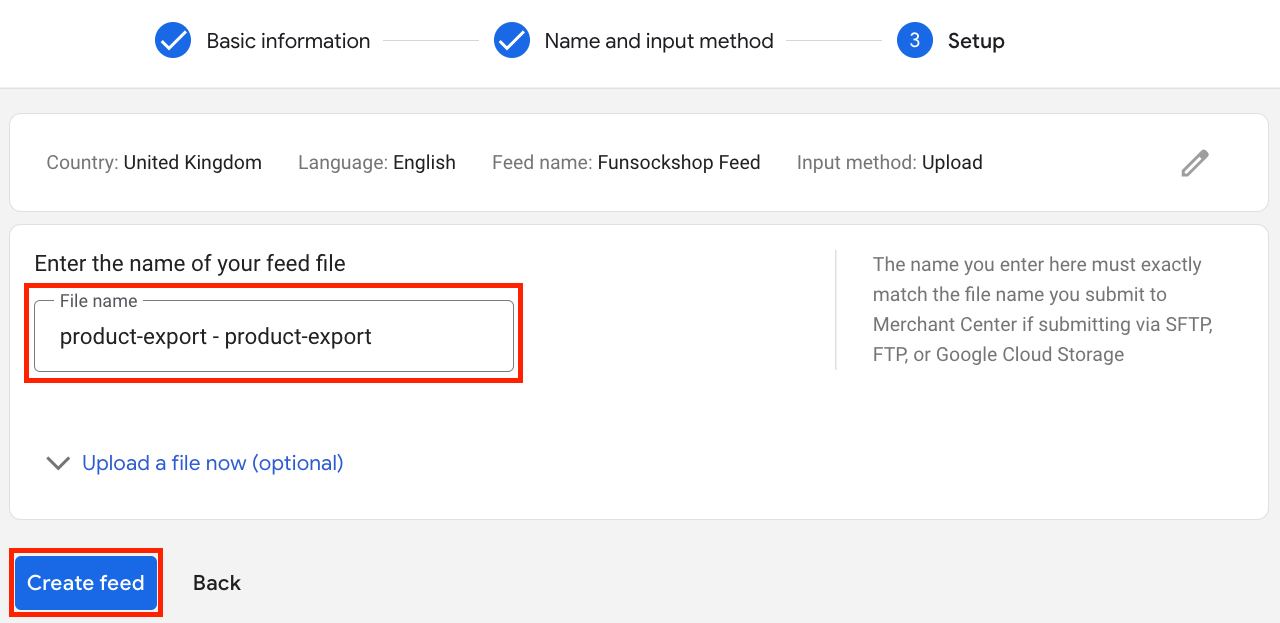
For the 'File name', enter 'product-export - product-export' (without the quotations) and click 'Create feed':
Click 'Upload file':
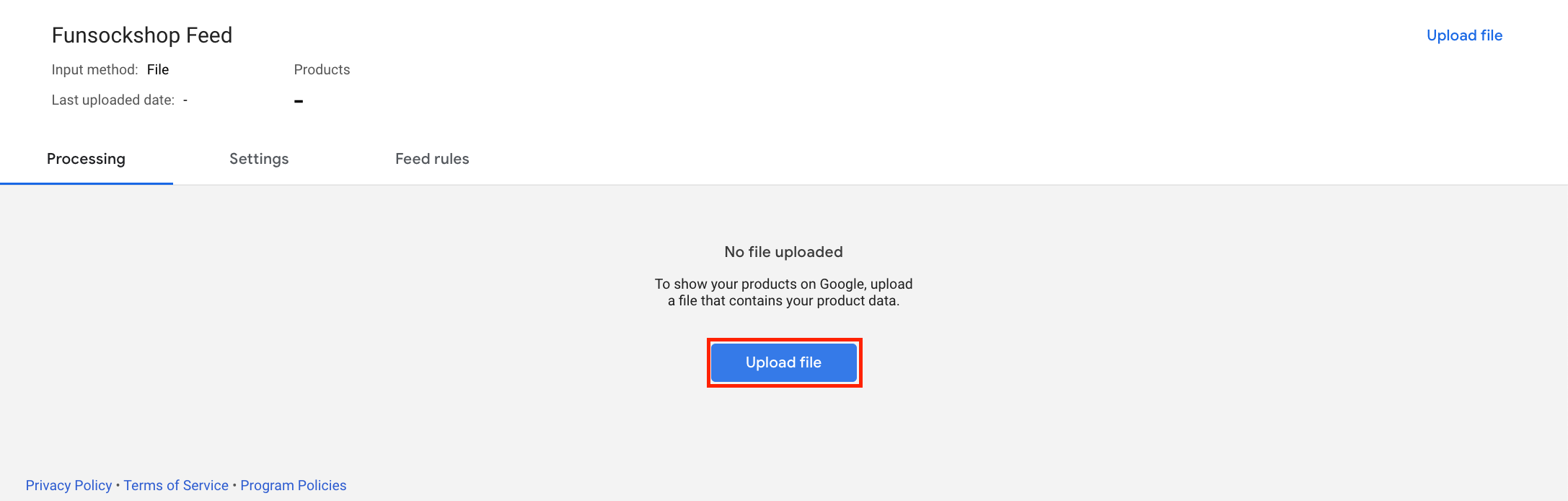
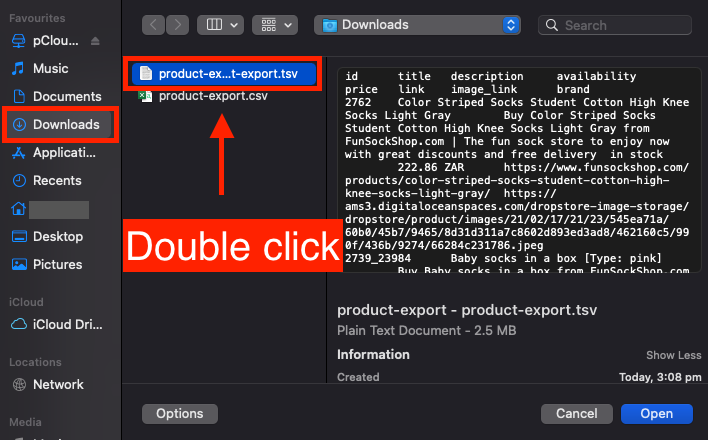
Click 'BROWSE' and navigate to your 'Downloads' folder (or wherever your '.tsv' file was downloaded to) and double click it:
Please note: ensure that you have selected the file ending in '.tsv' and not '.csv'.
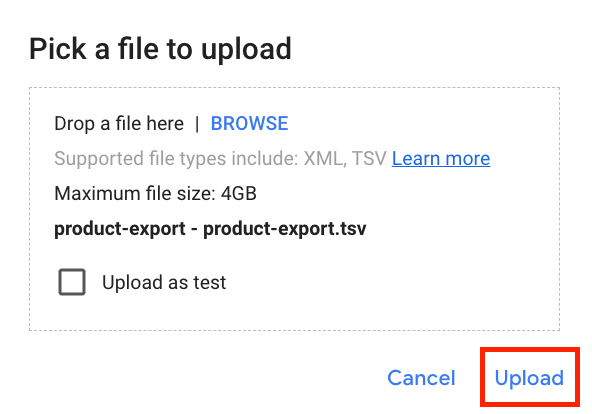
Click 'Upload':
Please note: the time it takes to upload and process is dependant on how many products are contained within the '.tsv' file and signal strength.
If there are any errors with the upload, they can be viewed by clicking 'Processing' and are shown under 'Processing Report':
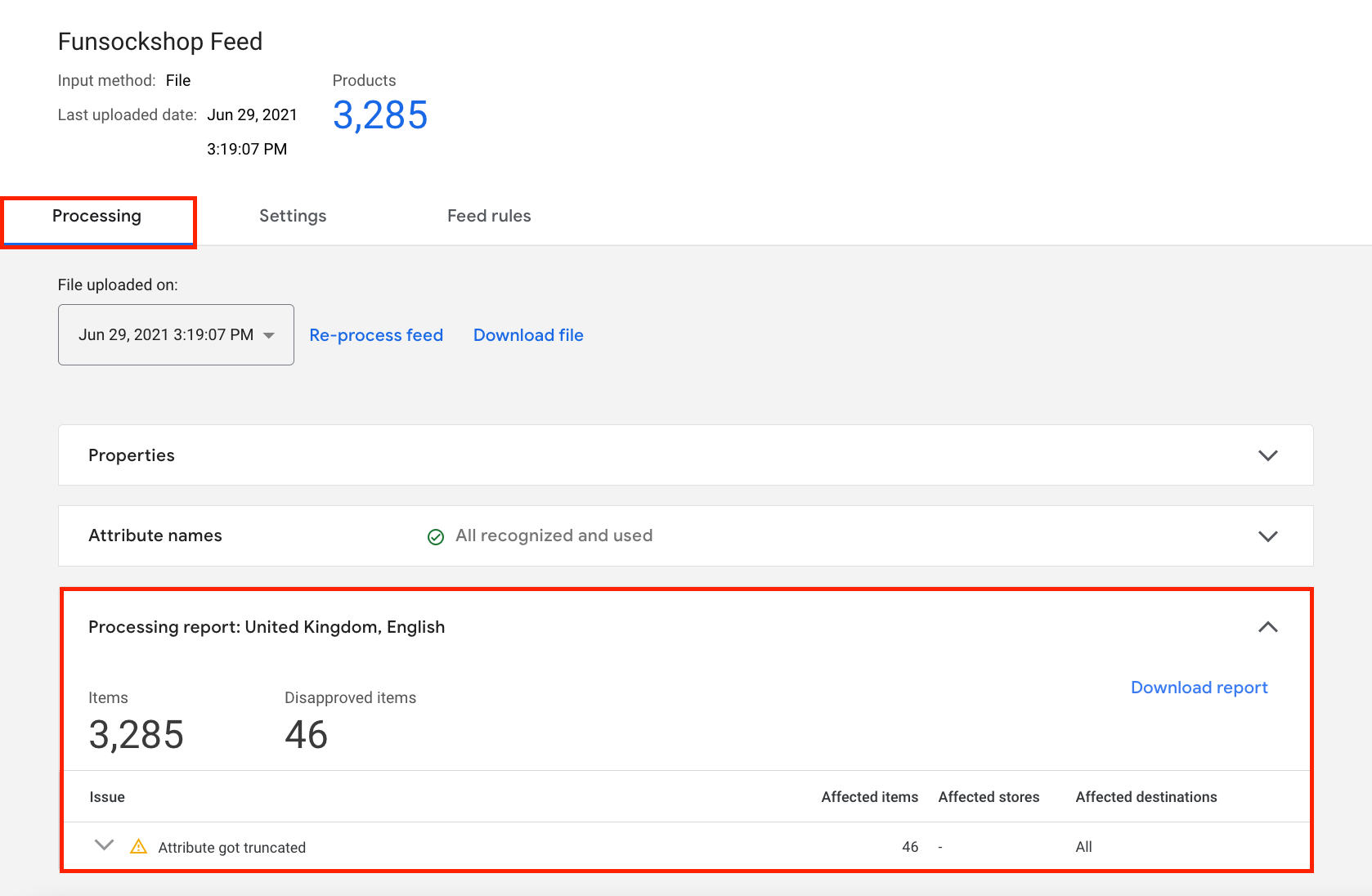
Reports stating that an 'Attribute got truncated' should be resolved:
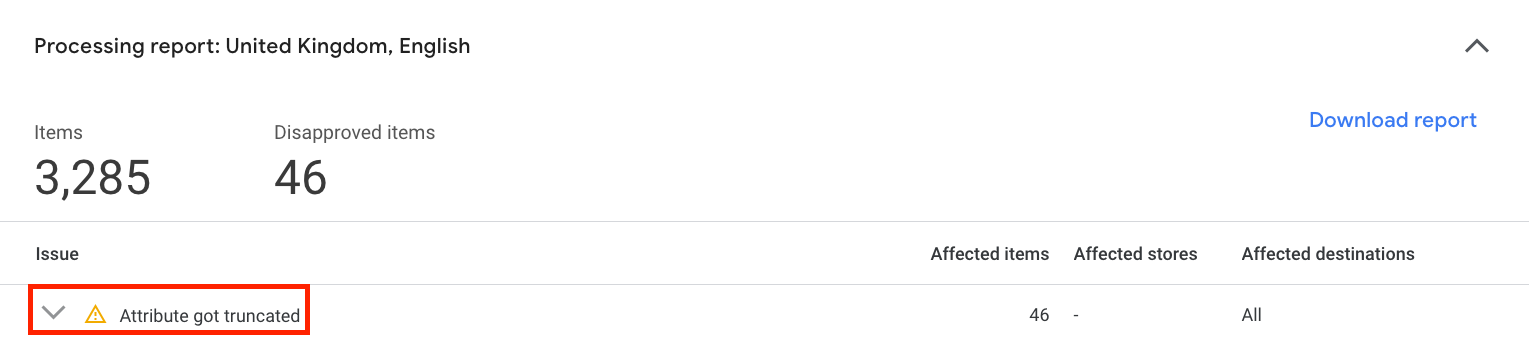
To resolve these issues, click 'Download report':
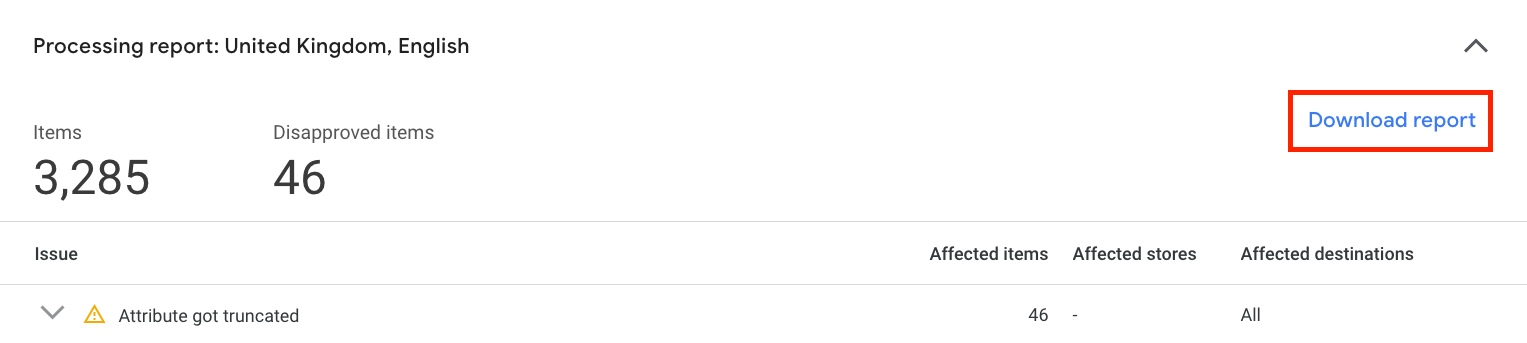
If you have Microsoft Excel, you can open and edit the downloaded '.csv' file directly, but if not, you will have to upload it to Google Drive and edit it in Google Sheets (similarly to the beginning of this guide).
Once downloaded, you can then more easily identify which products contain the errors by matching up their 'ID's' with your original '.csv' file.
To make any changes, navigate back to Google Drive (https://drive.google.com) and open the Google Sheet.
Please note: titles must be 150 characters or less, and so if a product's title is too long, this can be altered by following this guide: How to edit product titles & descriptions
If any other required fields are missing from your report, you would also have to ensure that they are populated before re-downloading the '.tsv' file and uploading it again.
Related Articles
How To Upload Products To Facebook Catalogue?
How To Upload Products To Facebook Catalogue? To upload products to the 'Facebook Catalogue', from the store dashboard, navigate to: > Products > Export Add the following fields to the 'Include in file' column (follow the exact same order): (1. ID) ...Updating products
Updating products AliDropship plugin provides you with the possibility to keep your product details up-to-date. With the Update option, you can check the availability of items on AliExpress and update the product’s price, stock, and variations. NOTE! ...Setting up Google Chrome Extension
Setting up Google Chrome Extension To make AliDropship plugin work properly, you need to install and activate AliDropship Google Chrome extension. It allows you to: add products and reviews to your site directly from AliExpress edit product before ...Import Products from AliExpress
NOTE! You need to check: If you are using the latest version of AliDropship: https://alidropship.com/updates-plugin. If your site's default currency, the default database currency, and the currency on AliExpress are the same! Step 1. Install ...How To Setup Google Ads Conversion Tracking?
How To Setup Google Ads Conversion Tracking? To setup the 'Google Ads Conversion Tracking Tag', please follow the steps below. Step 1: Create a conversion action Sign in to your Google Ads account. In the top right-hand corner, click the tools icon , ...