Updating products
AliDropship plugin provides you with the possibility to keep your product details up-to-date. With the Update option, you can check the availability of items on AliExpress and update the product’s price, stock, and variations.
NOTE! You need to check:
If you are using the latest version of AliDropship: https://alidropship.com/updates-plugin.
If your site's default currency, the default database currency, and the currency on AliExpress are the same!

Go to AliDropship → Settings → Updates to adjust your update settings.

You can update products of the particular category (or categories) :

or update all products:

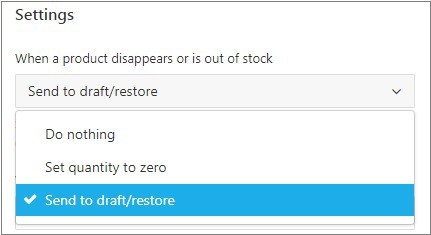
If a product is no longer available on AliExpress, you may:
Do nothing. The item will remain unchanged in your store;
Set its quantity to zero. In case your product is out of stock, but some time later it becomes available again, the plugin will update its quantity automatically;
Send it to draft/restore. The product will be unpublished from your store and will be sent to draft. Once this product appears on AliExpress again, the plugin will restore and publish it automatically.

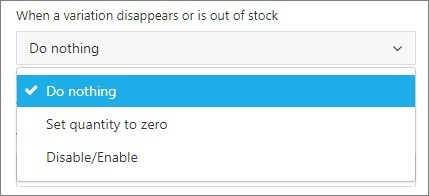
If a product variation is no longer available on AliExpress, you may:
Do nothing. The variation will remain unchanged in your store.
Set its quantity to zero. If your product variation is out of stock, but some time later it becomes available again, the plugin will update its quantity automatically;
Disable/Enable. The variation that is no longer available on AliExpress will be disabled. The variation will be activated again once it appears on AliExpress.

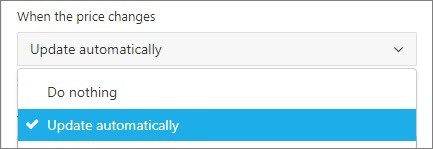
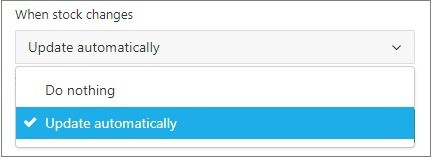
In case the product price or stock has changed, they can be either updated automatically or left as they are:
On the right-hand side of the page, there is the Product List bar available: you will be able to check product update progress. Click Update Now to start updating.

You can also activate the auto-update.
To authorize AliDropship Google Chrome extension on your site:
Open your site → log in your admin area → click AliDropship Google Chrome extension icon → click Log in. Or add a site manually using the Website field.

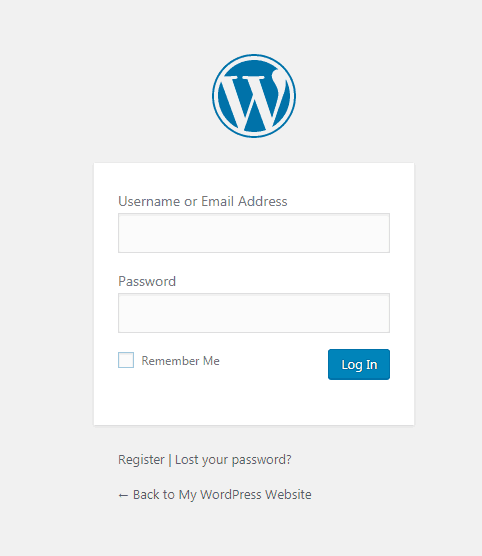
Enter your login and password → click Login:
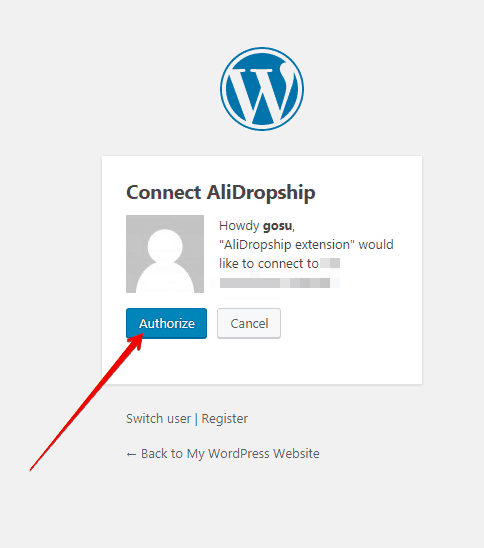
Click Authorize:
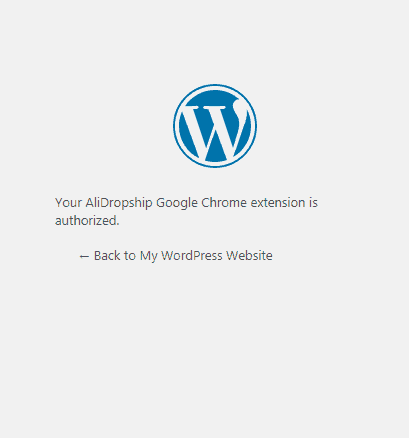
Click the AliDropship Google Chrome extension icon, and you’ll see a green circle confirming that authorization is completed.

Don’t click Log out if you don’t want to authorize every time you open your site.
Go to AliDropship → Settings → Updates.
Set auto update’s interval: once daily, once weekly, or once monthly.

The auto-updating is getting processed only when your Google Chrome browser is opened. Only in this case is there a connection between your site and the AliDropship Google Chrome extension.
To get a notification on email about updates, tick on the Notify me box (notifications will be sent once per day):

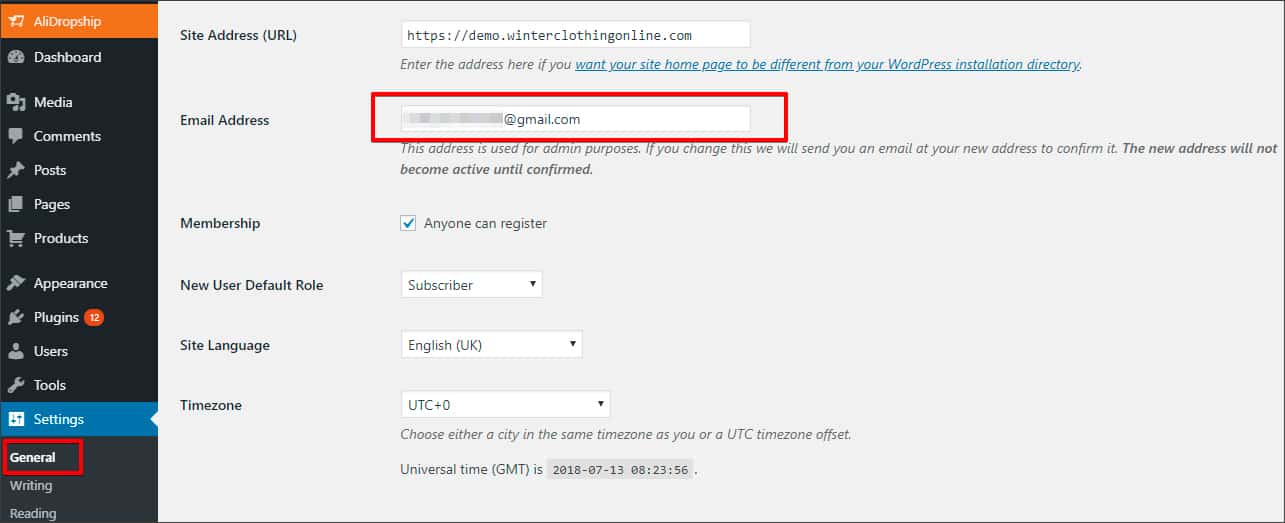
So, when the product is sent to draft or restored, you will get a notification on an email that you added in Settings → General:
In Products, there is the Update status column where you can see the last status of the Update (according to the Activities list):

We've also added a useful Update issues filter. There are 4 possible options:
No longer available
Stock is zero
Variations changed
Attributes changed

Using this filter, you can quickly find products with update issues, e.g., the product is not synchronized with AliExpress, so you can understand what might be the reason for that.
If a product is 'No longer available' or 'Stock is zero', replace the supplier's link with another one.
If 'Variations changed' or 'Attributes changed', Reset variations in Product Options → the Supplier tab or Bulk reset for several products:

How to get notifications about product price changes on AliExpress without updating the products?
If you manage your product prices manually, that option will be useful for you. Turn off auto-update and click Notify me. You will get notifications daily.

Related Articles
How To Place Products In Featured Products?
How To Place Products In Featured Products? To place 'Products' within the 'Featured Products' section, from the store dashboard go to: > Products > All Products From within this page click a 'Product' you'd like to place in the 'Featured Products' ...How To Delete Products?
How To Delete Products? To delete 'Products', from the store dashboard go to: > Products > All Products From within this page there are a few different ways to delete your products:- Delete products individually: Hover your cursor over a product and ...Guide 4: Import Products
Guide 4: Import Products Before following the steps below, please ensure you have set the 'Currency' in AliExpress.com to 'USD ( US Dollar )' by following this guide. Once the above is completed, follow the steps below in the video to import products ...Import Products from AliExpress
NOTE! You need to check: If you are using the latest version of AliDropship: https://alidropship.com/updates-plugin. If your site's default currency, the default database currency, and the currency on AliExpress are the same! Step 1. Install ...Editing Products (Full Guide)
Editing Products (Full Guide) To access the 'Product Details', from the store dashboard go to: > Products > All Products From within this page find the 'Product' you'd like to 'Edit' by either scrolling through or searching for it via the search box ...