How To Export Product Data?
To export product data for use in platforms such as Google and Facebook, you will require the 'CSV/TXT Product file export function'.
Once the function is owned, it can be located in:
> Products > Export
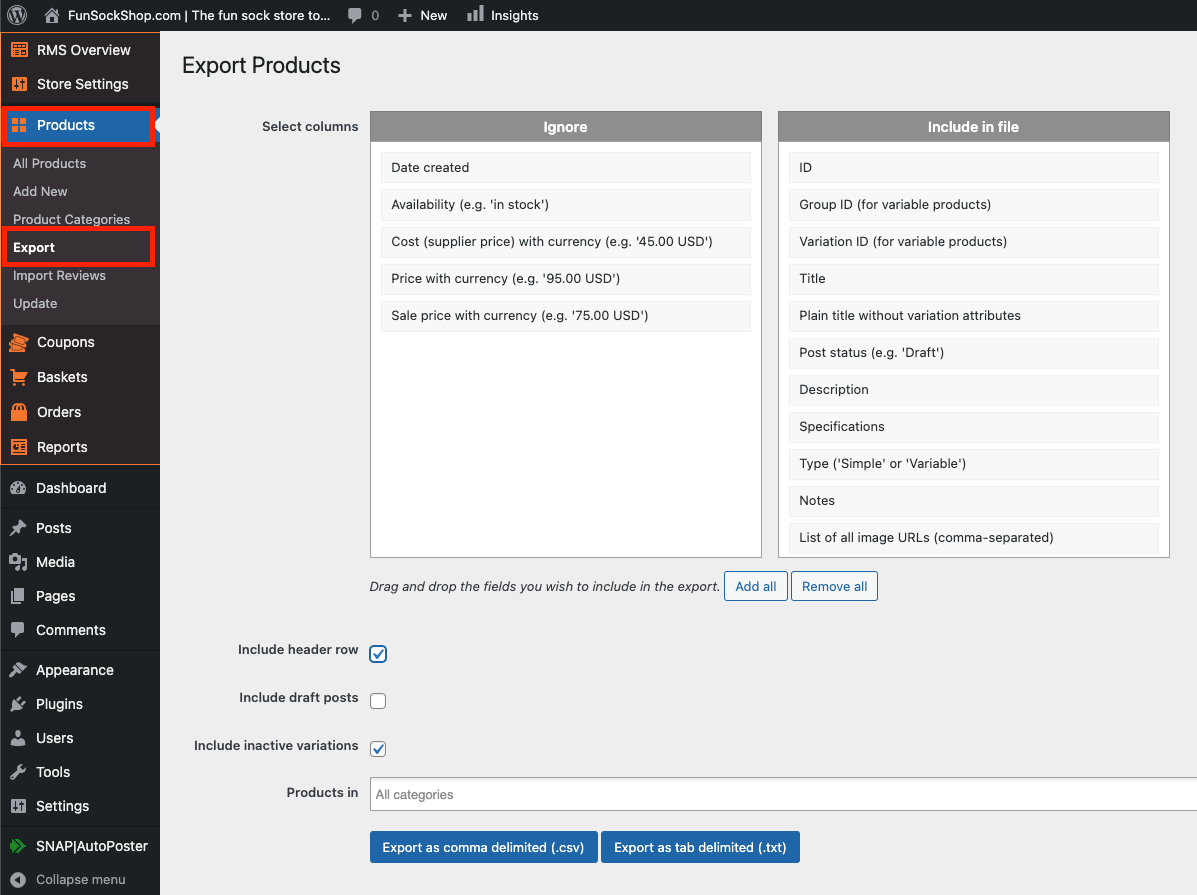
The column labelled 'Ignore' should be used to exclude fields that are not required when exporting:
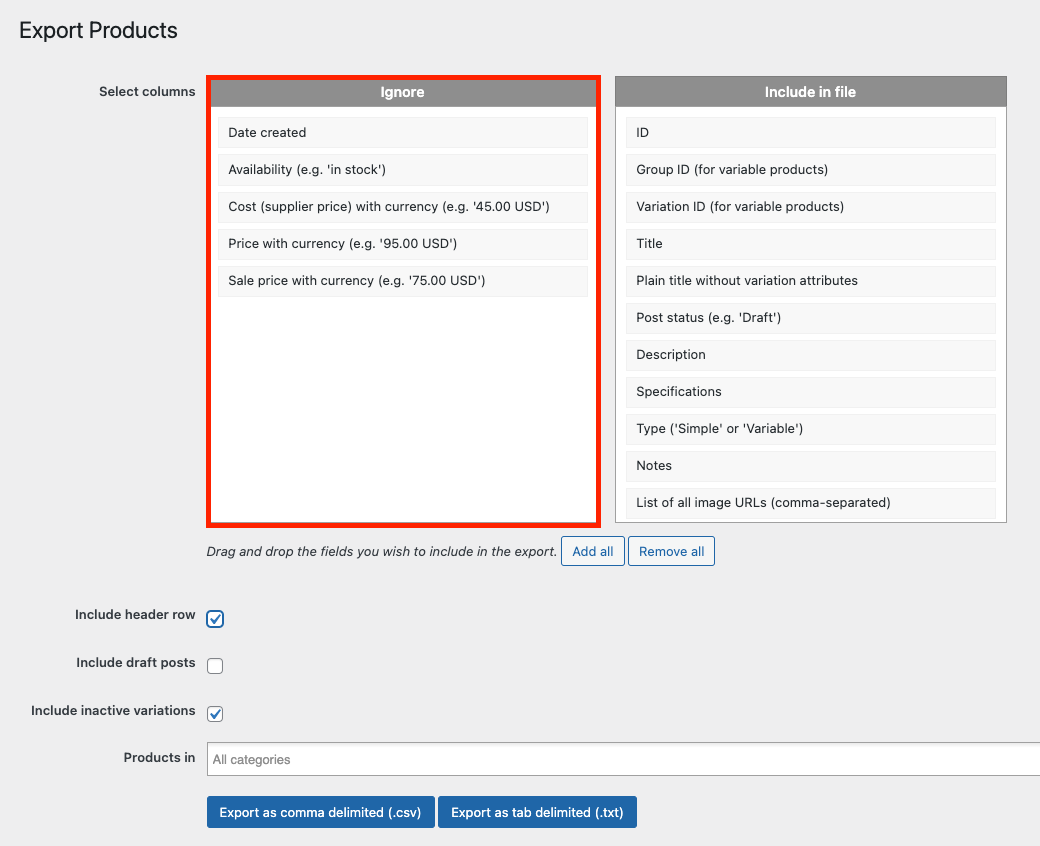
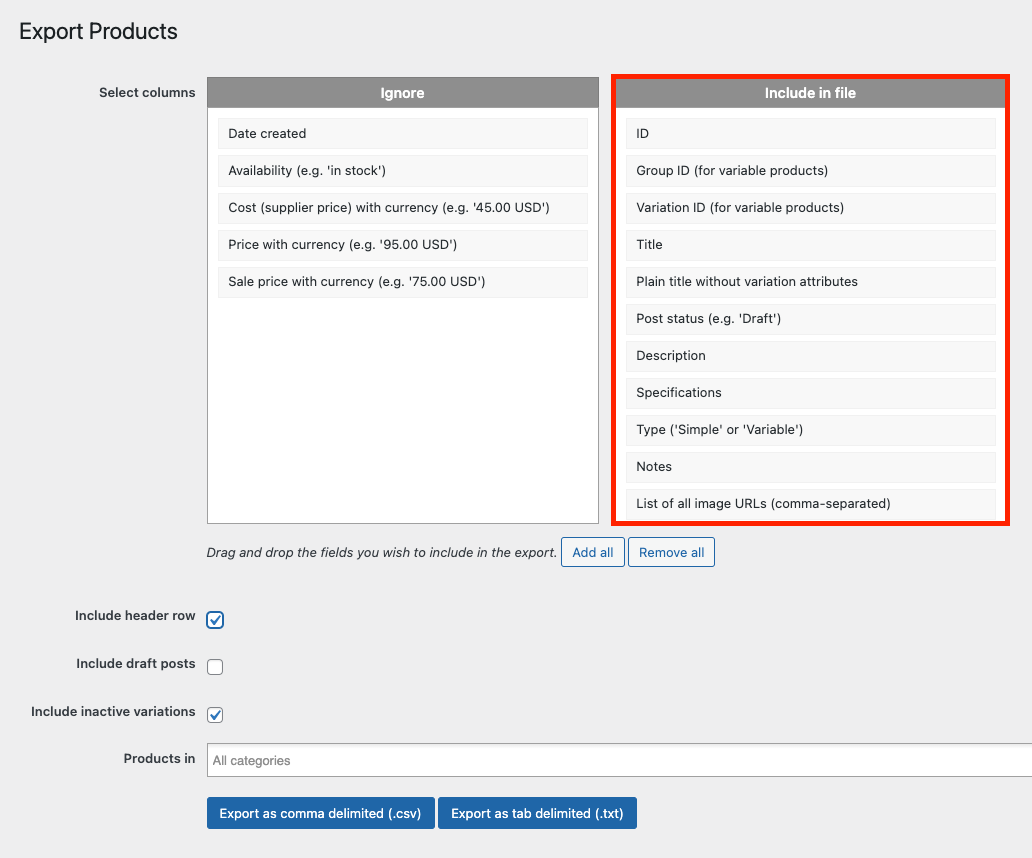
The column labelled 'Include in file' should be used to include fields that are required when exporting:
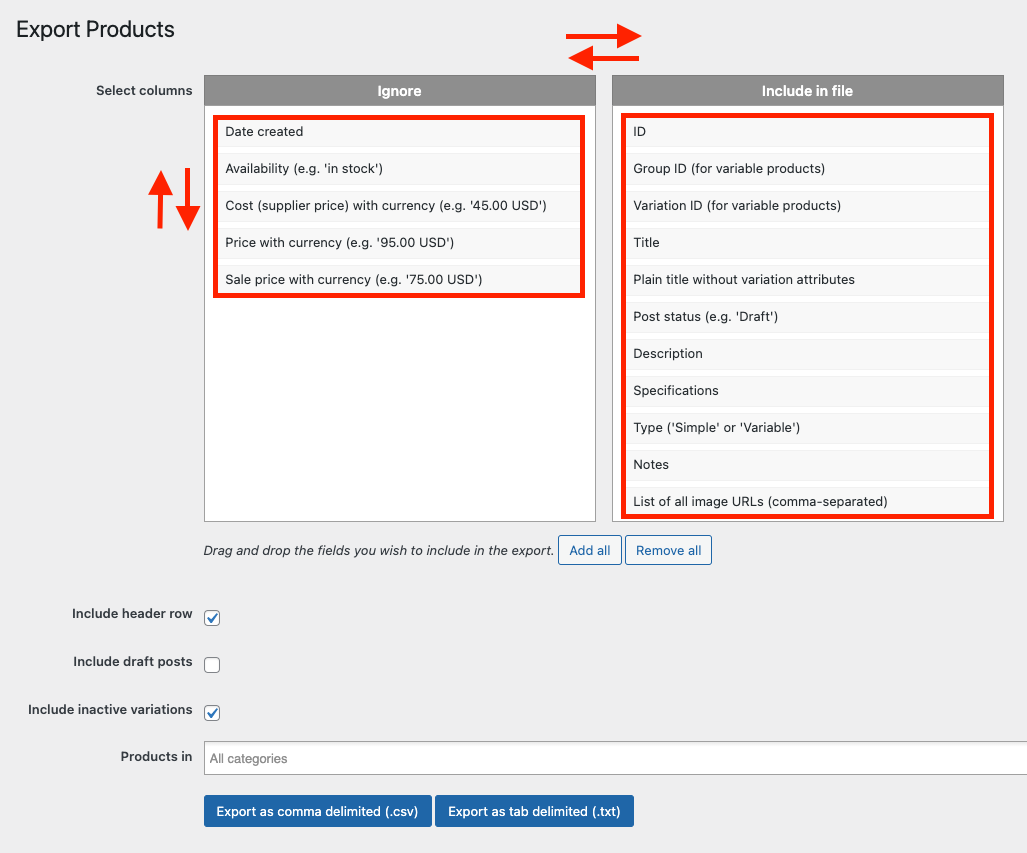
The fields can be dragged and dropped above and below other fields (changing their order), and can be dragged and dropped into the other column (ignoring and including fields):
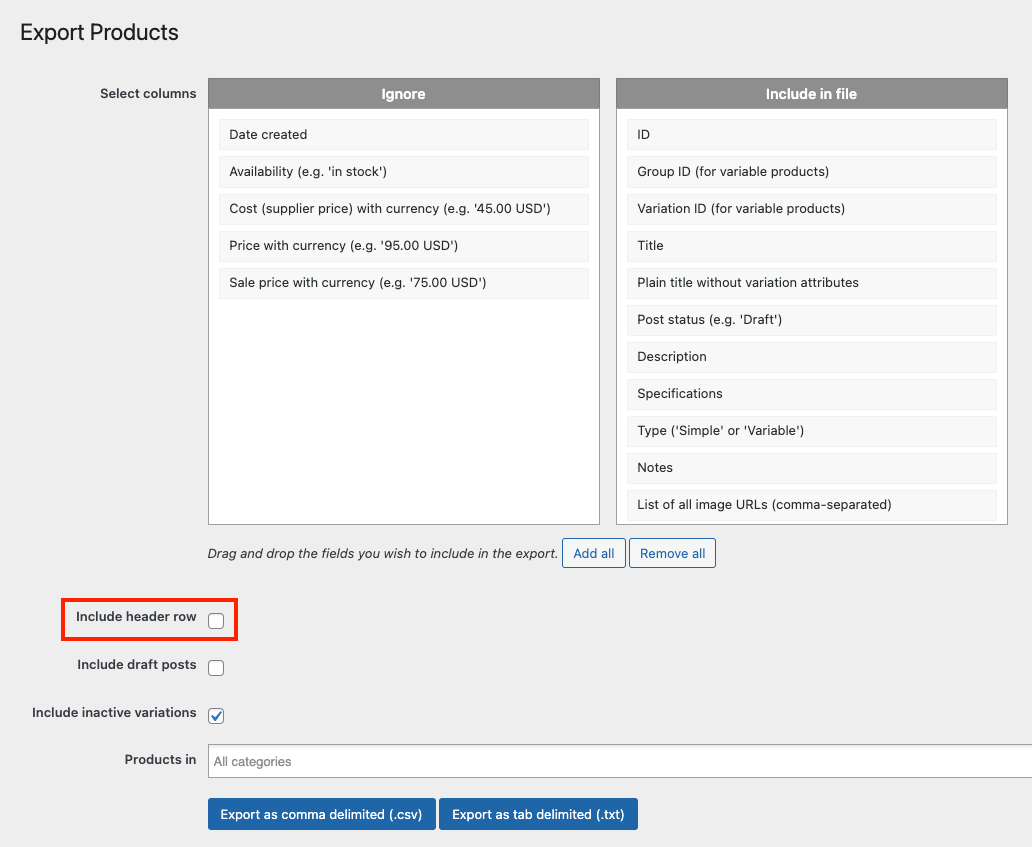
The 'Include header row' function will either include/exclude the field's headings:
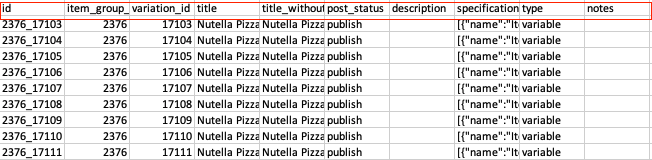
Header row included:
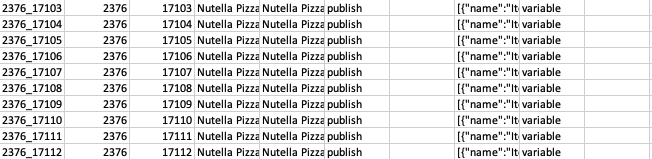
Header row excluded:
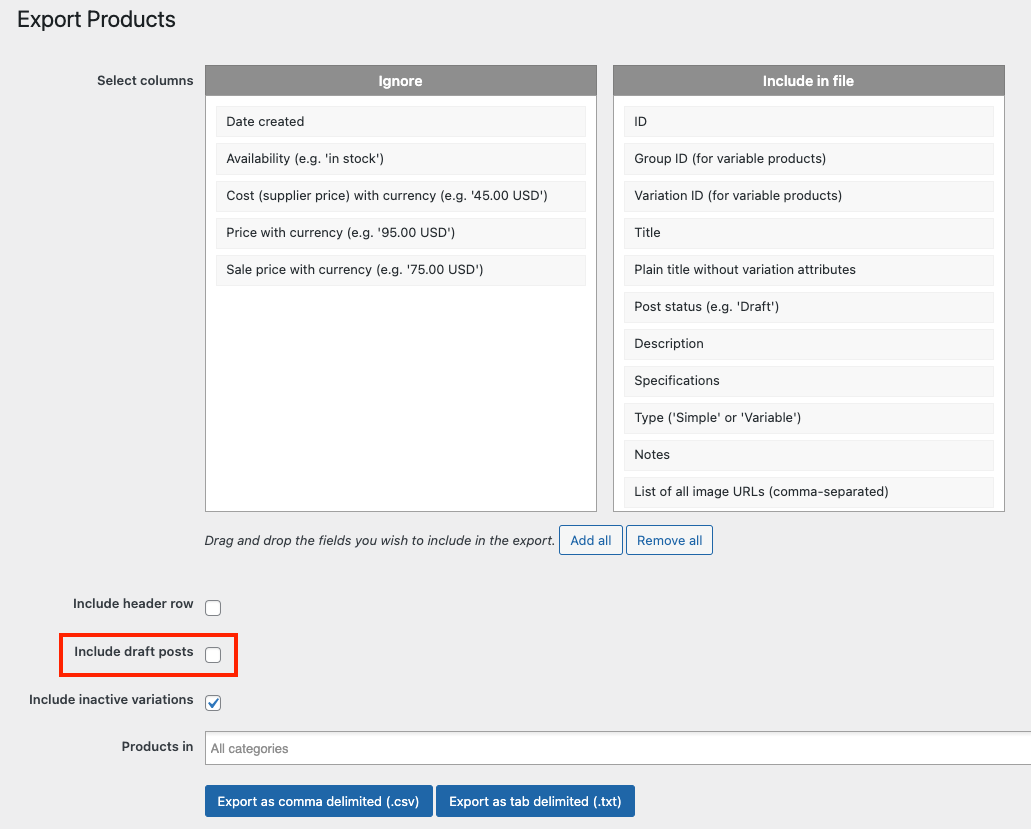
The 'Include draft posts' function will either include/exclude products placed in 'Drafts':
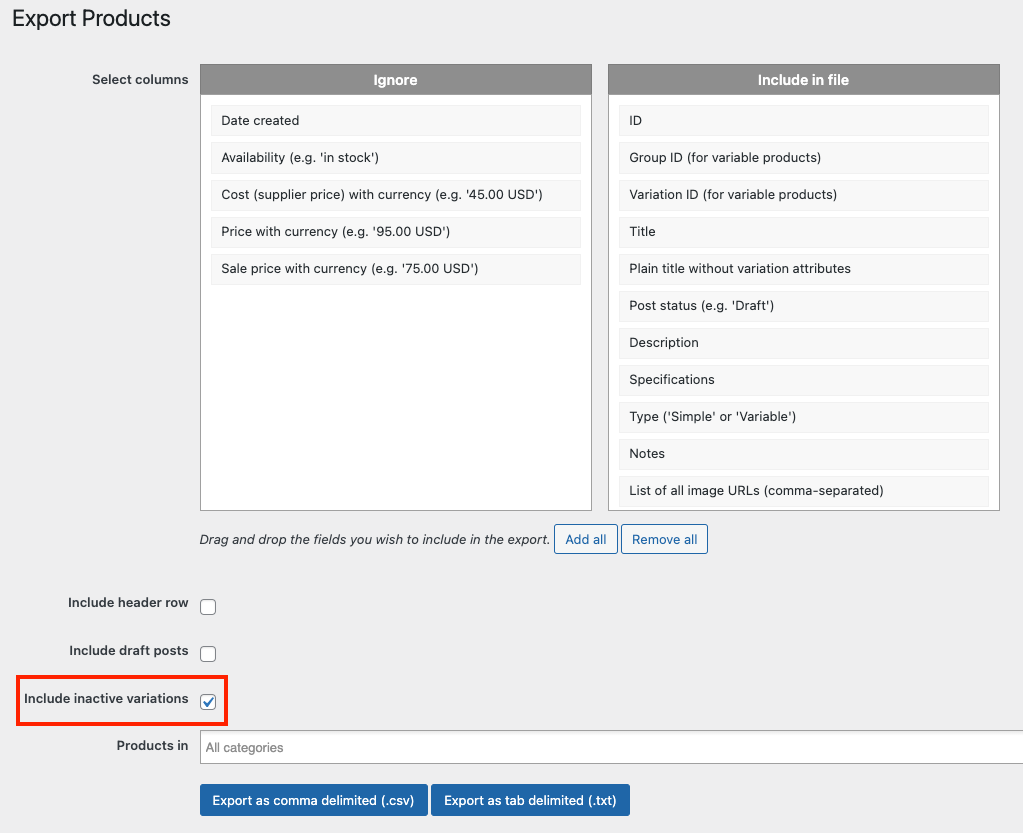
The 'Include inactive variations' will either include/exclude inactive variations from your products:
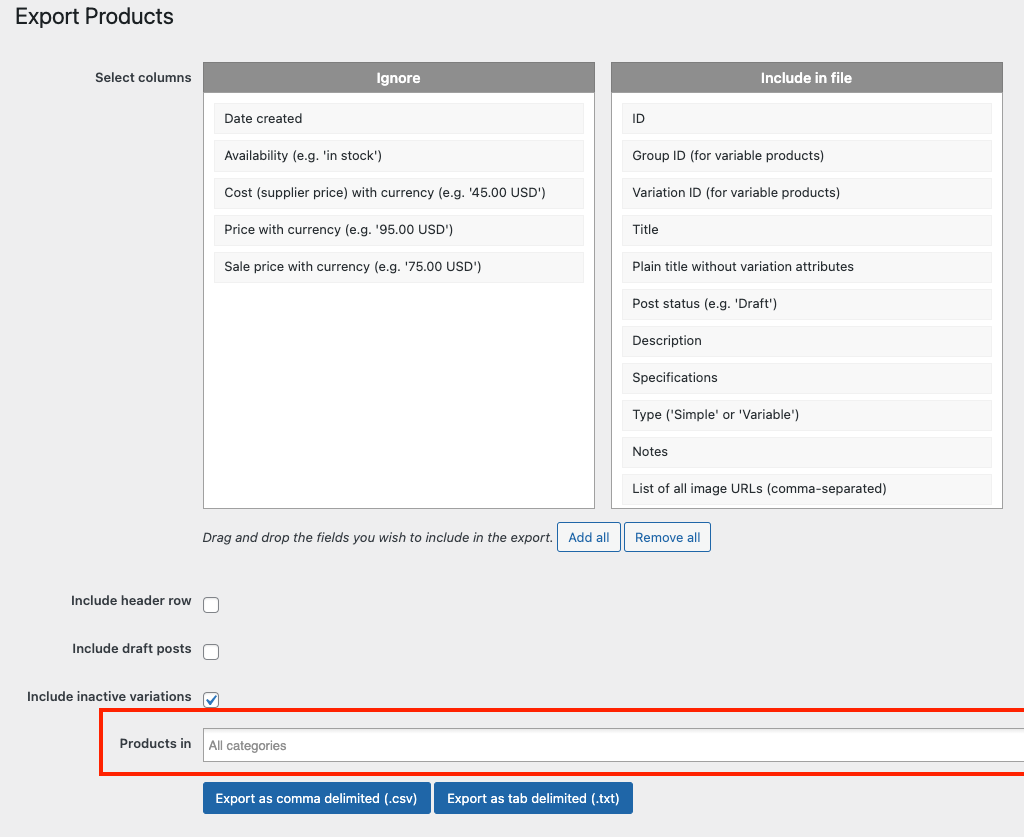
The 'Product in' function is used to include/exclude specific product categories. Those product categories selected will be exported, those product categories not selected will not be exported.
Remove all product categories selected from 'Products in' to include all product categories:
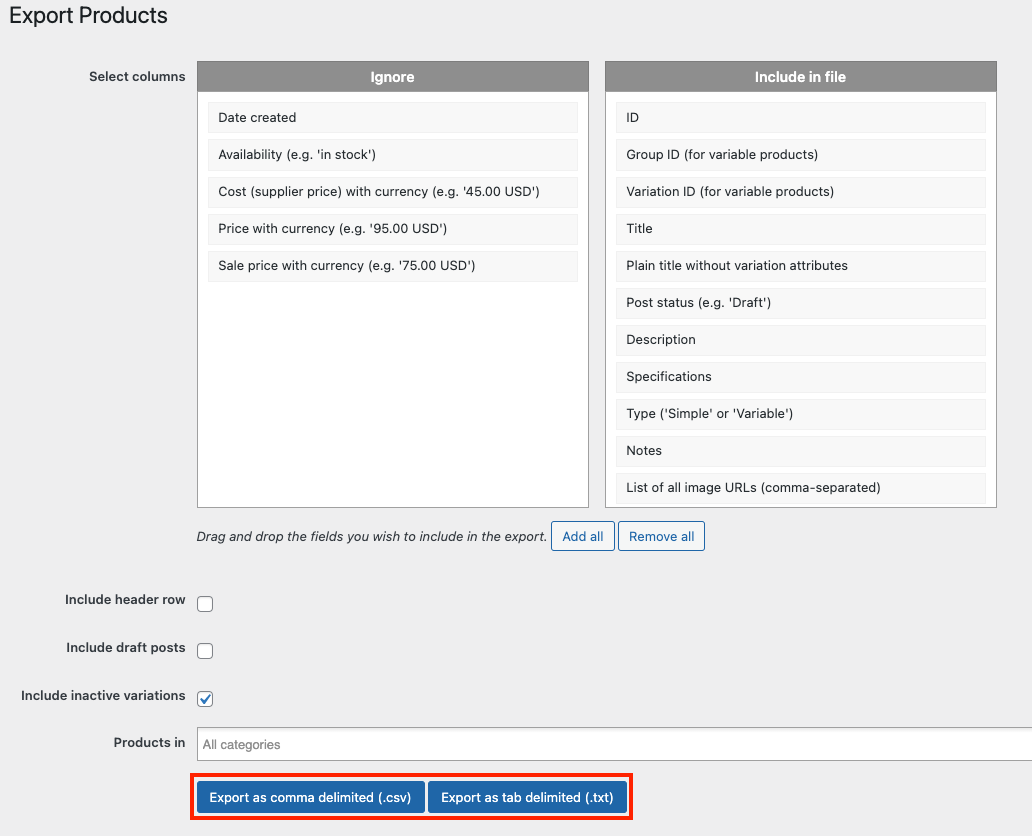
The data can either be exported via '.csv' or via '.txt':
Related Articles
Import/Export
Import/Export To 'Import/Export', from the store dashboard go to: > Store Settings > Theme Options > Import/Export To 'Export' all current layout settings, including the colour palette to a file, click 'Export current layout settings to file': To ...Product Options
Product Options General In the General section you can check and customize general information about the product. Since the plugin imports products from AliExpress in US Dollar ($), it is set as the default currency. This currency may be changed to ...Export Products in csv file
Export Products in csv file You can export Products: click 'Export products' button: and choose what information you want to export, after that click 'Apply": CSV file will be generated and saved (other formats are not supported):How To Upload Products To Facebook Catalogue?
How To Upload Products To Facebook Catalogue? To upload products to the 'Facebook Catalogue', from the store dashboard, navigate to: > Products > Export Add the following fields to the 'Include in file' column (follow the exact same order): (1. ID) ...How To Upload Products To Google Merchant Center?
How To Upload Products To Google Merchant Center? To upload products to the 'Google Merchant Center', from the store dashboard, navigate to: > Products > Export Add the following fields to the 'Include in file' column (follow the exact same order): ...