How To Upload Products To Facebook Catalogue?
To upload products to the 'Facebook Catalogue', from the store dashboard, navigate to:
> Products > Export
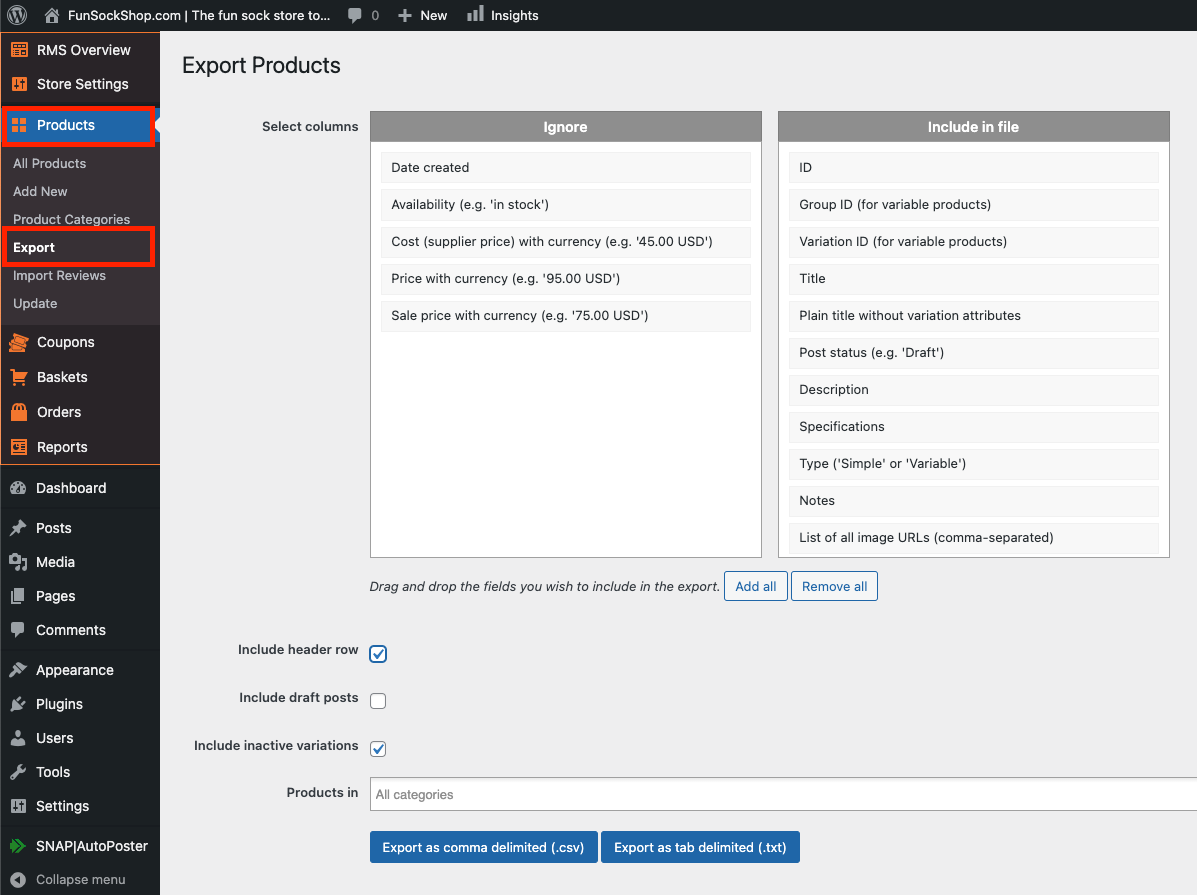
Add the following fields to the 'Include in file' column (follow the exact same order):
(1. ID) (2. Title) (3. SEO: Description) (4. Availability) (5. Price with currency) (6. URL) (7. Image URL) (8. AliExpress store name)
To learn how to move fields from 'Ignore' to 'Include in file', please see here:
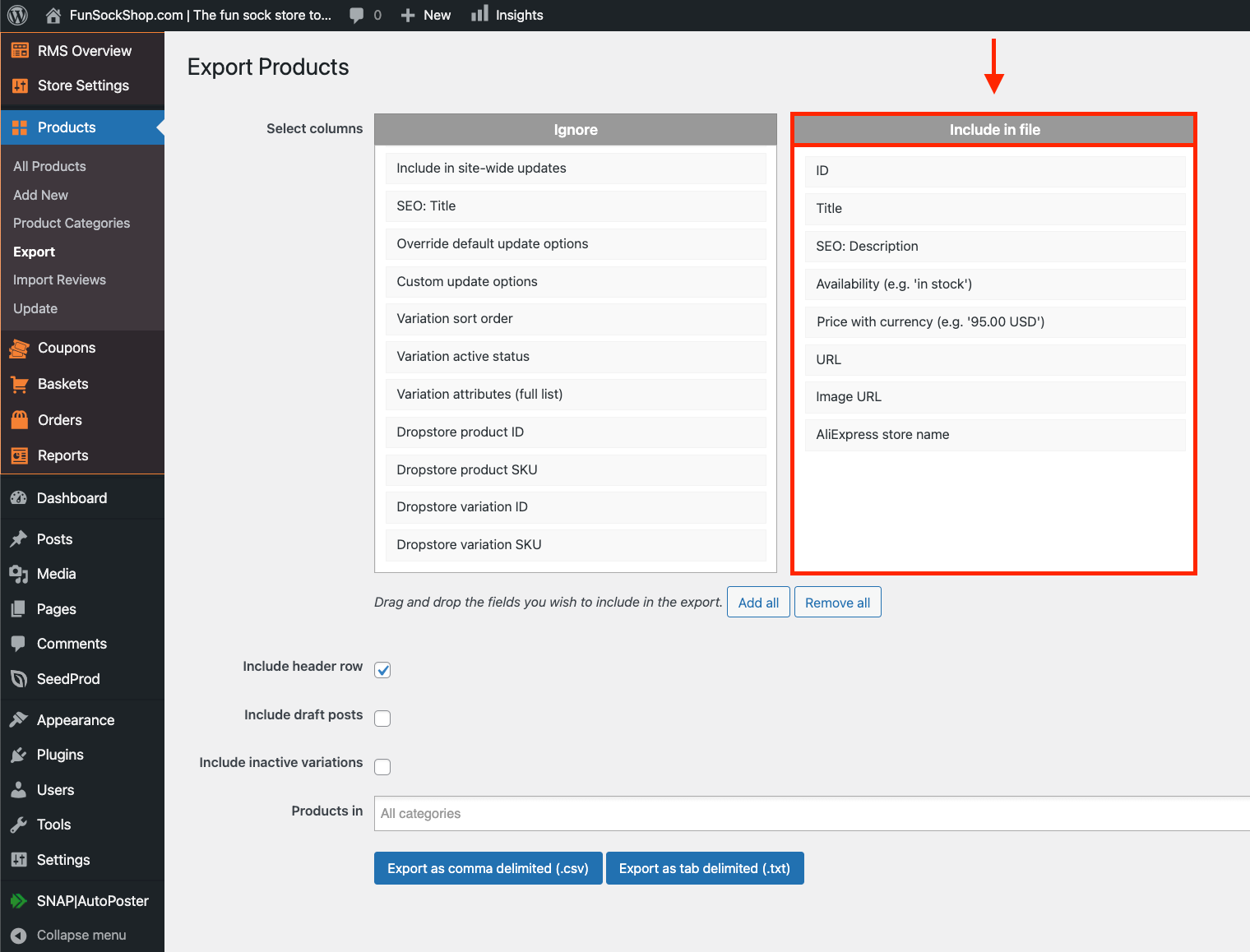
Tick the checkbox labelled 'Include header row' and ensure that the other tick-boxes (beneath) are left unchecked:
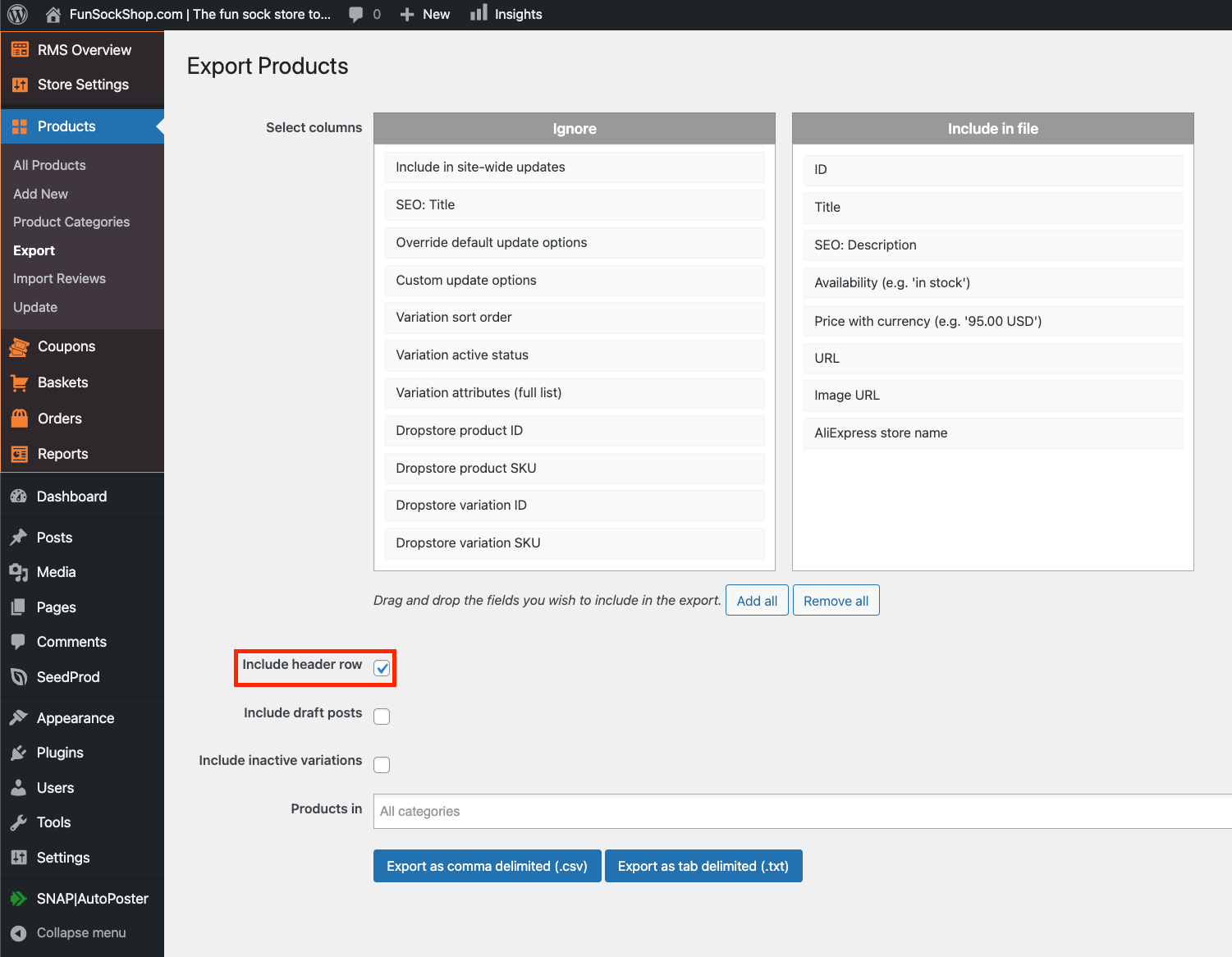
Optional: choose specific product categories, or click 'All'/leave blank within 'Products in' to upload products featured in all categories:
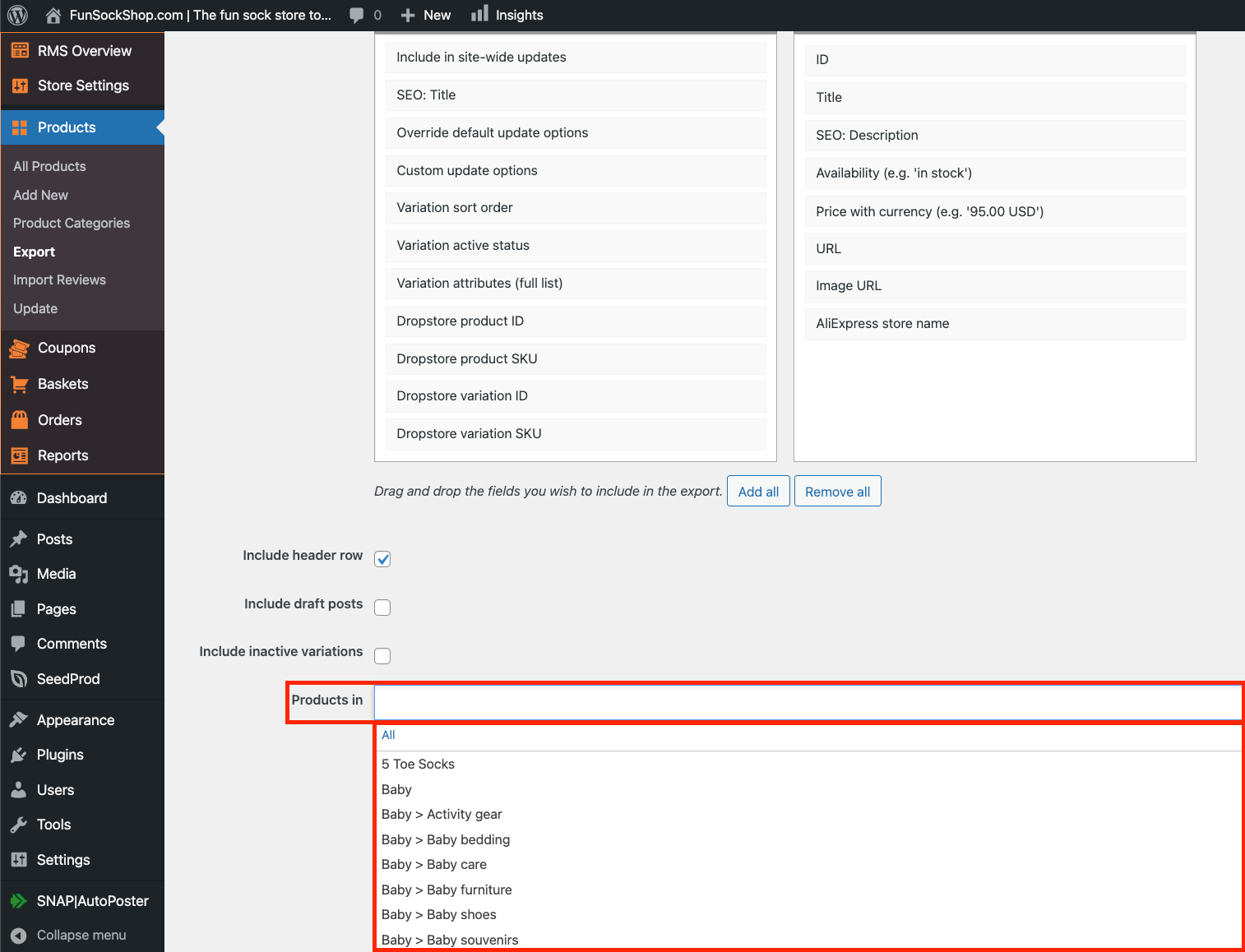
Click 'Export as comma delimited (.csv)' at the bottom:
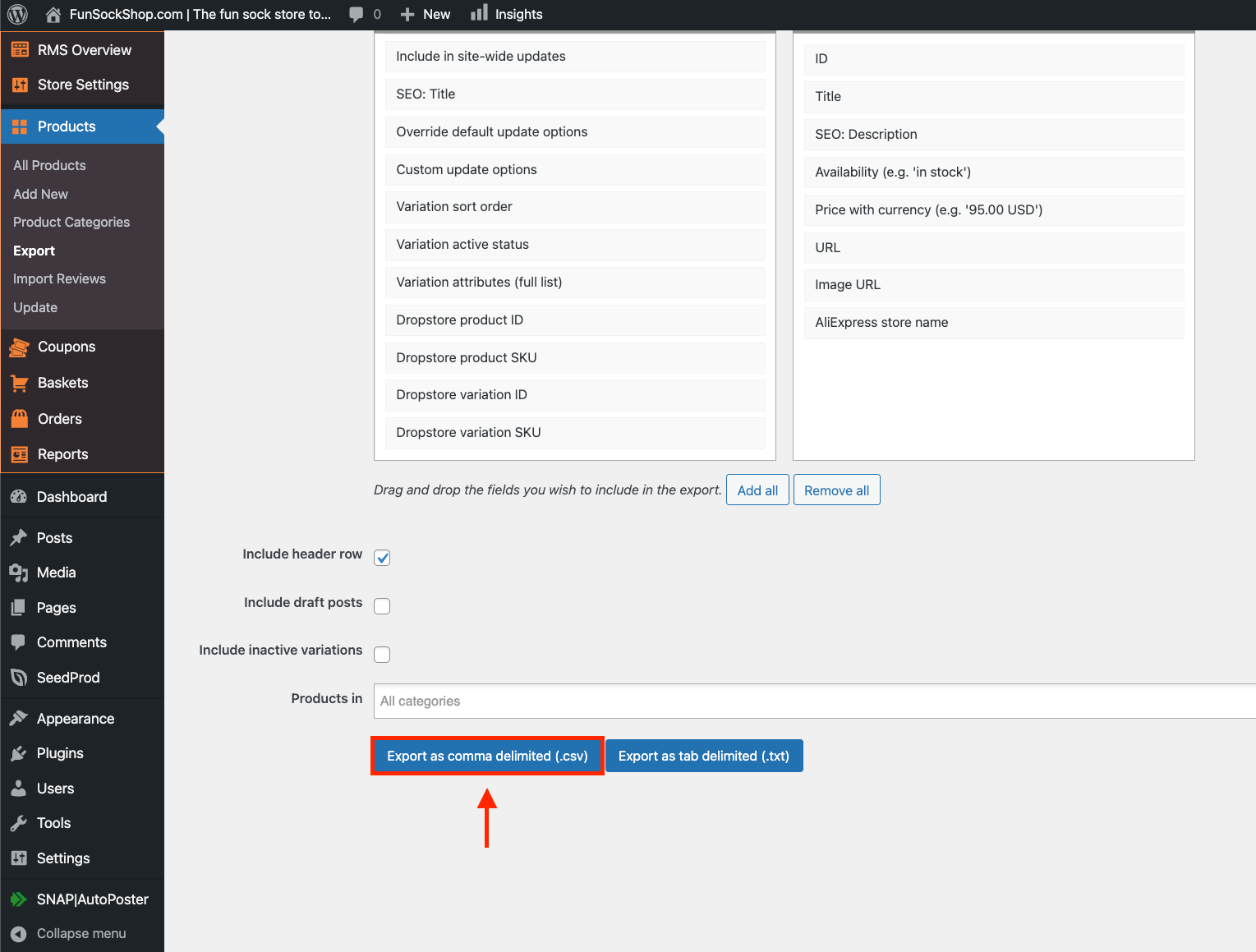
Please note: the time it takes to export is dependant on how many products are contained within a store, how many product categories are selected within 'Products in', and signal strength.
Once exported, the '.csv' file will more than likely be in your 'Downloads' folder, unless downloads have been defaulted to another location:
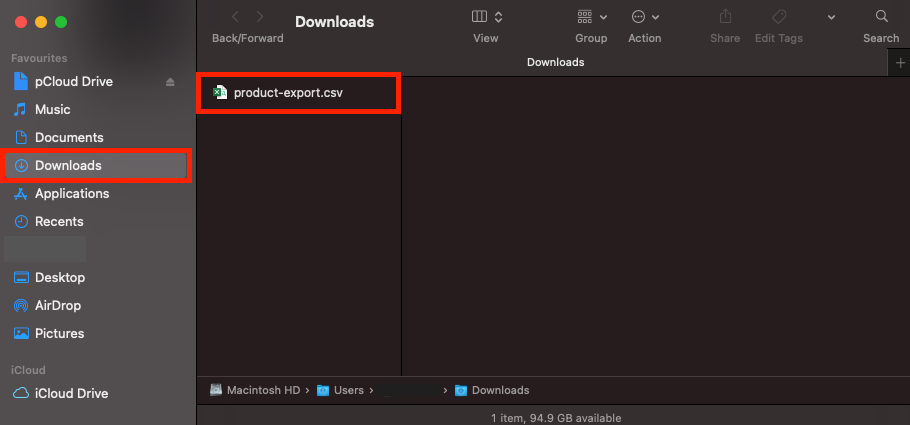
Please note: for those who do not have Microsoft Excel, you will need to upload the '.csv' file to 'Google Drive' to be able to open it.
Click this link to arrive at Google Drive: https://drive.google.com
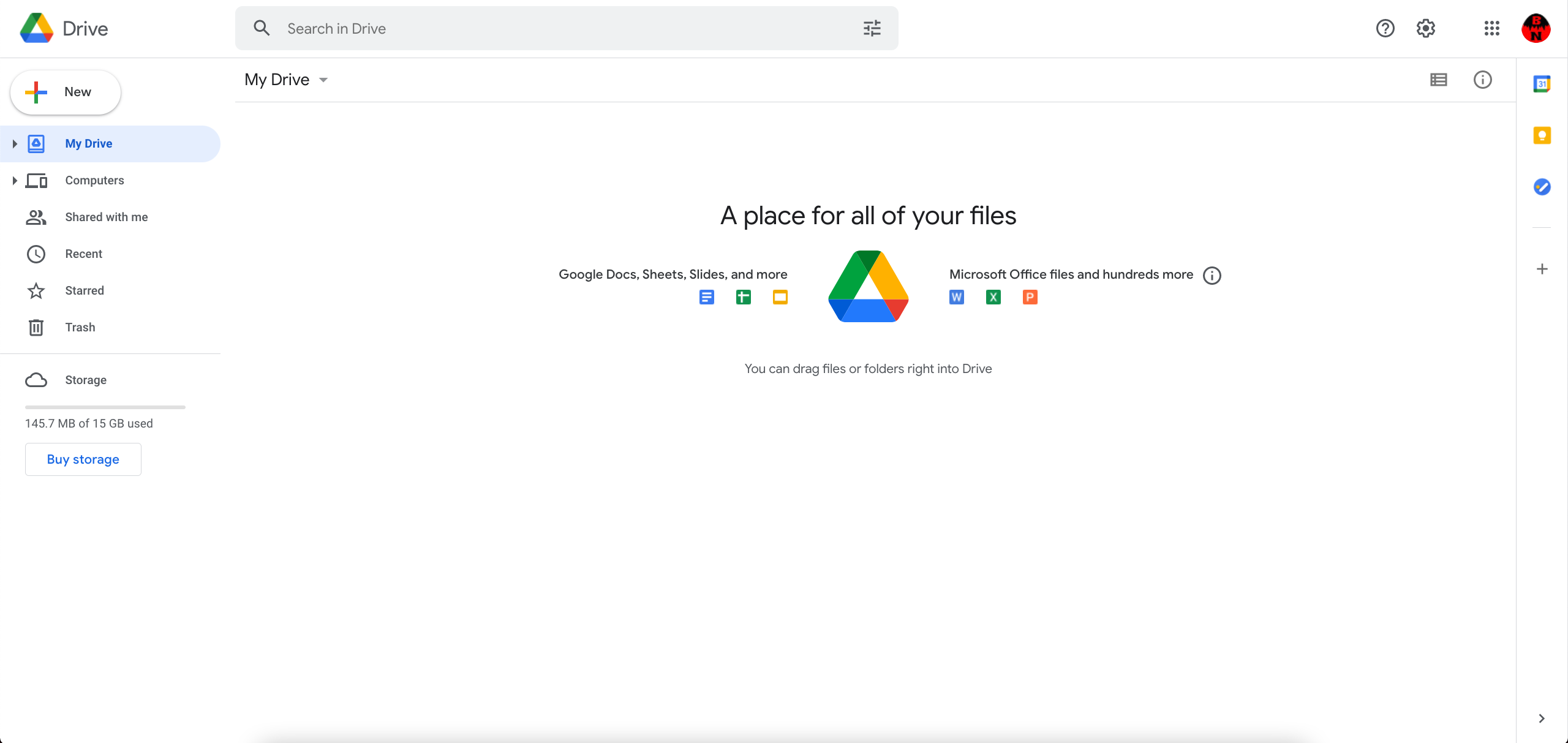
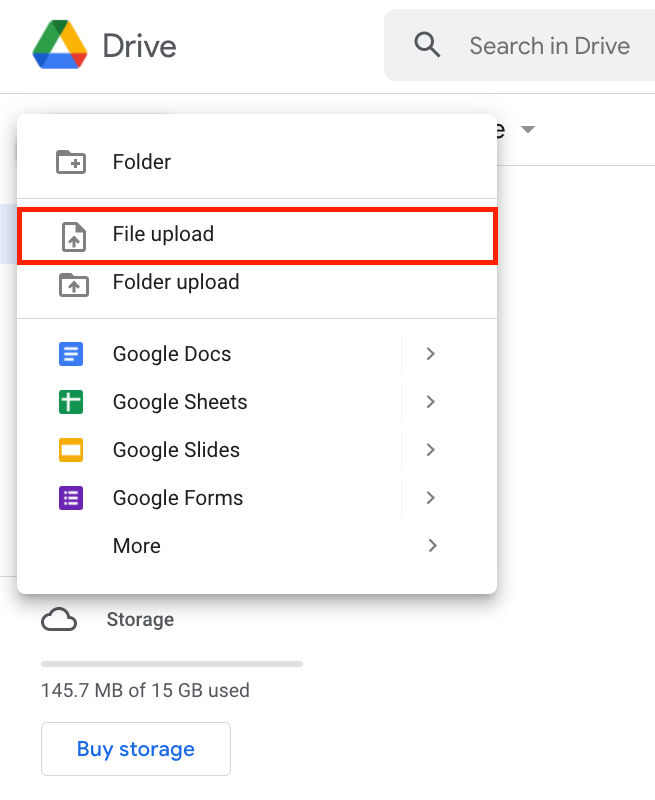
Click 'New':
Click 'File upload':
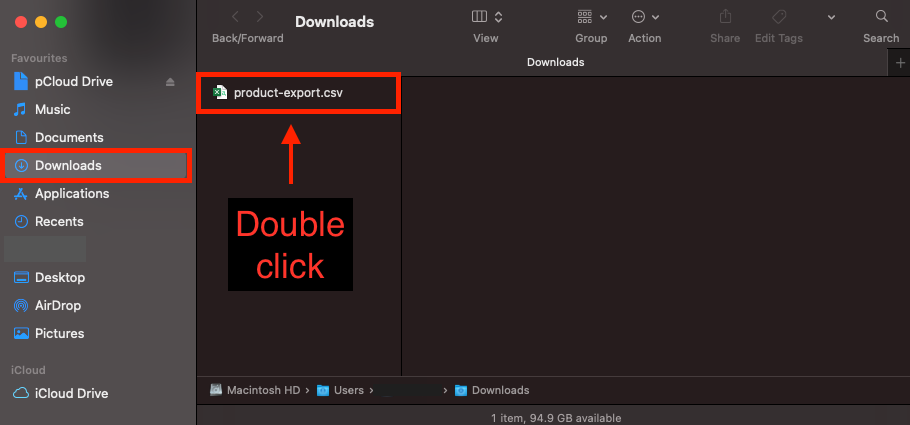
Navigate to your 'Downloads' folder (or wherever the '.csv' file was downloaded to) and double click it:
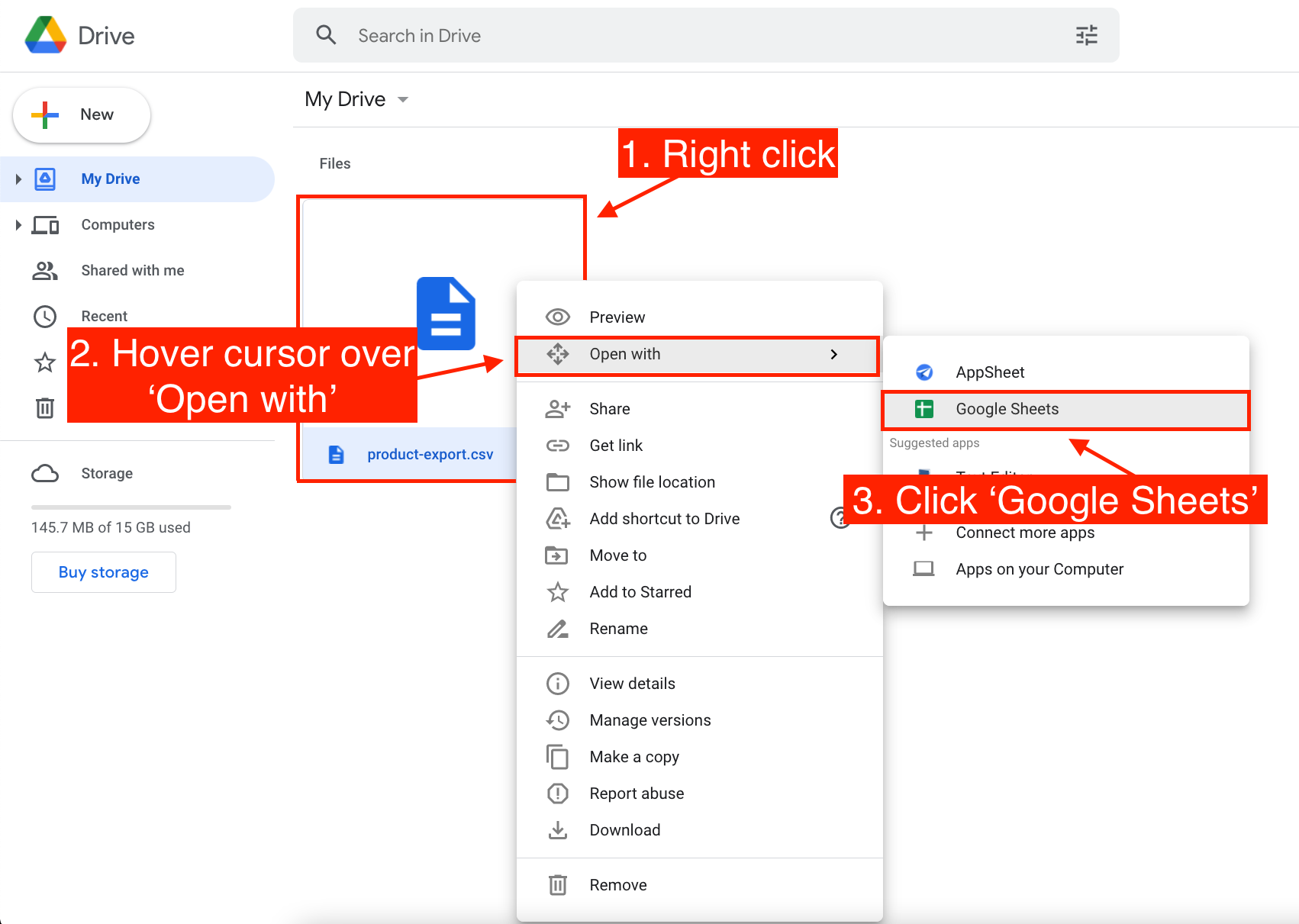
Once your '.csv' file has uploaded to 'Google Drive':
(1. Right click on it) > (2. Hover your cursor over 'Open With') > (3. Click 'Google Sheets')
The Google Sheet will then open like this:
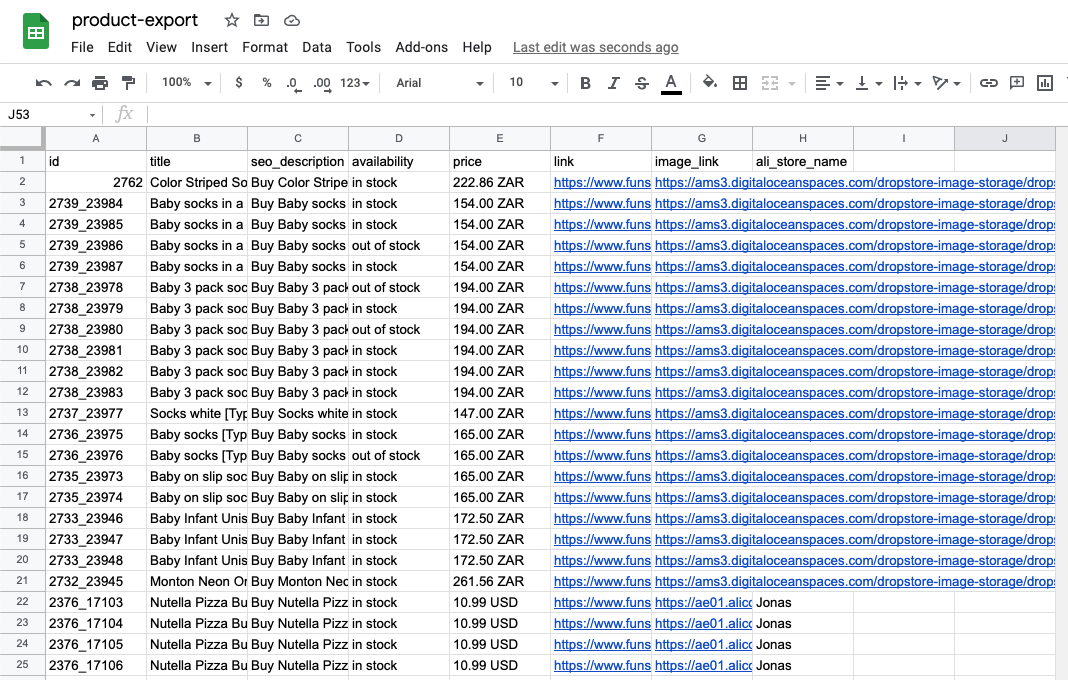
Double click the heading 'seo_description' to edit it:
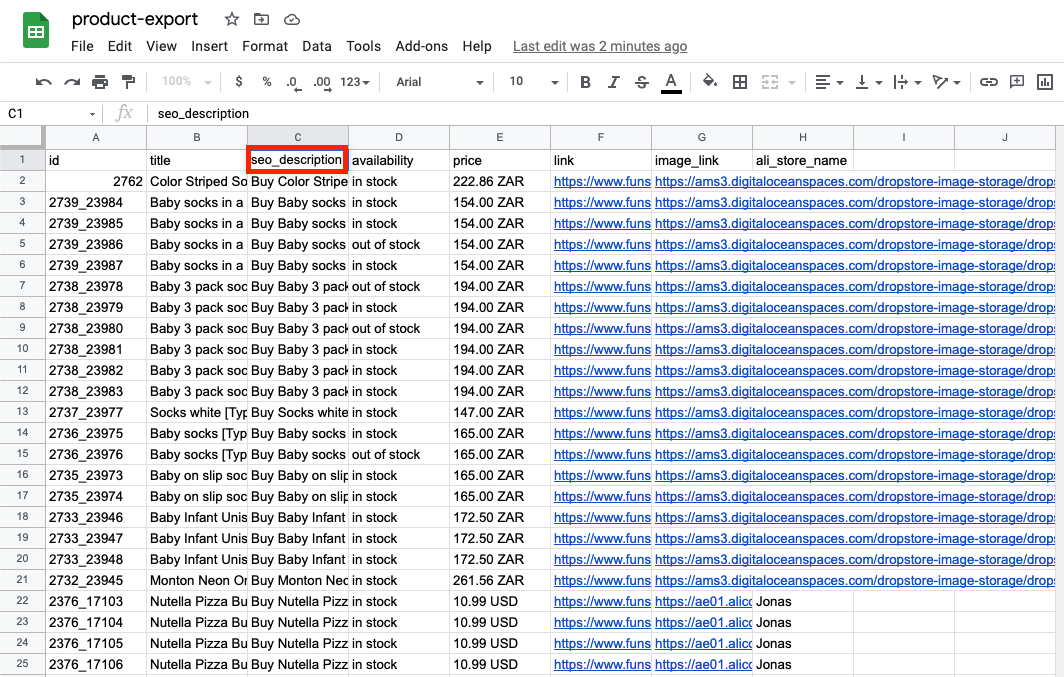
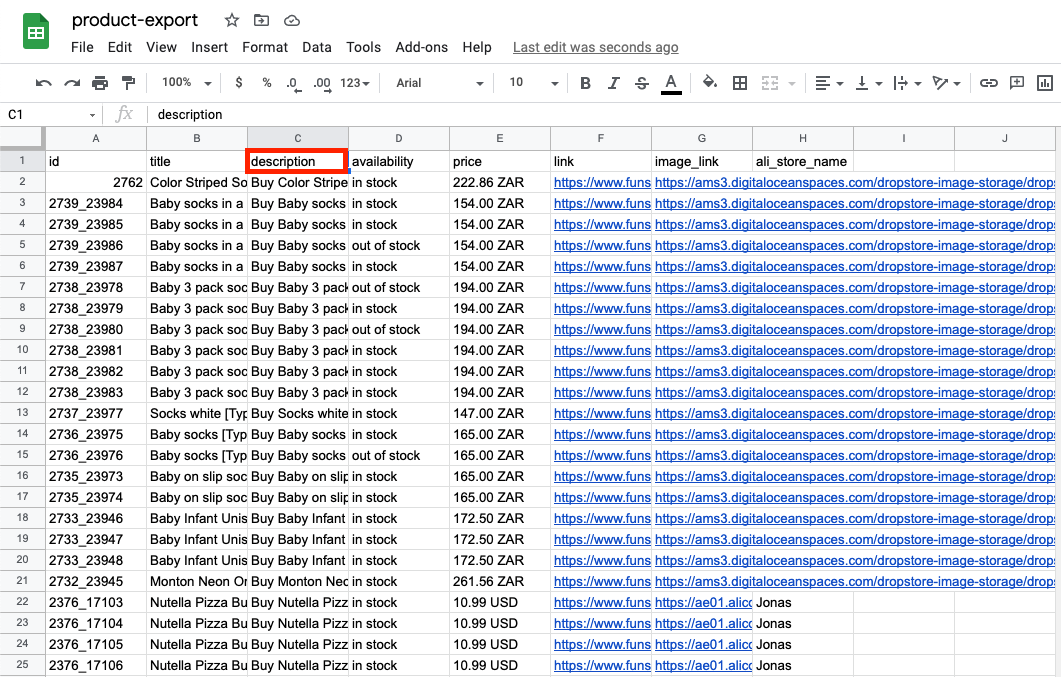
Change 'seo_description' to 'description':
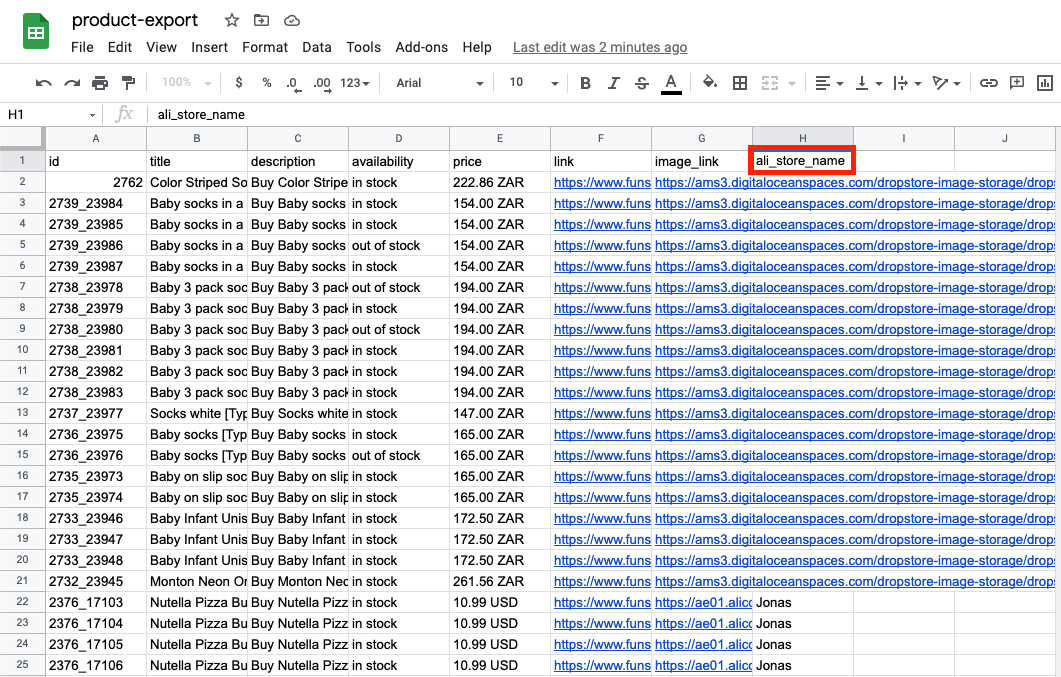
Double click the heading 'ali_store_name' to edit it:
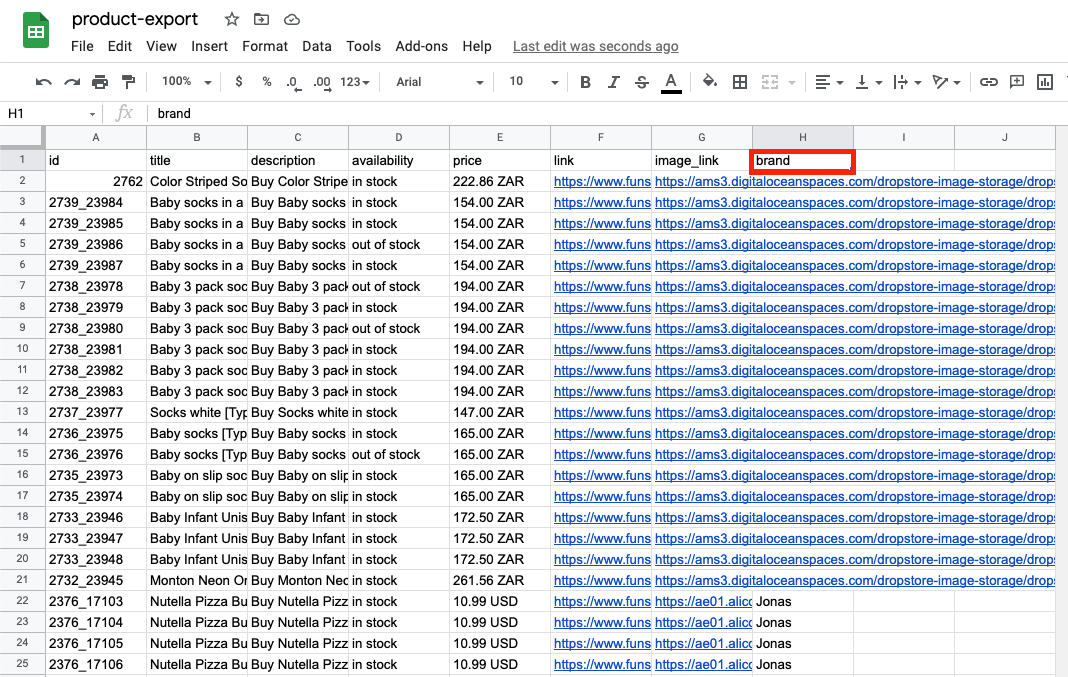
Change 'ali_store_name' to 'brand':
Right click on 'Availability', and click 'Insert column':
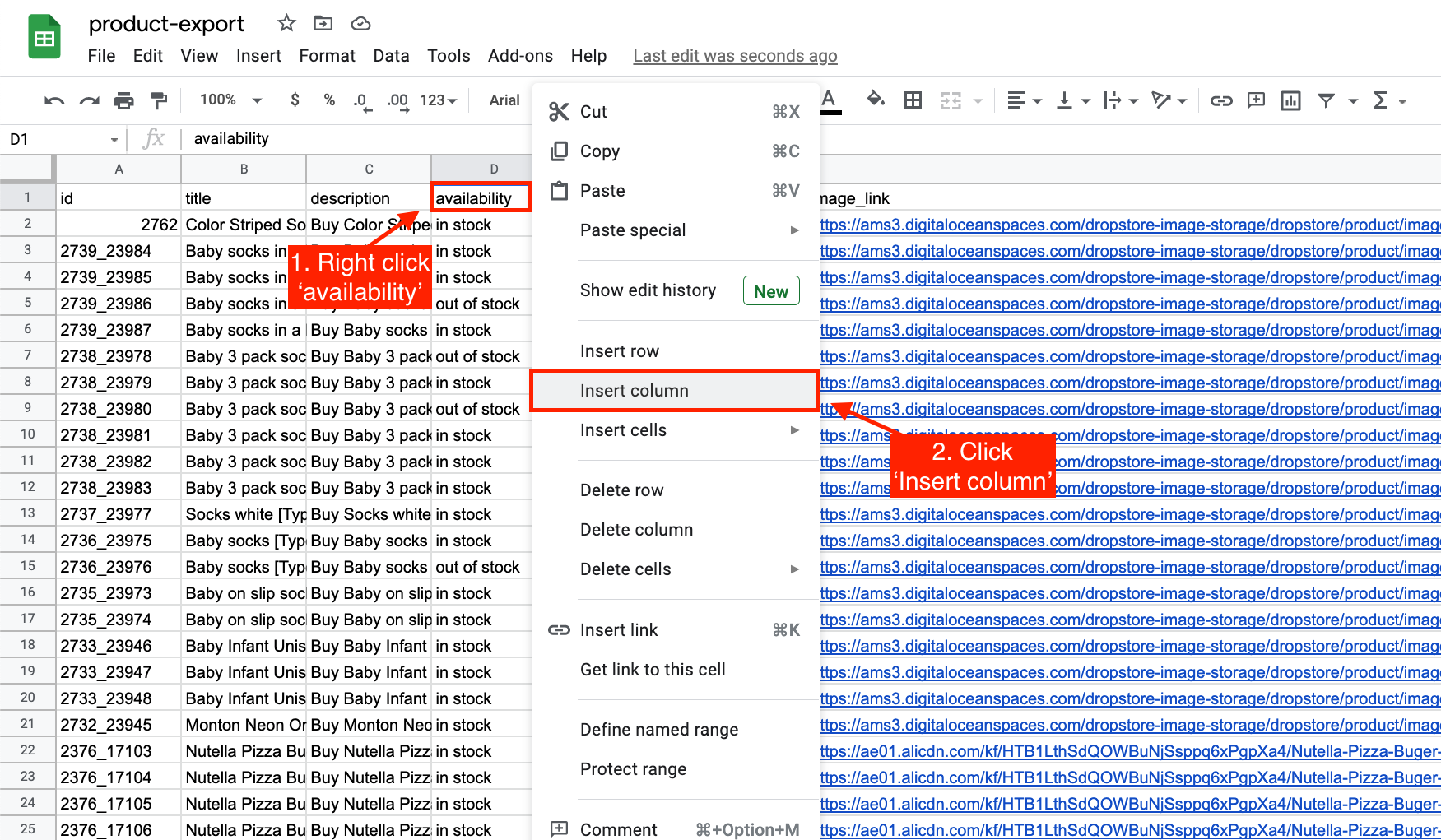
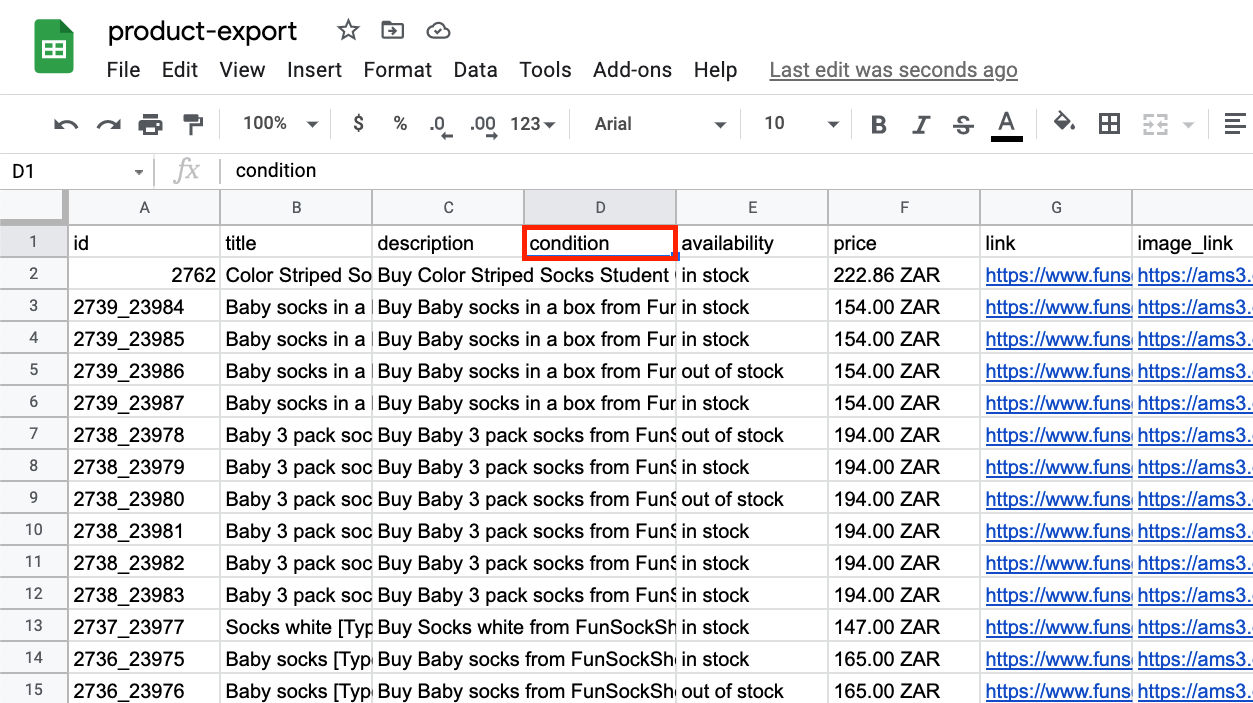
Name the column header in the middle of 'description' and 'availability', 'condition':
Move your cursor over the border line between column 'C' and column 'D' until it highlights blue:
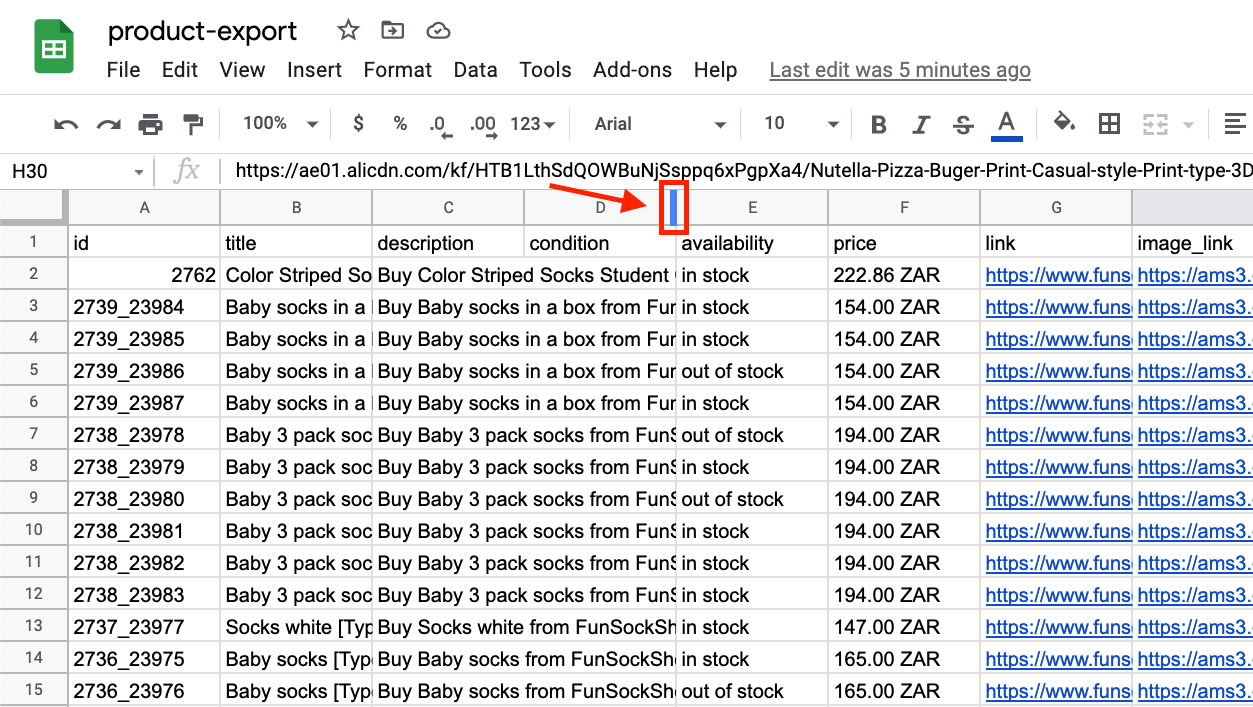
When it highlights blue, double click it to automatically resize the column to fit the data:
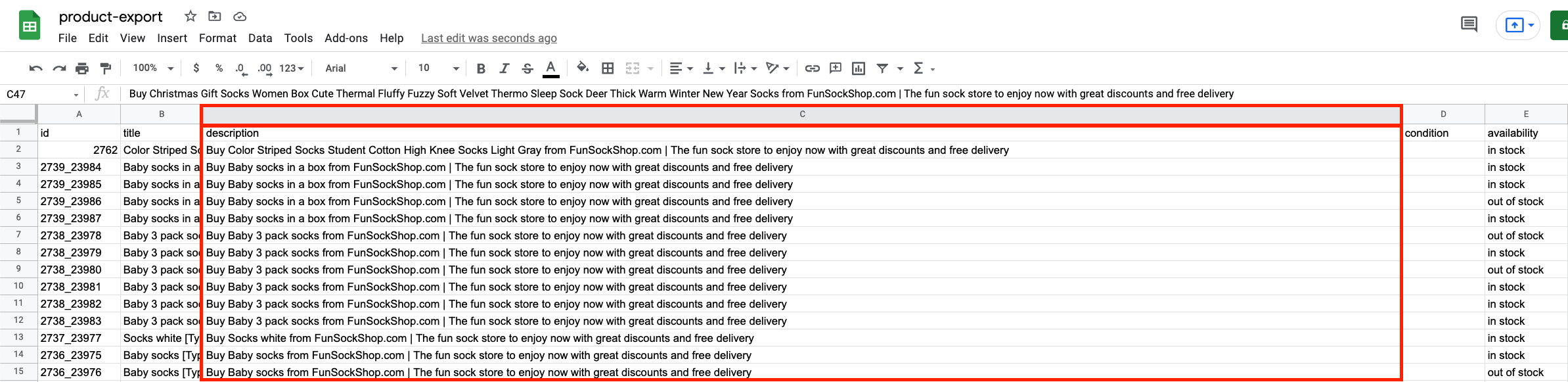
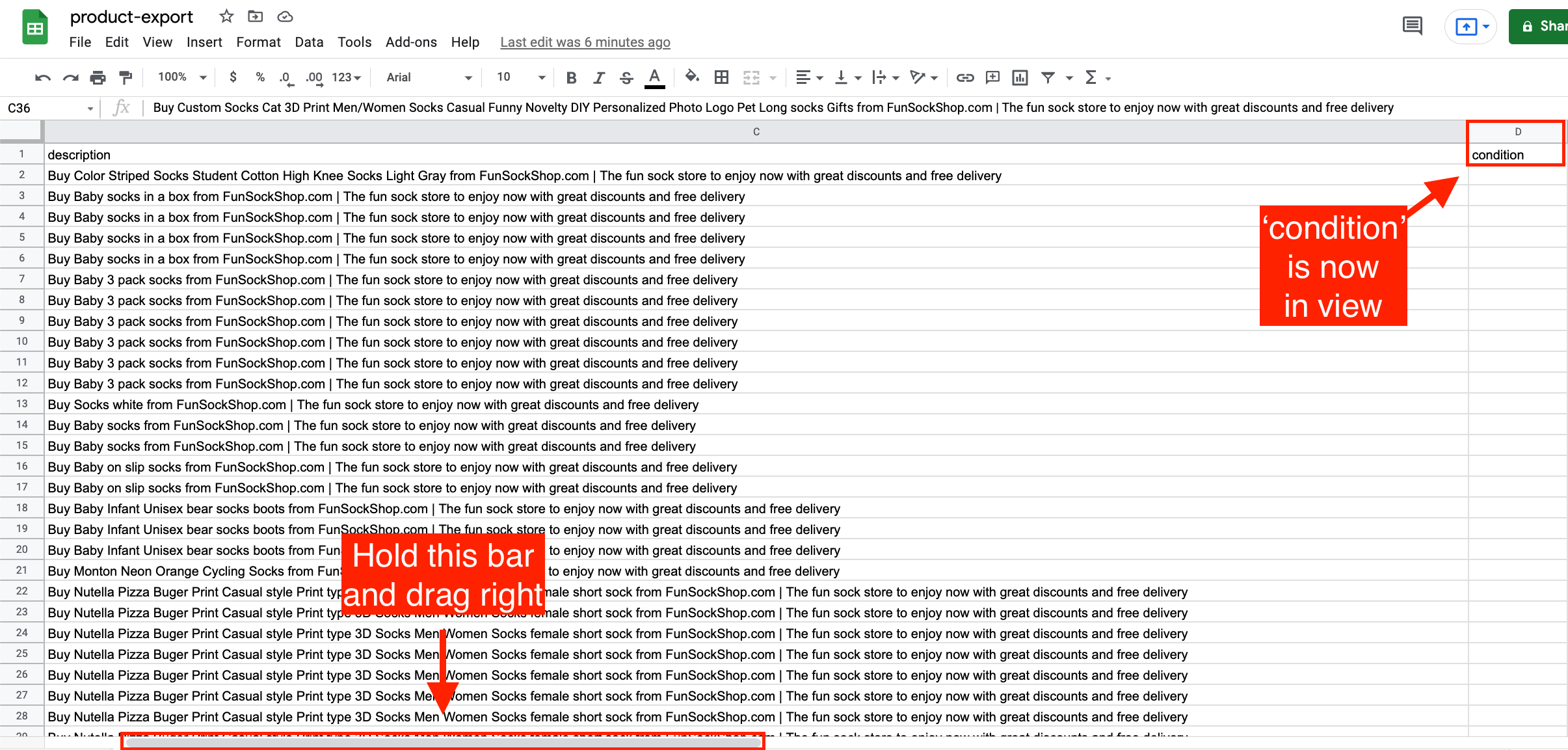
Click and hold this slider and drag it to the right until the 'condition' header comes into view:
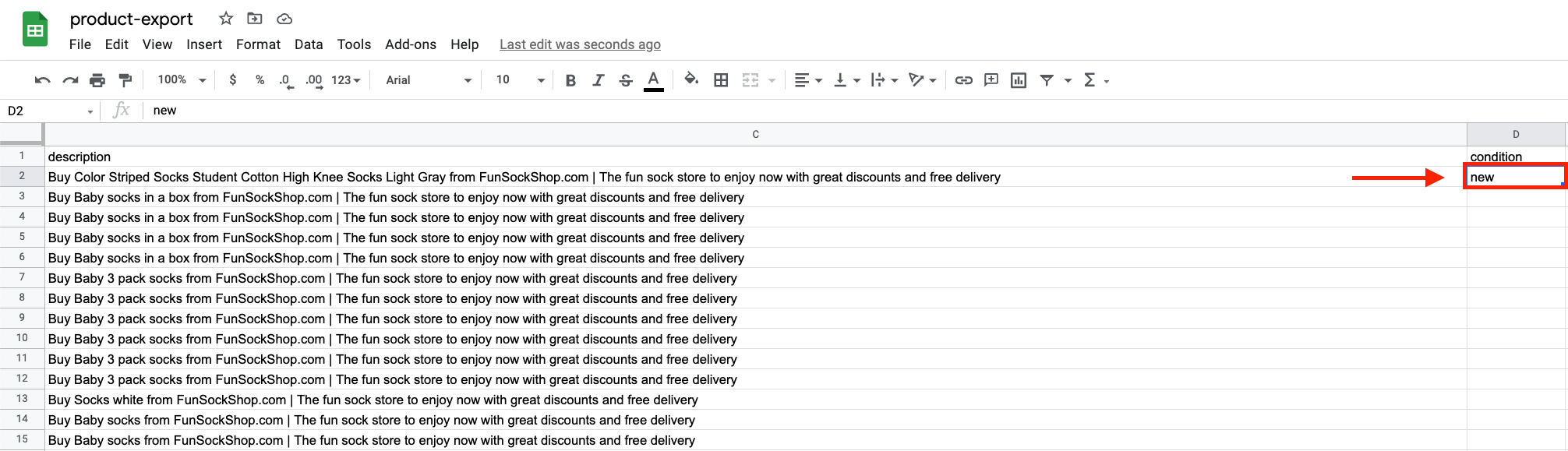
In the cell 'D2', type 'new':
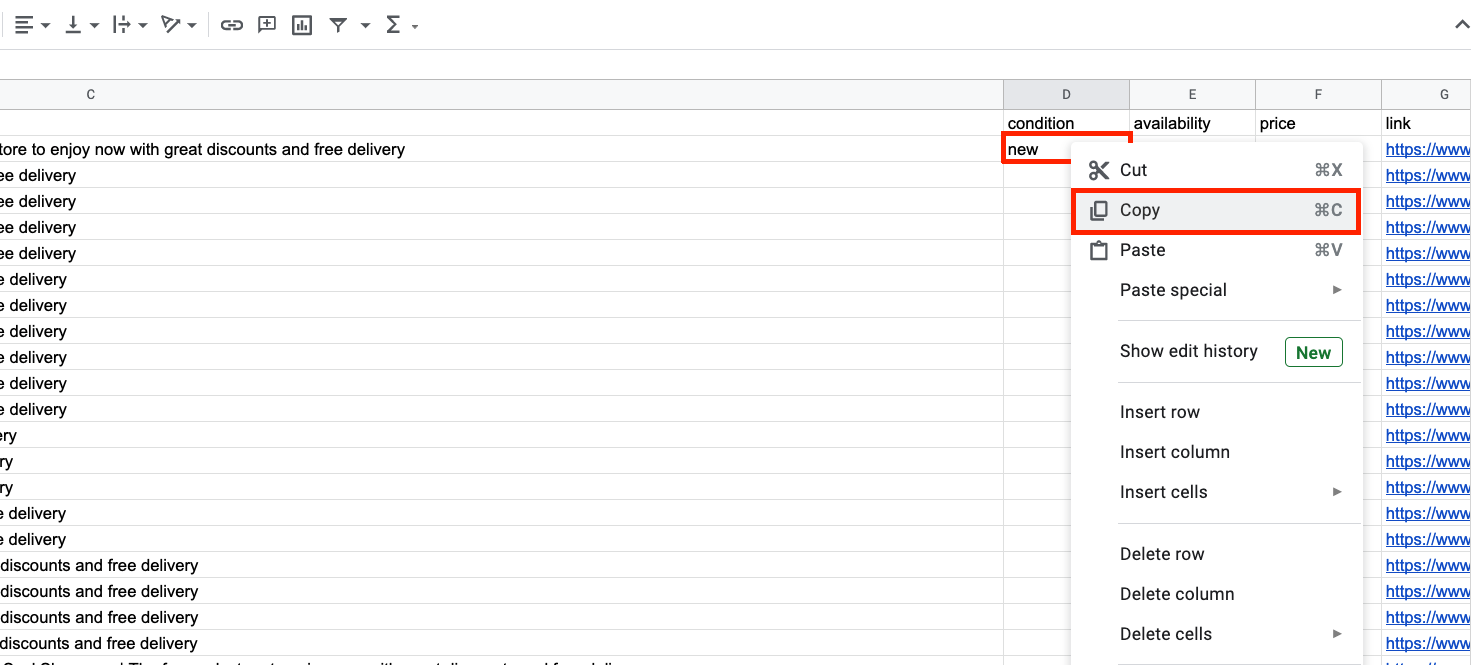
Right click the cell 'D2' and choose 'Copy':
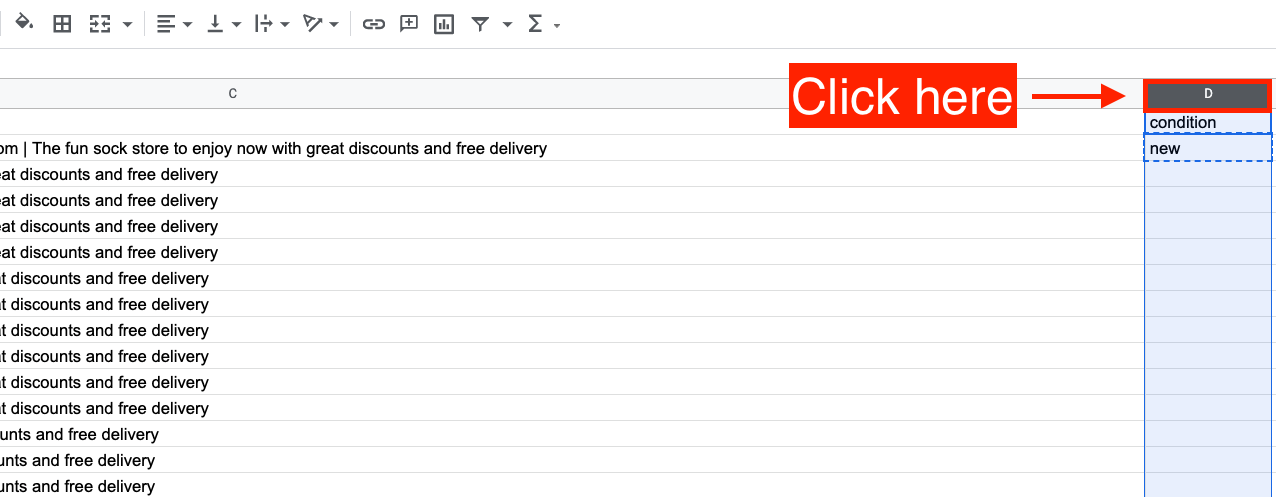
Click the column letter 'D' to highlight all the cells in column 'D':
With all the cells in column 'D' selected, use the paste shortcut on your keyboard:
(Windows: ctrl + v) (Mac: cmd + v)
This will paste 'new' into all the cells in column 'D':
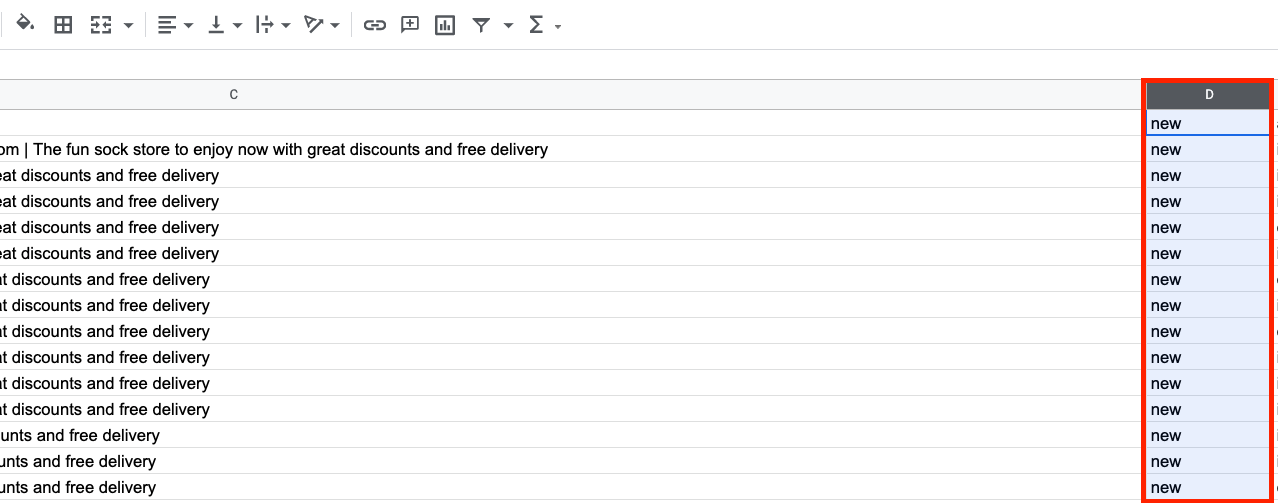
Rename cell 'D1' to 'condition' by double clicking it:
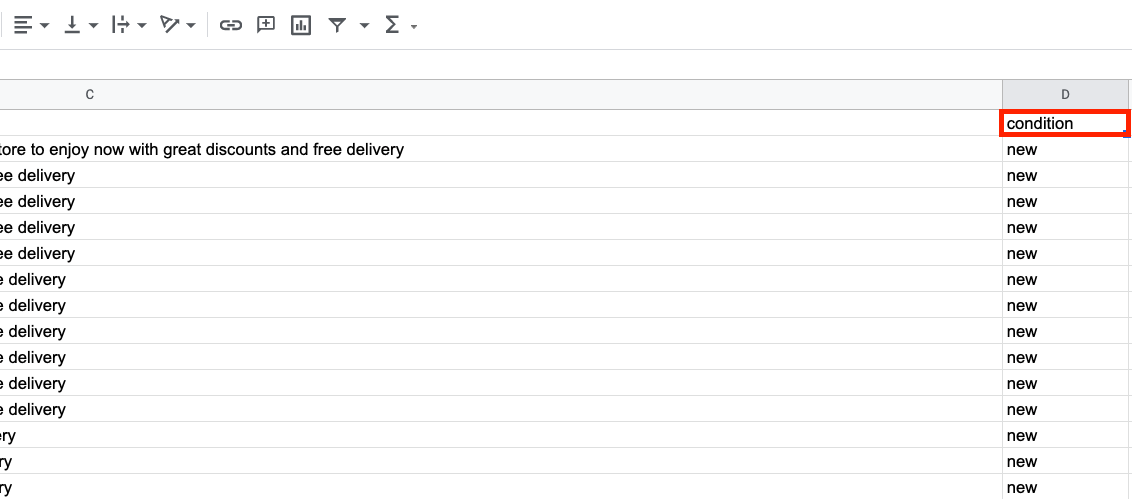
After the above amendments have been made:
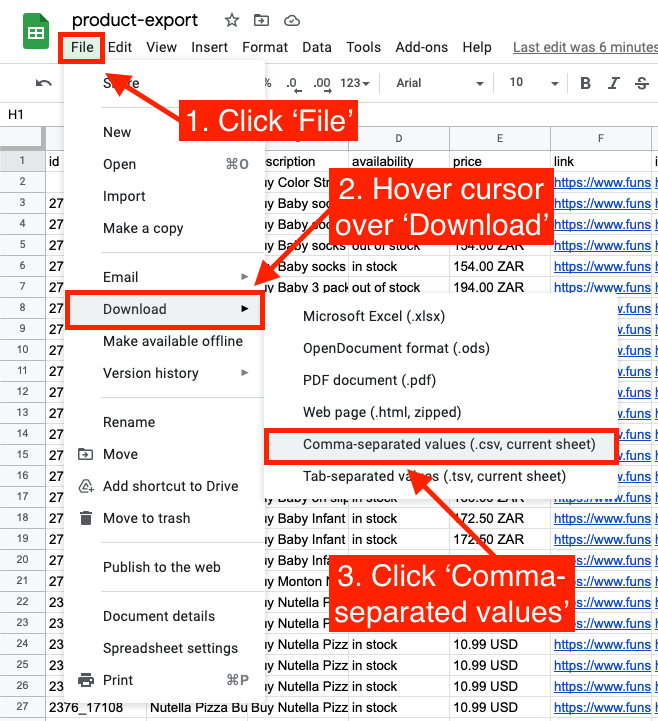
(1. Click 'File') > (2. Hover your cursor over 'Download') > (3. Click 'Comma-separated values')
Please note: if you haven't already done so, create a Facebook Page in your store's name by following this guide:
https://www.facebook.com/help/104002523024878
Click this link to arrive at Facebook Commerce Manager: https://business.facebook.com/commerce_manager
Please note: if you are not already logged into your Facebook account, you will be prompted to do so.
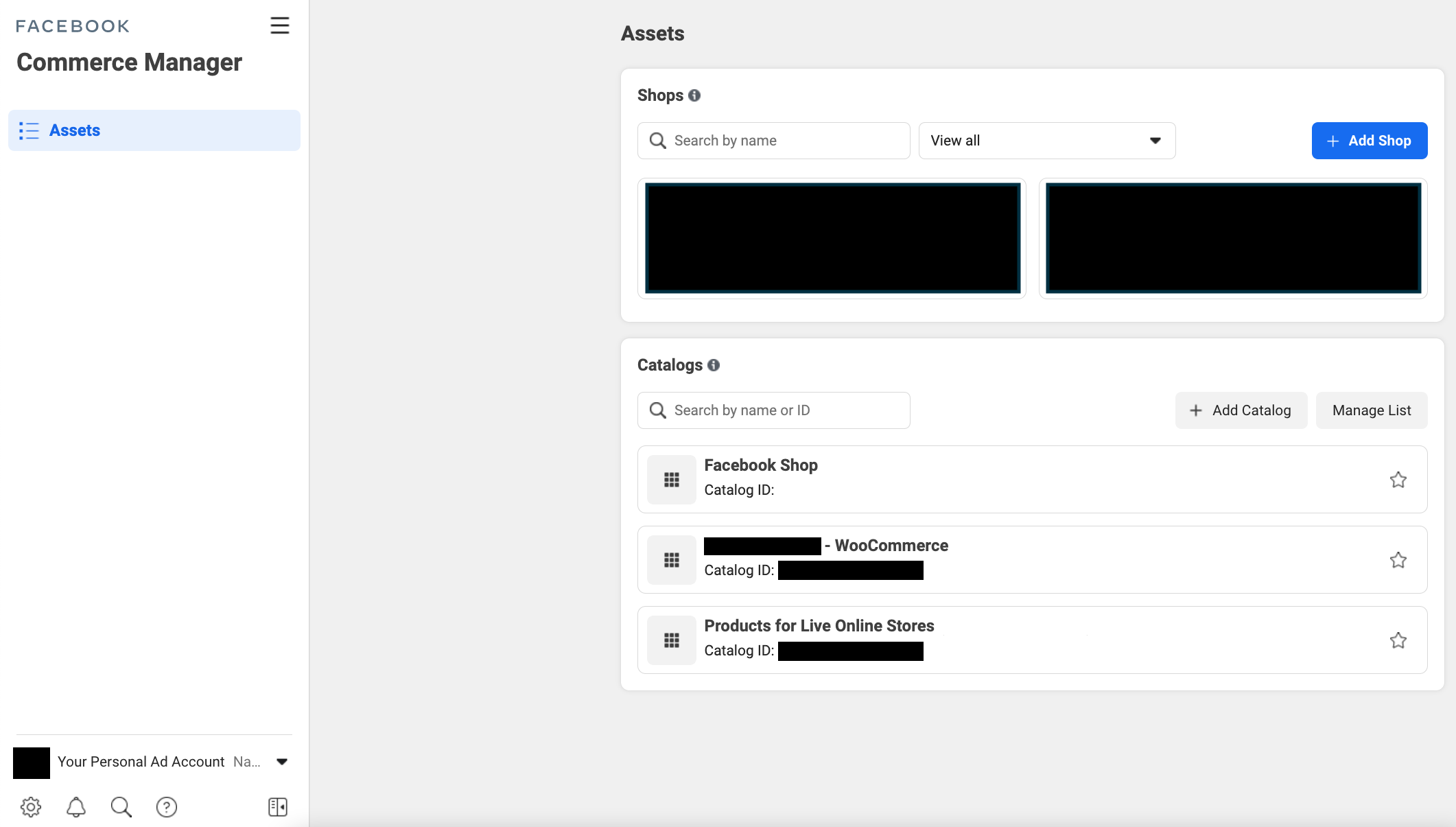
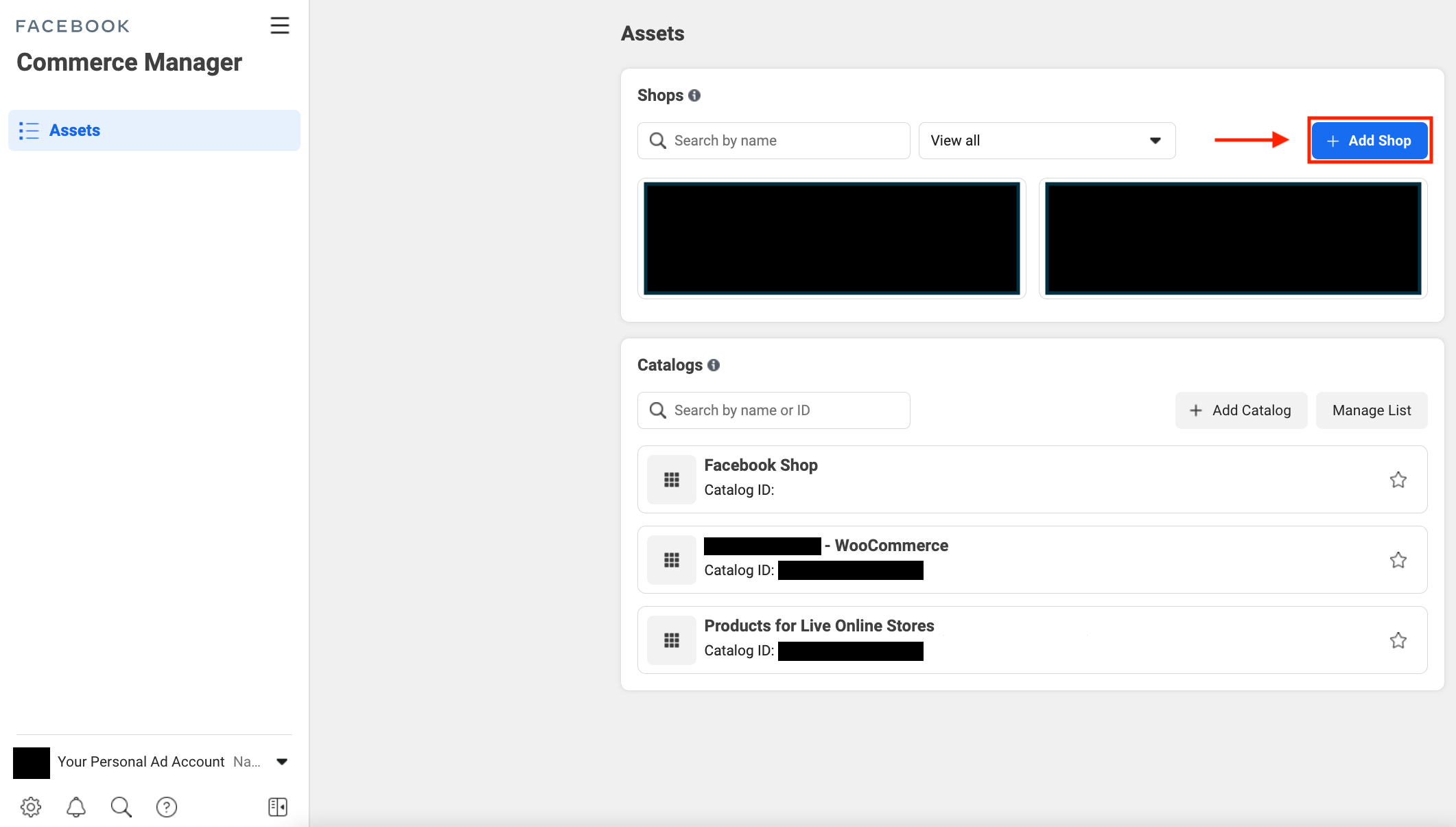
Under 'Shops', click 'Add Shop':
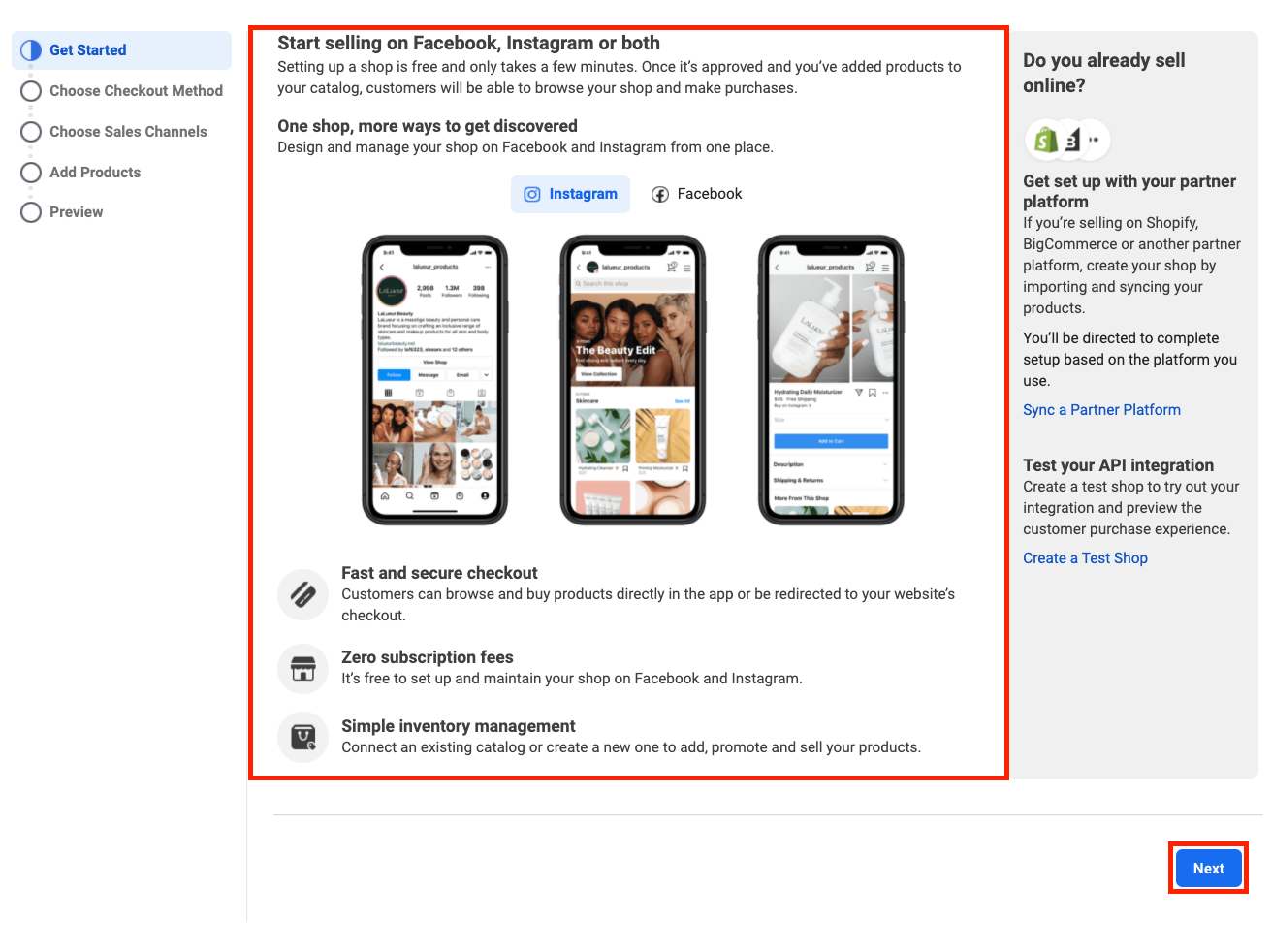
Read through the 'Get Started' page, and click 'Next':
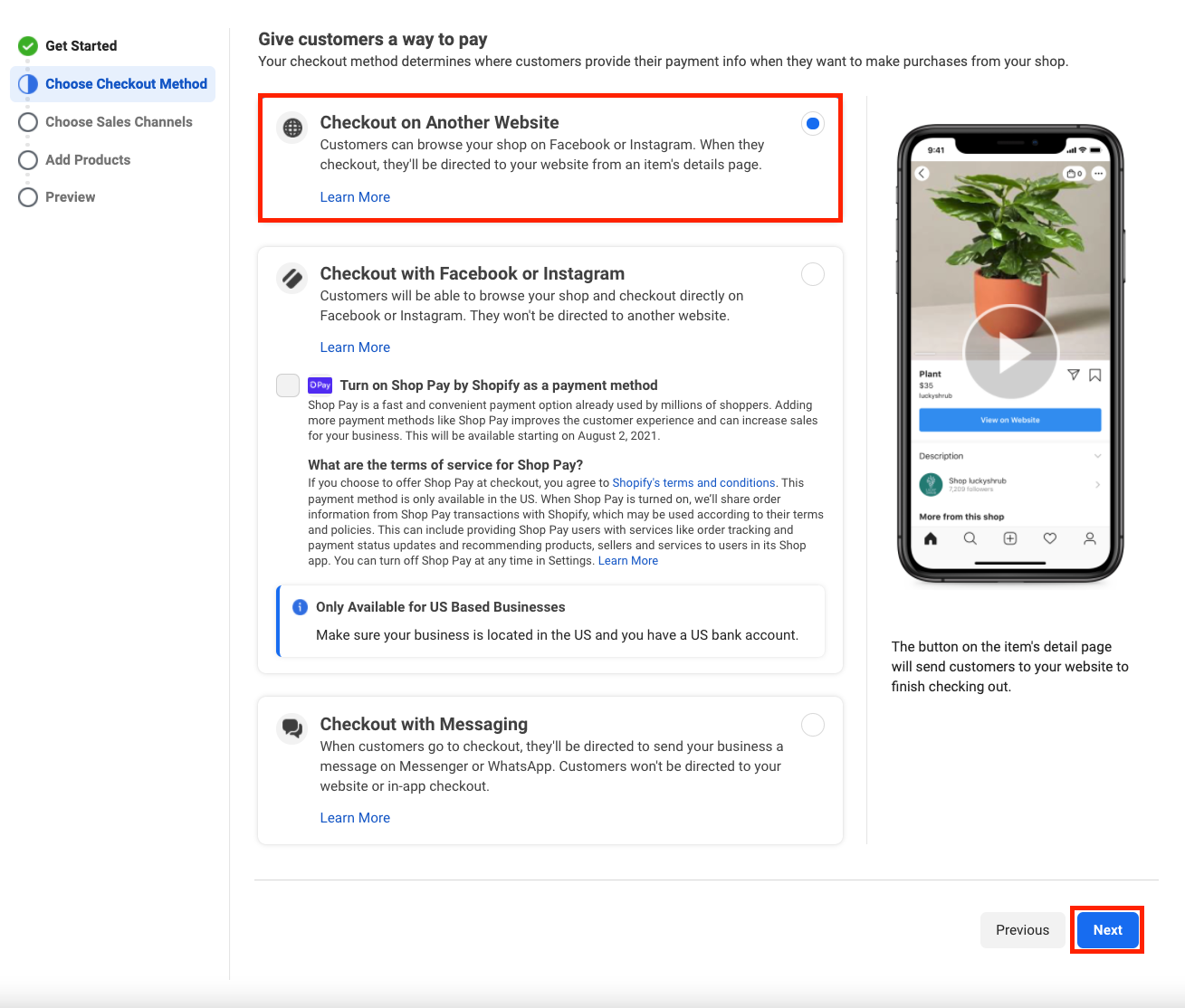
Click 'Checkout on Another Website', and click 'Next':
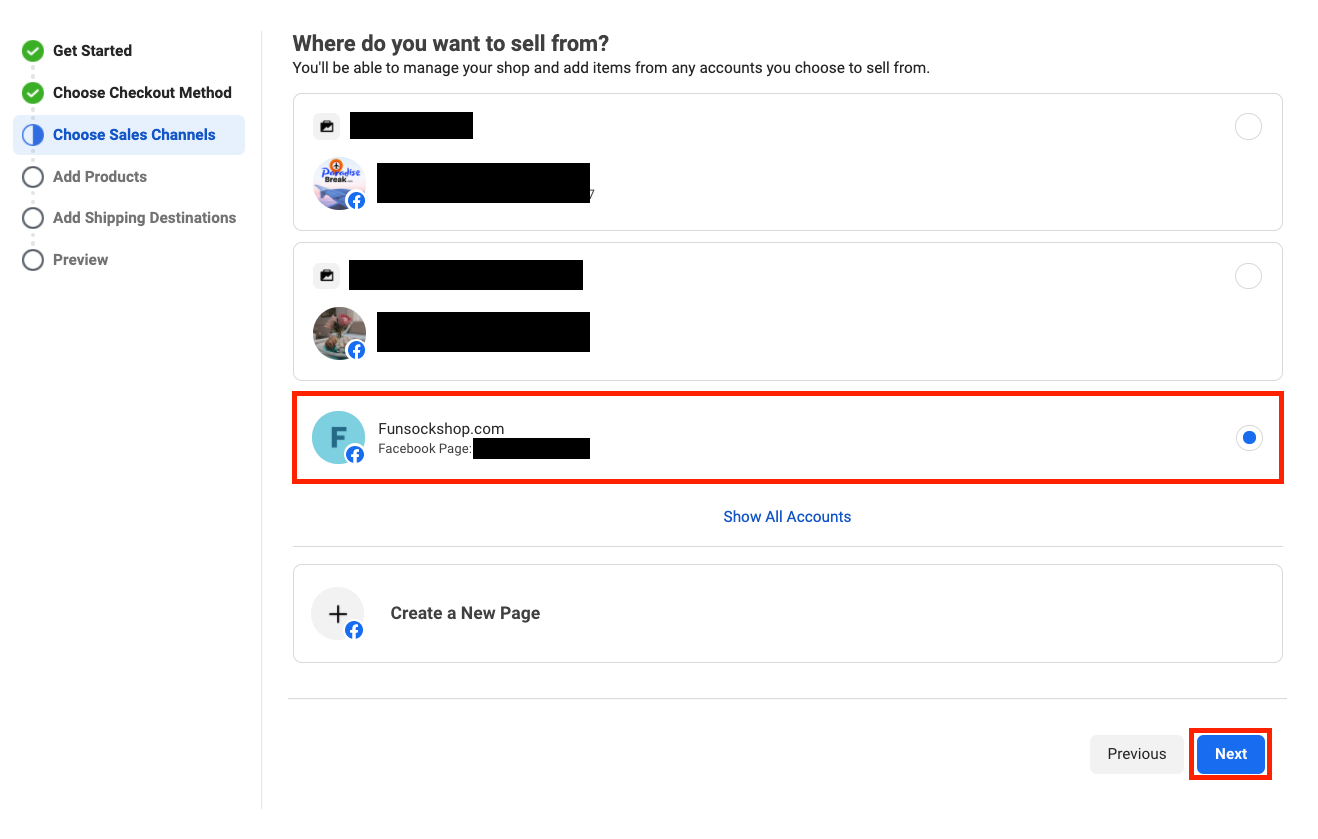
Choose your store's Facebook Page from the available options and click 'Next':
Choose the 'Business Account' you'd like to create your shop with, or click 'Create a New Business Account' if you do not already have one or wish to create a new one:
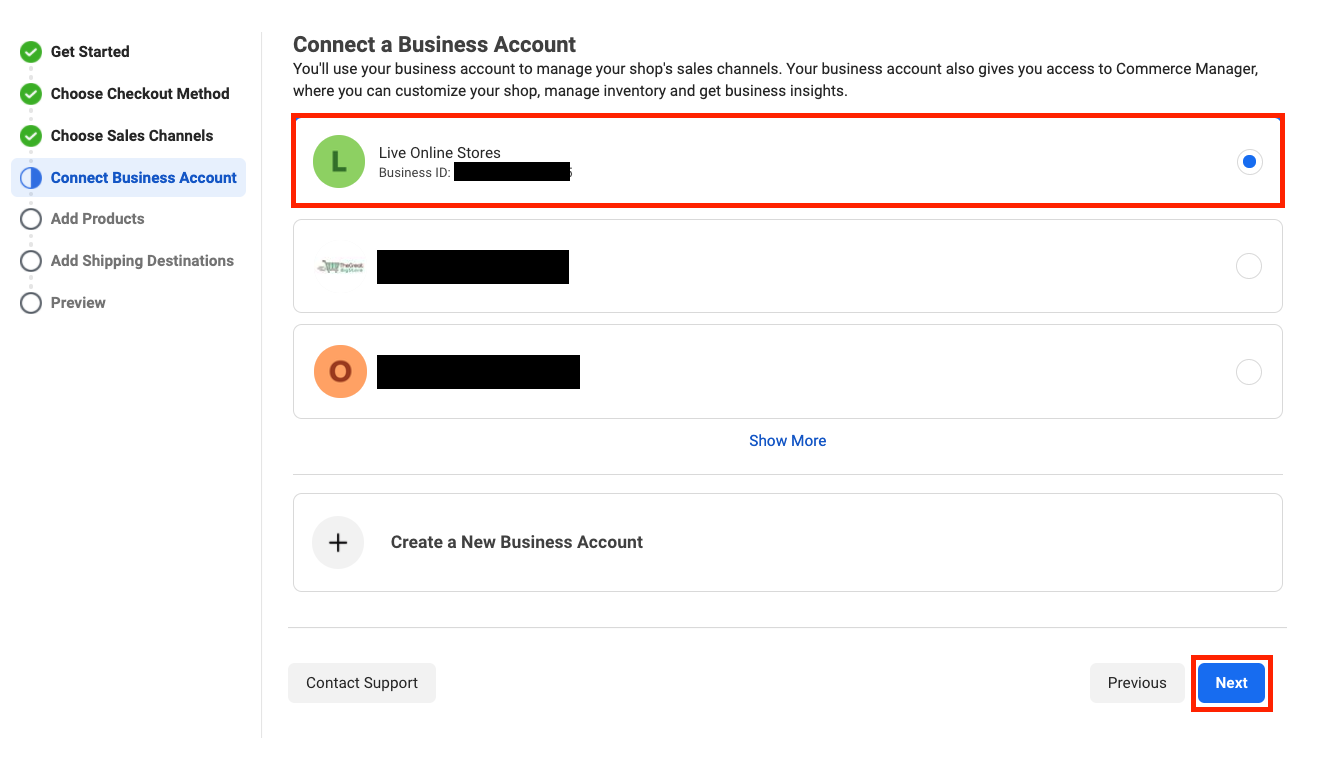
You may have to confirm the email address associated with the 'Business Account' before proceeding:
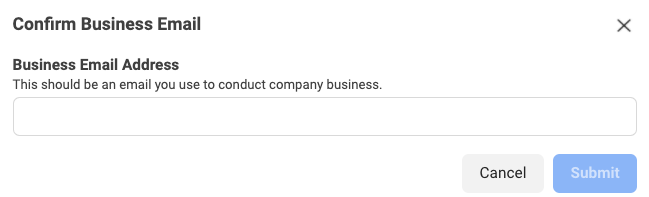
After confirming your 'Business Email', create a 'New Catalog' by giving it a name and click 'Next':
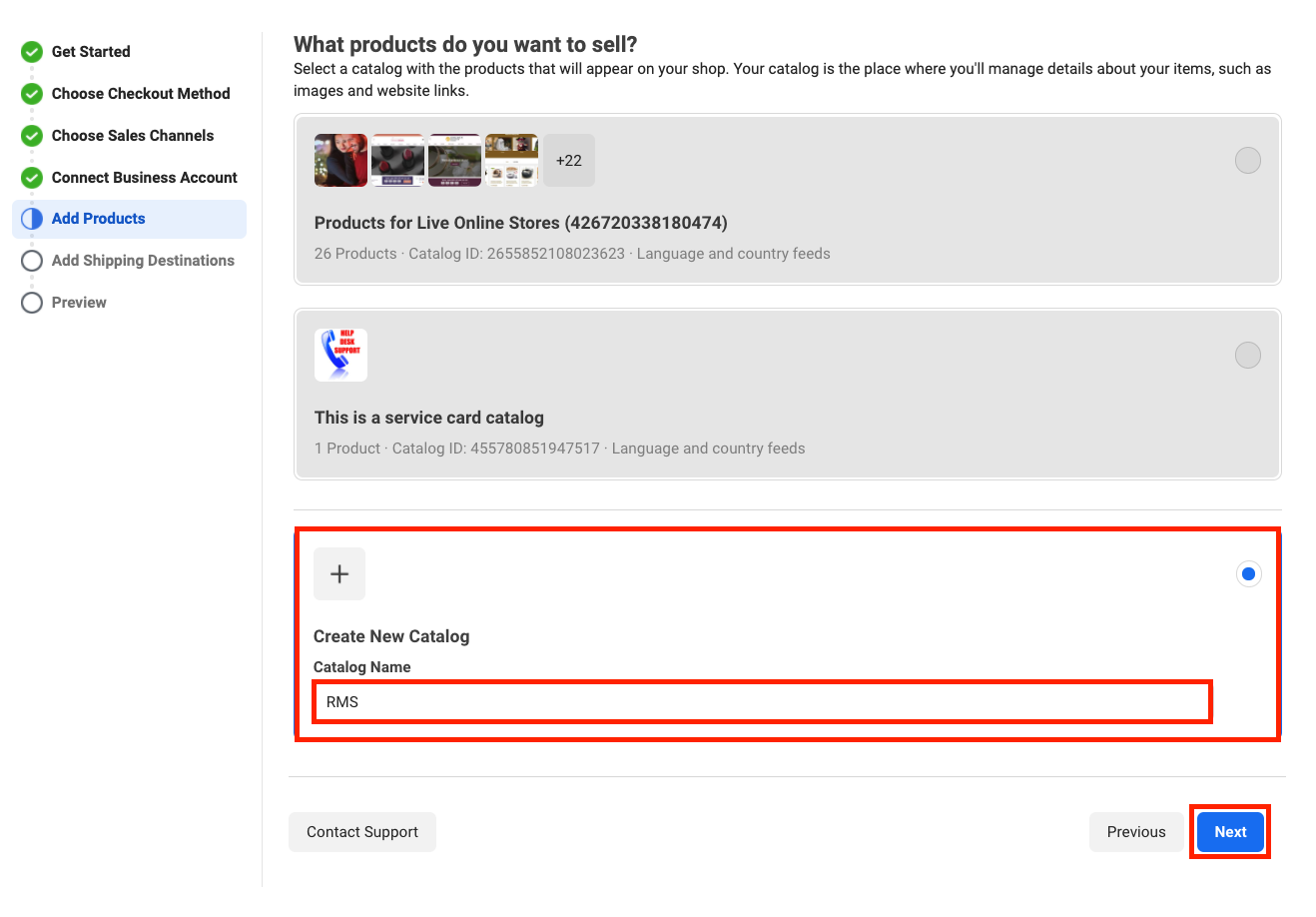
Select the countries and regions you wish to 'ship to' and click 'Next':
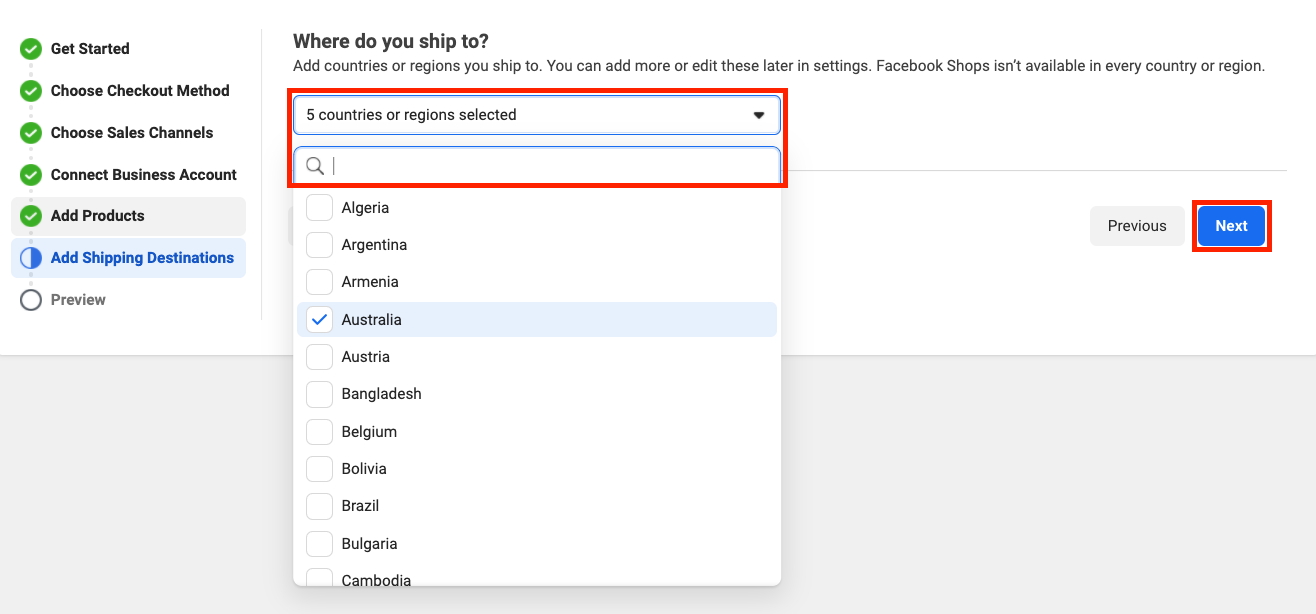
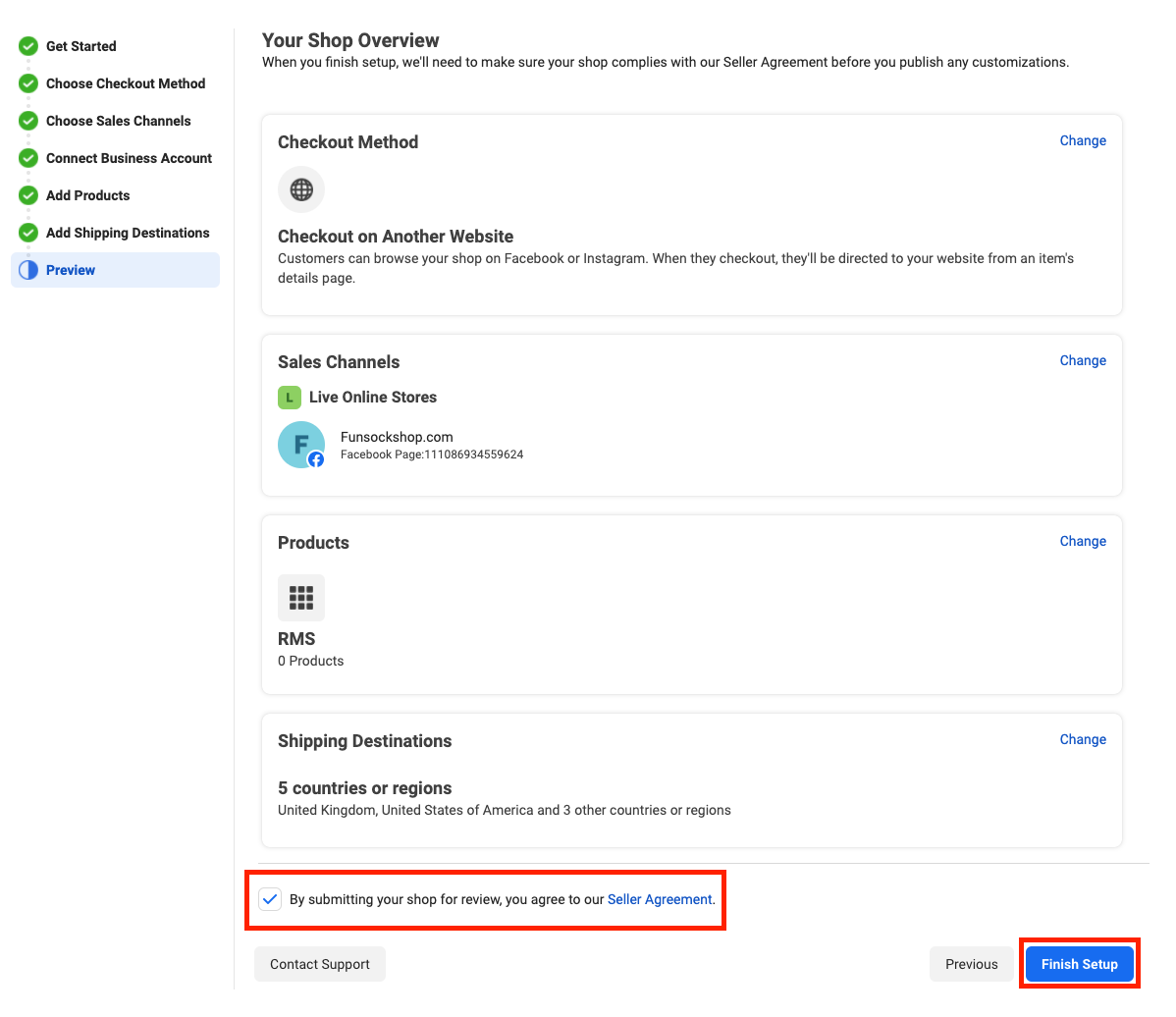
Preview the options you made and make any changes if necessary. When ready, agree to the 'Seller Agreement' and click 'Finish Setup':
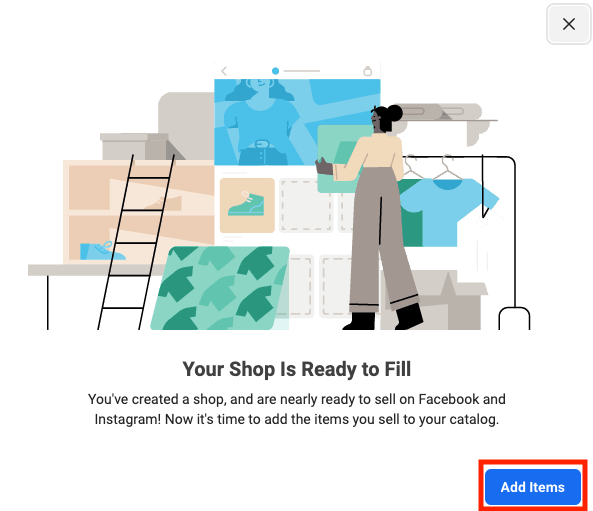
Your shop will now be ready to fill. Click 'Add Items':
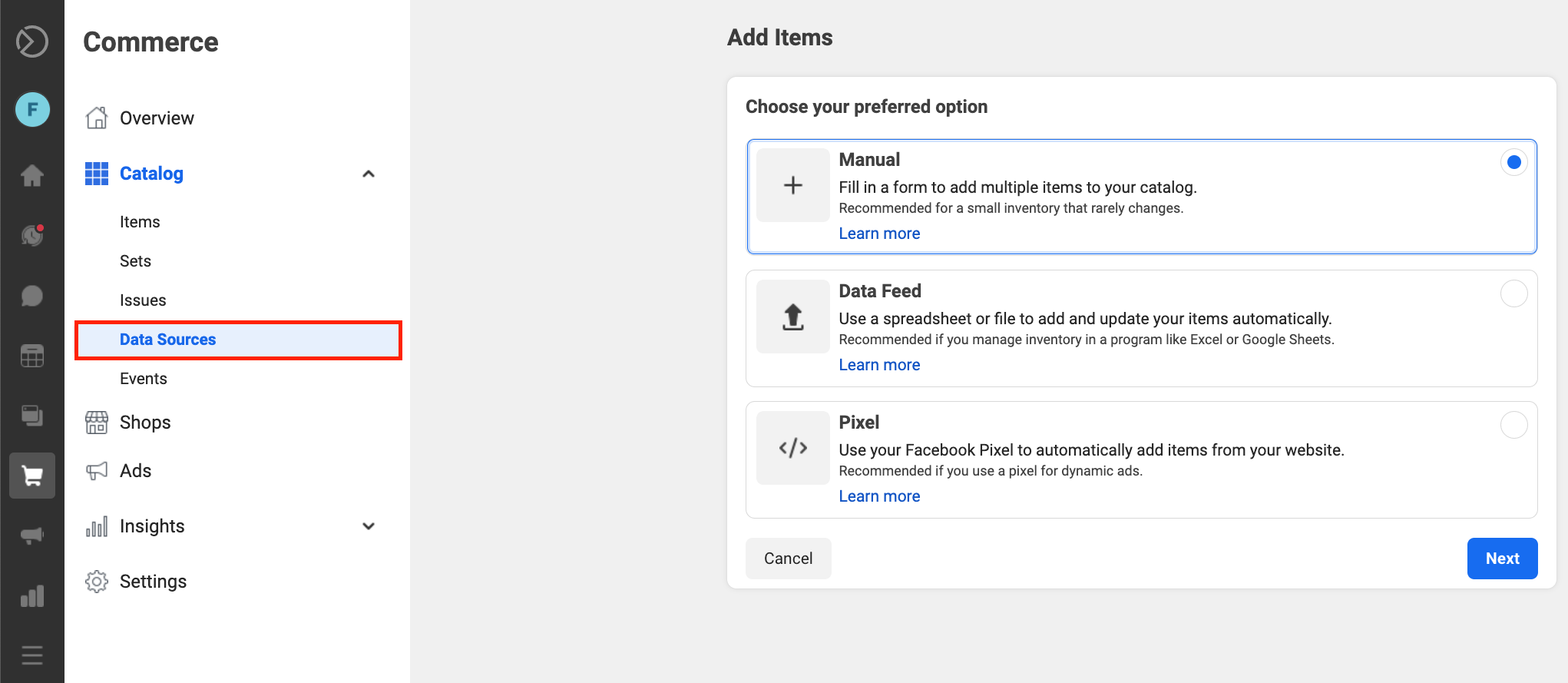
Click 'Data Sources':
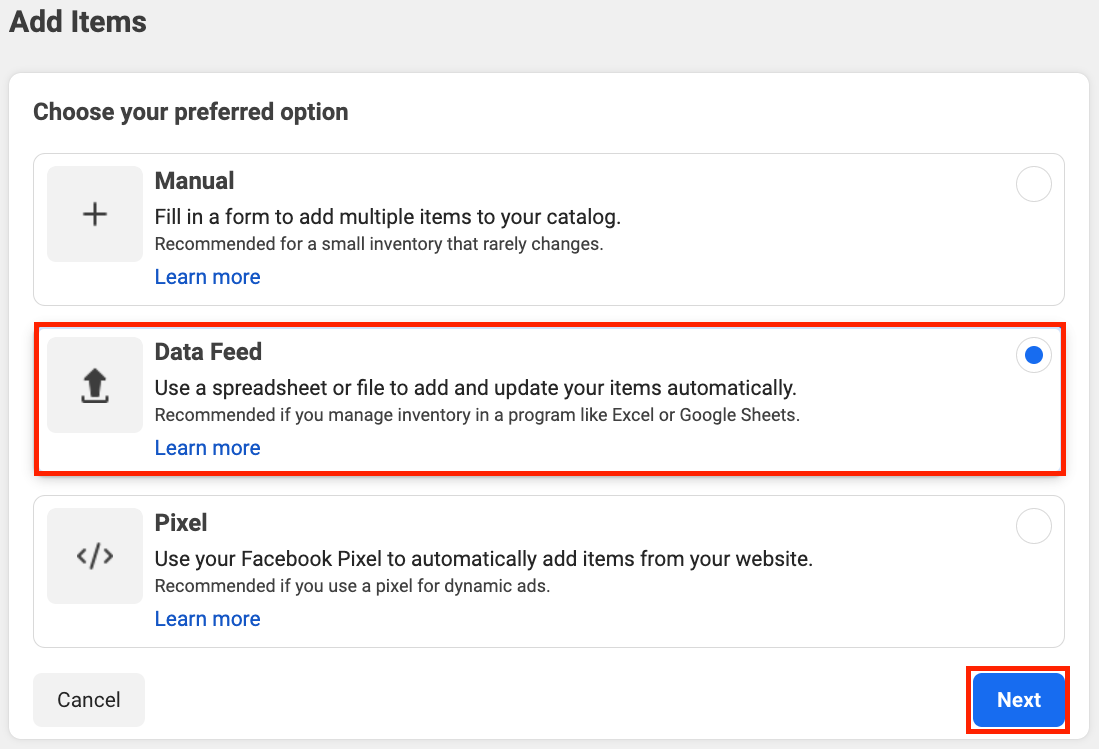
Select 'Data Feed' and click 'Next':
Select 'File upload' and click 'Next':
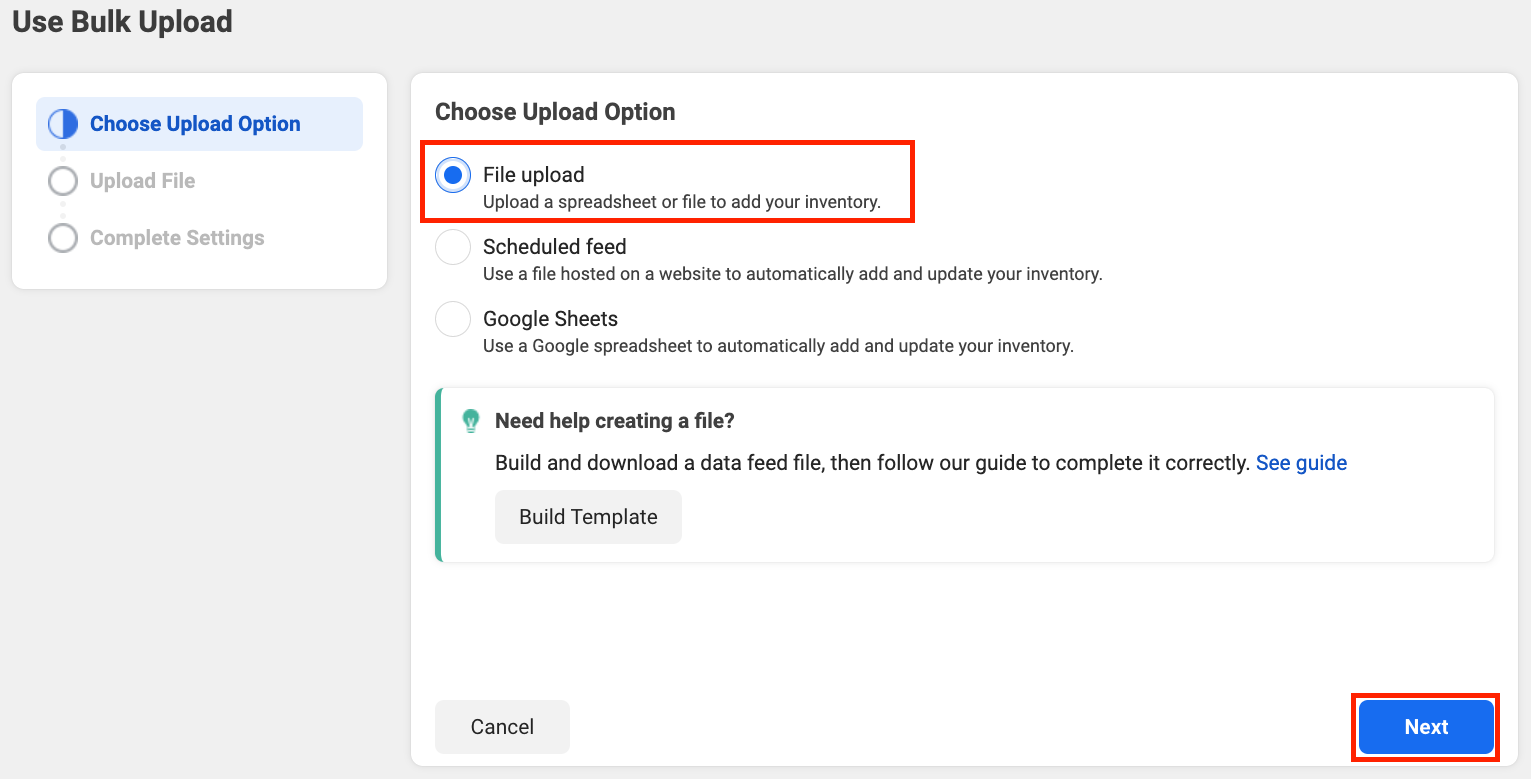
Click 'Upload File':
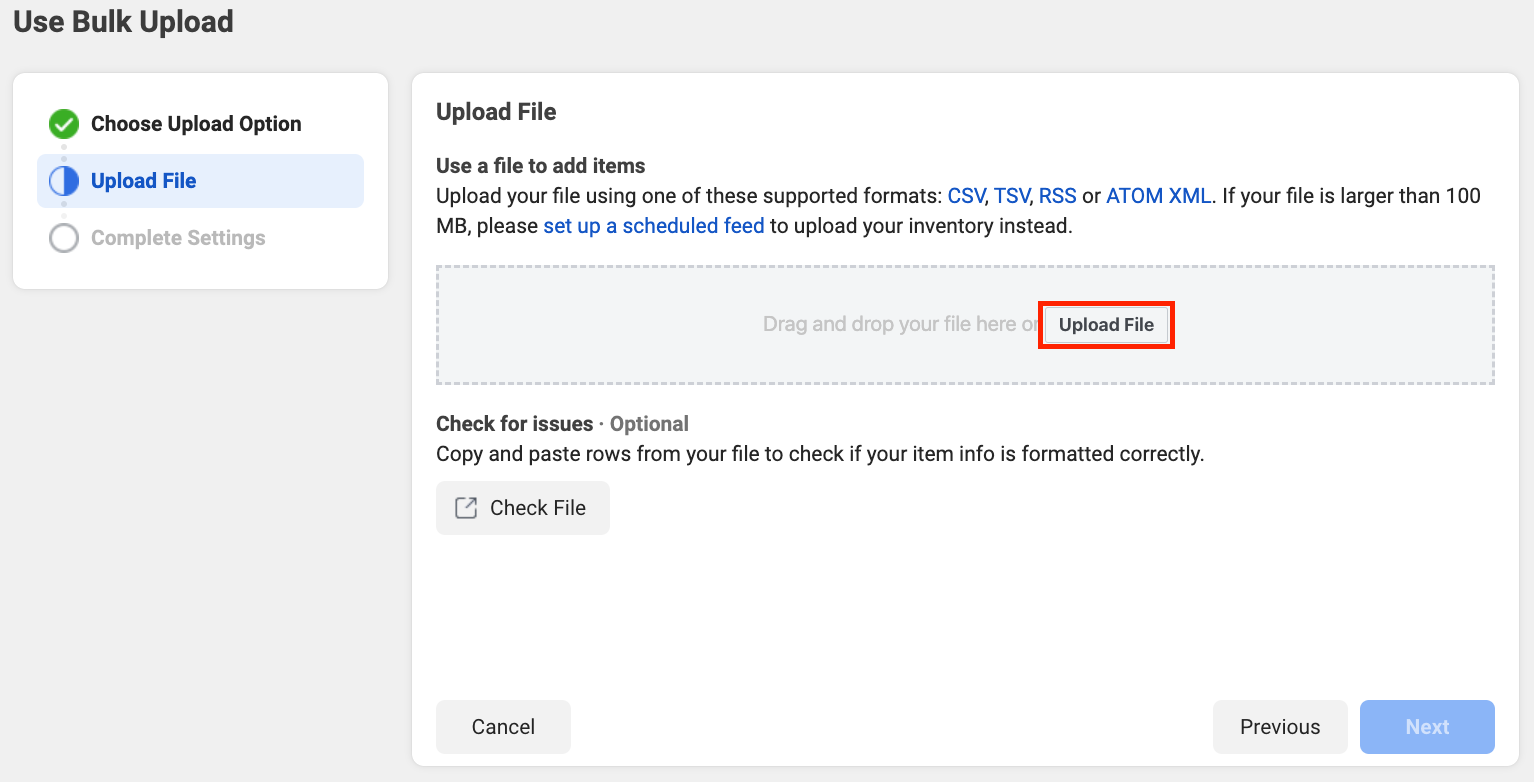
Navigate to your 'Downloads' folder (or wherever the '.csv' file is located) and double click it:
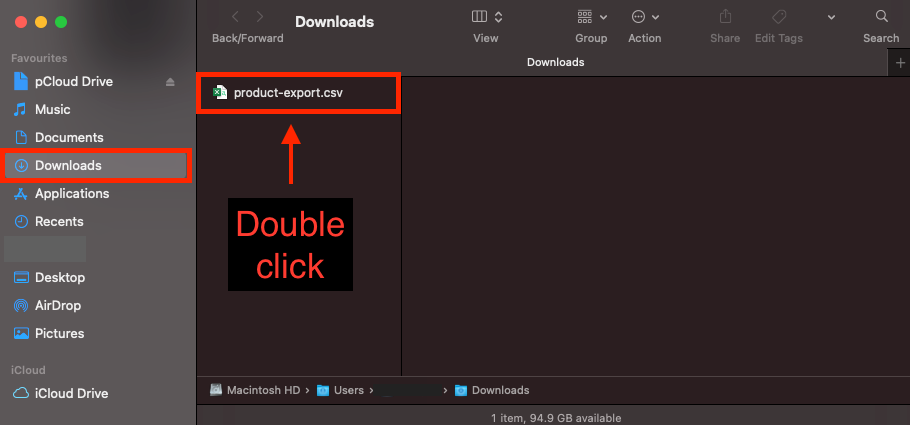
Please note: the time it takes to upload is dependant on how many products are contained within the '.csv' file and signal strength.
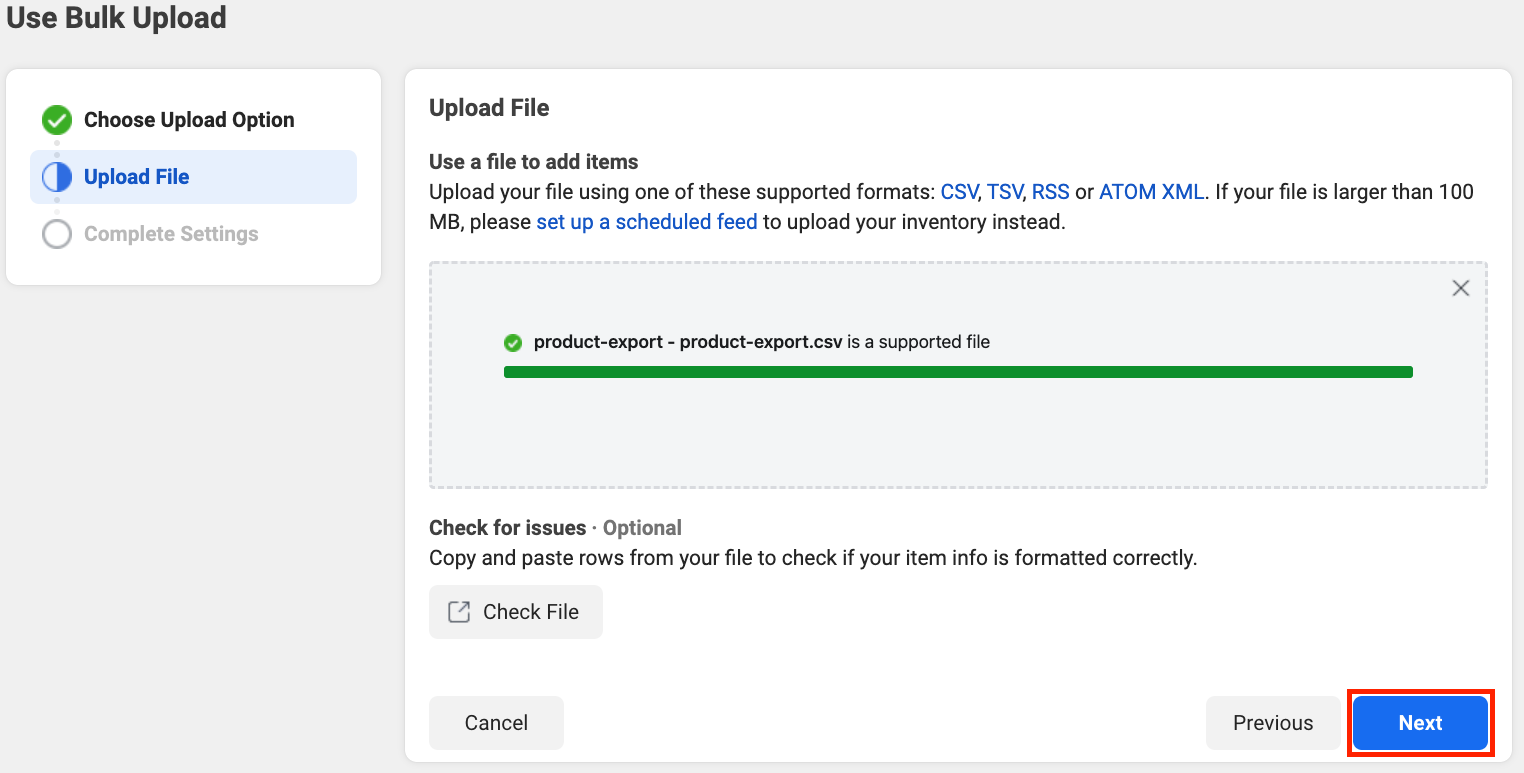
Once uploaded, click 'Next':
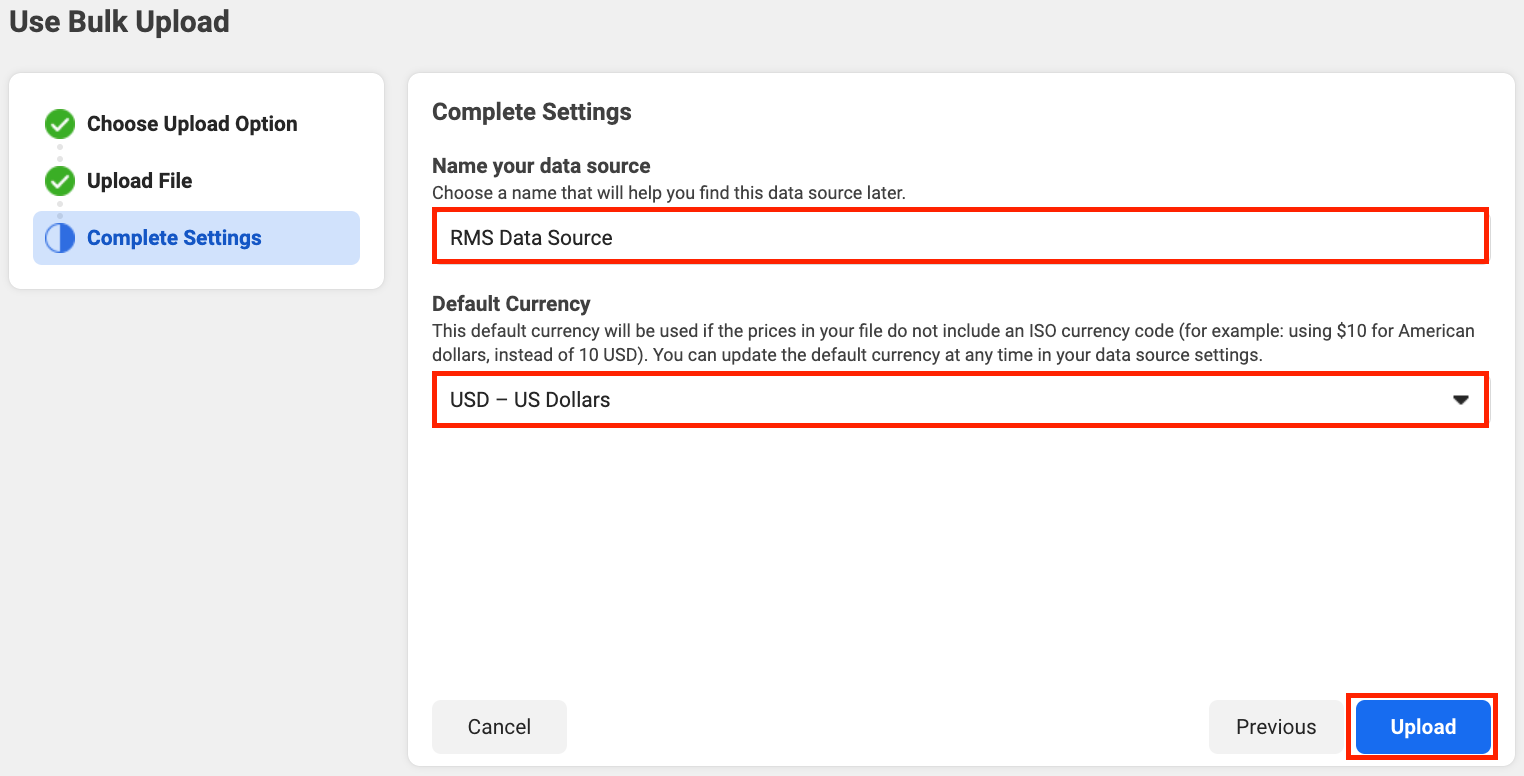
Name your data source, choose the default currency, and click 'Upload':
Please note: the time it takes to upload is dependant on how many products are contained within the '.csv' file and signal strength.
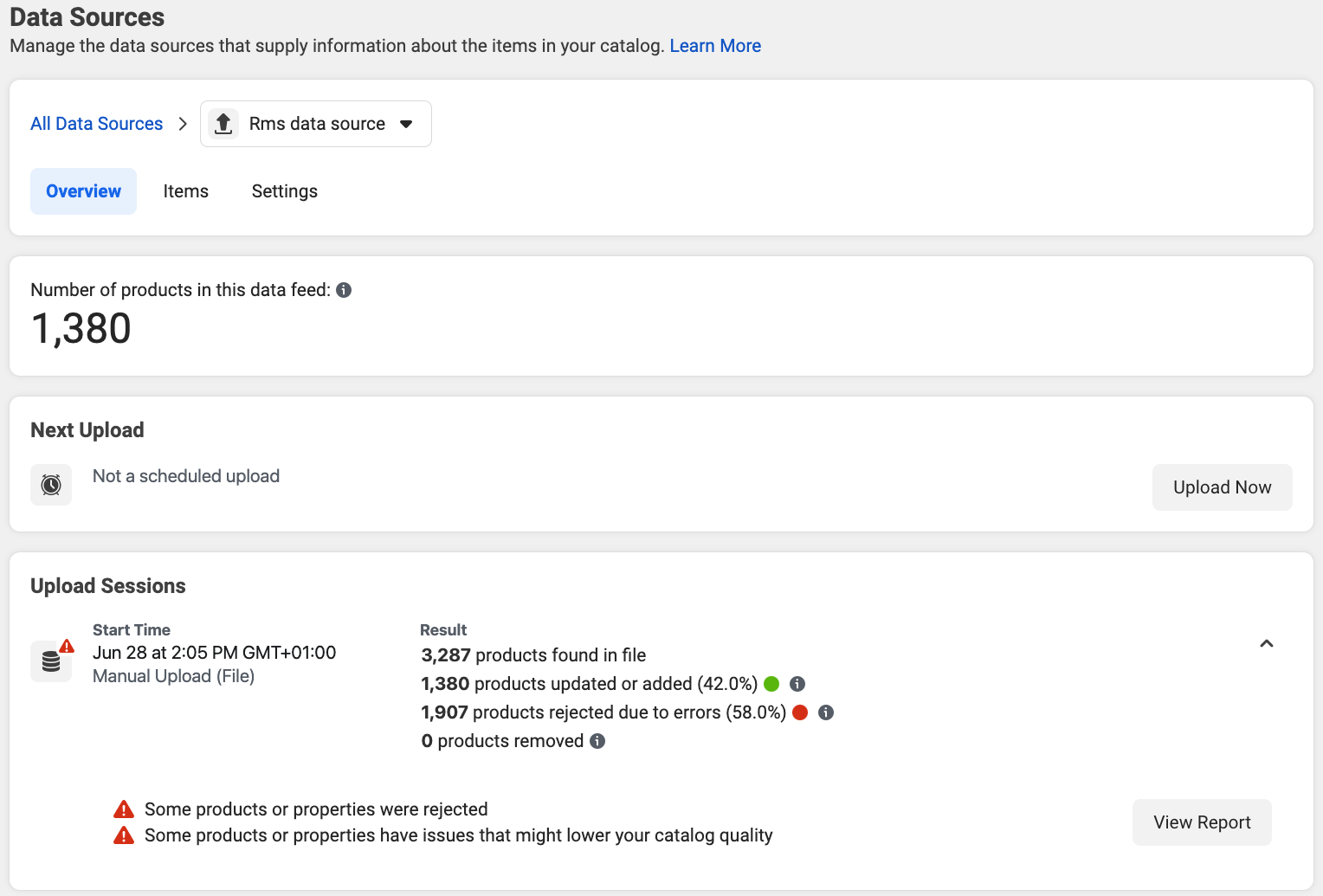
Your 'Data Source' will then be shown like this:
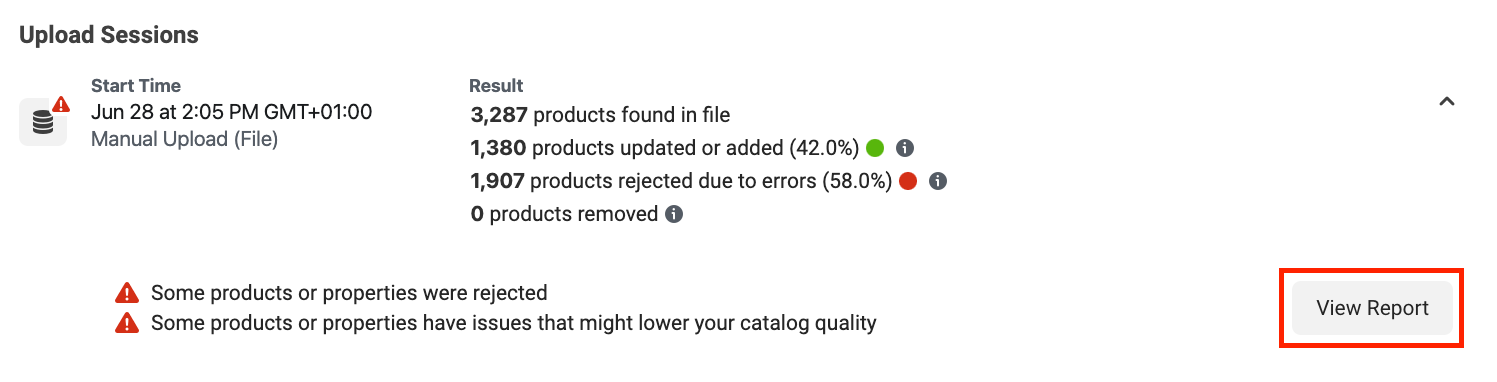
If there are any errors with the upload, they can be viewed by clicking 'View Report' under 'Upload Sessions':
Reports stating that the 'gtin', ' identifier_exists' and 'mpn' are required can be ignored, however, reports stating that 'brand' is absent should be resolved:
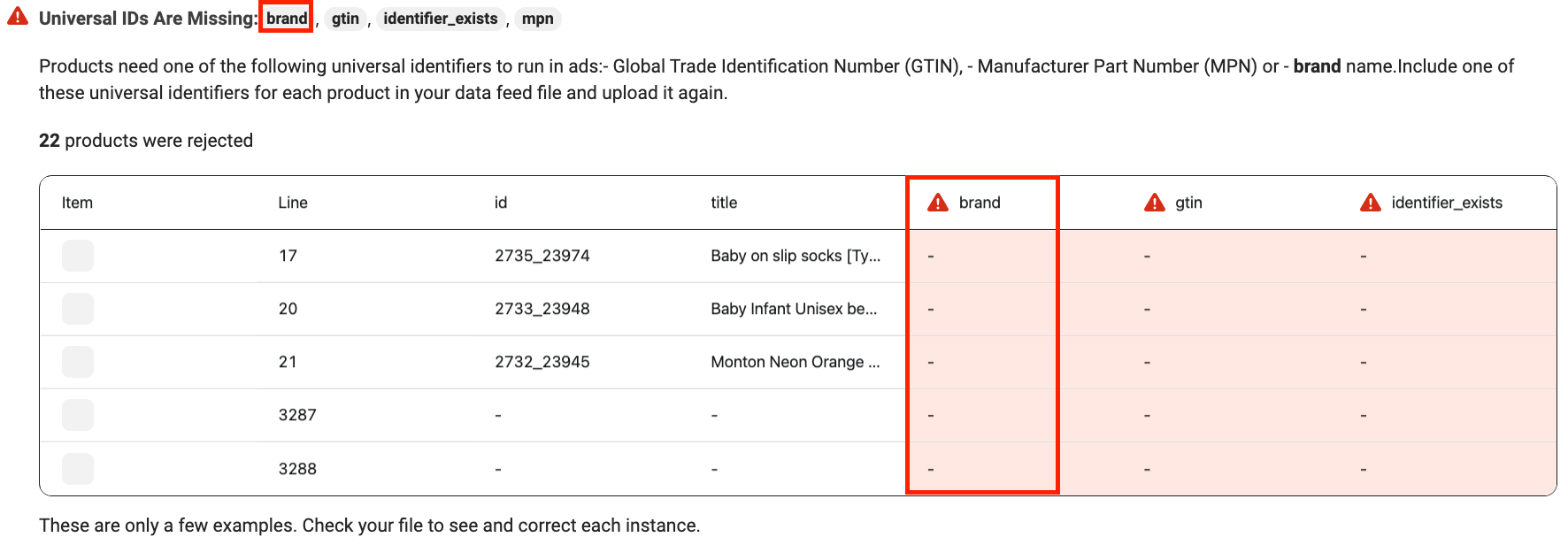
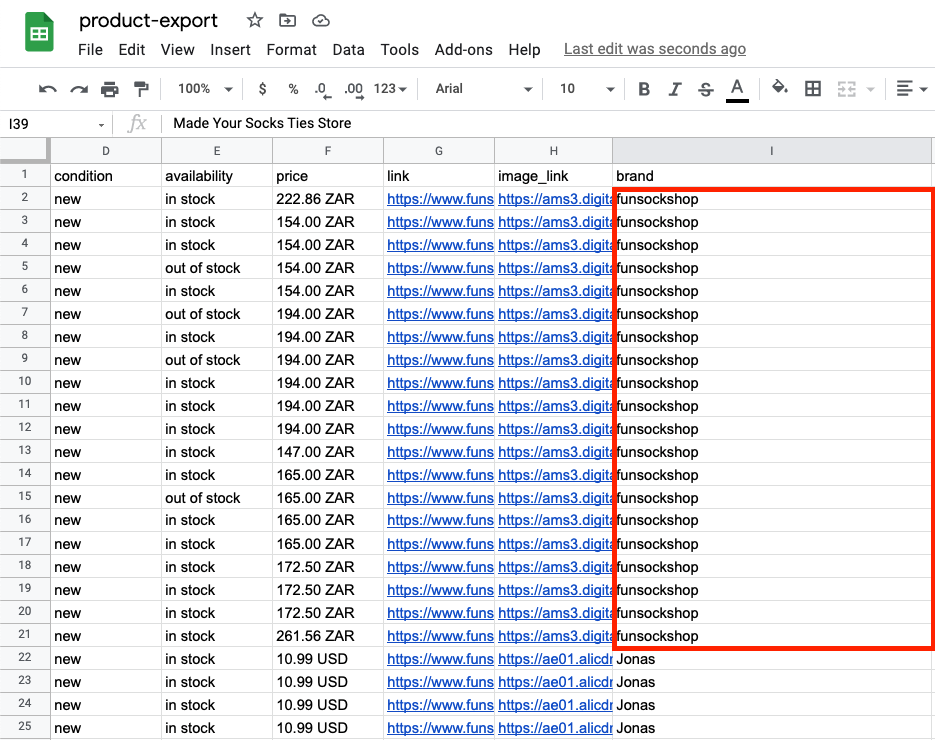
Simply navigate back to Google Drive (https://drive.google.com), open the Google Sheet, and where no brand is shown next to your products, add your store's name (example: funsockshop.com would be funsockshop):
Please note: titles must be 150 characters or less, and so if a product's title is too long, this can be altered by following this guide:How to Edit Product Title & Descriptions
If any other required fields are missing from your report, you would also have to ensure that they are populated before re-downloading the file and uploading it again.
Related Articles
How To Upload Products To Google Merchant Center?
How To Upload Products To Google Merchant Center? To upload products to the 'Google Merchant Center', from the store dashboard, navigate to: > Products > Export Add the following fields to the 'Include in file' column (follow the exact same order): ...Facebook authorization
With the Facebook Login option, you can provide your customers with a secure, fast, and convenient way to log into your website without them having to create a password. To get started, visit https://developers.facebook.com/, enter or create your ...How to use Facebook Ads
Facebook Ads can take your drop shipping business to a brand new level – or, in some cases, cause damage. This will never happen if you go by our instructions and treat them right! When you start your dropshipping business, you come to a conclusion ...How to Promote on Facebook
How to Promote on Facebook Drop shipping is awesome. You can run this business in any point on the globe, you don’t need much money to start, and it’s not necessary to have any previous experience in the field. That’s why people readily buy ...Updating products
Updating products AliDropship plugin provides you with the possibility to keep your product details up-to-date. With the Update option, you can check the availability of items on AliExpress and update the product’s price, stock, and variations. NOTE! ...