Import/Export
Import/Export
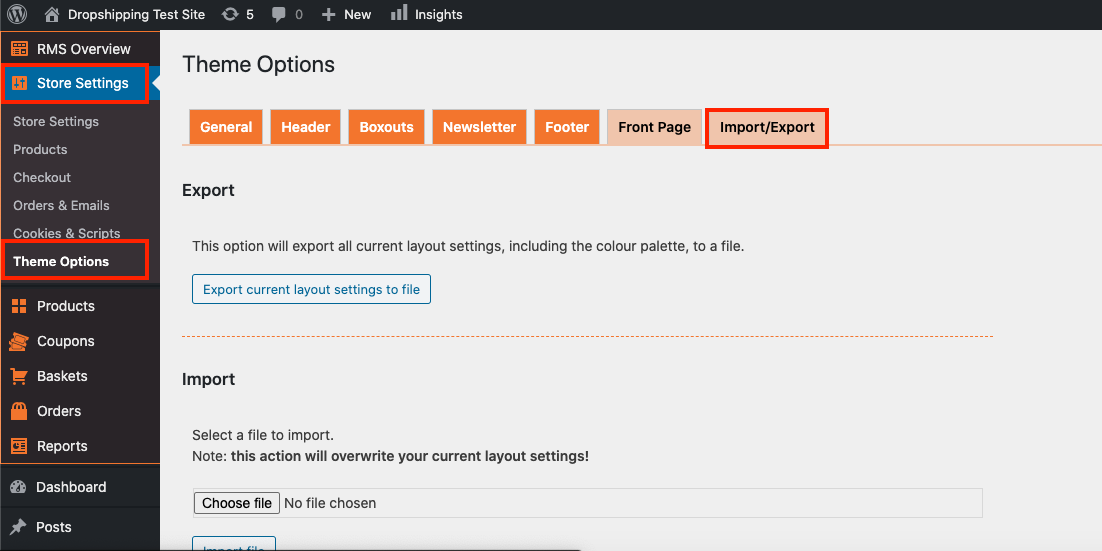
To 'Import/Export', from the store dashboard go to:
> Store Settings > Theme Options > Import/Export
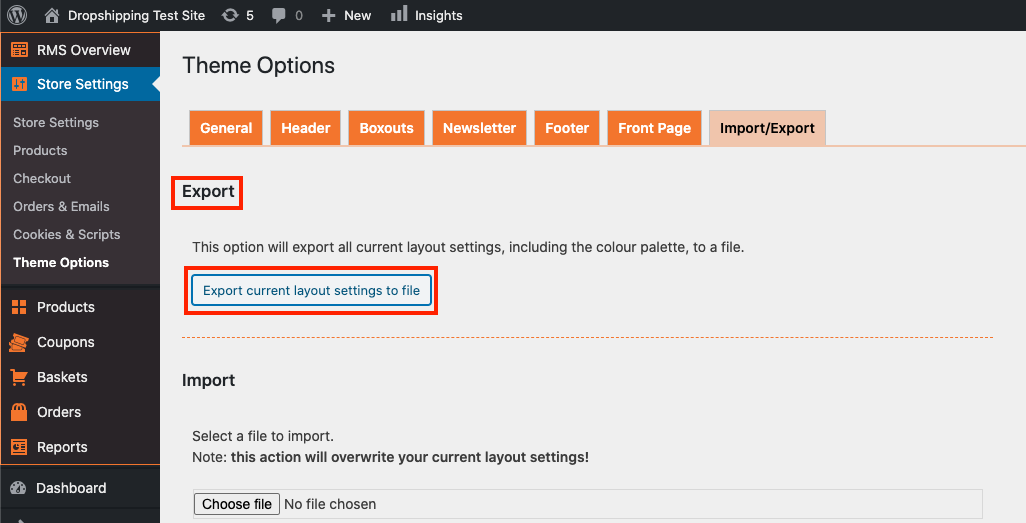
To 'Export' all current layout settings, including the colour palette to a file, click 'Export current layout settings to file':
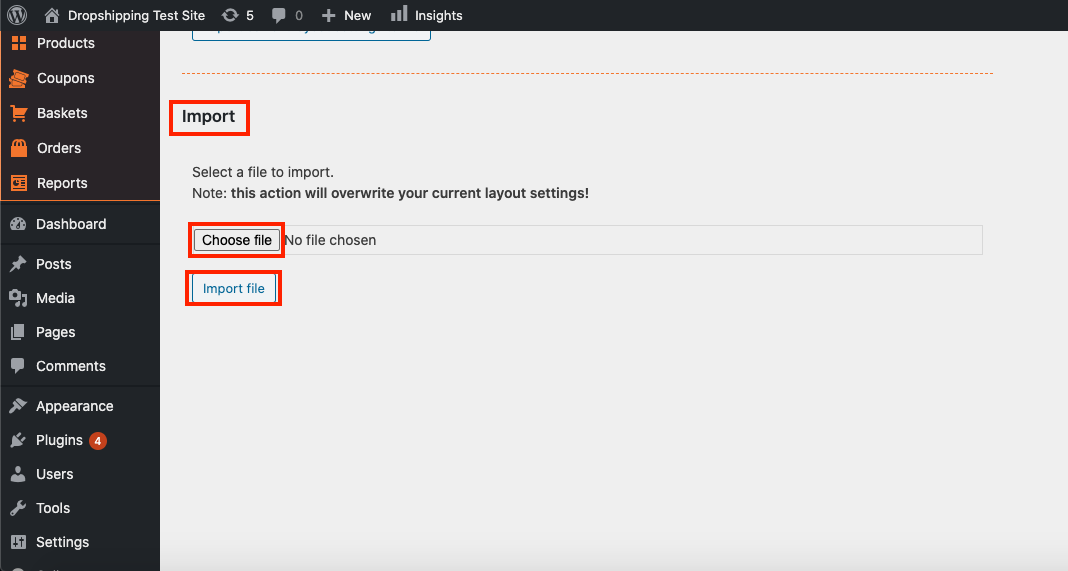
To 'Import' a file, click 'Choose file' and then 'Import file':
(*Don't forget to click 'Save Changes' after making alterations*)
Related Articles
Export Products in csv file
Export Products in csv file You can export Products: click 'Export products' button: and choose what information you want to export, after that click 'Apply": CSV file will be generated and saved (other formats are not supported):Guide 4: Import Products
Guide 4: Import Products Before following the steps below, please ensure you have set the 'Currency' in AliExpress.com to 'USD ( US Dollar )' by following this guide. Once the above is completed, follow the steps below in the video to import products ...Import Products from AliExpress
NOTE! You need to check: If you are using the latest version of AliDropship: https://alidropship.com/updates-plugin. If your site's default currency, the default database currency, and the currency on AliExpress are the same! Step 1. Install ...How To Export Product Data?
How To Export Product Data? To export product data for use in platforms such as Google and Facebook, you will require the 'CSV/TXT Product file export function'. Once the function is owned, it can be located in: > Products > Export The column ...How To Import Product Reviews
How To Import Product Reviews To 'Import Product Reviews', from the store dashboard go to: > Products > Import Reviews From within this page there are many different options and criteria to choose from when 'Importing Reviews':- Products in: ...