How To Integrate Stripe Payment Gateway?
To integrate the Stripe payment gateway:
I. From the store dashboard go to: > Store Settings > Checkout > General
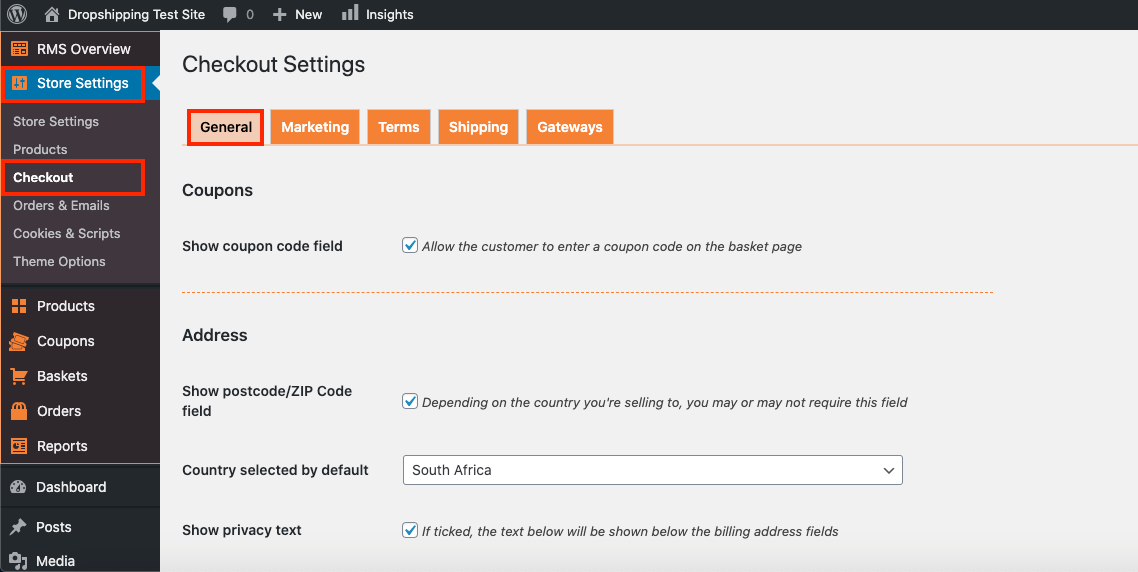
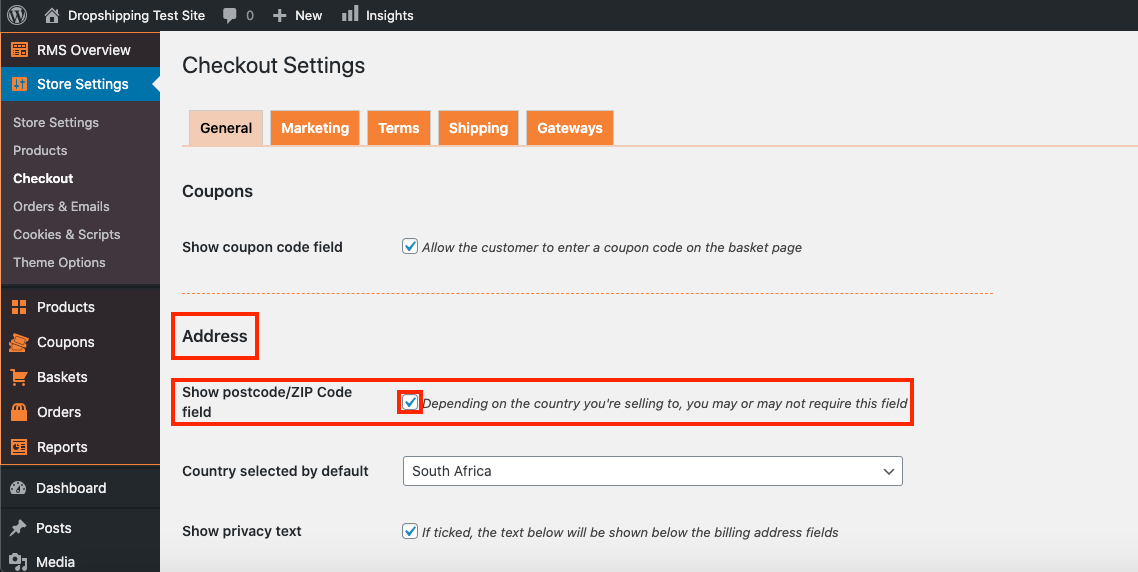
II. Under the 'Address' heading, check the tick-box labelled 'Show postcode/ZIP Code field':
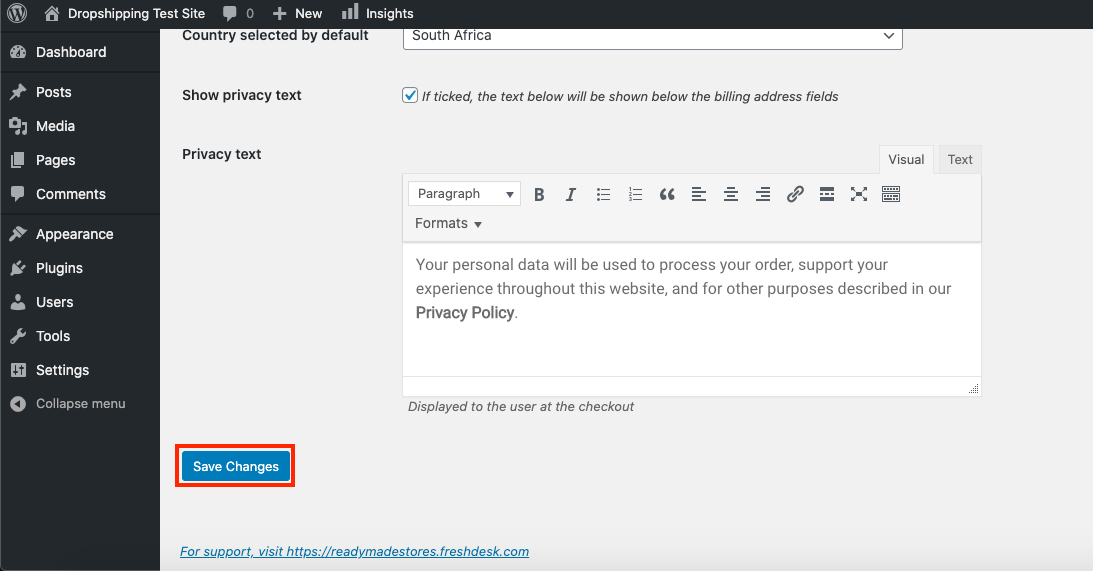
III. Click 'Save Settings' at the bottom of the page:
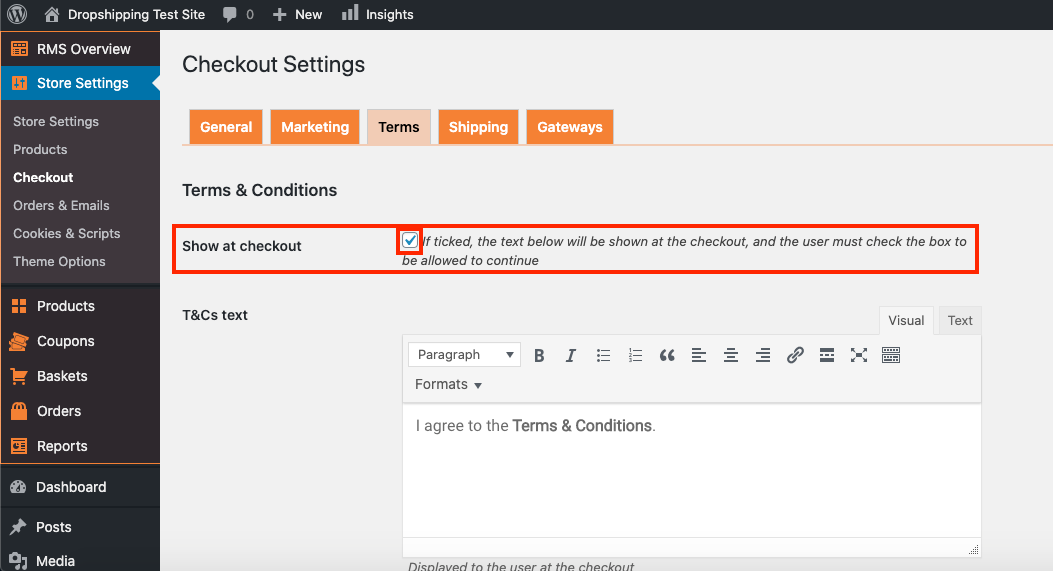
IV. From there, go to: > Store Settings > Checkout > Terms
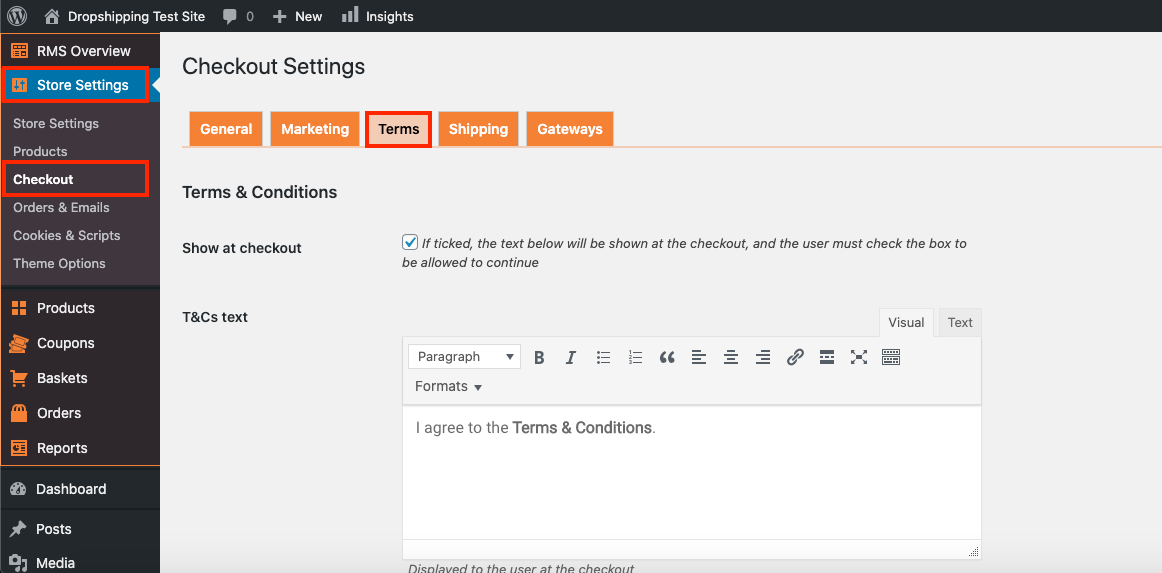
V. Check the tick-box labelled 'Show at checkout':
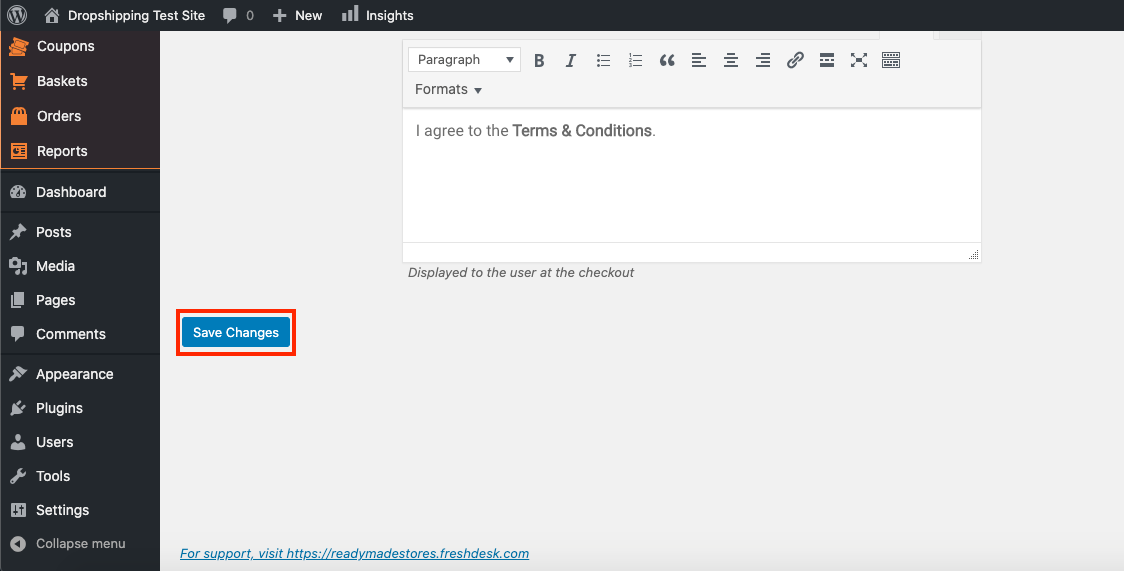
VI. Click 'Save Settings' at the bottom of the page:
1. You require an SSL certificate installed on your site to use Stripe. This is already active on your site.
2. Create a Stripe Account (if you haven't already done so)
a) To register an account with Stripe, visit https://stripe.com/ and click the Create account button.

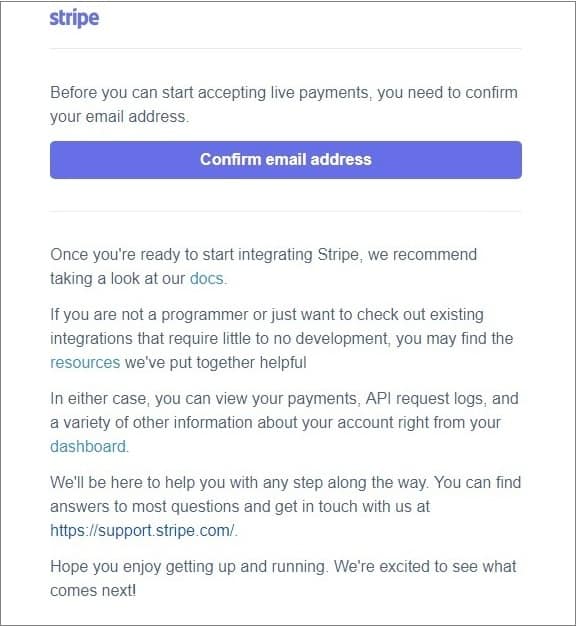
b) After you have submitted your registration request, you will receive an email notification with further details. Confirm your email to proceed.
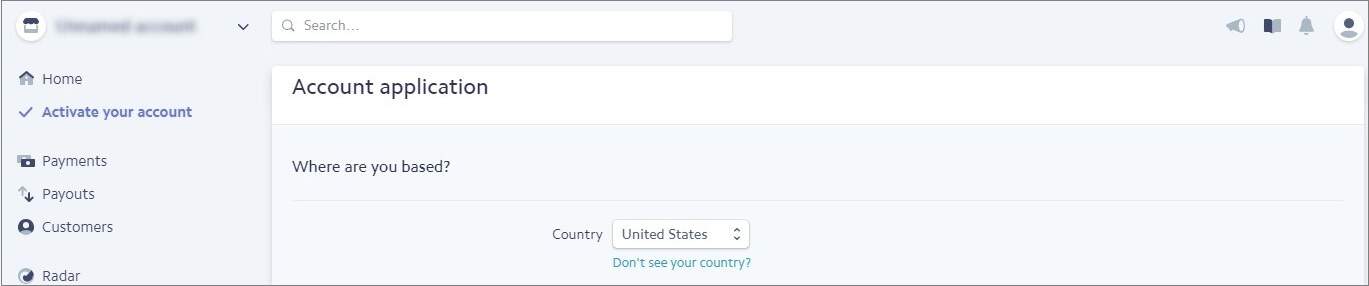
3. To be able to create your API keys and access live data, you need to activate your account first. a) Fill out your account application. Start with choosing the country your business based in.
b) Describe your website as “eCommerce store” and state your niche. (For example, “Kitchen utensils sold to a wide audience in an eCommerce store”) Add your domain name below.
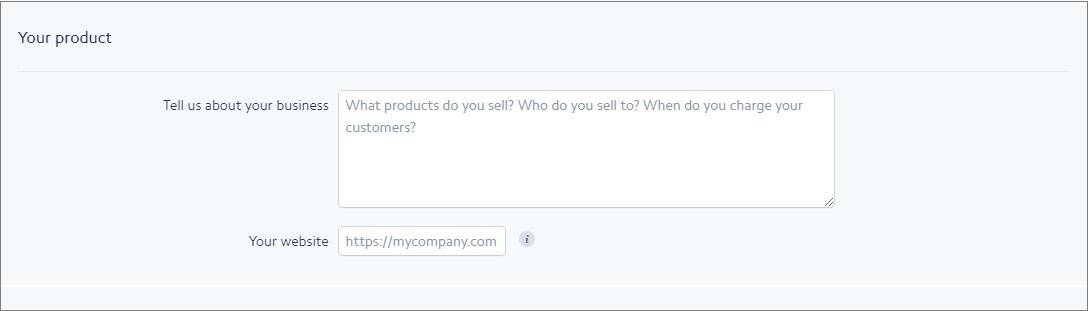
c) Enter your account details: choose your business type from the dropdown menu, enter your Tax ID (optional) and business address.
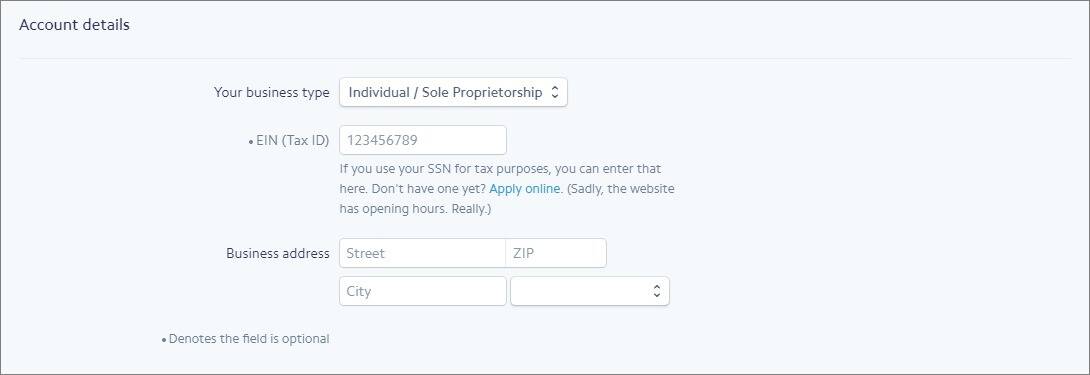
d) As the company representative, share your personal information: your legal name, date of birth and social security number.
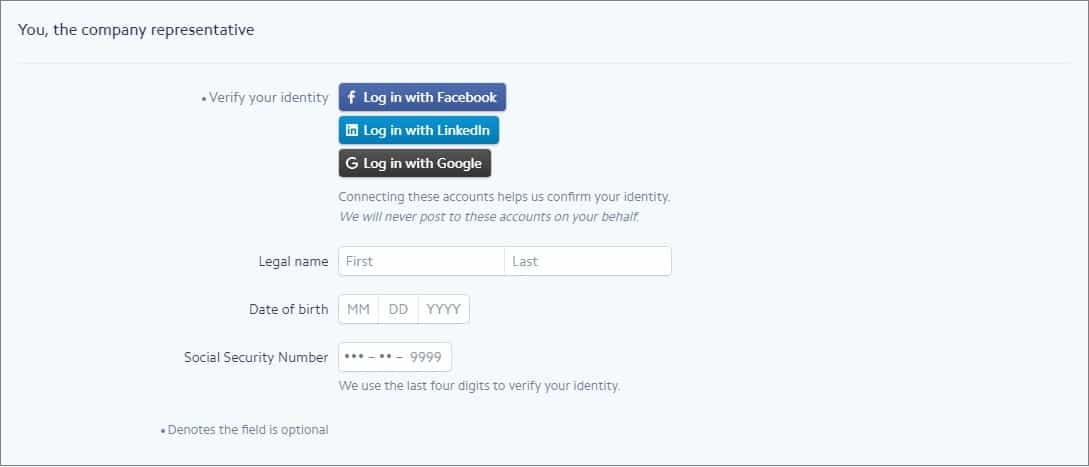
e) Add your business name and phone number (they will be shown to your customers in their credit card statements) and your bank account details.
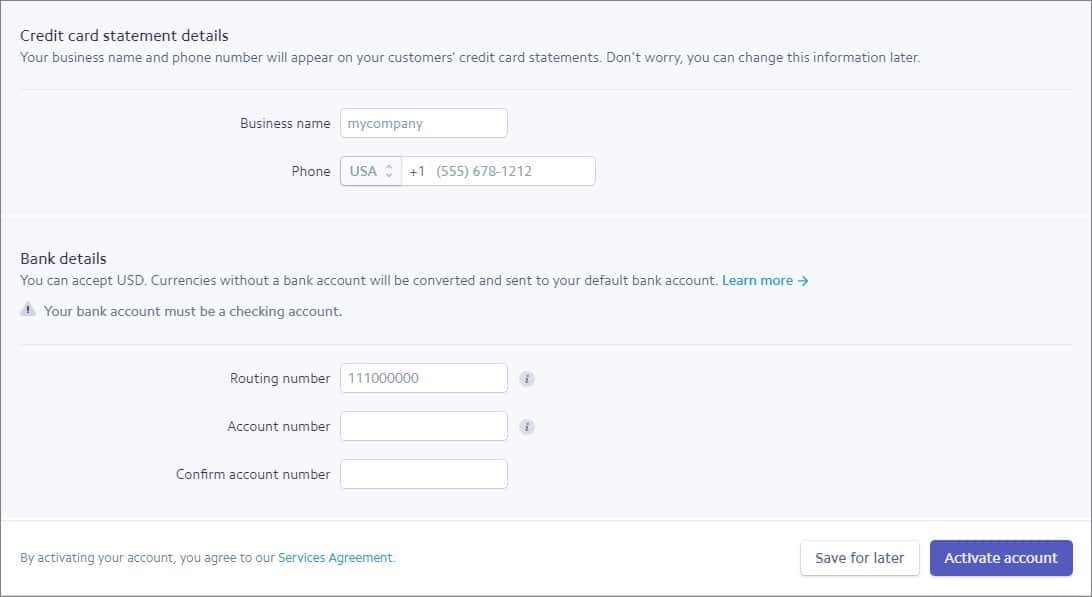
f) Click Activate account. You will be notified via email when your account is verified.
g) To create your Publishable and Secret Keys, go to the API tab in your Dashboard. Use the toggle on the right-hand side of the page to view your test credentials. Please note that only test data is available until your account is activated.
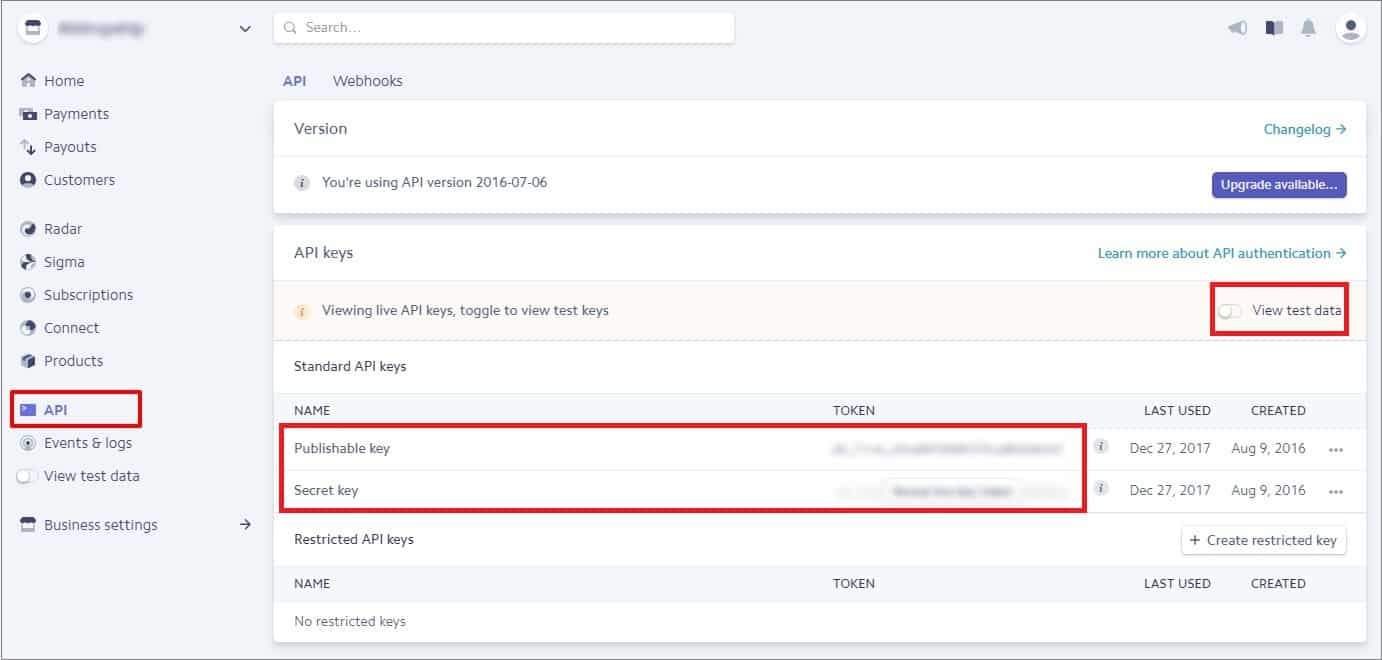
4. Once you have generated your keys, you need to paste them in your payment settings. To do this, go to:
> Store Settings > Checkout > Gateways
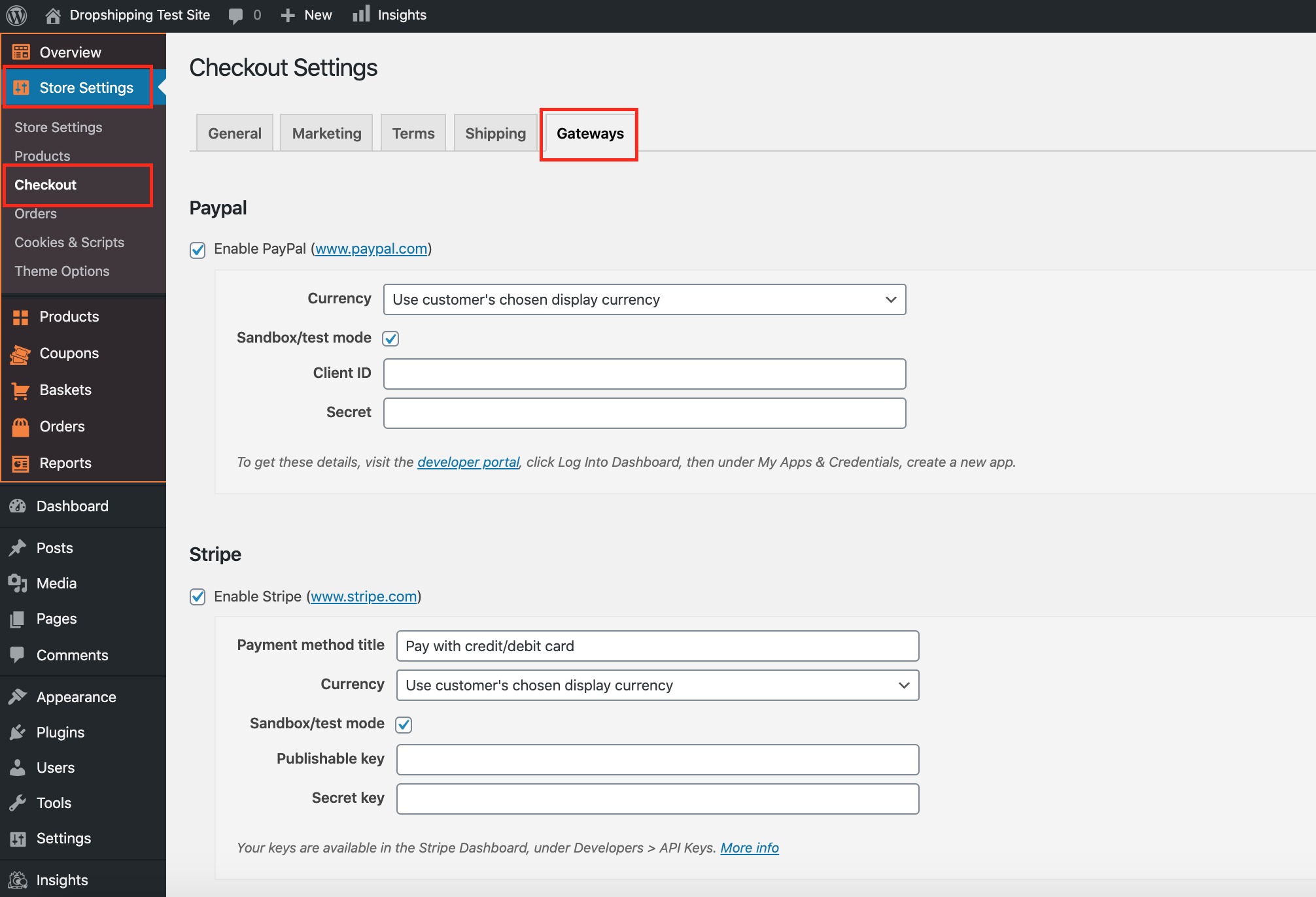
> Stripe > Enable Stripe > Publishable key/Secret key
4. You can add 'Payment method title' (it will be displayed on the Checkout page).
6. Uncheck the tick-box labelled 'Sandbox/test mode'
(*Don't forget to click 'Save Changes' after making alterations*)
Related Articles
How To Integrate 2Checkout Payment Gateway?
How To Integrate 2Checkout Payment Gateway? To integrate the 2Checkout payment gateway: I. From the store dashboard go to: > Store Settings > Checkout > General II. Under the 'Address' heading, check the tick-box labelled 'Show postcode/ZIP Code ...How To Integrate Rave Payment Gateway?
How To Integrate Rave Payment Gateway? To integrate the Rave payment gateway: I. From the store dashboard go to: > Store Settings > Checkout > General II. Under the 'Address' heading, check the tick-box labelled 'Show postcode/ZIP Code field': III. ...How To Integrate PayFast Payment Gateway?
How To Integrate PayFast Payment Gateway? To integrate the PayFast payment gateway: I. From the store dashboard go to: > Store Settings > Checkout > General II. Under the 'Address' heading, check the tick-box labelled 'Show postcode/ZIP Code field': ...How To Integrate PayPal Payment Gateway?
How To Integrate PayPal Payment Gateway? To integrate the PayPal payment gateway: I. From the store dashboard go to: > Store Settings > Checkout > General II. Under the 'Address' heading, check the tick-box labelled 'Show postcode/ZIP Code field': ...How To Integrate Electronic Funds Transfer (EFT) Payment Gateway?
How To Integrate Electronic Funds Transfer (EFT) Payment Gateway? Electronic Funds Transfer (EFT) is an additional payment gateway that can be run alongside any other payment gateway. Multiple payment options offers your customers freedom of choice ...