How To Integrate PayPal Payment Gateway?
To integrate the PayPal payment gateway:
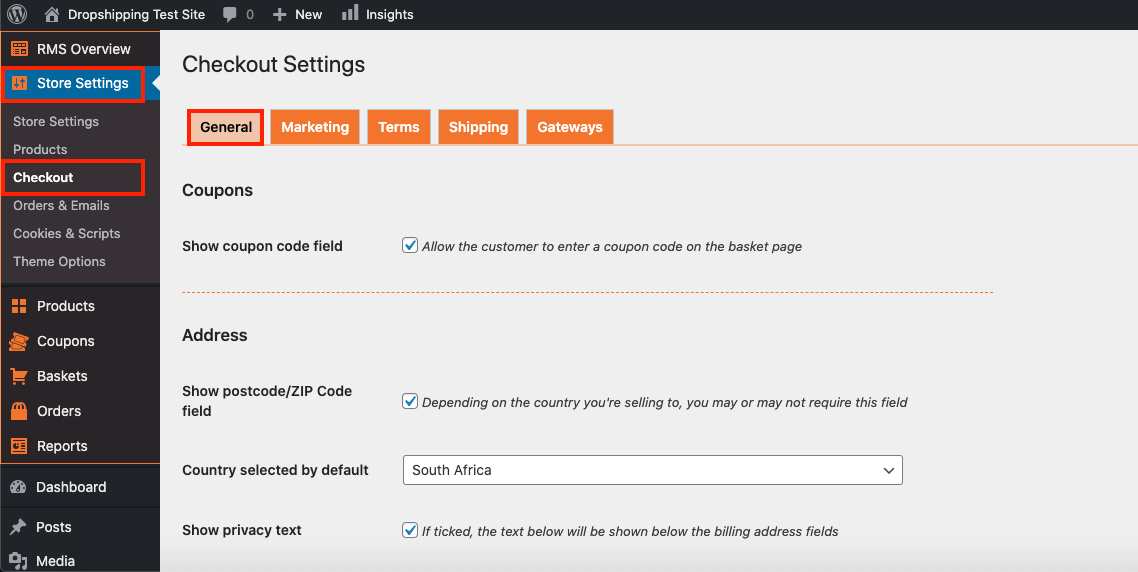
I. From the store dashboard go to: > Store Settings > Checkout > General
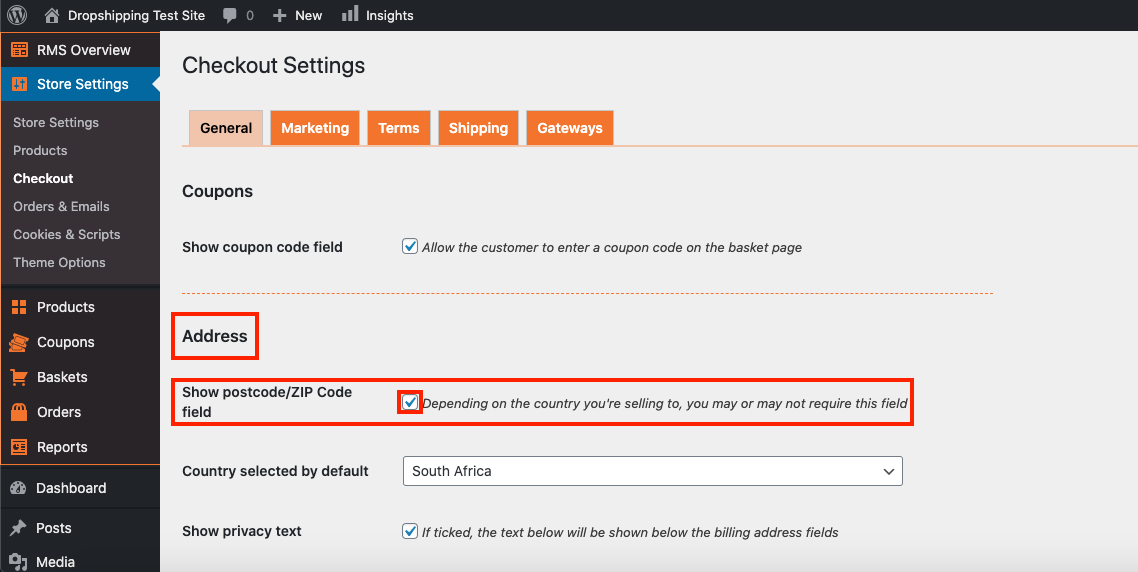
II. Under the 'Address' heading, check the tick-box labelled 'Show postcode/ZIP Code field':
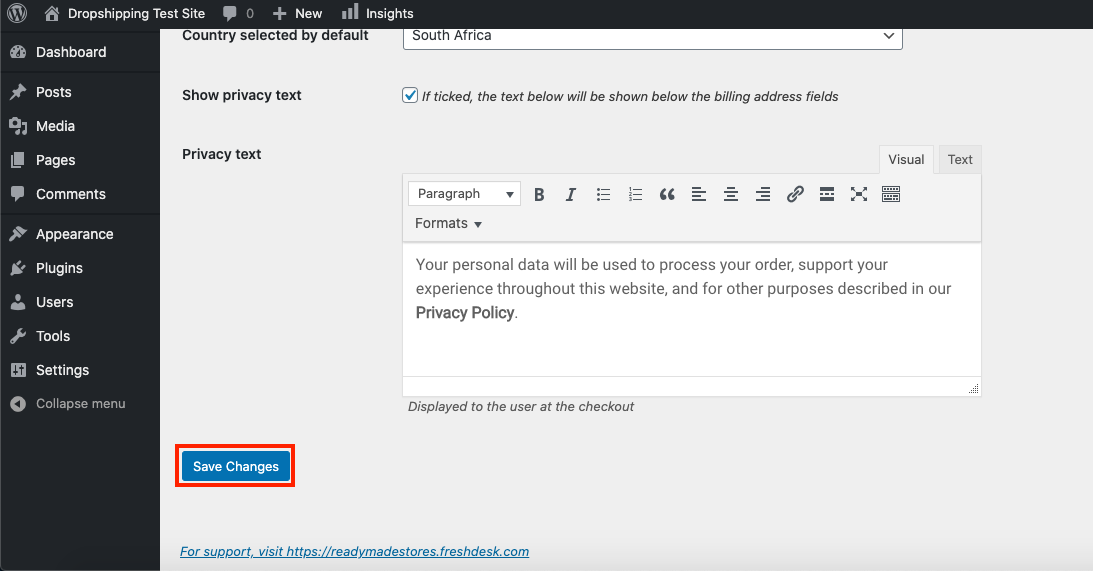
III. Click 'Save Settings' at the bottom of the page:
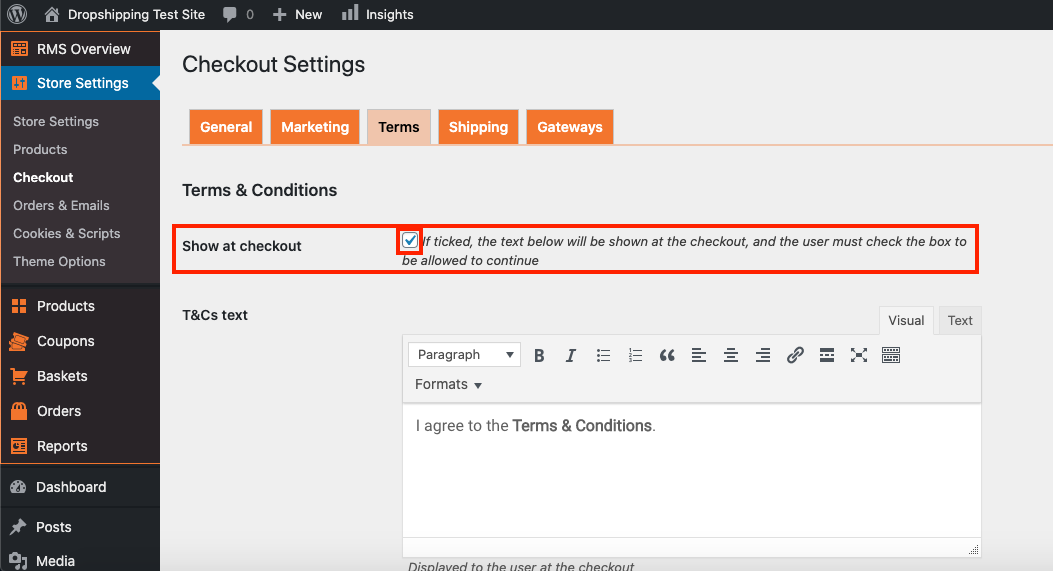
IV. From there, go to: > Store Settings > Checkout > Terms
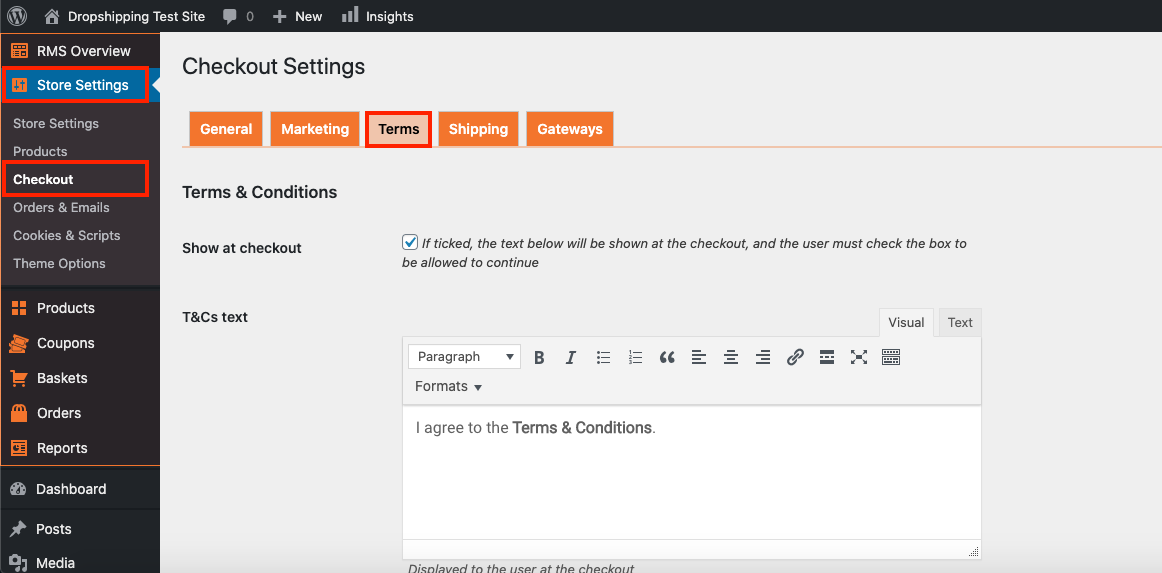
V. Check the tick-box labelled 'Show at checkout':
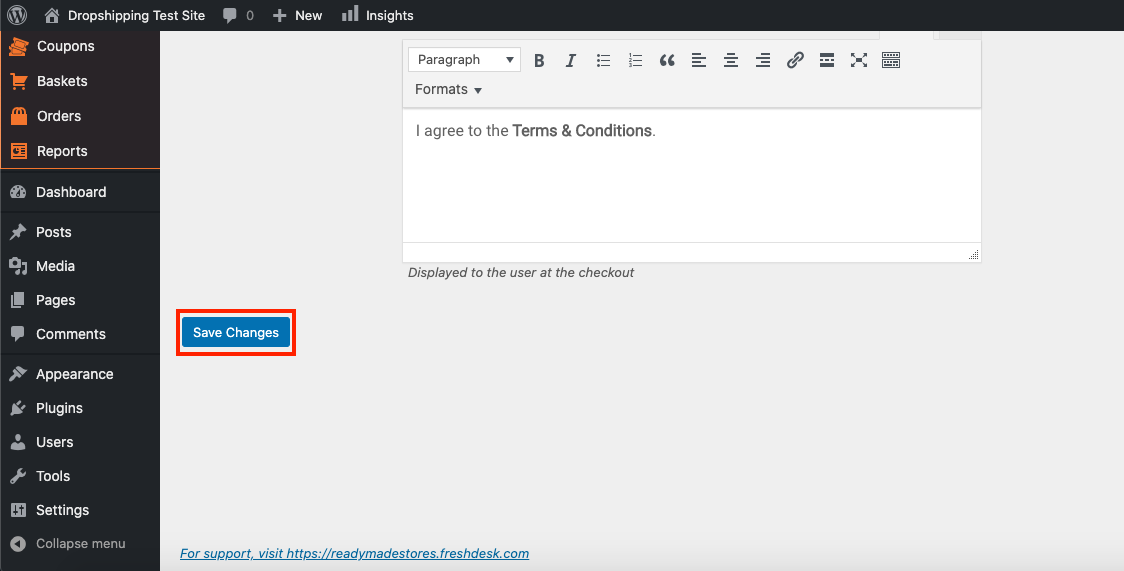
VI. Click 'Save Settings' at the bottom of the page:
1. Create a PayPal Account (if you haven't already done so) - PayPal.com
*We also recommend that you register a PayPal Business Account*
2. From the store dashboard go to: > Store Settings > Checkout > Gateways
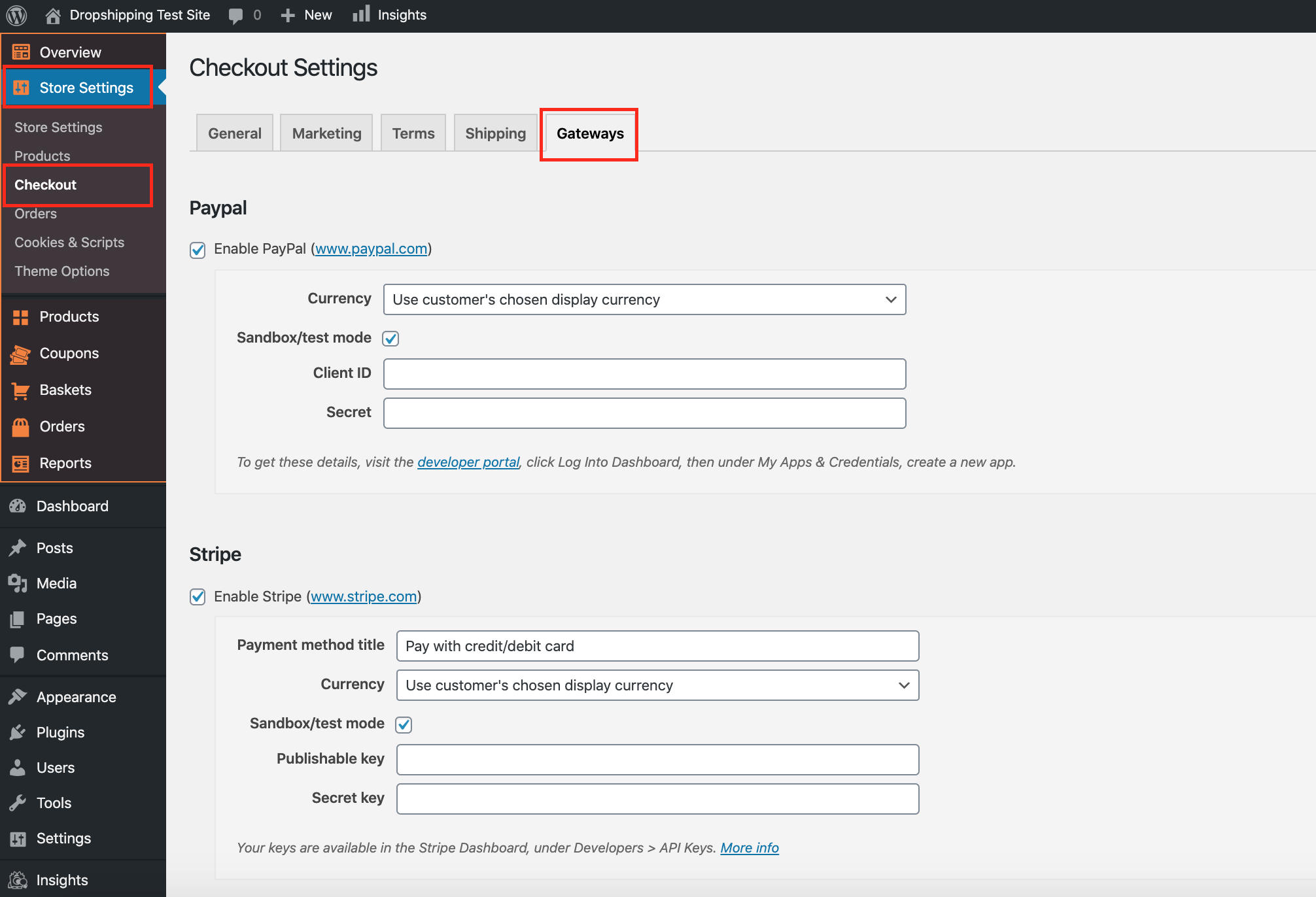
3. Check the tick-box labelled 'Enable PayPal'
4. Change 'Currency' to 'United States Dollar (USD, $)'. If you are from the 'UK', please set as 'United Kingdom Pound (GBP, £)'.
5. Uncheck the tick-box labelled 'Sandbox/test mode'
6. Copy and paste the 'Client ID' and 'Secret' in their corresponding text boxes (by following the steps below)
a) Open a new tab in your browser.
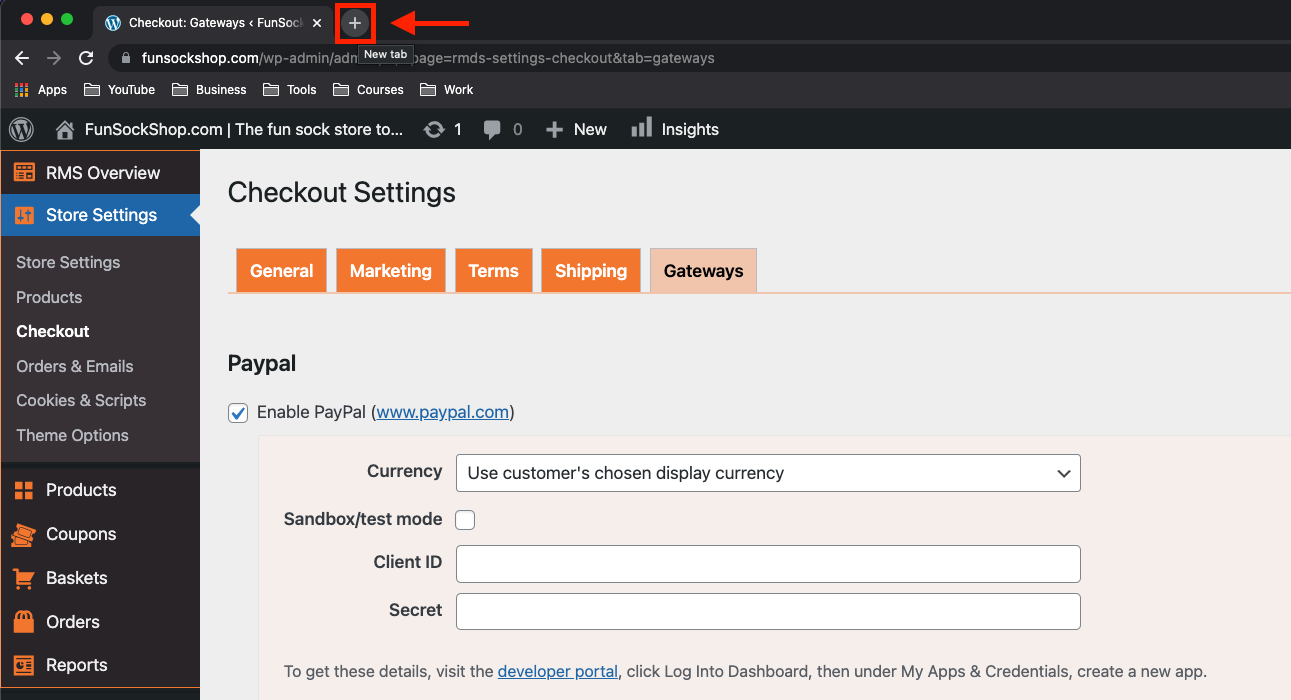
b) Type 'developer.paypal.com' into the address bar and tap 'Enter' (↵) on your keyboard.
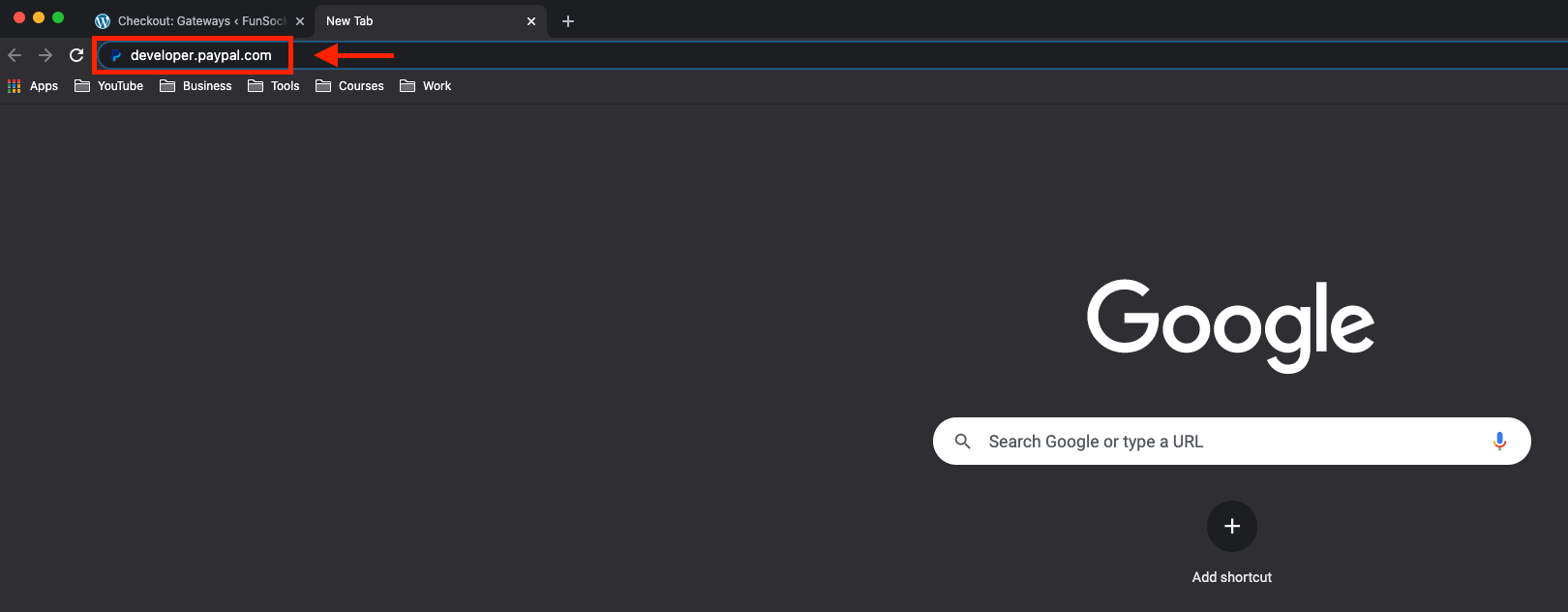
c) Log into your PayPal Developer account using your usual PayPal login credentials.

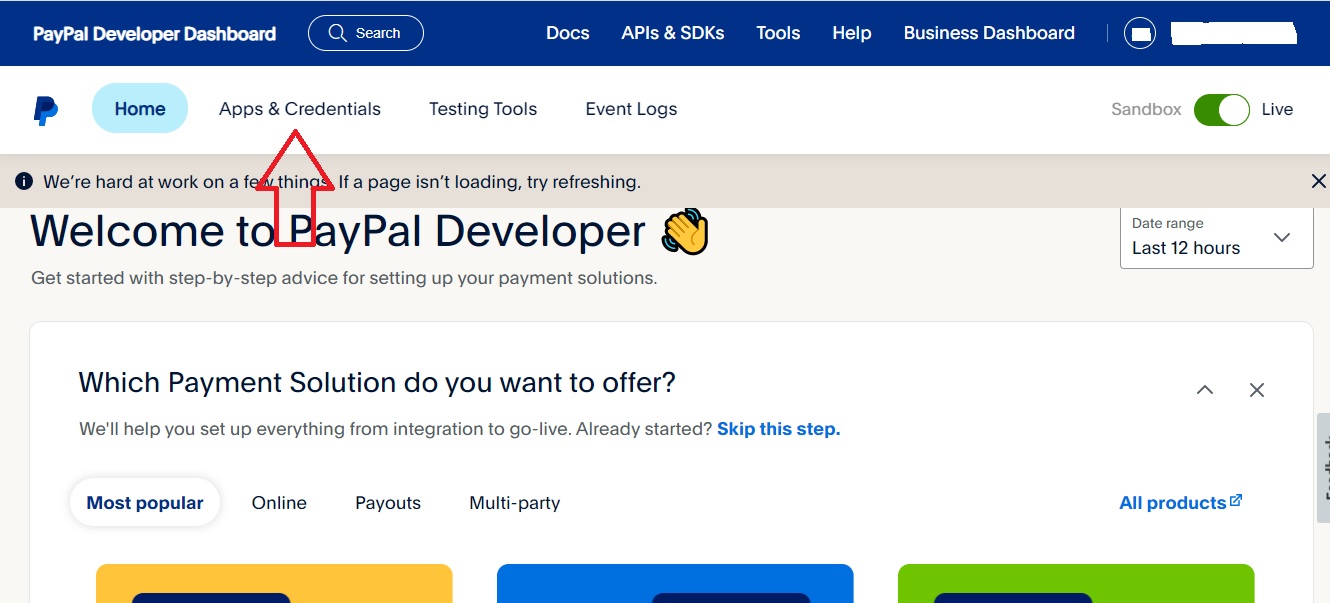
d) Click on "Apps & Credentials".
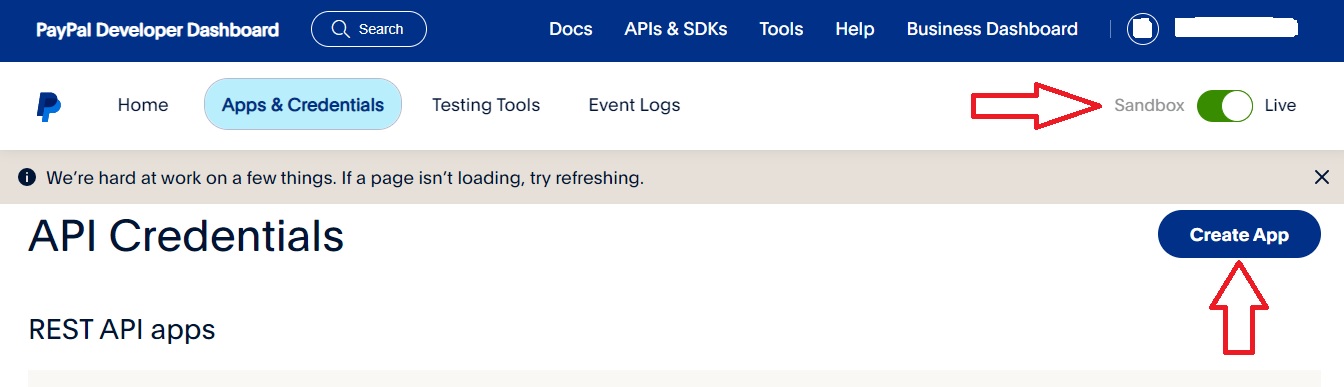
e) From within 'My Apps and Credentials', ensure that the mode is switched to Live and click on "Create App".
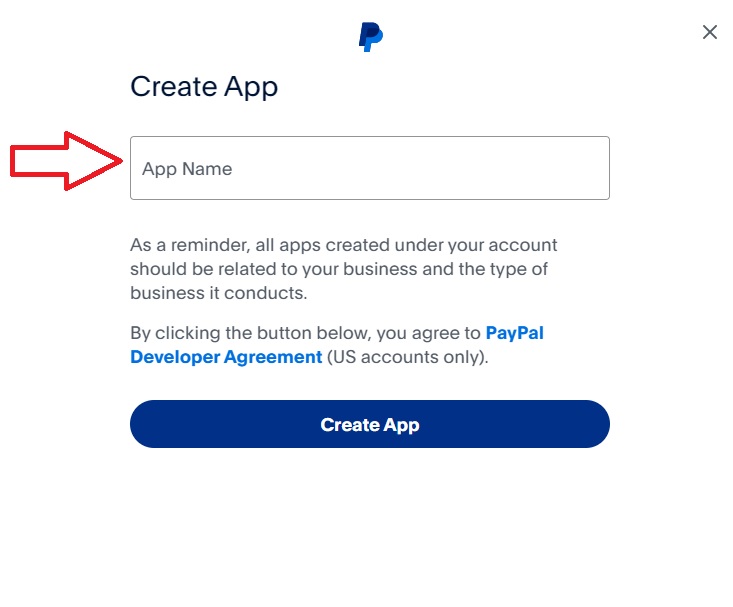
f) Enter the App Name you would like to use and click on "Create App".
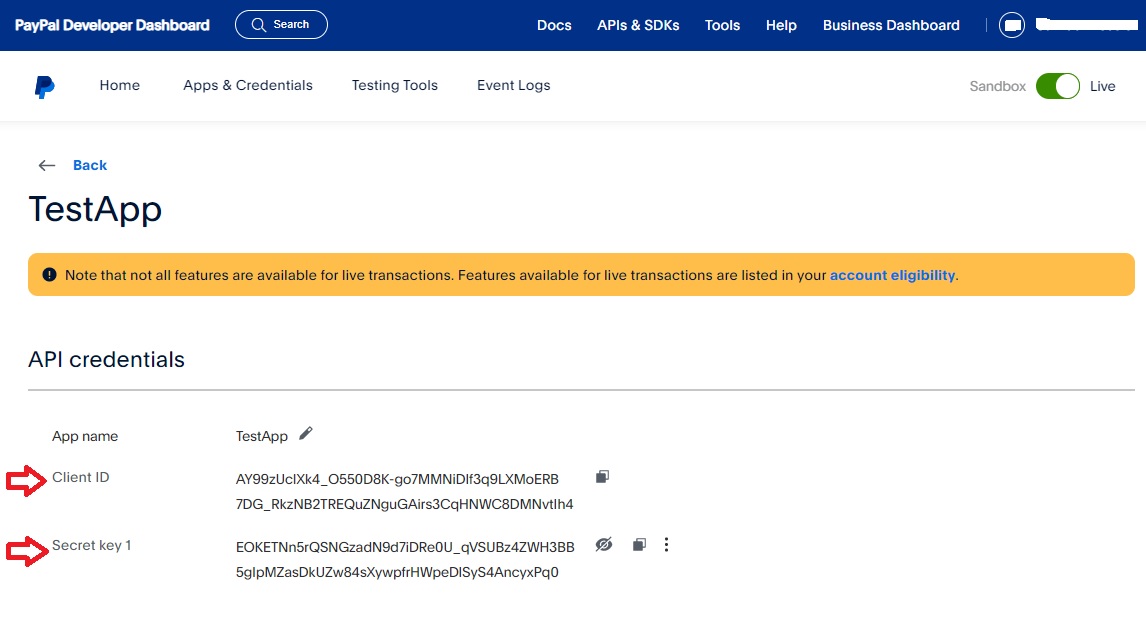
g) Click on show to reveal the Secret Key. Copy the Client ID and the Secret Key one at a time to paste into your store settings.
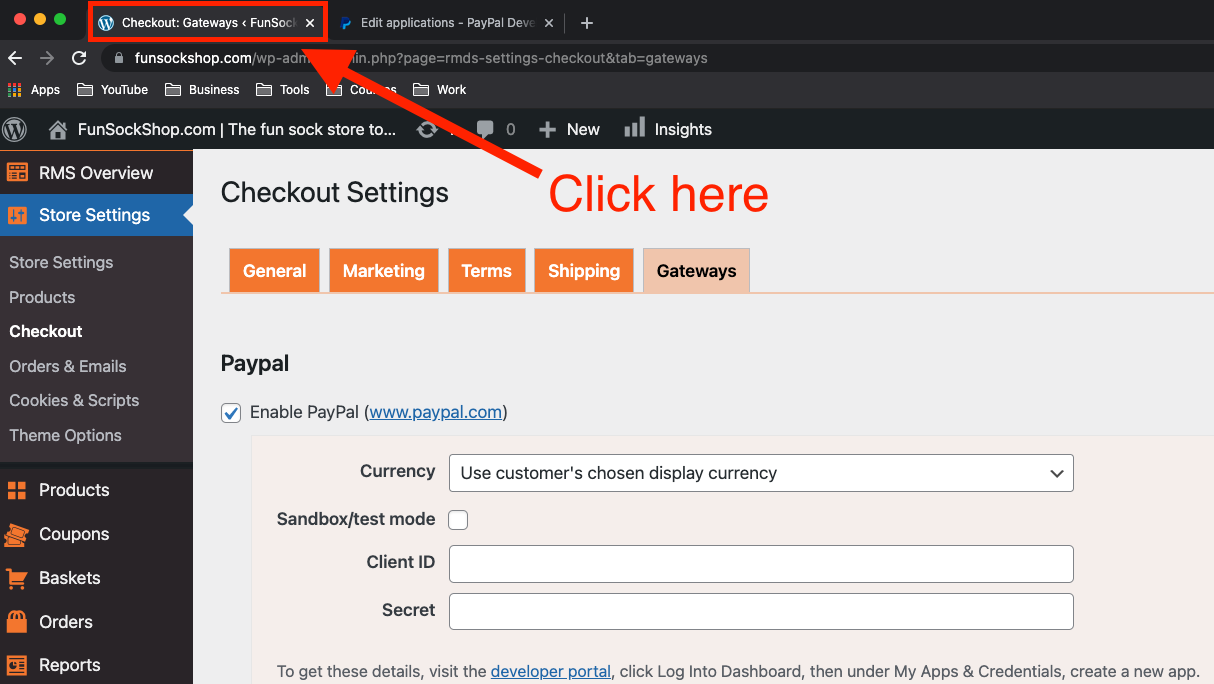
h) Return to your Store's Tab.
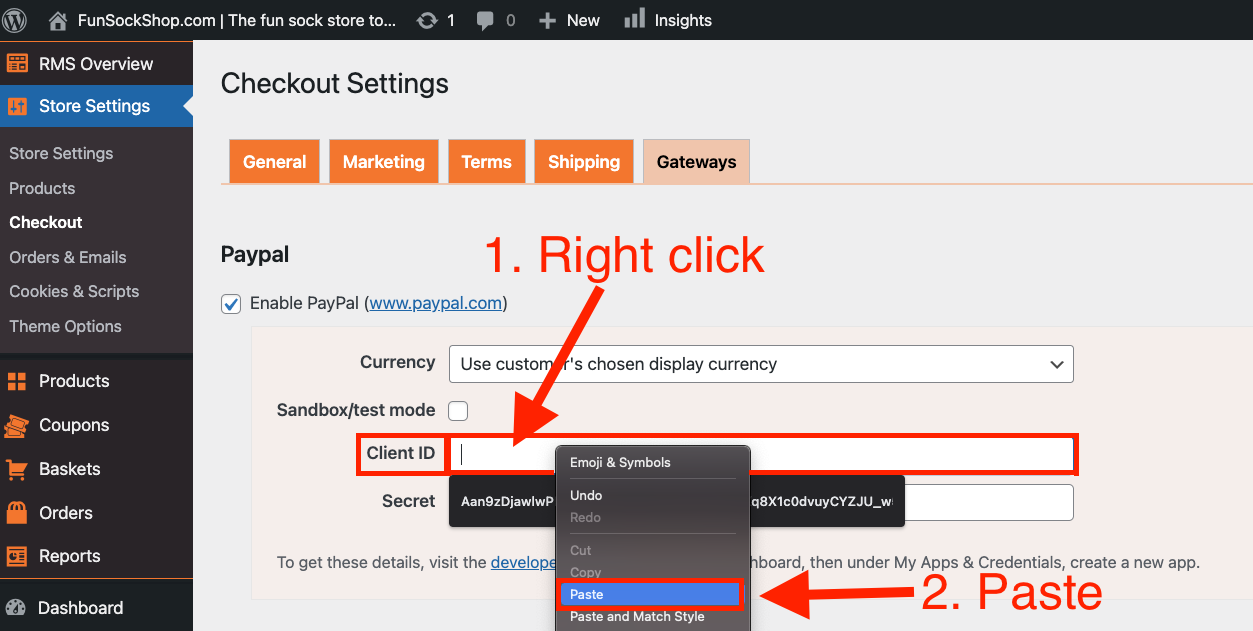
i) Under 'PayPal', right click in the 'Client ID' box and paste.
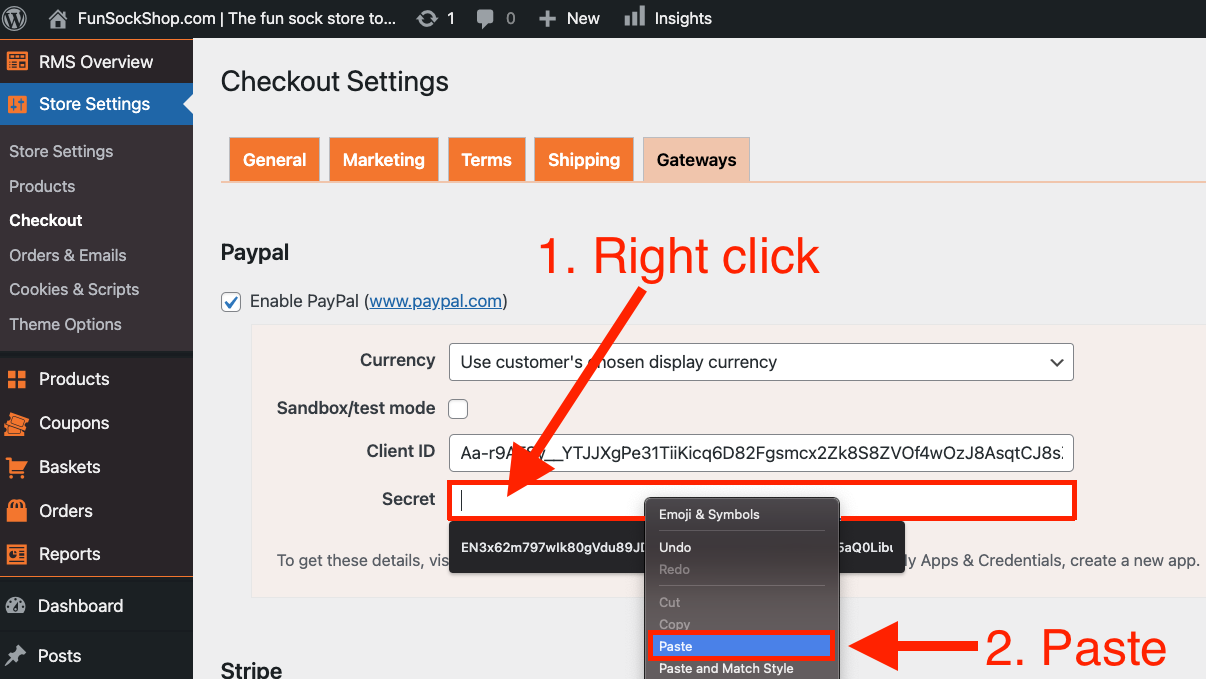
j) After copying the Secret Key from PayPal, Return to the Checkout settings, Under 'PayPal', right click in the 'Secret' box and paste.
If you have any questions regarding PayPal sandbox settings, your account restrictions or settings please contact PayPal support.
Related Articles
How To Integrate 2Checkout Payment Gateway?
How To Integrate 2Checkout Payment Gateway? To integrate the 2Checkout payment gateway: I. From the store dashboard go to: > Store Settings > Checkout > General II. Under the 'Address' heading, check the tick-box labelled 'Show postcode/ZIP Code ...How To Integrate Rave Payment Gateway?
How To Integrate Rave Payment Gateway? To integrate the Rave payment gateway: I. From the store dashboard go to: > Store Settings > Checkout > General II. Under the 'Address' heading, check the tick-box labelled 'Show postcode/ZIP Code field': III. ...How To Integrate Stripe Payment Gateway?
How To Integrate Stripe Payment Gateway? To integrate the Stripe payment gateway: I. From the store dashboard go to: > Store Settings > Checkout > General II. Under the 'Address' heading, check the tick-box labelled 'Show postcode/ZIP Code field': ...How To Integrate PayFast Payment Gateway?
How To Integrate PayFast Payment Gateway? To integrate the PayFast payment gateway: I. From the store dashboard go to: > Store Settings > Checkout > General II. Under the 'Address' heading, check the tick-box labelled 'Show postcode/ZIP Code field': ...How To Integrate Electronic Funds Transfer (EFT) Payment Gateway?
How To Integrate Electronic Funds Transfer (EFT) Payment Gateway? Electronic Funds Transfer (EFT) is an additional payment gateway that can be run alongside any other payment gateway. Multiple payment options offers your customers freedom of choice ...