How To Alter Product Markup Rules?
To alter the 'Product Markup Rules', from the store dashboard go to:
> Store Settings > Products > Markup Rules
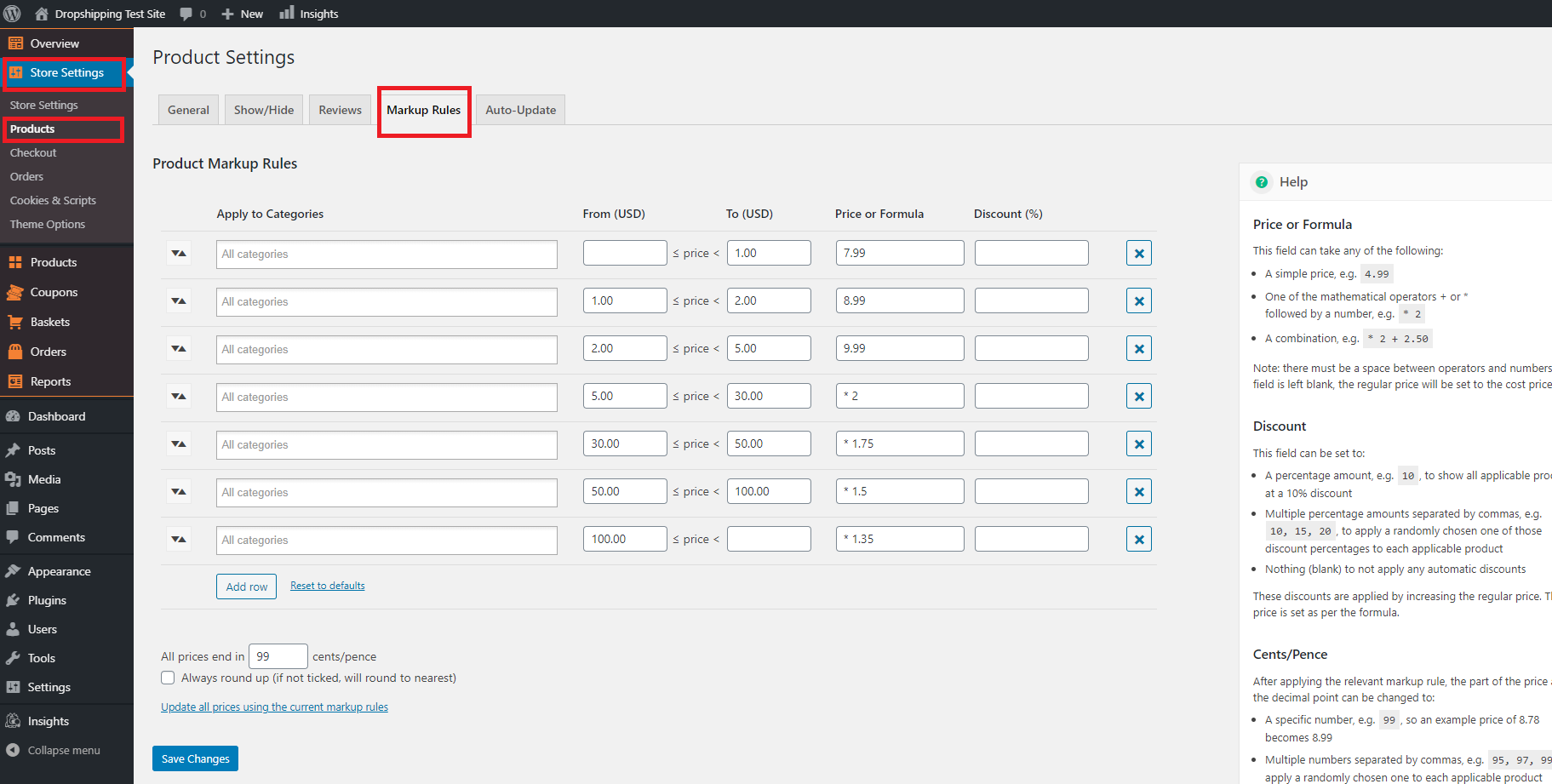
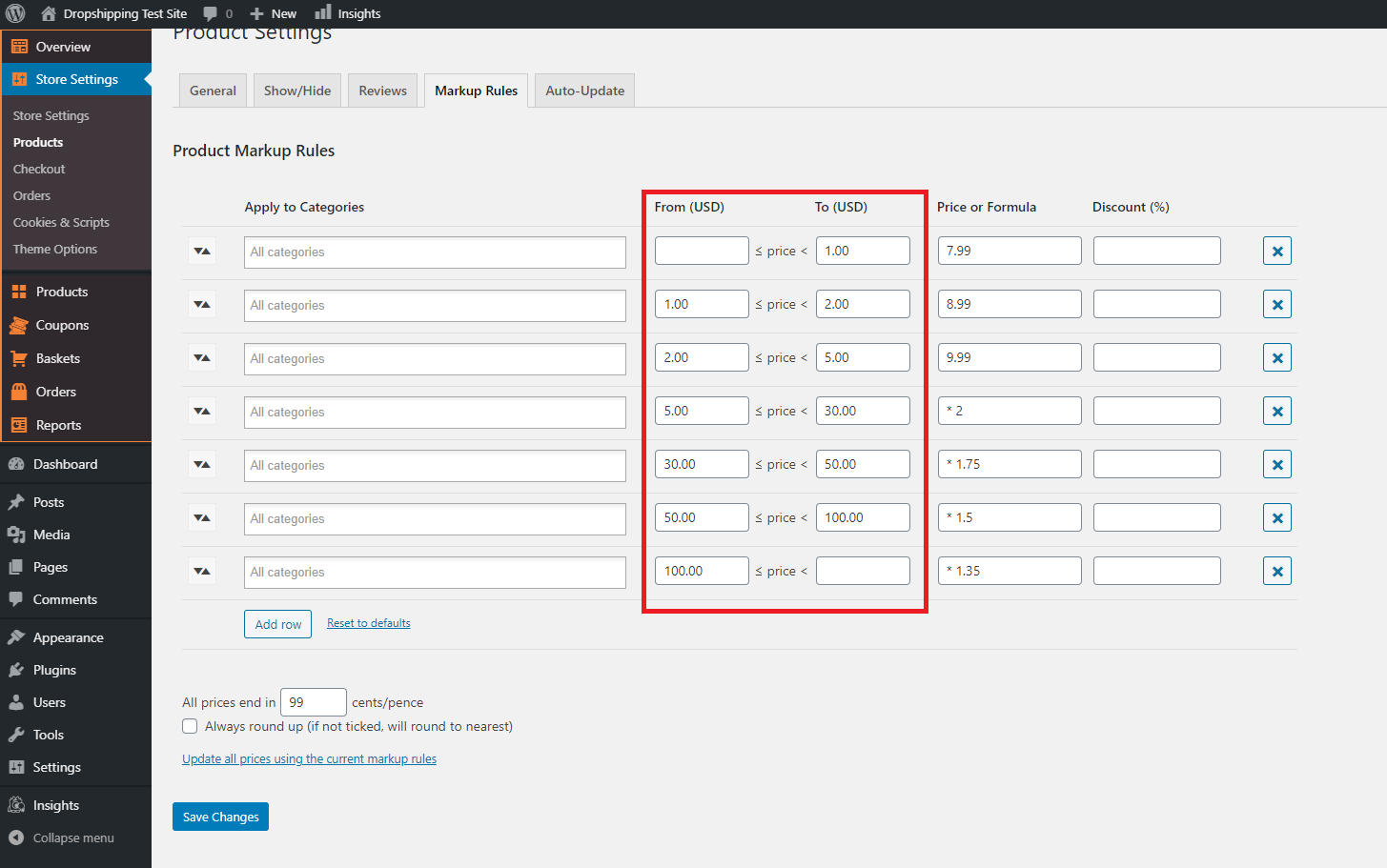
From within this page you may select the price ranges of products you would like to increase the markup on. You can do this with the use of the 'From' and 'To' fields:
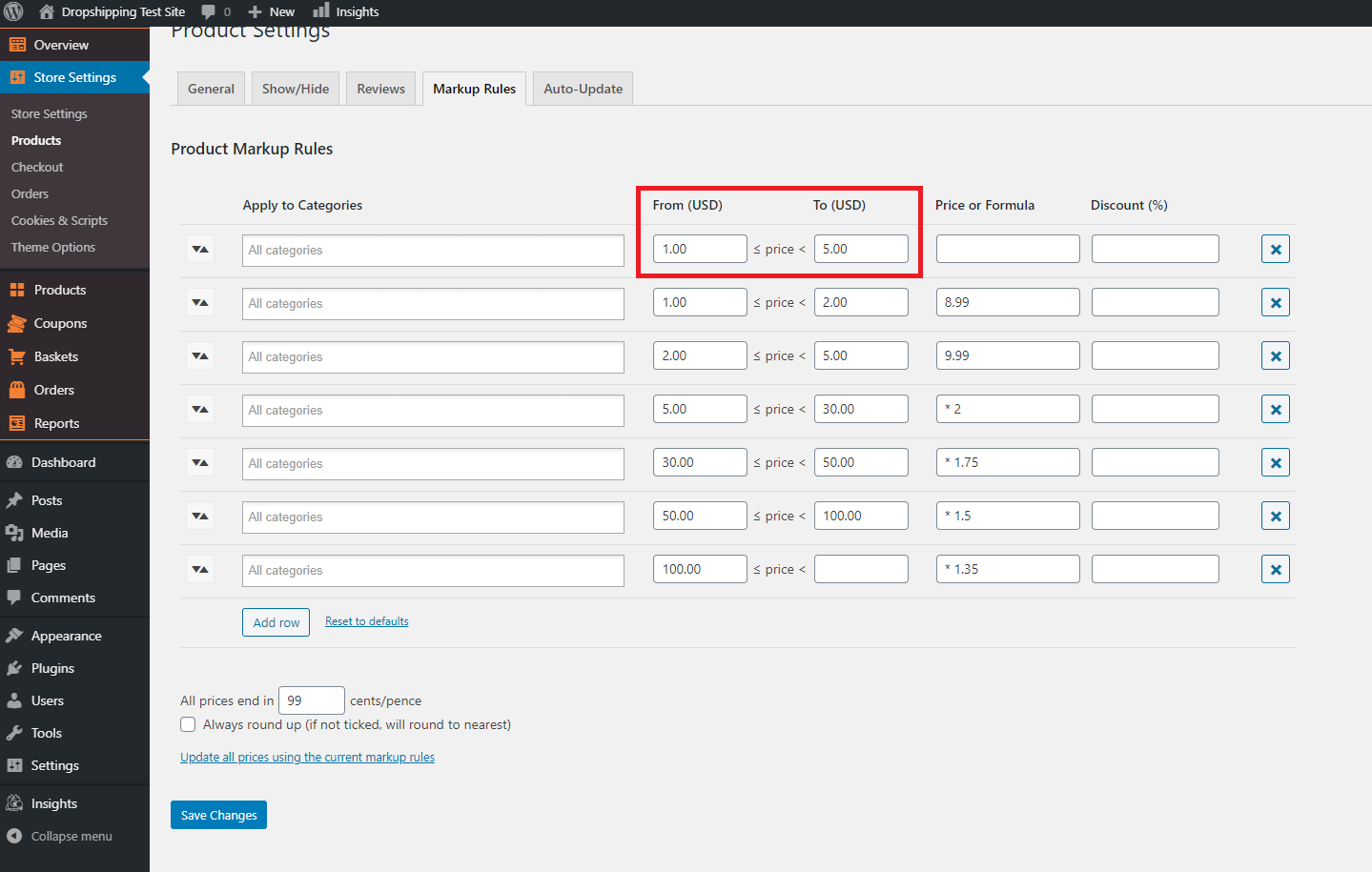
For example, if we wanted to create a markup on products ranging 'From' 1.00 USD 'To' 5.00 USD, we would make the following alterations:
The 'Price or Formula' field to the right dictates how much products ranging 'From' 1.00 USD 'To' 5.00 USD are marked up by:
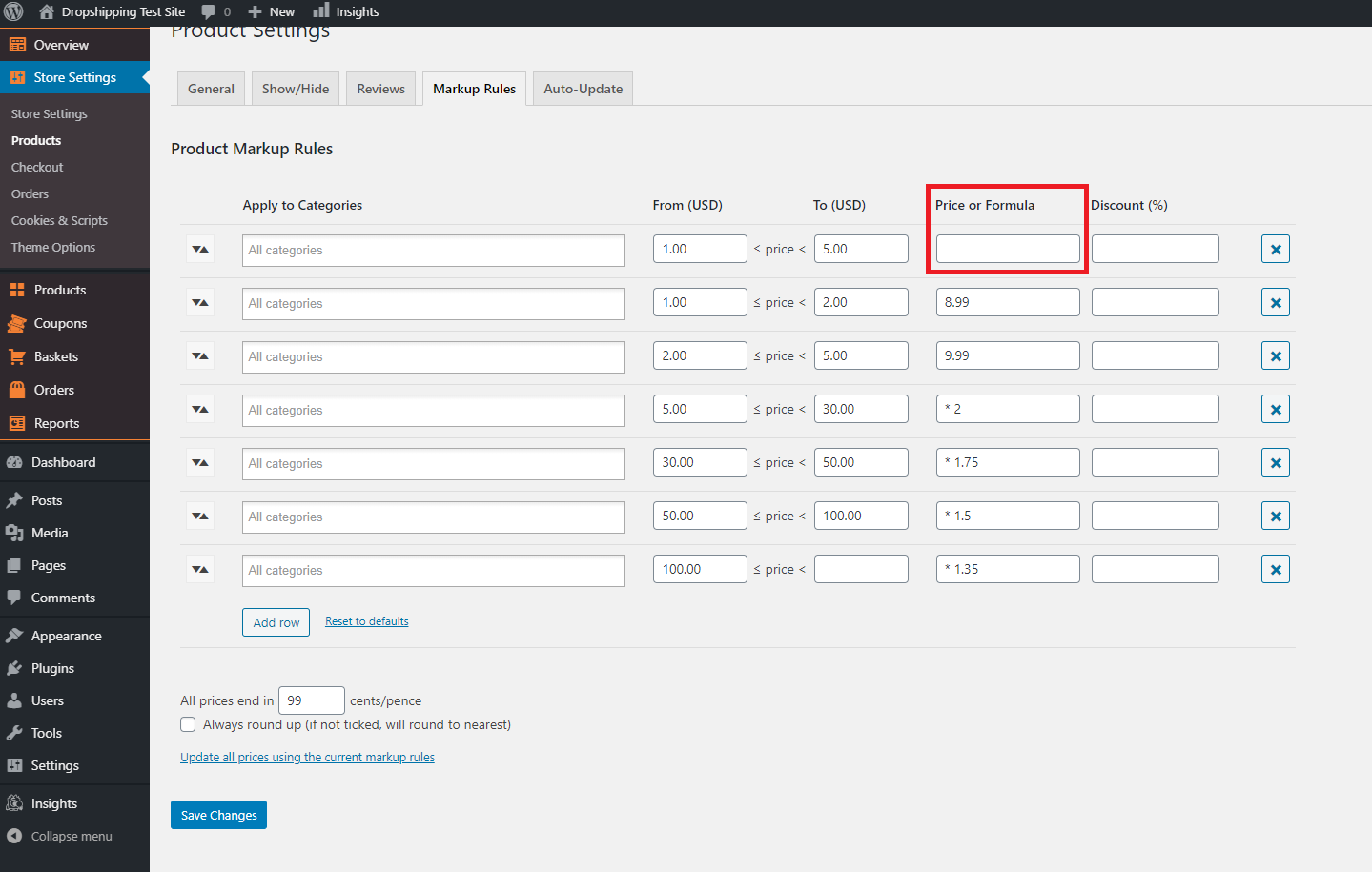
You can either:
1. Add a fixed price such as 5.00 (if the product originally costed 2.00 USD, this would make the price $7.00)
2. Add a multiplication sum such as * 2 (if the product originally costed 2.00 USD, this would make the price $4.00)
3. Add a combination of both * 2 + 5.00 (if the product originally costed 2.00 USD, this would make the price $9.00)
Lastly, the field at the end labelled 'Discount' can provide a reduced sale cost of your products within that price range (if set):
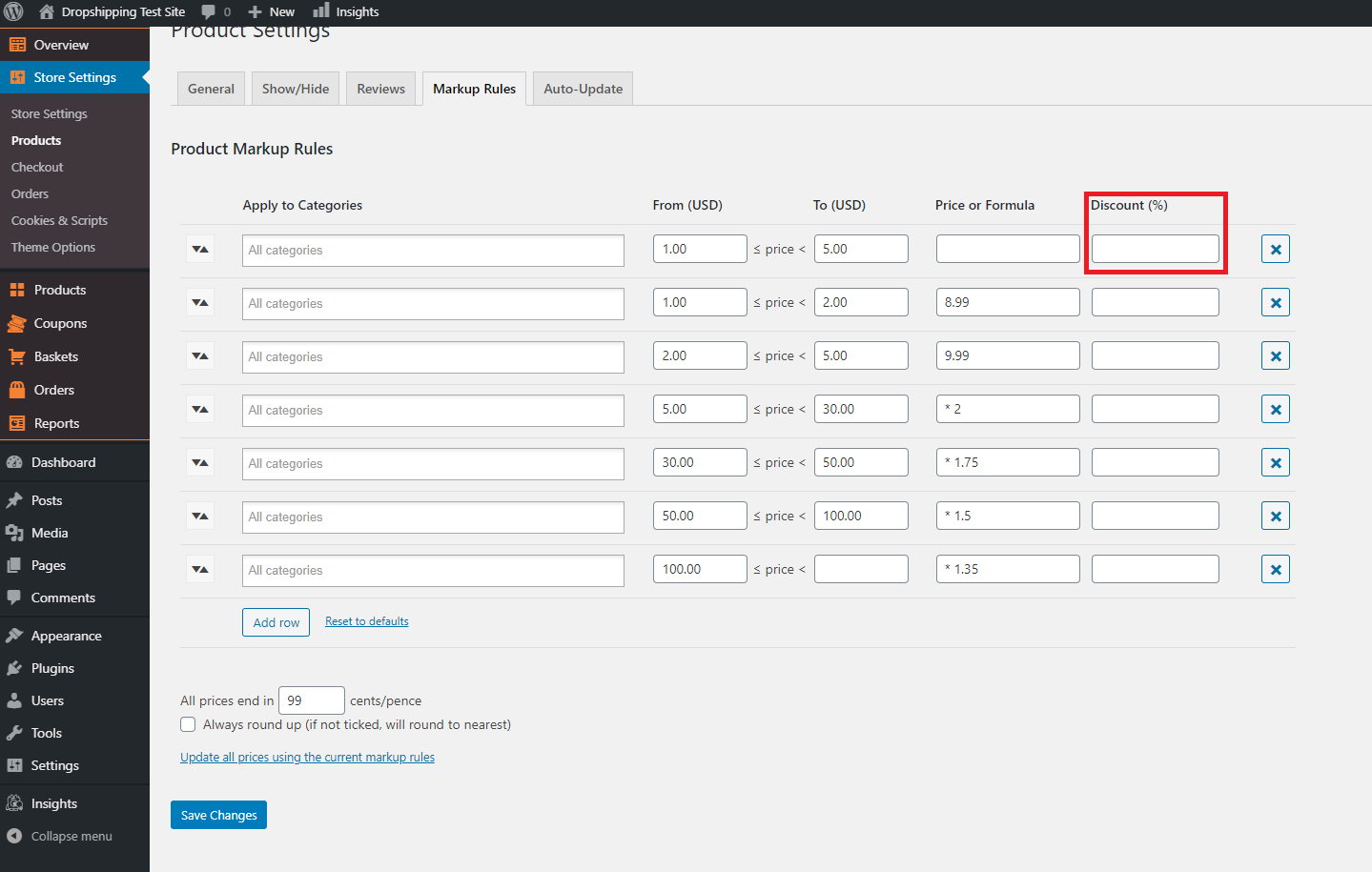
For example, if the product costed 2.00 USD and we added a 10% 'Discount', then the price would depreciate to $1.80. This can also be combined with the 'Price or Formula' field.
*Please follow the 'Help' guide over to the right hand side of the page to make successful markups*
From within this page on the right hand side, you will find a 'Help' guide which will inform you what each option entails. Click 'Save Changes' to confirm the new alterations.
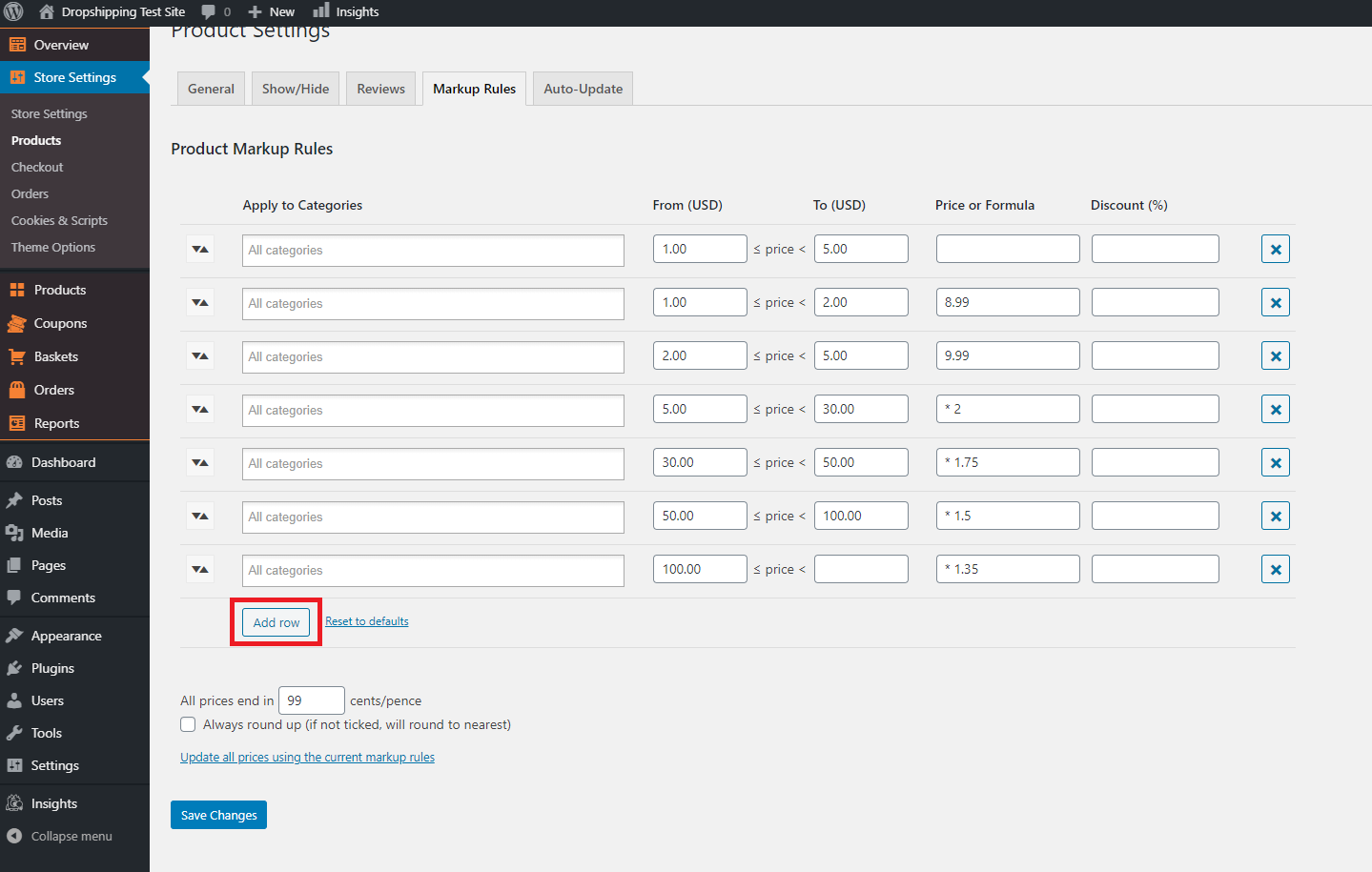
To add more markup rules, click 'Add row' at the bottom:
After applying the relevant markup rules, the part of the price after the decimal point can be changed too:
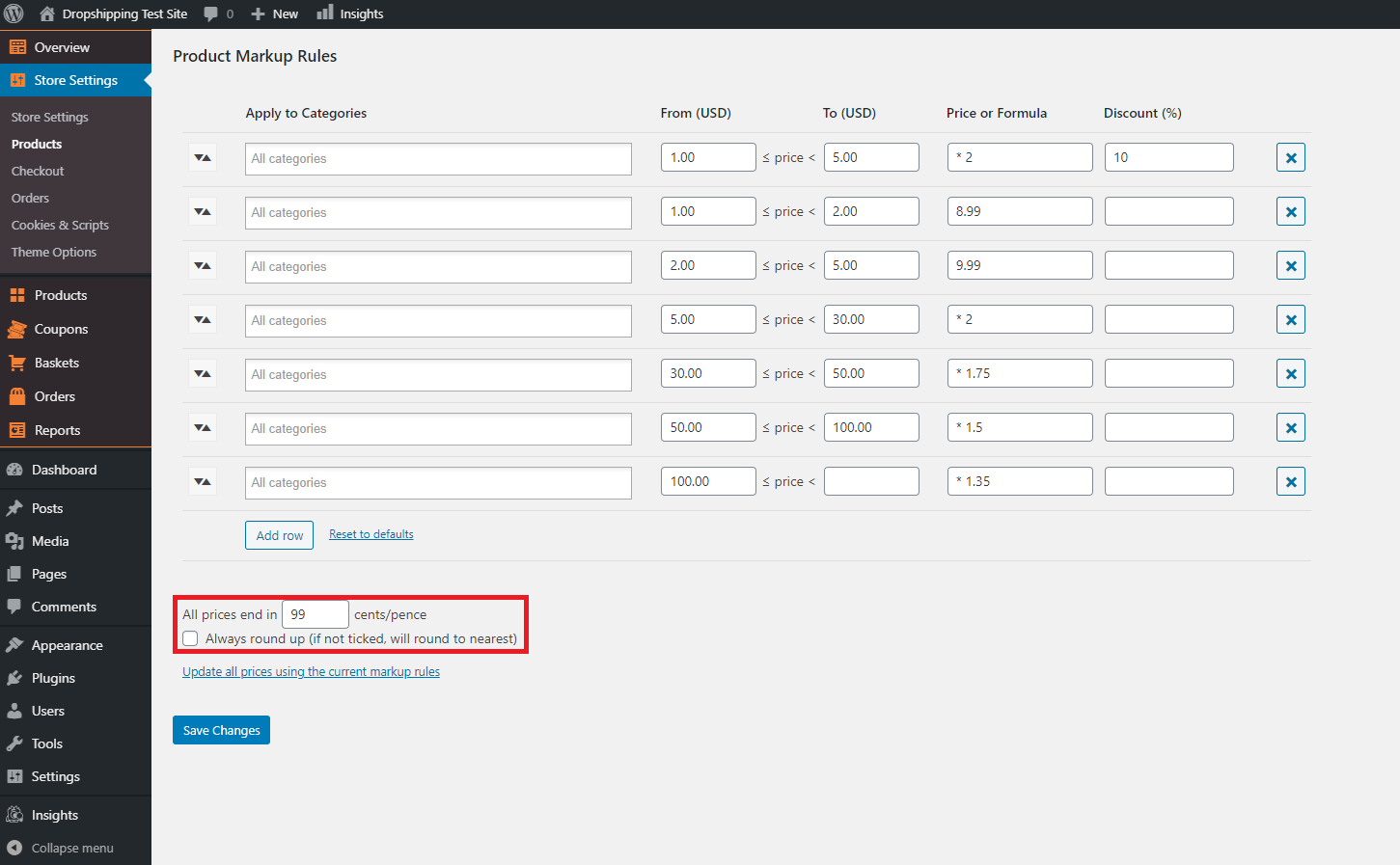
Can either be:
- A specific number, e.g. 99, so an example price of 8.78 becomes 8.99
- Multiple numbers separated by commas, e.g. 95, 97, 99, are applied randomly to each applicable product
- Nothing (blank) to make no change to the price given by the markup rule
If you decide to update all the prices with the markup rules you have set, you can do by clicking 'Update all prices using the current markup rules':
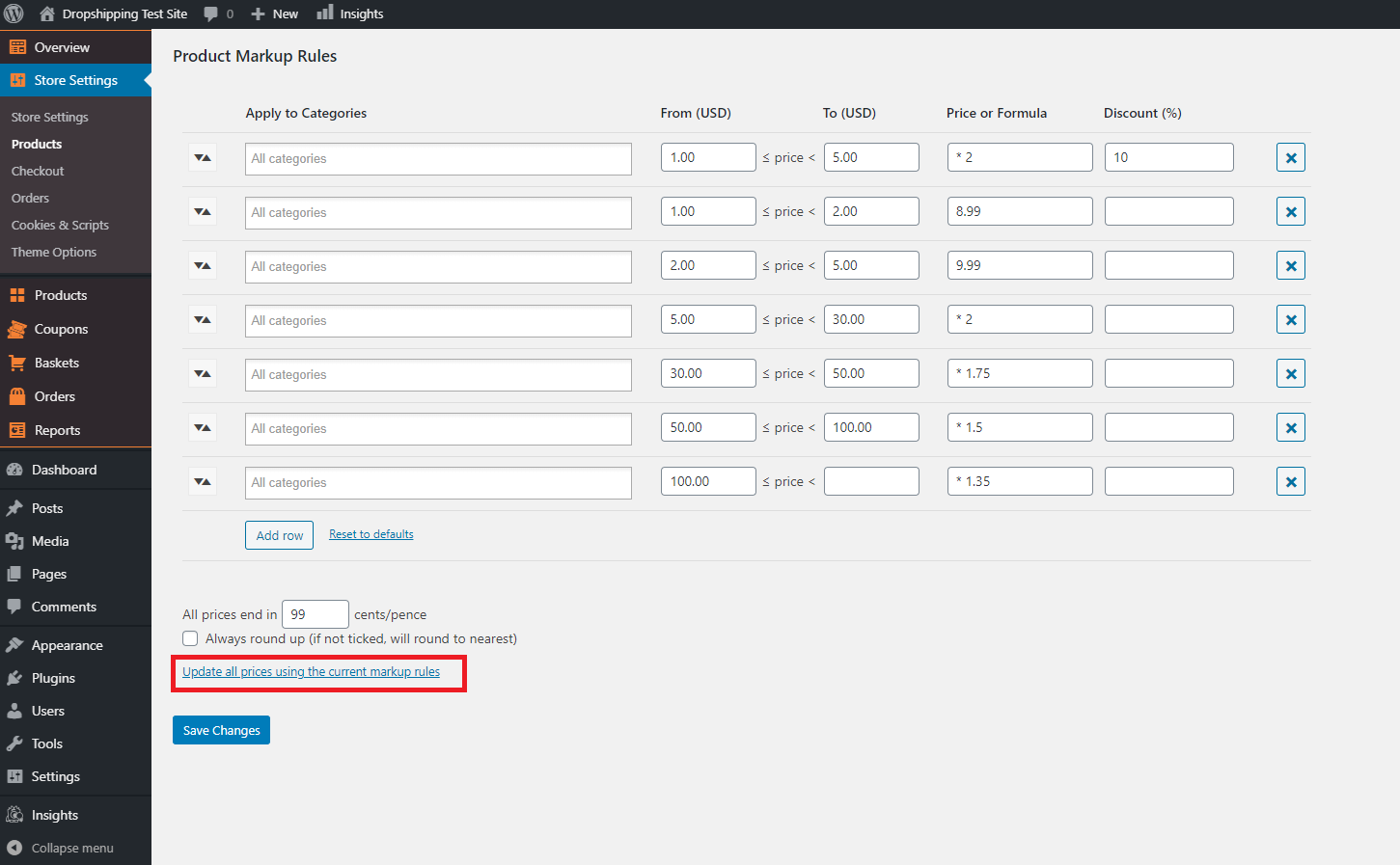
(*Don't forget to click 'Save Changes' after making alterations*)
Related Articles
Product Options
Product Options General In the General section you can check and customize general information about the product. Since the plugin imports products from AliExpress in US Dollar ($), it is set as the default currency. This currency may be changed to ...Markup formula
All products imported in your store from AliExpress appear with their original prices. To get profit from your business, you need to determine pricing rules and set markups/margins. AliDropship plugin features a profound system for pricing markup – ...How To Alter A Products Title & Description?
How To Alter A Products Title & Description? To alter a 'Products' title and/or description, from the store dashboard go to: > Products > All Products From within this page find the 'Product' that you'd like to alter the title and/or description of, ...How To Alter A Products Status?
How To Alter A Products Status? To alter a 'Products Status', from the store dashboard go to: > Products > All Products From within this page find the 'Product' that you'd like to alter the 'Status' of, either by scrolling through or searching for it ...How To Alter The Variable Price Display?
How To Alter The Variable Price Display? On your store, the 'Variable price display' alters what's shown on your product listings (as long as that product contains multiple variants with different costs - for example: red socks: $3, blue socks $3.50 ...