My IP address is blocked
My IP Address Is Blocking My Access?
The FREE VPN Chrome Extension can be installed via this link.
Step 1: click the link above ^
Step 2: Click 'Add to Chrome' on the VPN Chrome Extension page
Step 3: Click 'Add Extension'
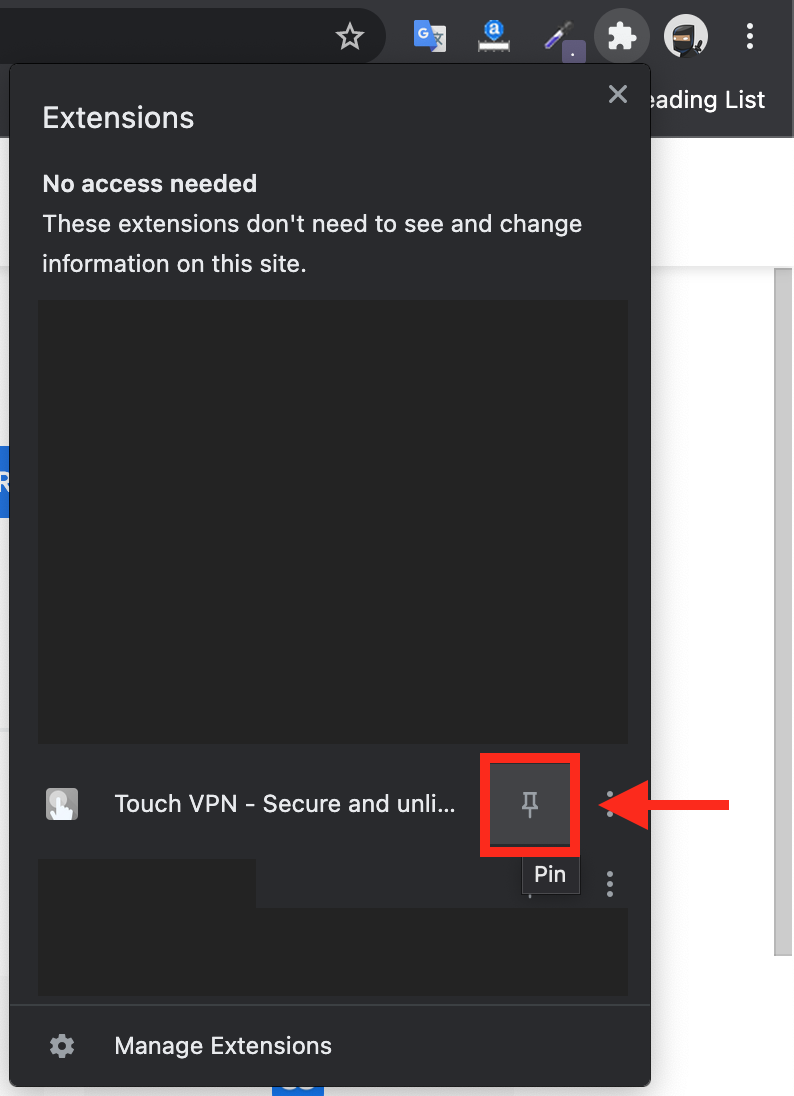
Step 4: Click the jigsaw icon in top right hand corner of your screen

Step 5: Find the VPN Icon in the drop-down list and click the pin icon to its right
The VPN Chrome Extension will now always appear in the top right hand side of your browser with you having to click the jigsaw icon
Step 6: Select the Free plan.
Step 6: Click the VPN icon in top right hand corner and follow the prompts to remain on the free version, then click on signup and close that screen
Step 7: Select the option you would like to connect to.
Step 8: Click on the Start button to connect.
Related Articles
My IP Address Is Blocking My Access?
My IP Address Is Blocking My Access? The FREE VPN Chrome Extension can be installed via this link. Step 1: click the link above ^ Step 2: Click 'Add to Chrome' on the VPN Chrome Extension page Step 3: Click 'Add Extension' Step 4: Click the jigsaw ...Connecting BlueSnap account
Connecting BlueSnap account You can start with test payments before your Merchant Application is approved. Create your sandbox account You will receive email with verification link -> click it: Log in your sandbox account and go to API settings: ...Currency settings
Your currency settings can be adjusted to your needs in AliDropship → Settings → Currency. Default currency AliDropship plugin uses US Dollars as a primary currency set by default. You can change it if you plan to work with another currency. In this ...How To Add Contact Information?
How To Add Contact Information? To add contact information, from the store dashboard go to: > Store Settings > Store Settings > Contact From within this page input your 'Email address', 'Phone number' and/or 'Trading address' into the corresponding ...How To Add Social Media Channels?
How To Add Social Media Channels? To add social media channels to your site, from the store dashboard go to: > Store Settings > Store Settings > Social Media From within there, copy and paste the URL of your 'Facebook', 'Twitter', 'Instagram', ...