How To Add A Live Chat To Your Store (Crisp Live Chat)
To add a live chat function to your store, go to:
> Plugins > Add New
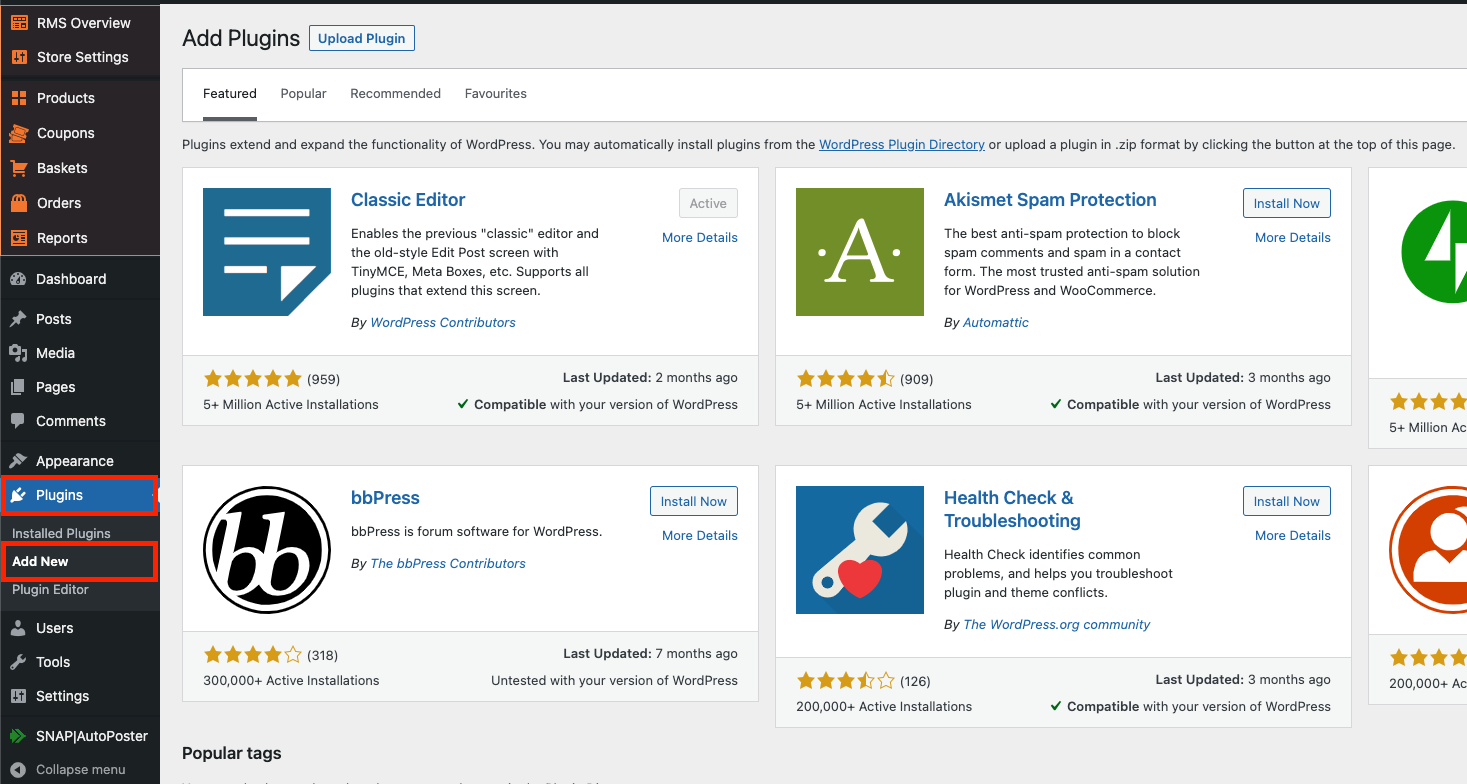
From within this page, click the search box in the top right hand corner:
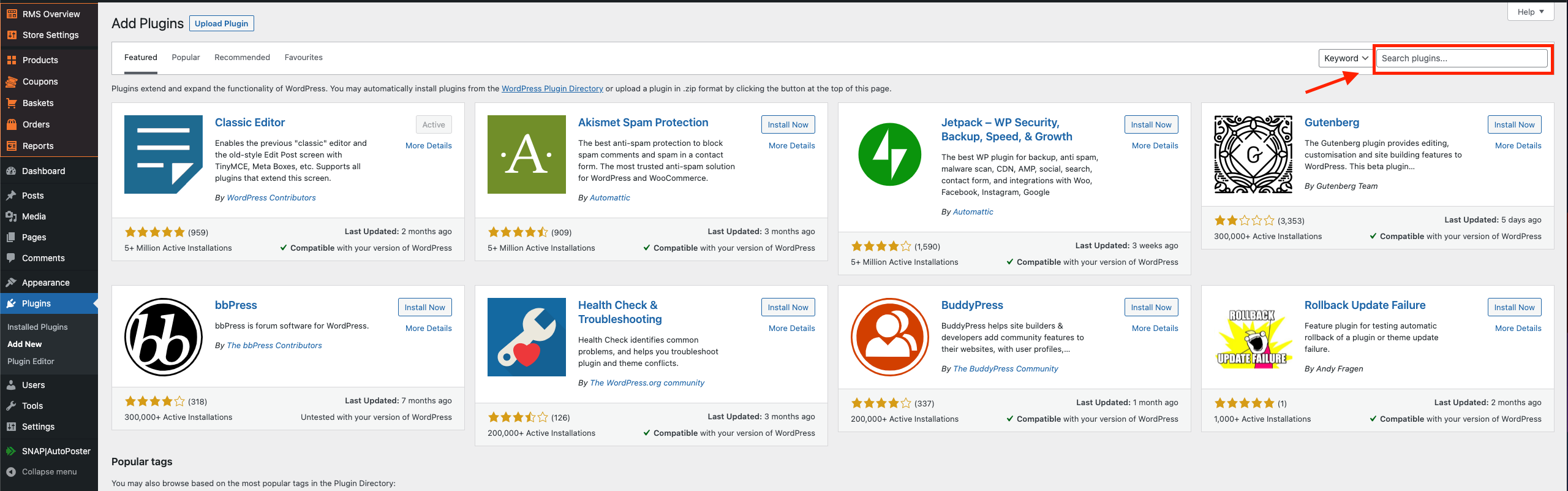
In the search box, type in 'Crisp Chat':
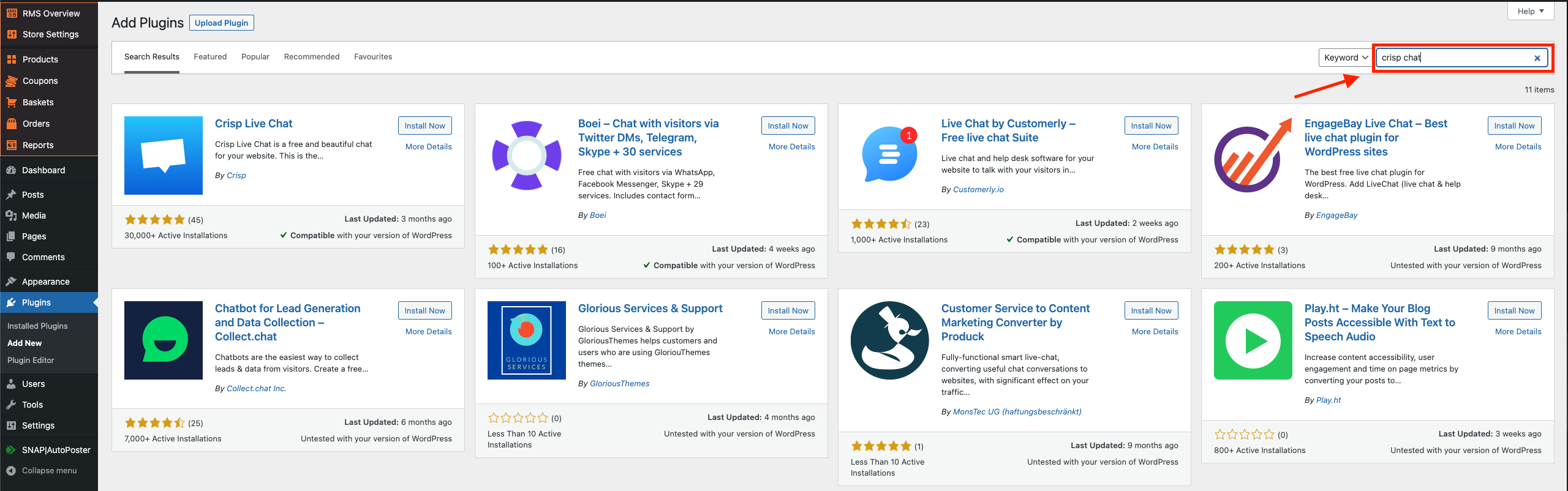
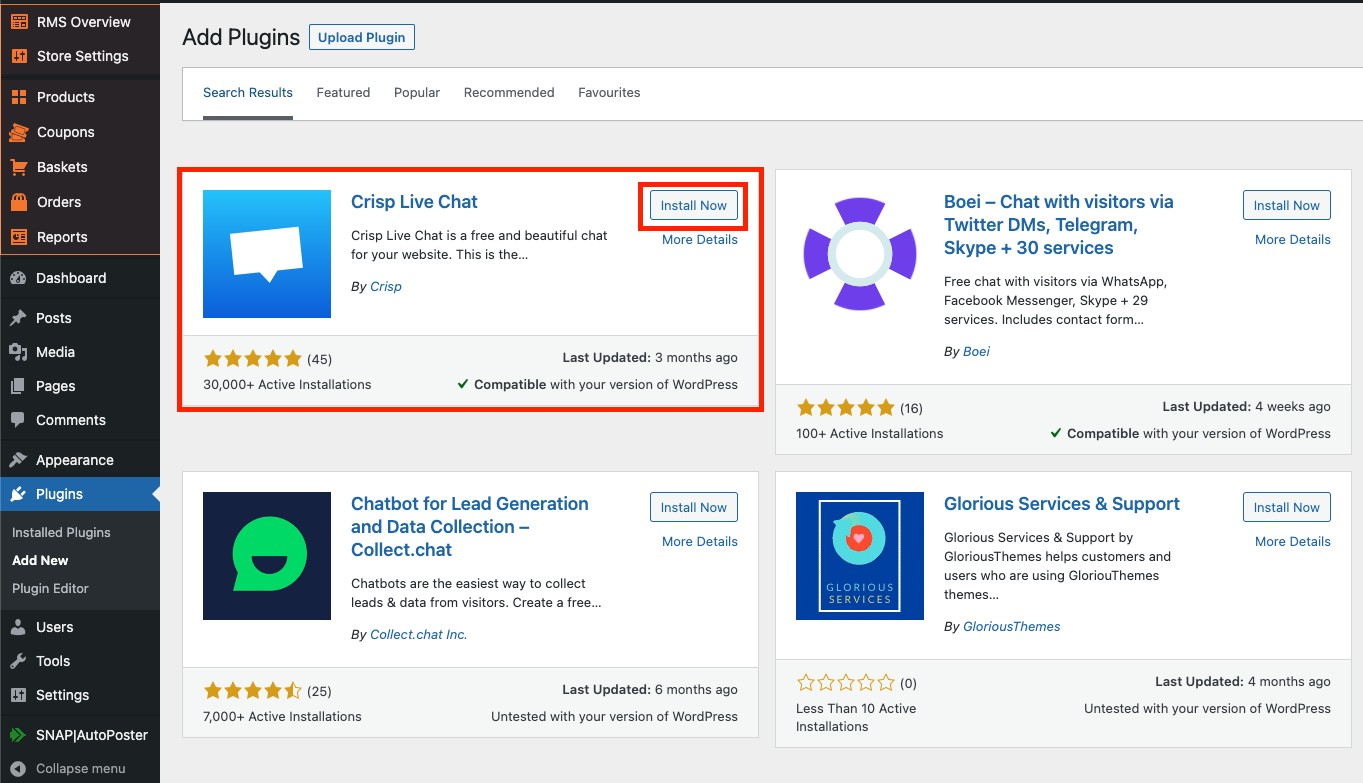
This is the one we want (top left), click 'Install Now':
Wait for it to finish installing and then click the blue 'Activate' button:
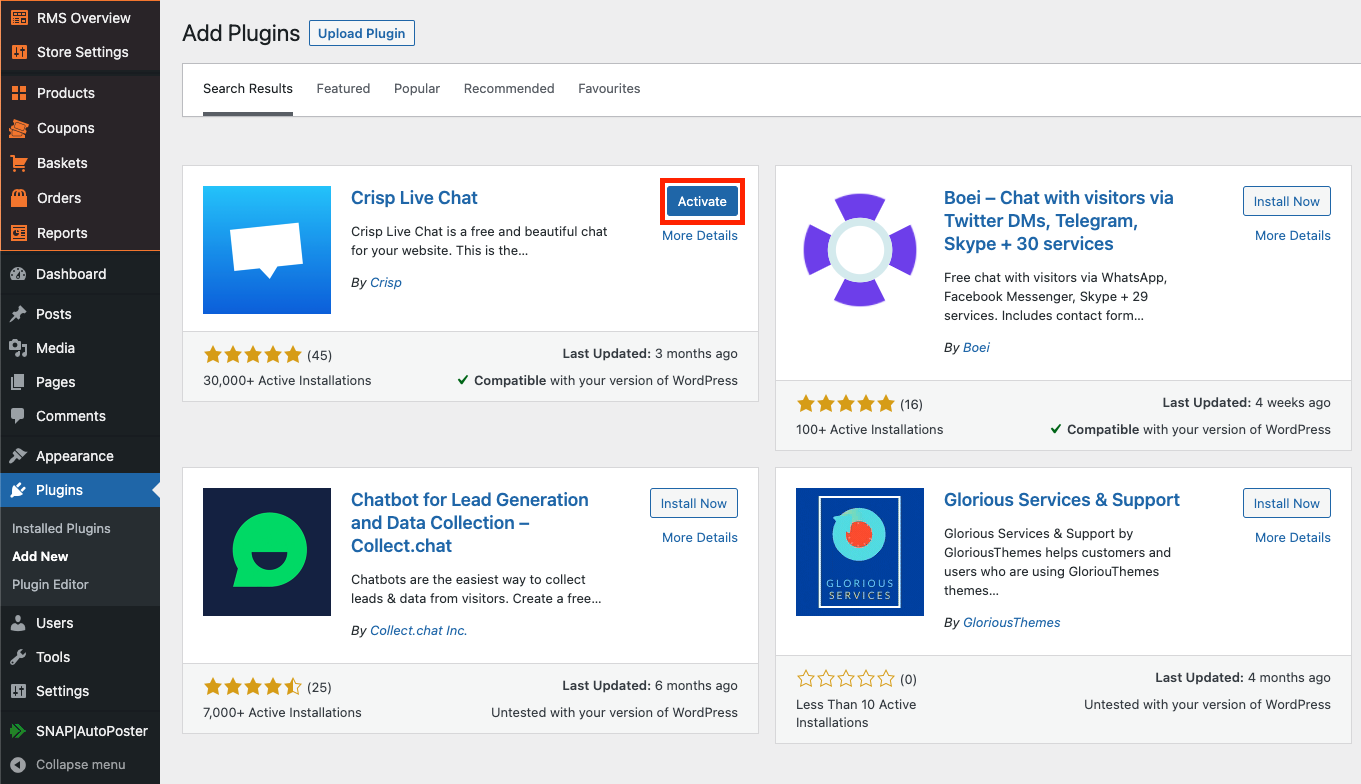
Click 'Crisp Settings' over to the left hand side:
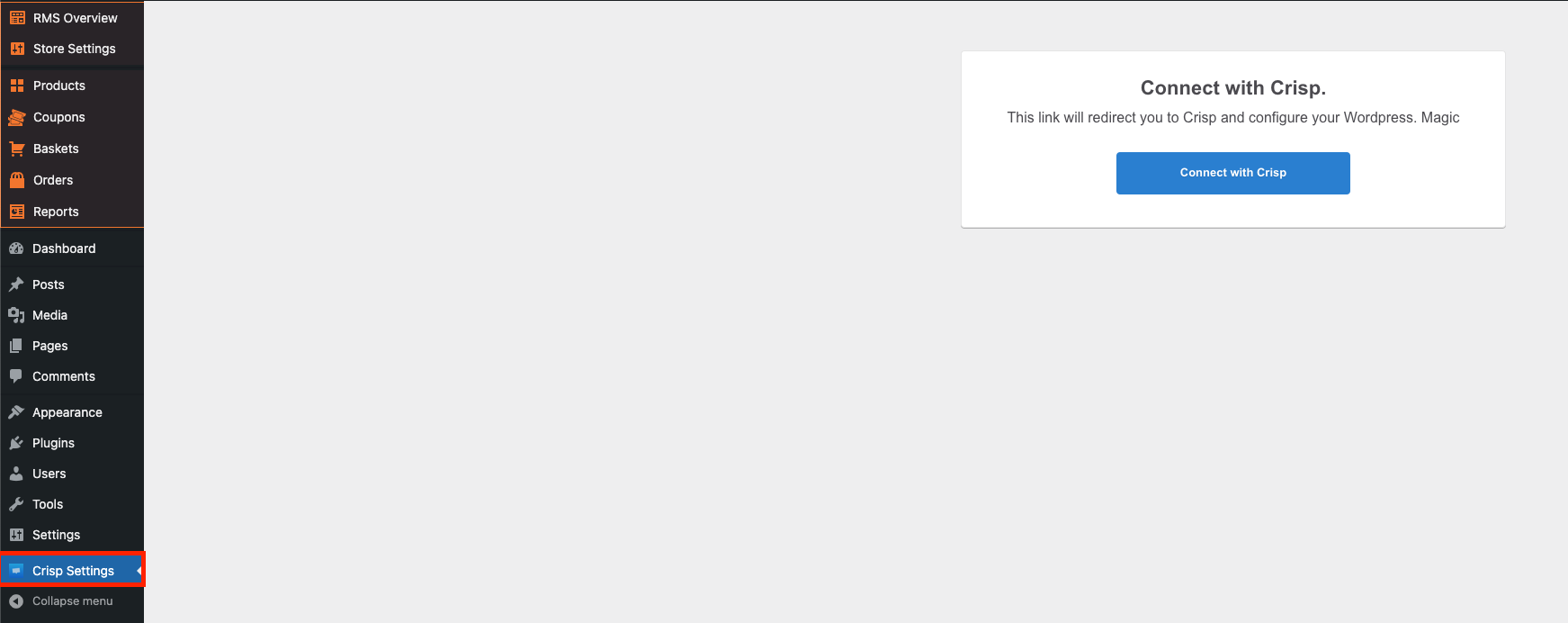
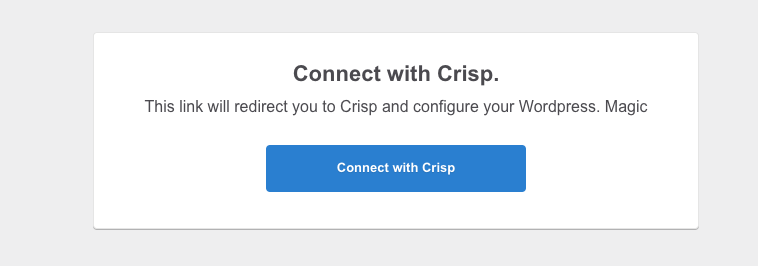
And click 'Connect with Crisp' on the next page:
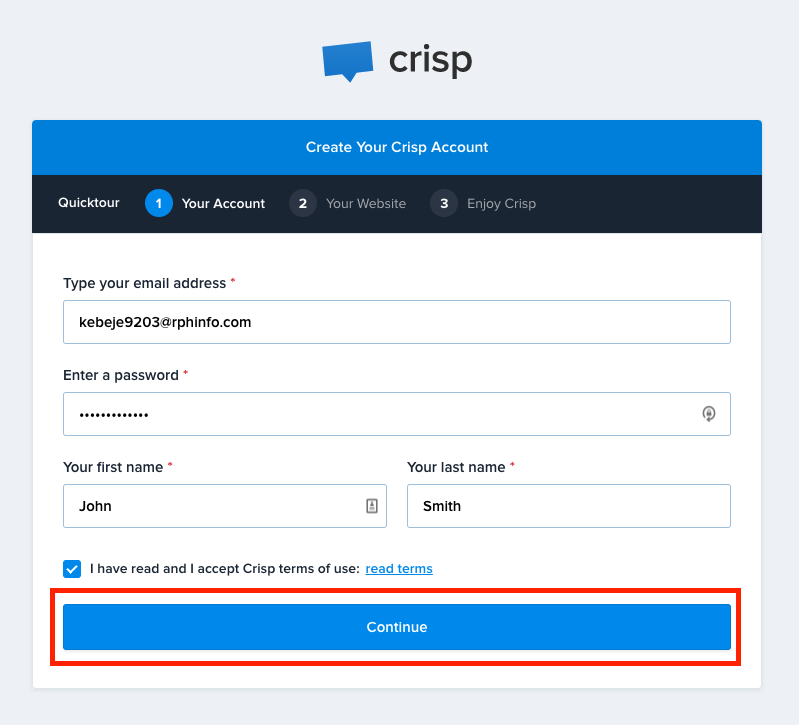
You will now have to enter your details to create an account with 'Crisp':
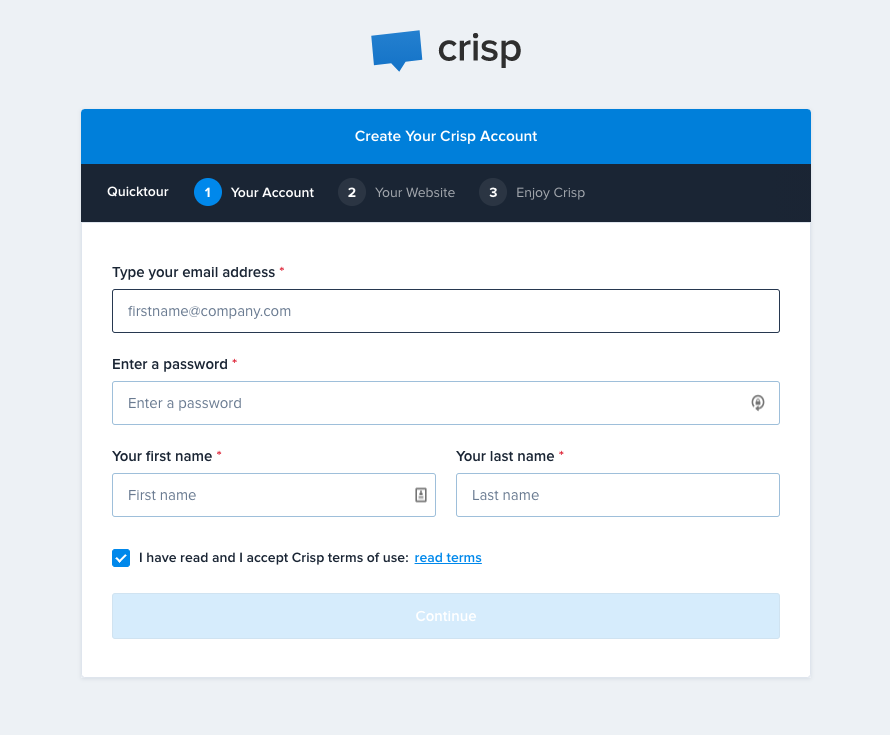
Once all your details have been entered and you have checked that they are all correct, click 'Continue':
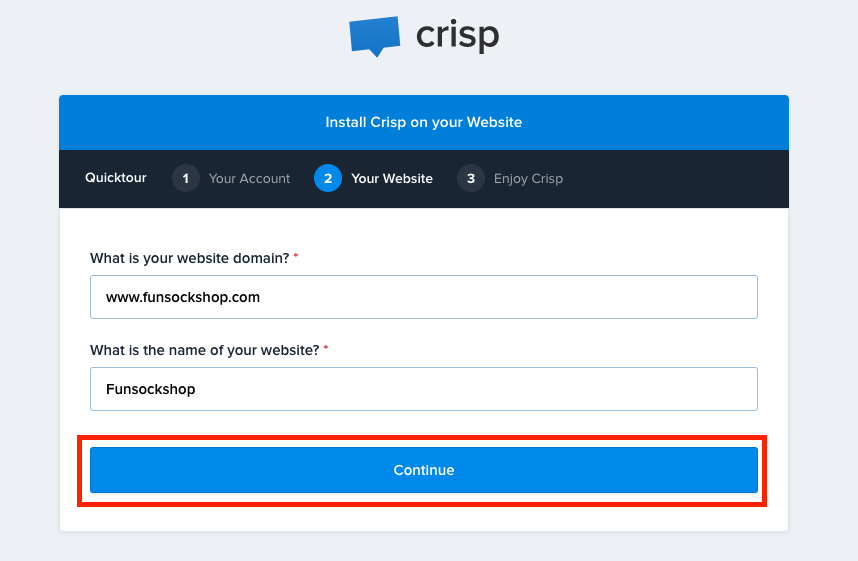
Enter your store's details on the next page, and click 'Continue':
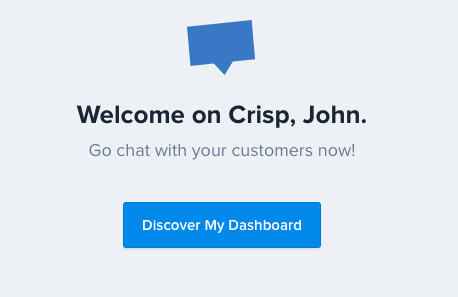
The setup is nearly completed, click 'Discover My Dashboard':
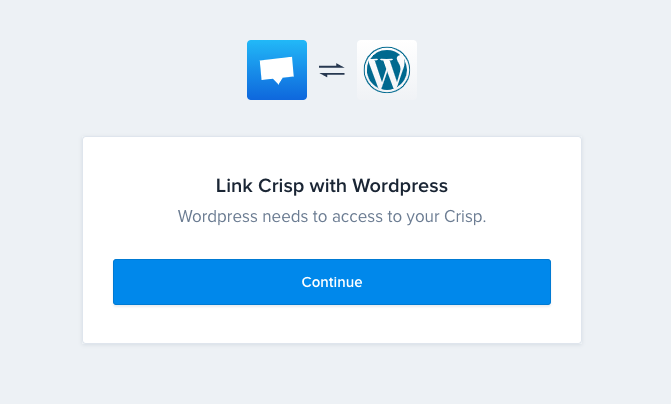
Click 'Continue' to link 'Crisp' to 'Wordpress':
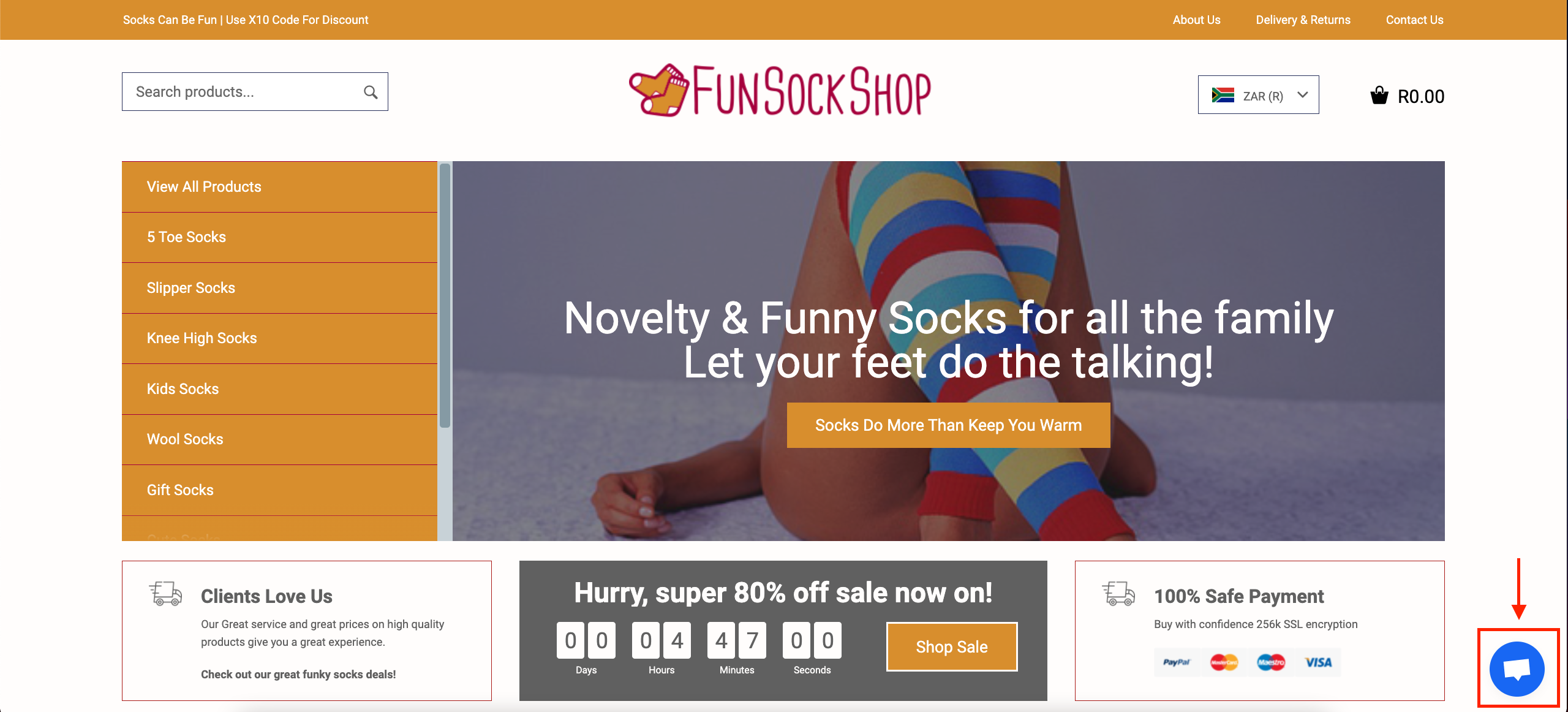
The live 'Crisp Chat' will now be shown on your store for customers to use (bottom right):
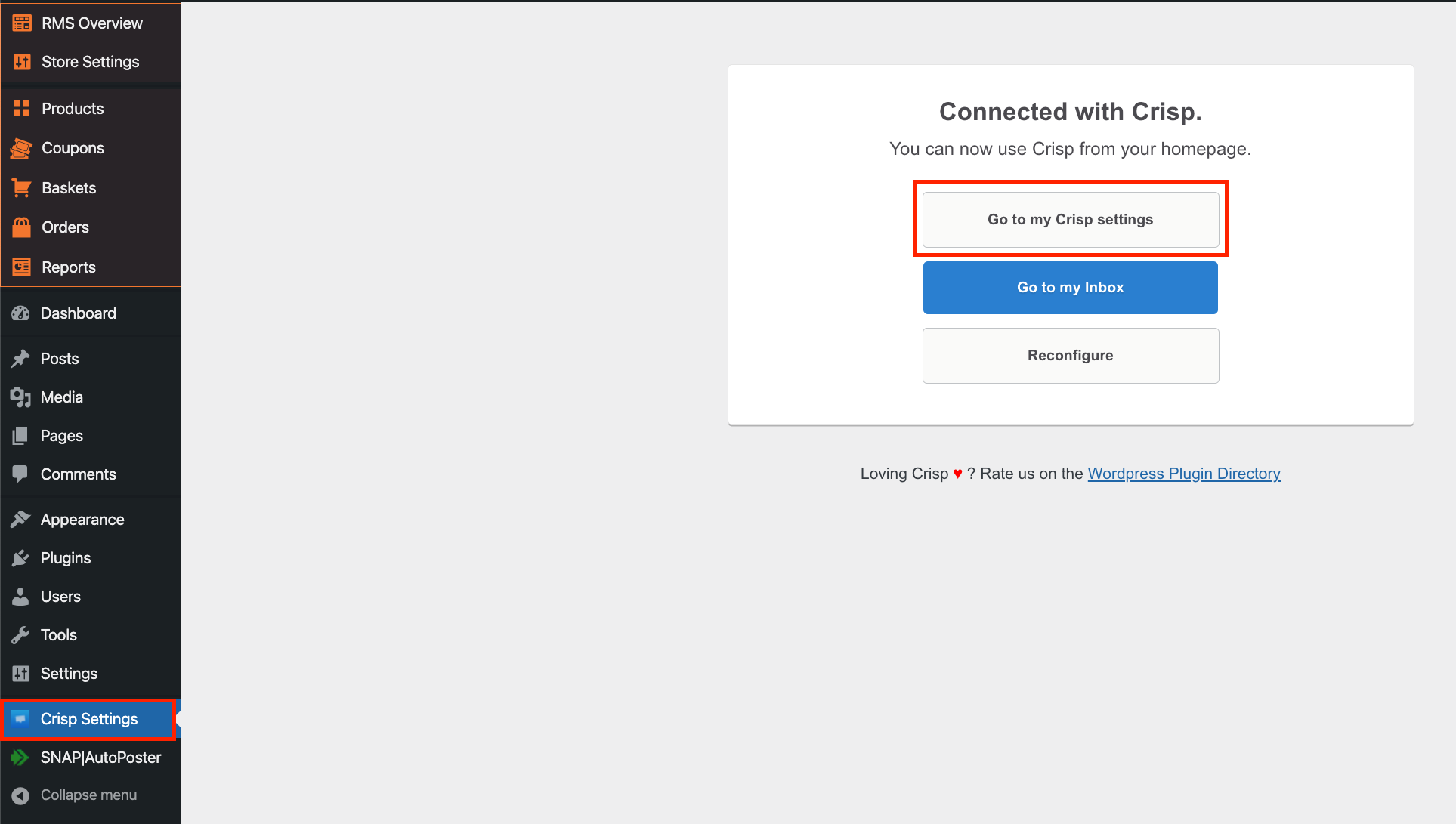
To manage your 'Crisp Settings' and account, go to > Crisp Settings and click 'Go to my Crisp settings':
To learn more or to receive help with the 'Crisp Chat', please see the following link:
Related Articles
Connecting Live Chat To Your Store (Zendesk)
Connecting Live Chat To Your Store Live chat is the online support service that provides instant help for your customers who are seeking immediate help from a customer service assistant in real time. It normally appears on eCommerce sites in the form ...Connecting Live Chat to your store
Connecting Live Chat to your store Live chat is the online support service that provides instant help for your customers who are seeking immediate help from a customer service assistant in real time. It normally appears on eCommerce sites in the form ...How To Add 'Coming Soon' Page To My Store?
How To Add 'Coming Soon' Page To My Store? To add a 'Coming Soon' page to your store, navigate to: > Plugins > Add New Over to the right hand side, type 'coming soon' into the search box: Find this plugin by 'SeedProd' and click 'Install Now': Click ...How To Add Contact Information?
How To Add Contact Information? To add contact information, from the store dashboard go to: > Store Settings > Store Settings > Contact From within this page input your 'Email address', 'Phone number' and/or 'Trading address' into the corresponding ...How To Add A New Product Category?
How To Add A New Product Category? To 'Add a new Product Category', from the store dashboard go to: > Products > Product Categories From within this page on the left hand side you'll see the heading 'Add New Category'. Underneath this heading you can ...