Connecting Live Chat to your store
Live chat is the online support service that provides instant help for your customers who are seeking immediate help from a customer service assistant in real time. It normally appears on eCommerce sites in the form of a little text box that says “how can I help you?”. Live chat is a useful tool that can help you to increase your conversion rate and profit.
We are using Zendesk Chat on our stores and want to share the setup instructions with you.
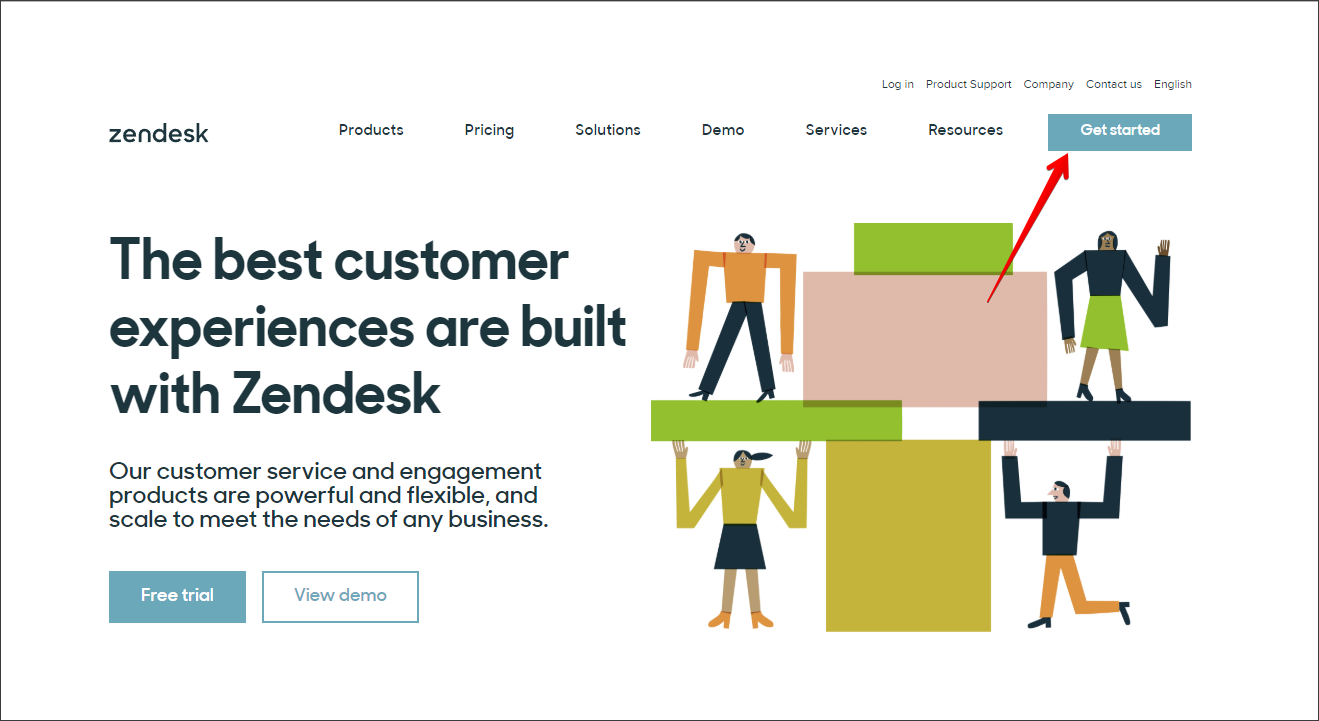
- Visit zendesk.com and Click 'Get started'.
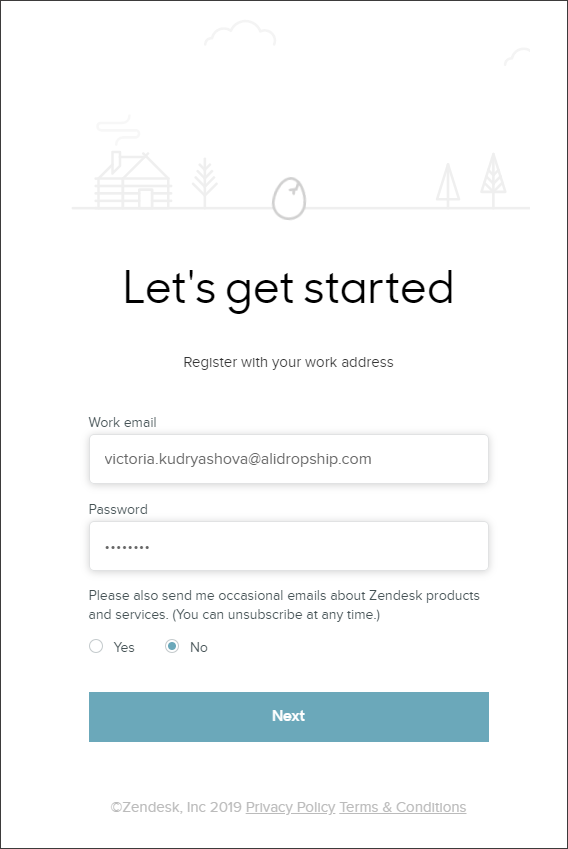
2. Enter your email and password.
3. Enter your company name and number of employees.

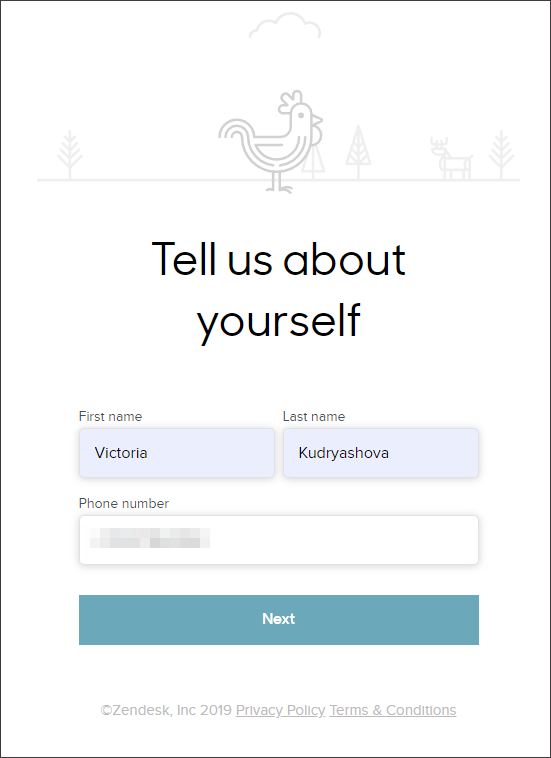
4. Enter your first and last name, phone number.
5. Click 'Next' at Customize your team step.
6. Verify your email.
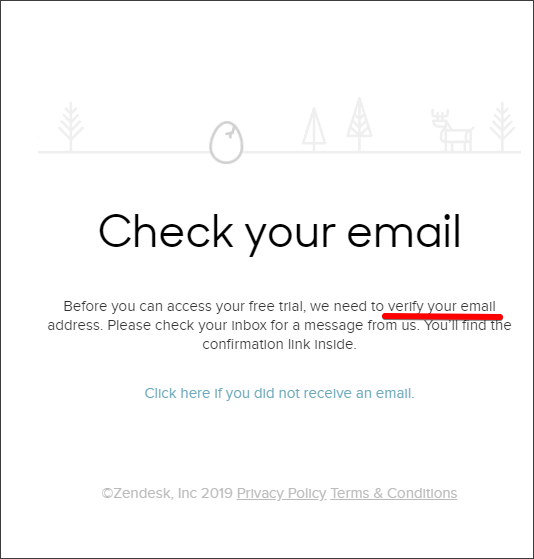
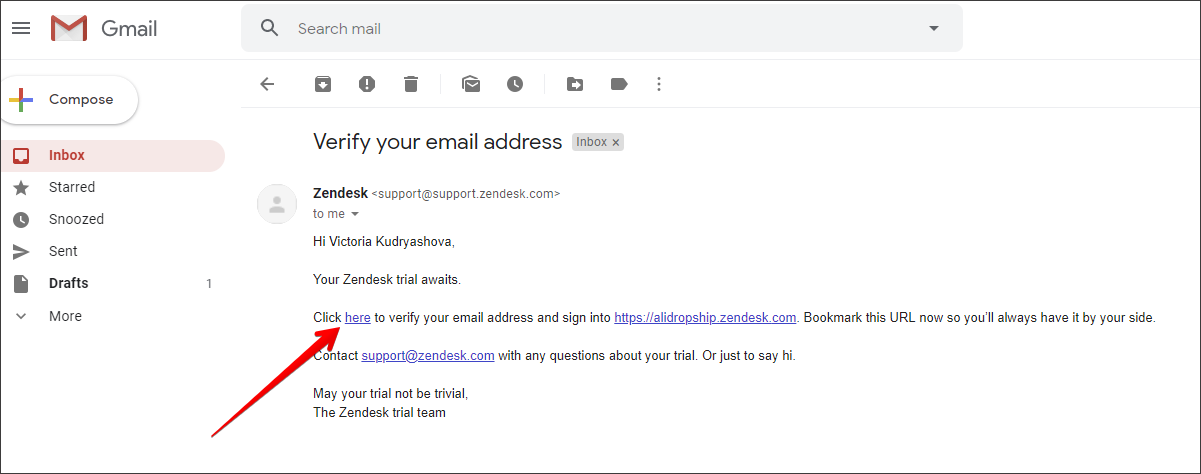
7. Go to your WordPress admin area Plugins - Add New, enter 'Zendesk' in search field and click 'Install Now'.
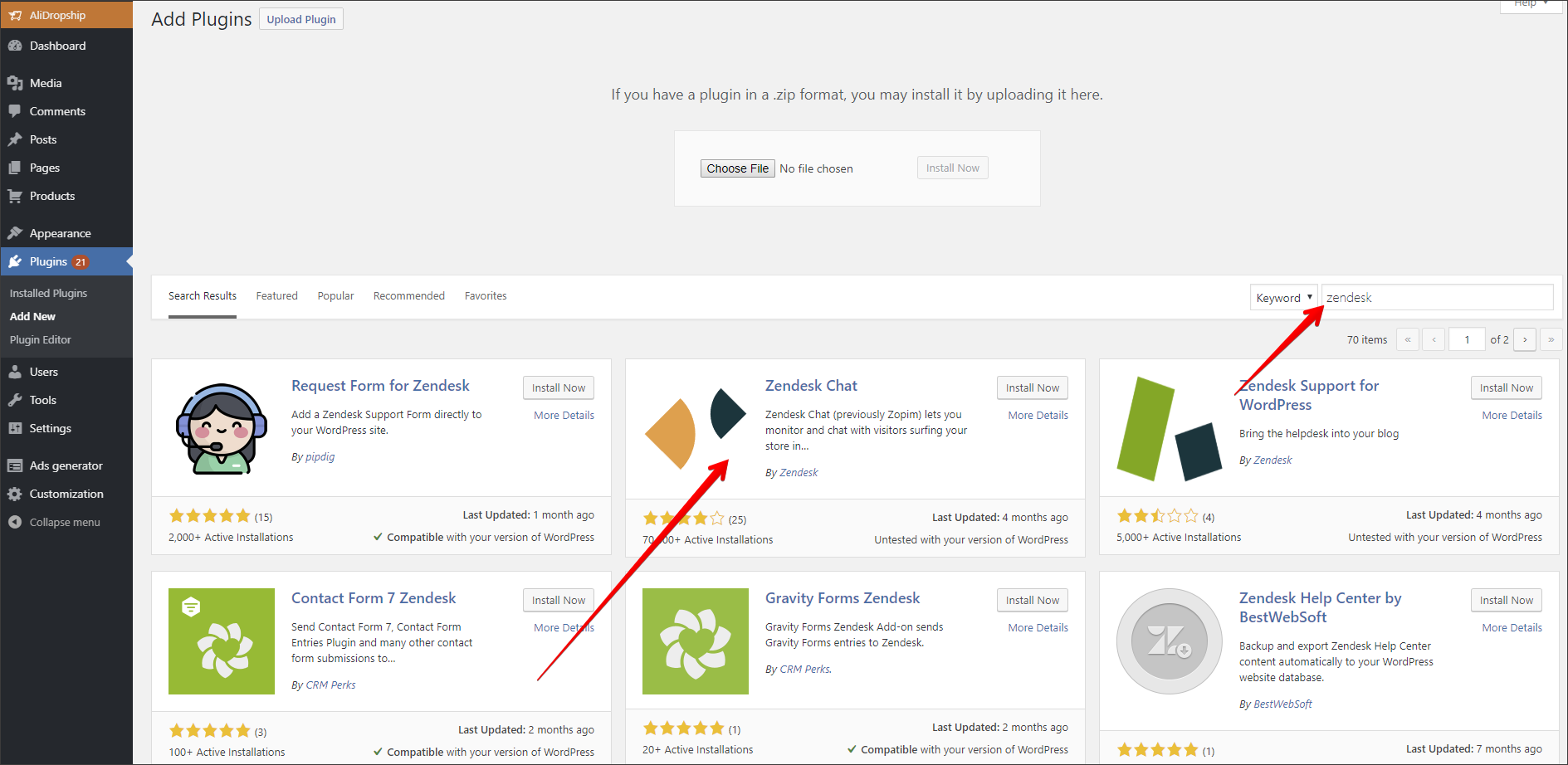
8. Once it has been installed, click 'Activate'.

9. Go to Zendesk Chat in your WP admin area, link up with your Zendesk Chat account by entering Zendesk Chat username, Zendesk Chat password, Subdomain (e.g. alidropship.zendesk.com - it's generated from your company name).
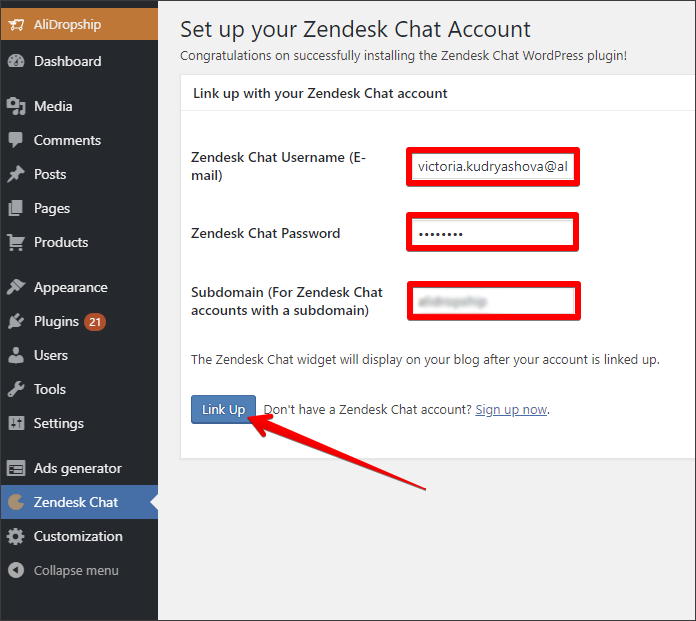
8. Now your Zendesk Chat is activated. You can go to its dashboard to make necessary settings.

9. In dashboard.zopim.com you can chat with your clients, setup your Live Chat, enable/disable the plugin. To learn more about Zendesk Chat and its features we recommend that you check this Knowledge Base and YouTube channel.
Related Articles
Connecting Live Chat To Your Store (Zendesk)
Connecting Live Chat To Your Store Live chat is the online support service that provides instant help for your customers who are seeking immediate help from a customer service assistant in real time. It normally appears on eCommerce sites in the form ...How To Add A Live Chat To Your Store (Crisp Live Chat)
How To Add A Live Chat To Your Store? To add a live chat function to your store, go to: > Plugins > Add New From within this page, click the search box in the top right hand corner: In the search box, type in 'Crisp Chat': This is the one we want ...Connecting Stripe Account
Connecting Stripe Account Please note! You need SSL certificate installed on your site to use Stripe. South African clients can purchase an SSL here, for any other clients it's here. To register an account with Stripe, visit https://stripe.com/ and ...Connecting Rave Account
Connecting Rave Account Go to https://rave.flutterwave.com/signup and register your account. Set the 'Currency' as 'South African Rands (ZAR)' Use the Copy Key button to copy the API information to your store, do not try to type it, copy it straight ...Connecting BlueSnap account
Connecting BlueSnap account You can start with test payments before your Merchant Application is approved. Create your sandbox account You will receive email with verification link -> click it: Log in your sandbox account and go to API settings: ...