Connecting Stripe Account
Please note! You need SSL certificate installed on your site to use Stripe.
South African clients can purchase an SSL here, for any other clients it's here.
To register an account with Stripe, visit https://stripe.com/ and click the Create account button.

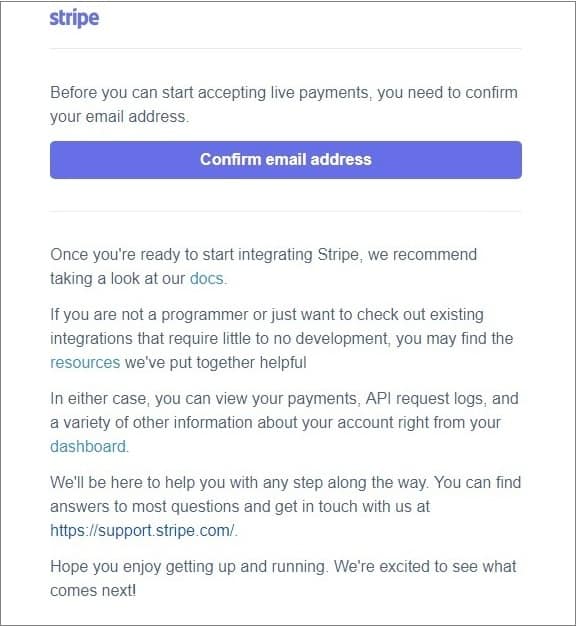
After you have submitted your registration request, you will receive an email notification with further details. Confirm your email to proceed.
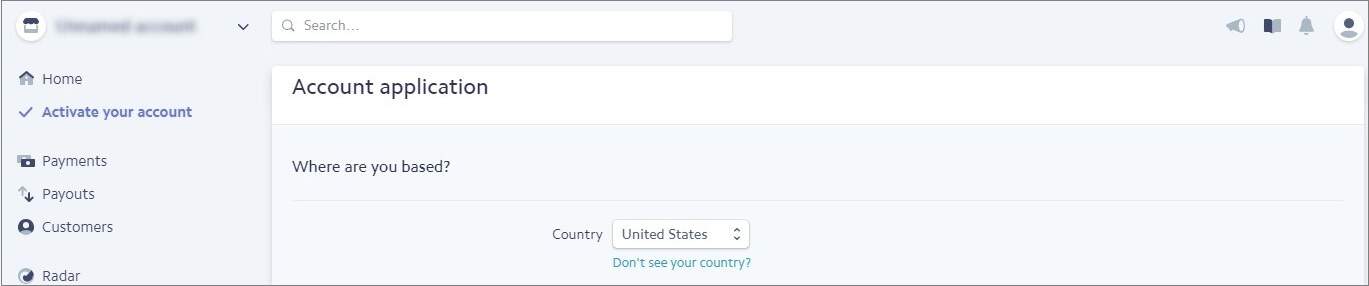
To be able to create your API keys and access live data, you need to activate your account first. Fill out your account application. Start with choosing the country your business based in.
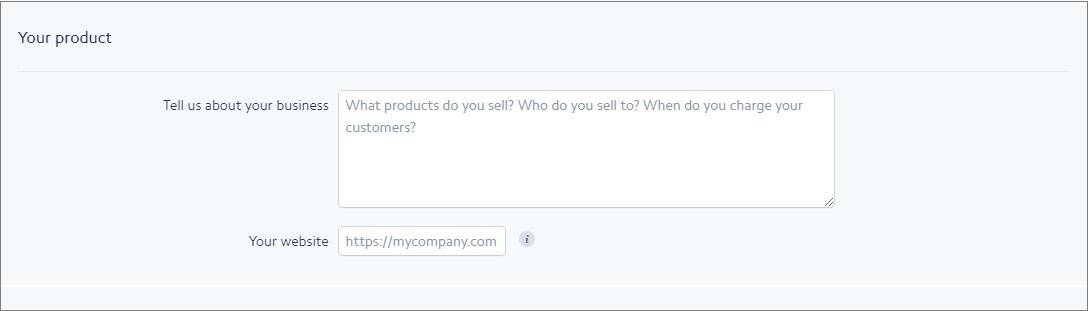
Describe your website as “eCommerce store” and state your niche. (For example, “Kitchen utensils sold to a wide audience in an eCommerce store”) Add your domain name below.
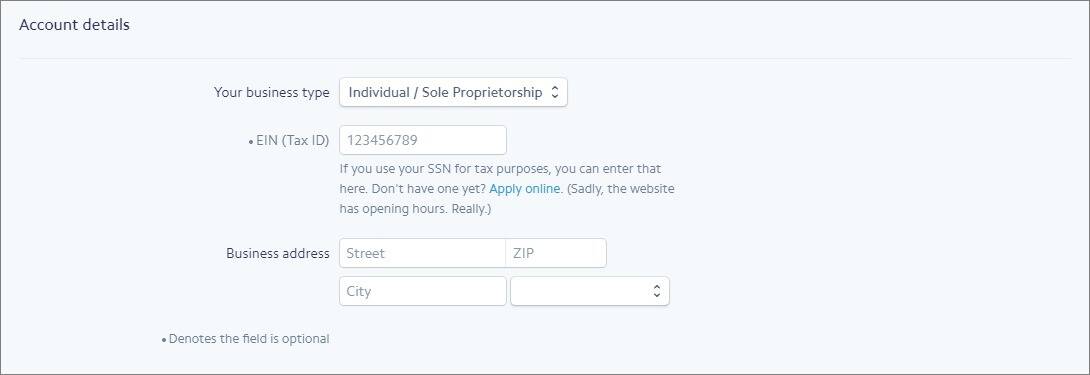
Enter your account details: choose your business type from the dropdown menu, enter your Tax ID (optional) and business address.
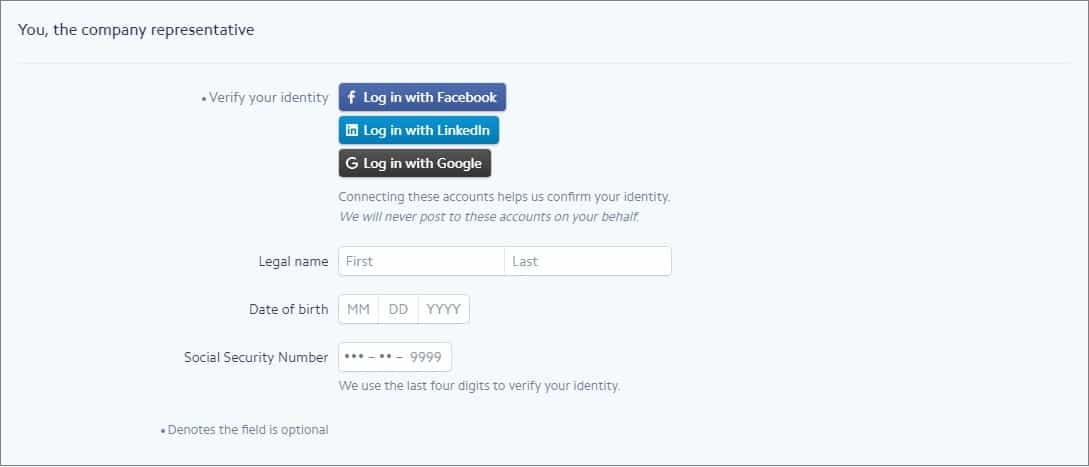
As the company representative, share your personal information: your legal name, date of birth and social security number.
Add your business name and phone number (they will be shown to your customers in their credit card statements) and your bank account details.
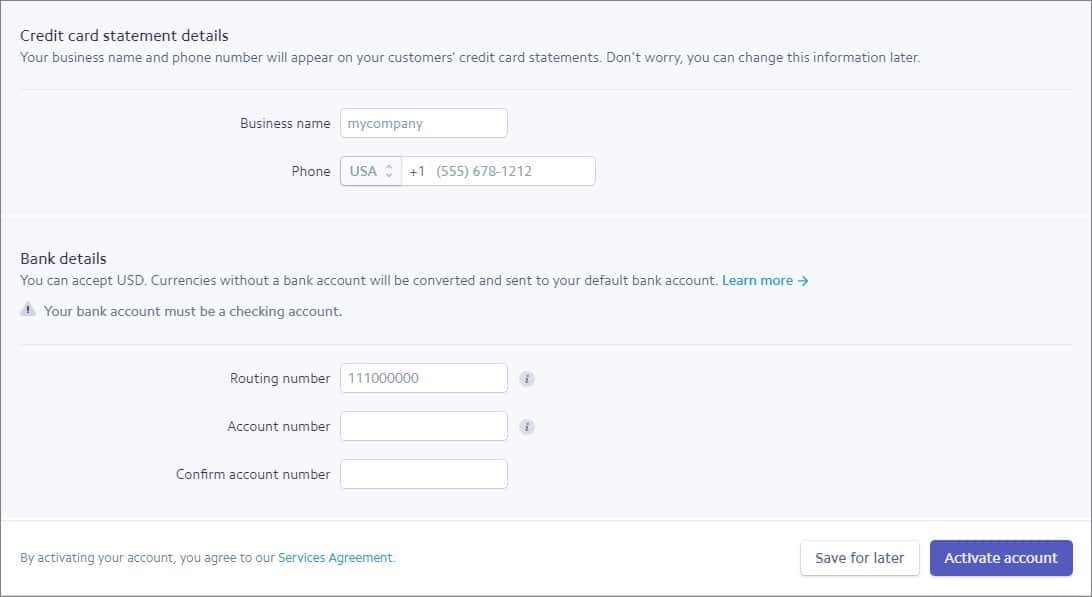
Click Activate account. You will be notified via email when your account is verified.
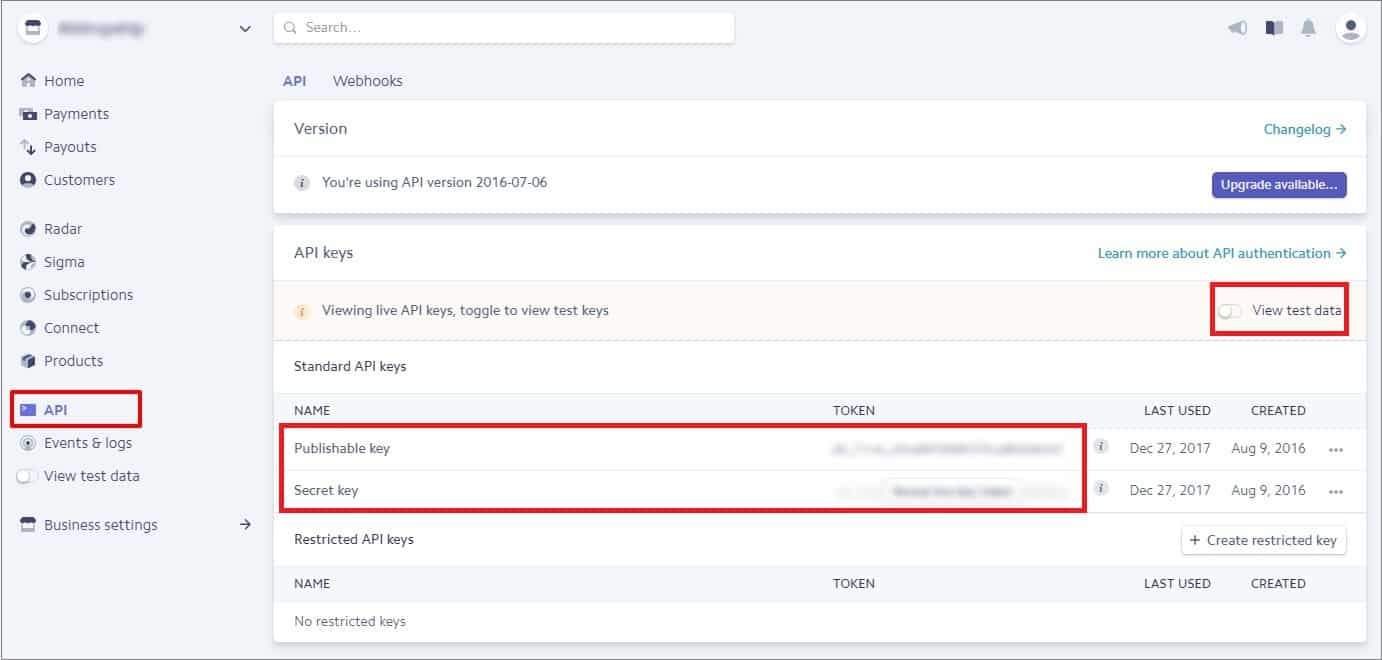
To create your Publishable and Secret Keys, go to the API tab in your Dashboard. Use the toggle on the right-hand side of the page to view your test credentials. Please note that only test data is available until your account is activated.
Once you have generated your keys, you need to paste them in your payment settings. To do this, go to AliDropship => Settings =>Payments => Credit Cards. Choose Stripe from the Service dropdown menu.
Now you can enable Stripe payment option on your website.
There are 2 possible integration options:
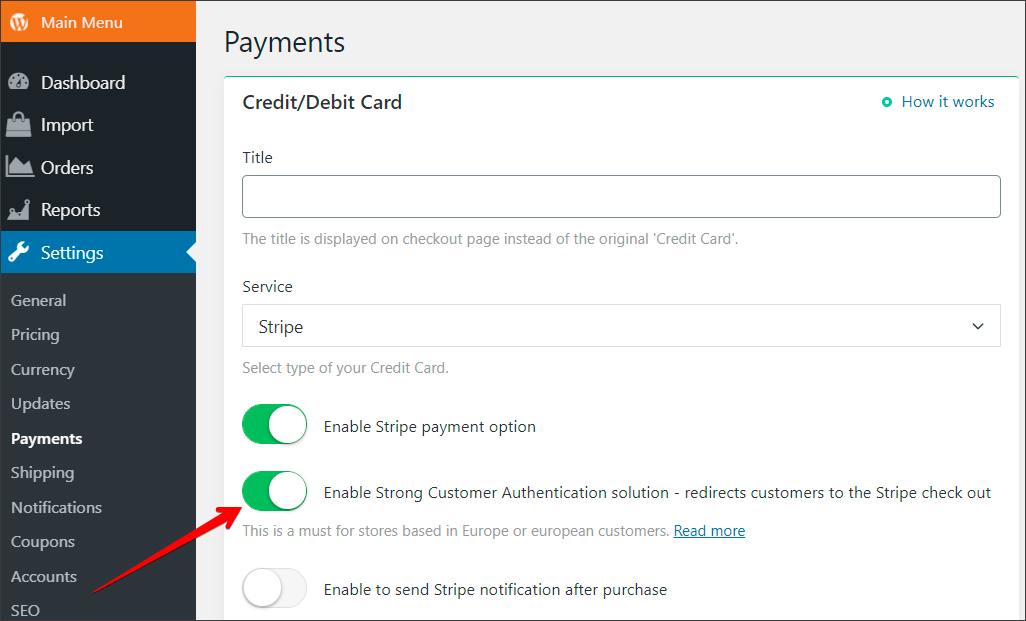
- Stripe inline checkout - receive payments on your checkout page without redirecting your customers to Stripe checkout.
Disable 'Strong Customer Authentication' solution toggle.
You can add title (it will be displayed on the Checkout page) and choose your payment currency from the drop-down menu. To enlarge the list of available currencies, add more in Settings => General => Additional Currencies.
You can also enable or disable cardholder field (valid only for inline check out).
Paste your Publishable and Secret Keys. Finish by clicking Save changes.
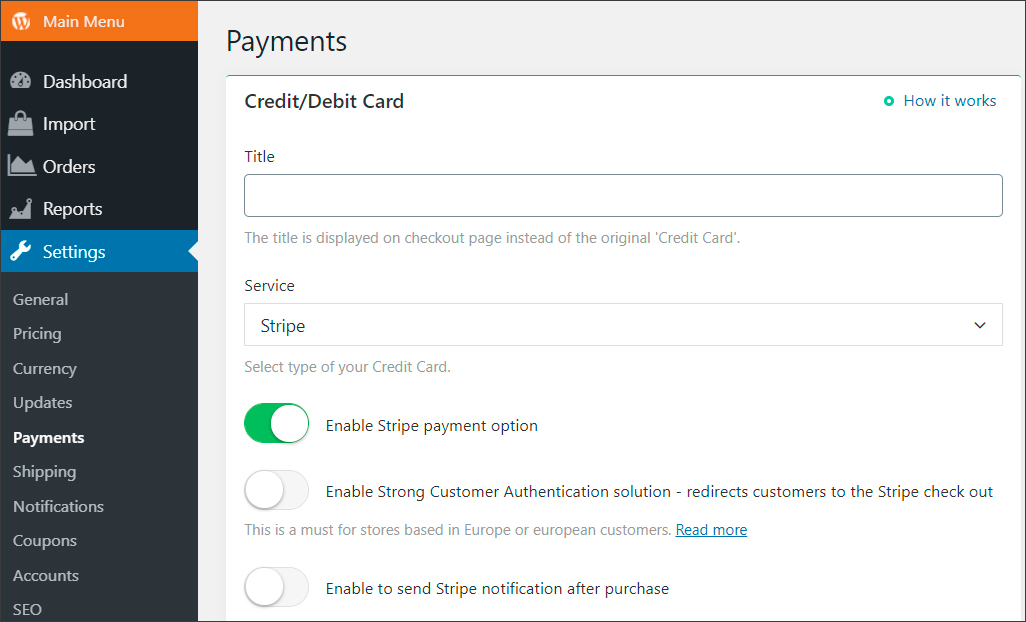
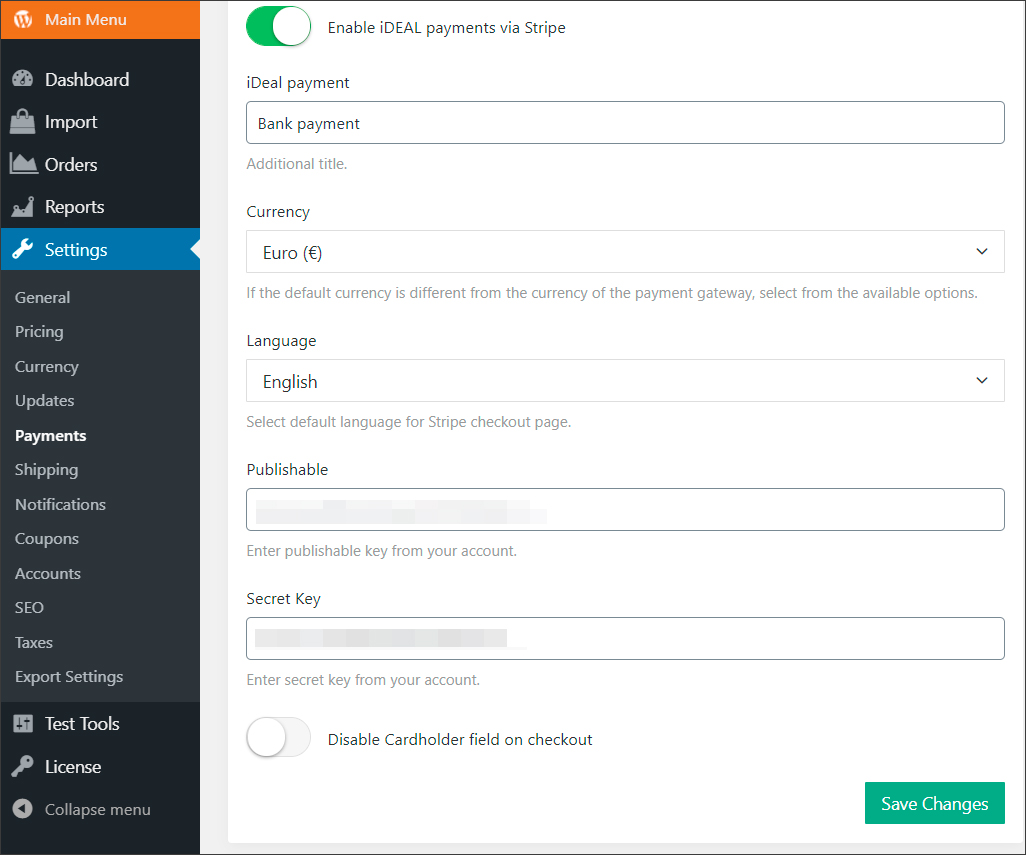
- Stripe with 'Strong Customer Authentication' - redirects customers to the Stripe checkout page to complete a purchase:
Enable 'Strong Customer Authentication' solution toggle.
Choose the language - when your customer is redirected to the Stripe checkout page - this language will be displayed.
Paste your Publishable and Secret Keys. Add Brand Name if needed. Finish by clicking Save Changes.
Related Articles
Connecting Rave Account
Connecting Rave Account Go to https://rave.flutterwave.com/signup and register your account. Set the 'Currency' as 'South African Rands (ZAR)' Use the Copy Key button to copy the API information to your store, do not try to type it, copy it straight ...Connecting PayPal Account
Connecting PayPal Account There are two possible options to connect your PayPal account - Option 1: Classic integration) and Option 2: API REST V1. We recommend trying Classic first. In case you have issues with getting payments through this ...Connecting BlueSnap account
Connecting BlueSnap account You can start with test payments before your Merchant Application is approved. Create your sandbox account You will receive email with verification link -> click it: Log in your sandbox account and go to API settings: ...Connecting 2Checkout Account
Connecting 2Checkout Account Visit 2checkout and sign up for an account. Fill out the required fields to create an account. Once you have submitted your registration request, you will receive an email confirmation with your account number and further ...Connecting Payssion Account
Connection Payssion Account Visit https://payssion.com to sign up for an account. Click the link in your email to verify your account: Log in your account and click Merchant Services in the left menu, then click Add App – > Use direct API. Fill in ...