Connecting 2Checkout Account
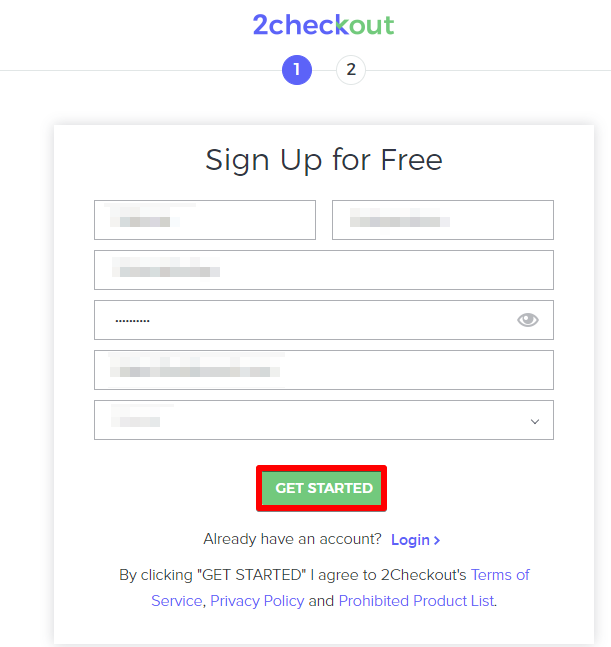
Visit 2checkout and sign up for an account.
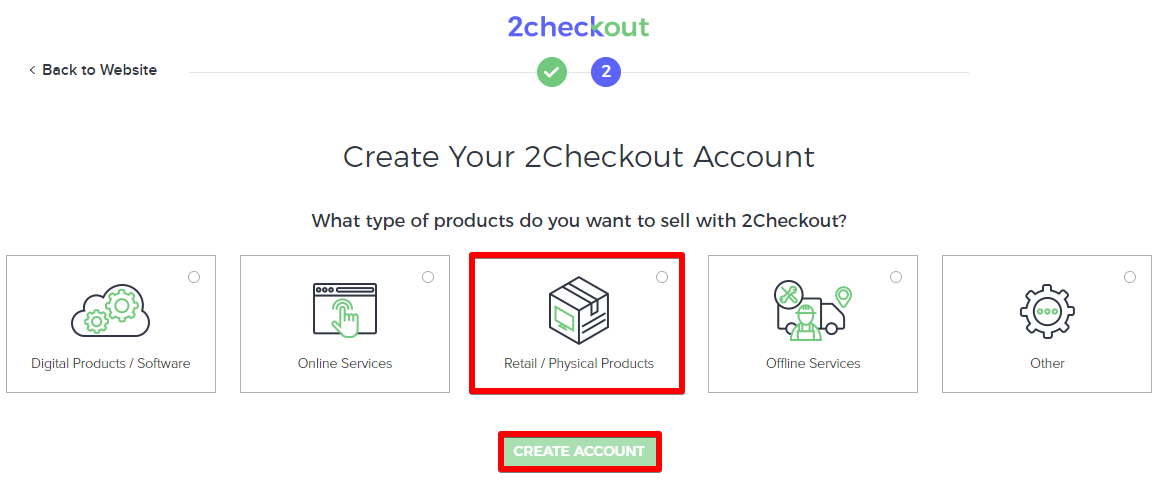
Fill out the required fields to create an account. Once you have submitted your registration request, you will receive an email confirmation with your account number and further guidance.
To get your account approved, you need to submit your business application. Click 'Complete your missing details' or 'Request Activation' to start adding your business information.
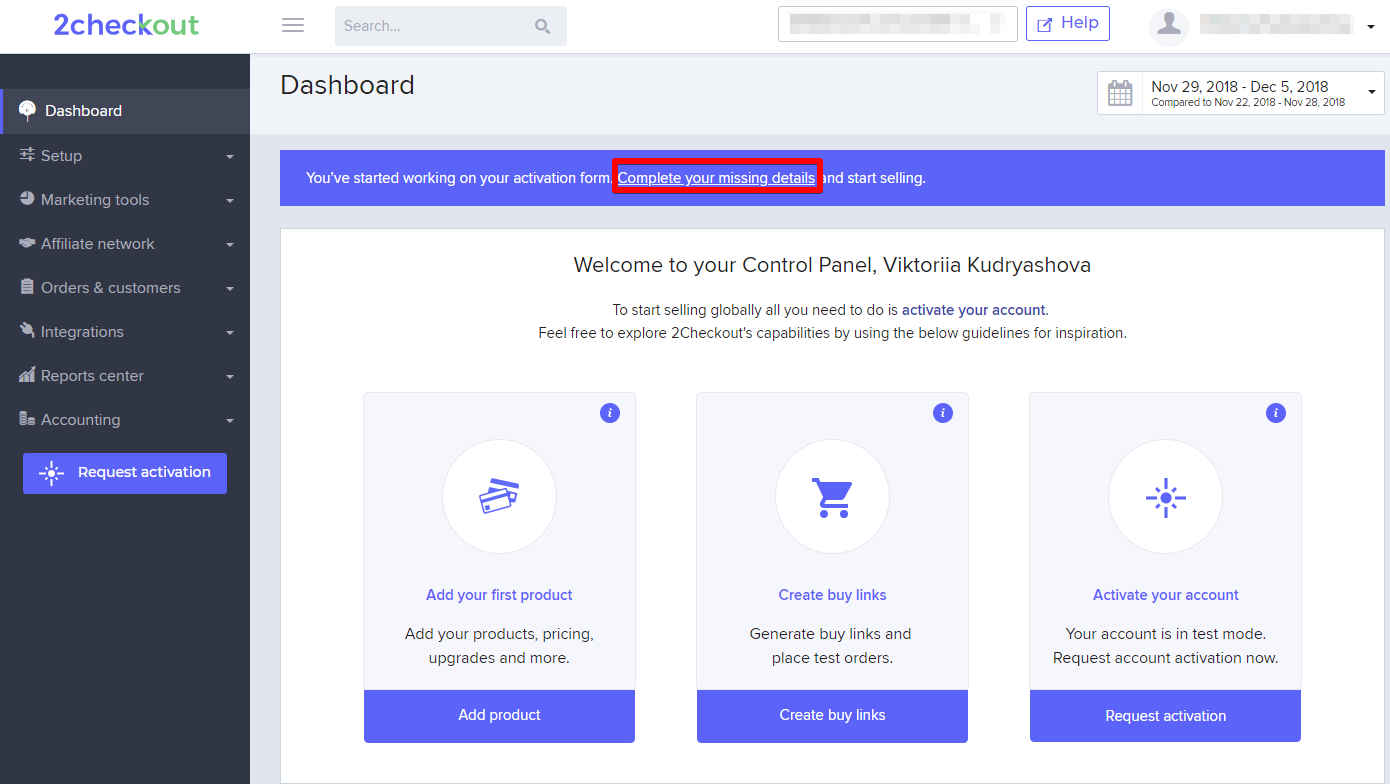
You need to go through 6 steps of Application Request :
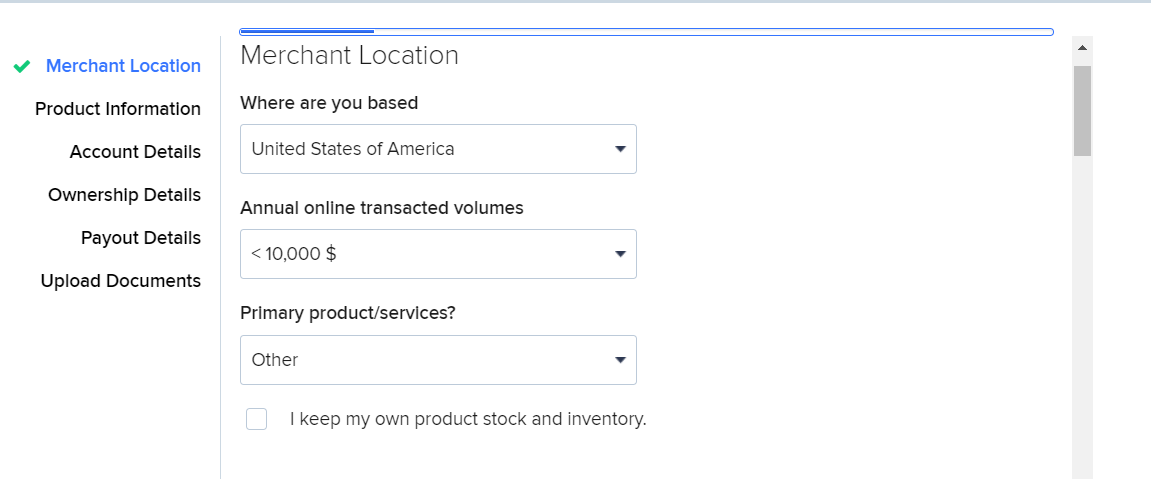
1. Merchant location: select a country you are based in, provide existing or estimated annual sales volume for your company, in Primary Product/Service field you are expected to select the product or service that best represents the highest proportion of sales on your website. We recommend that you choose ‘Other’ and describe your business as ‘an eCommerce store’.
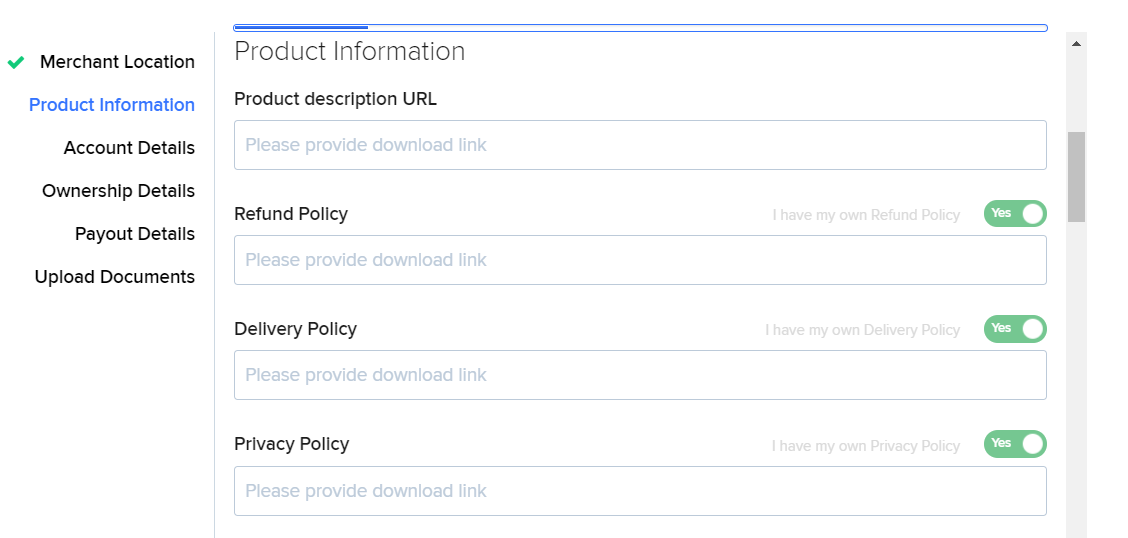
2. Product information: insert here the links to your Refund, Delivery, Privacy policy, and link to one of your products.
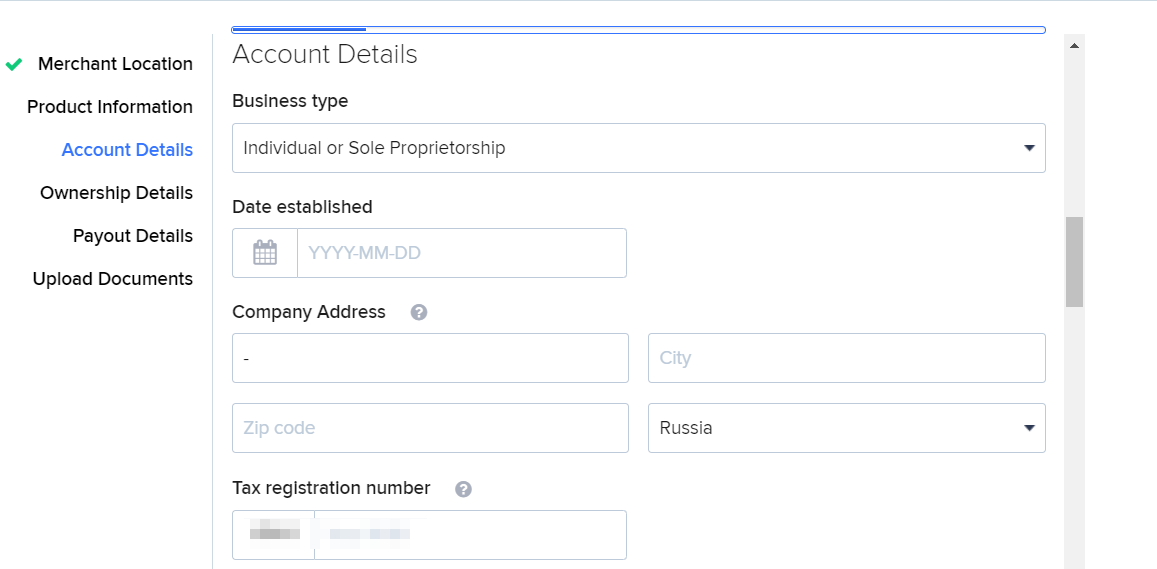
3. Account details: add your business and tax details, contact information.
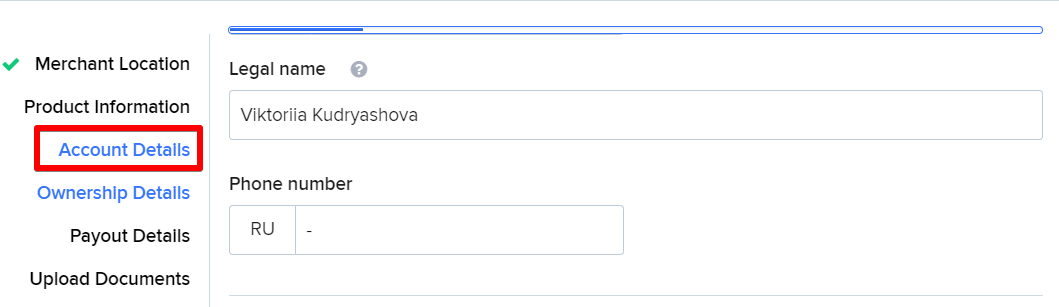
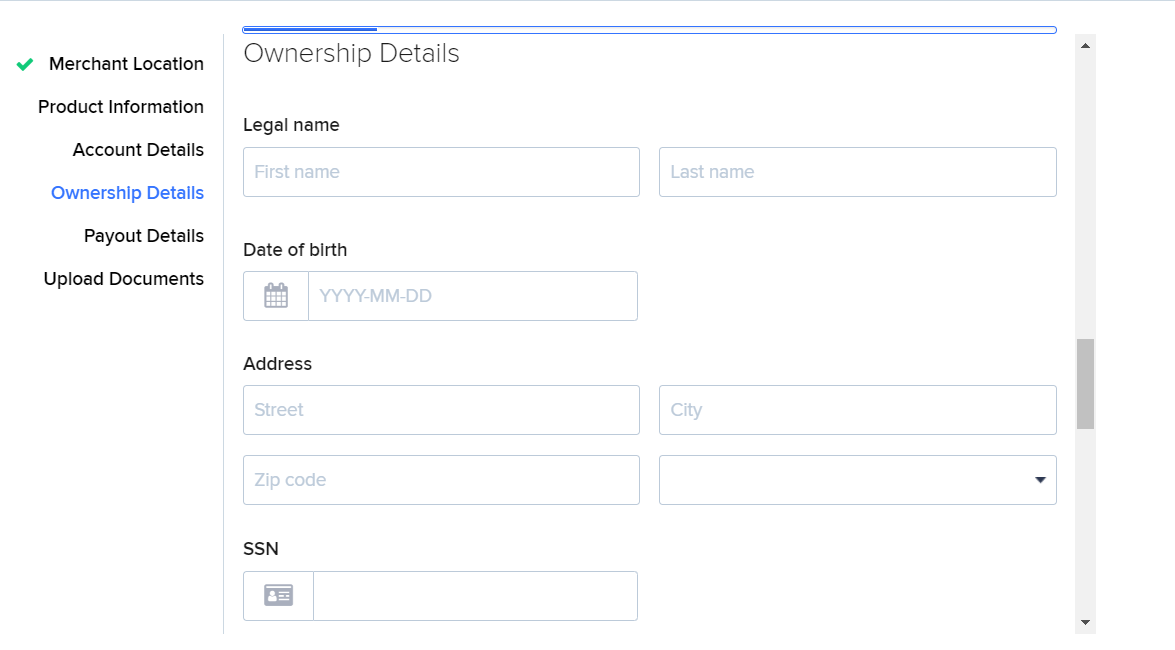
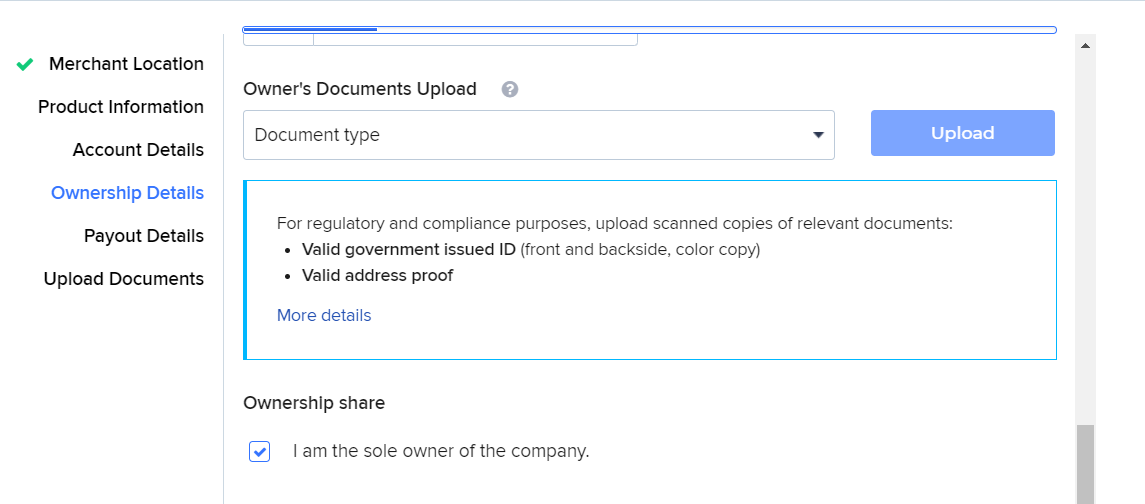
4. Ownership details: proceed with owner's contacts and documents.
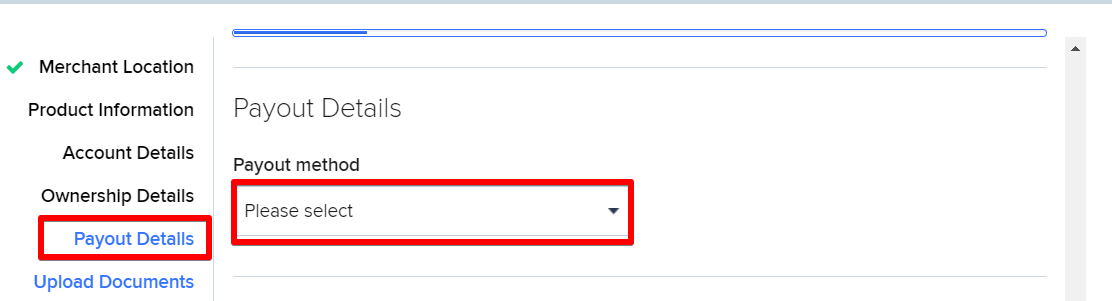
5. Payout details: select a payout method.
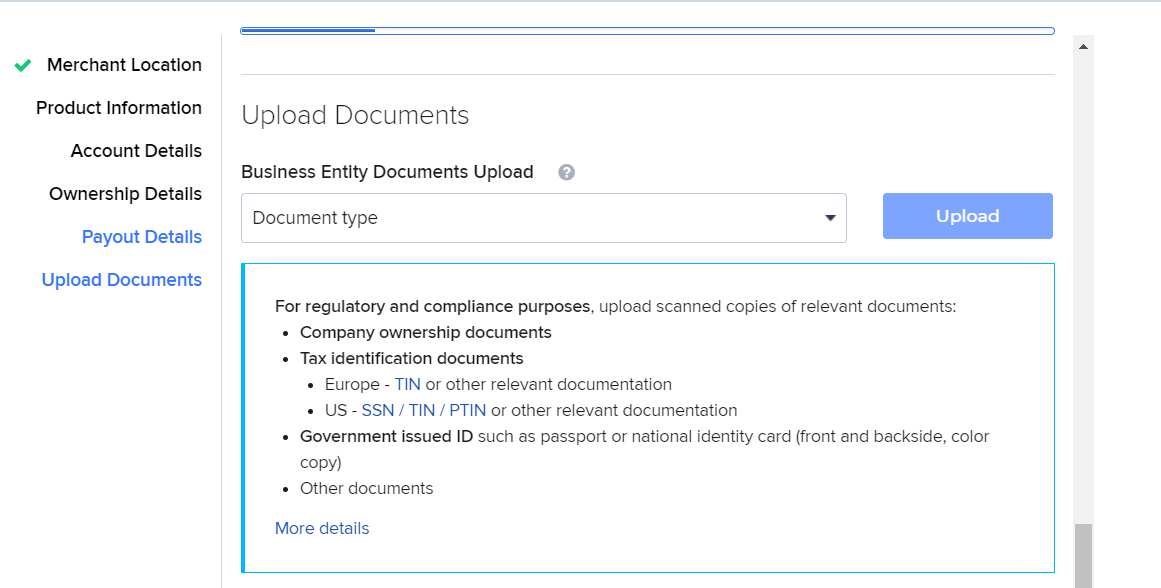
6. Upload documents:
Click Submit Application once you've completed the form.
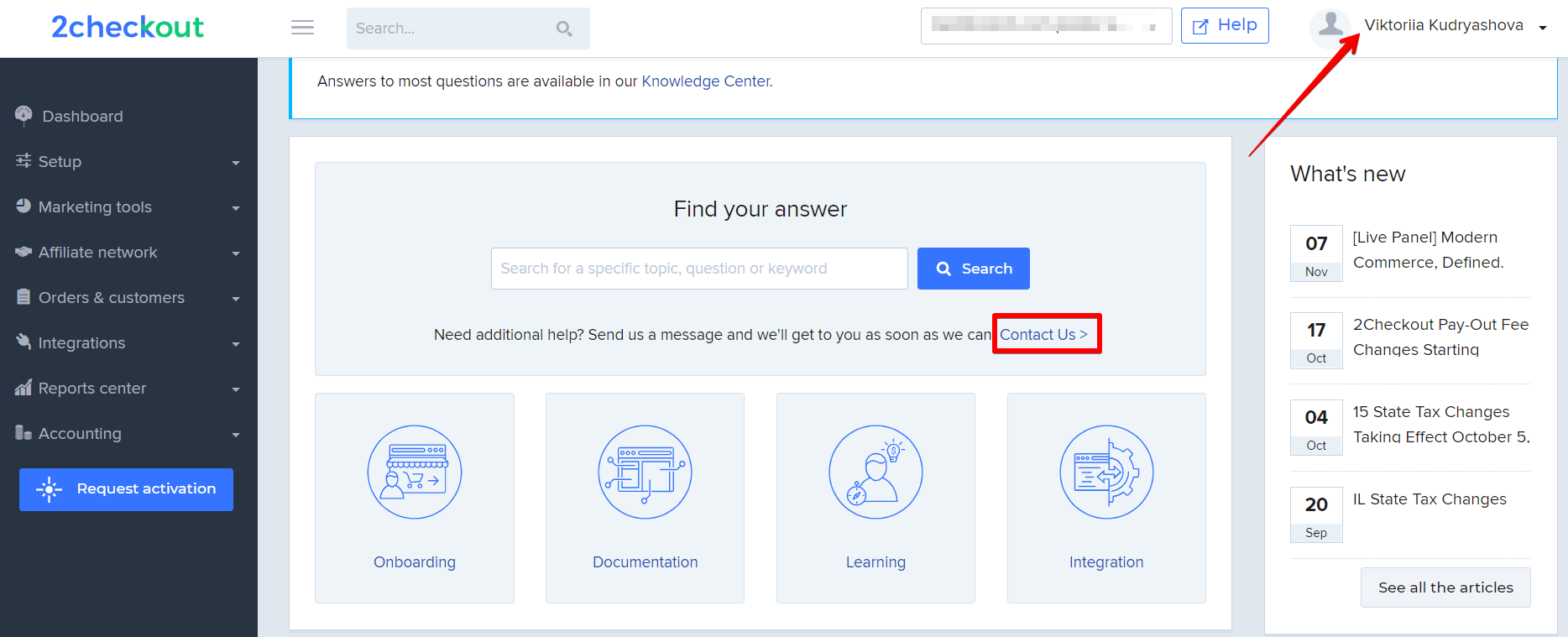
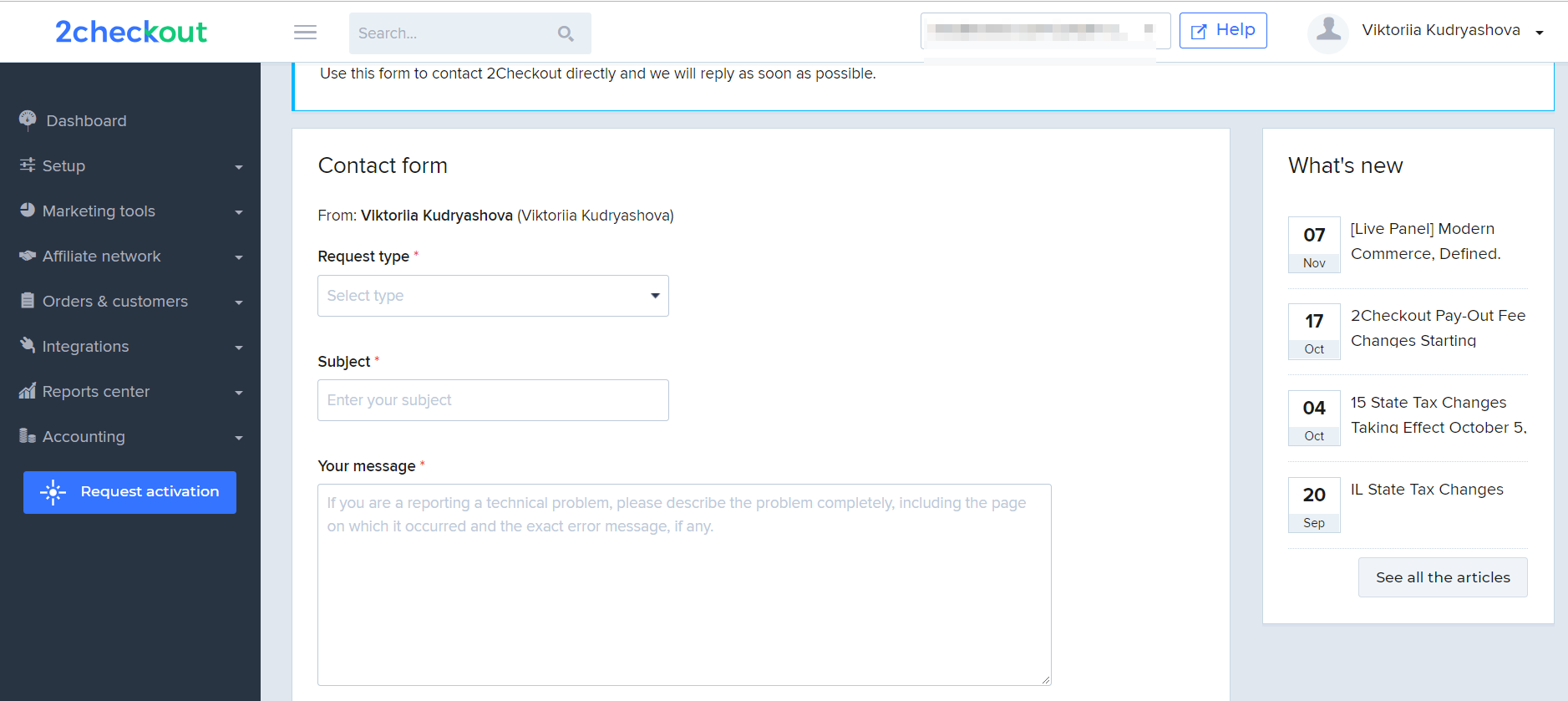
If you have any questions regarding these steps please look through 2checkout knowledge center, or contact 2checkout support via your Dashboard: Profile -> Contact Us -> Contact form.
After you have submitted your application, you will receive an email from 2Checkout team: in your account review you will be notified whether your application has been approved or not.
2Checkout can request additional information about your business, for example:
- a copy of your signed dropshipper agreement – OR – a copy of an invoice from your supplier/wholesaler/distributor dated within the last six (6) months.
In this situation we recommend that you find and contact any company that offers products in the selected niche on Alibaba.com, and ask a supplier to send you a wholesale agreement.
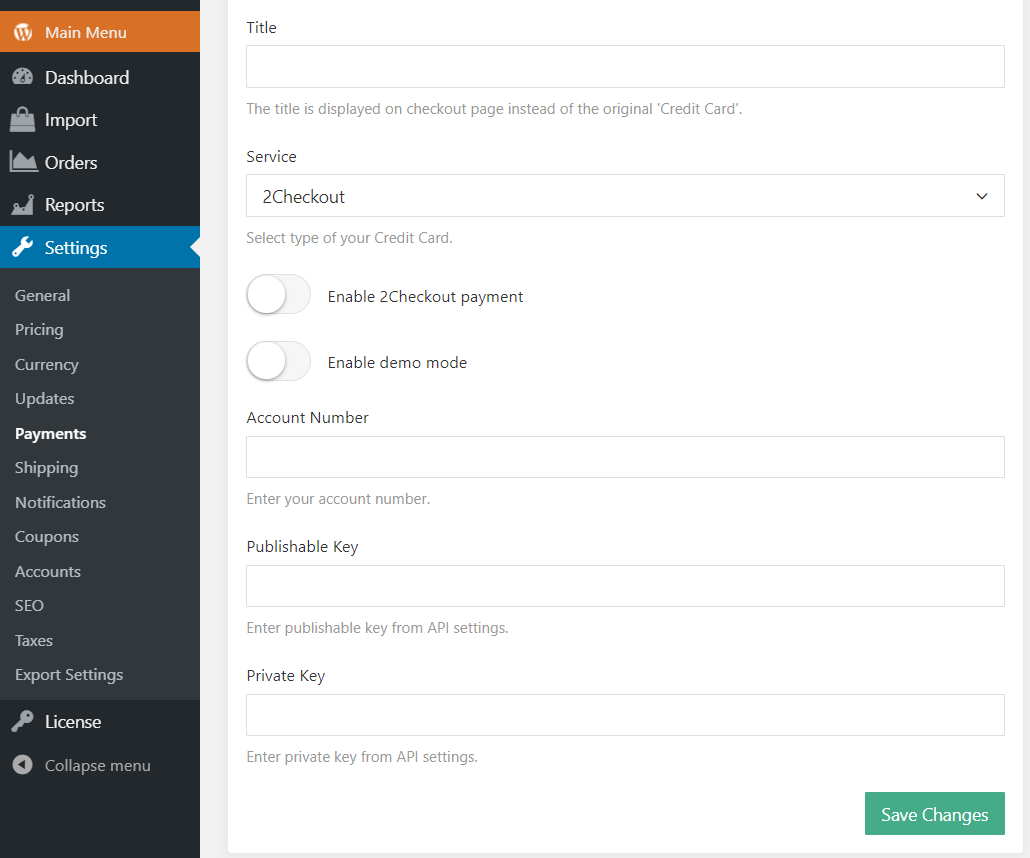
Activate 2Checkout as your payment gateway in AliDropship => Settings => Payments => Credit Cards. Choose 2Checkout in the Service dropdown menu to start setting up your payment method. Enable the toggle switch. To be able to place demo sales to see the purchase process as a buyer would, activate Demo mode.
Copy Merchant code (Account number), Publishable Key, Private Key from your 2checkout Dashboard -> Integrations -> Webhooks and API :
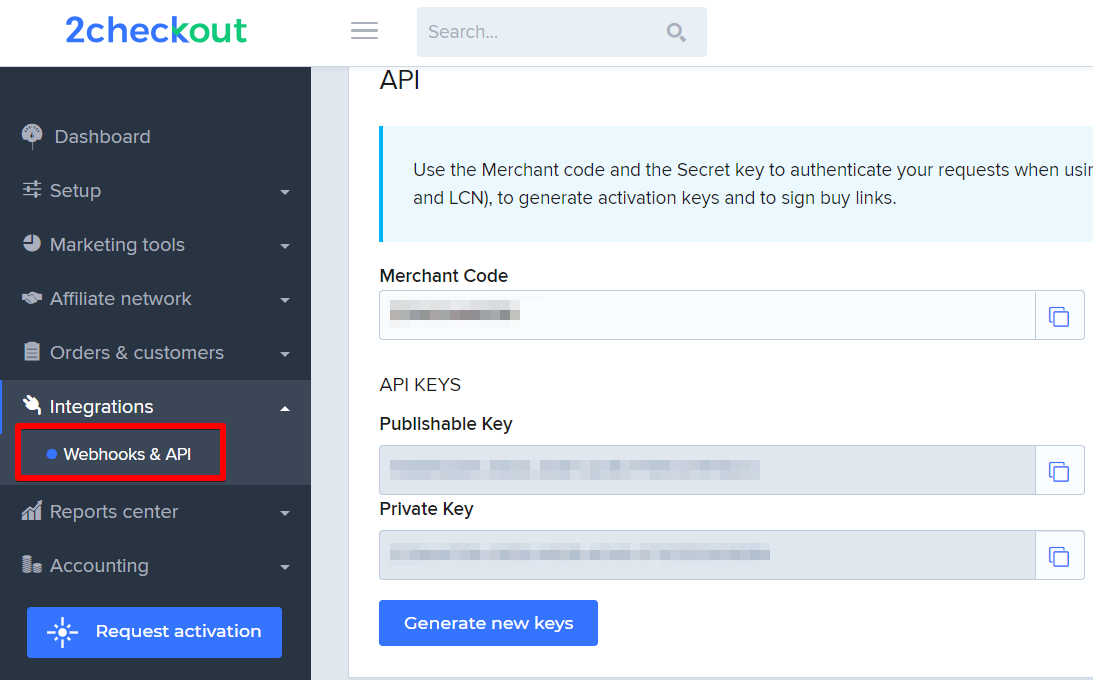
and paste them in your WordPress admin area: AliDropship -> Settings -> Payments. You may add Title (it will be shown instead of the default ‘Credit Card’) and Shop Name as well. Finish by clicking Save changes.
Please note: only these currencies will be available for transactions: AFN, ALL, DZD, ARS, AUD, AZN, BSD, BDT, BBD, BZD, BMD, BOB, BWP, BRL, GBP, BND, BGN, CAD, CLP, CNY, COP, CRC, HRK, CZK, DKK, DOP, XCD, EGP, EUR, FJD, GTQ, HKD, HNL, HUF, INR, IDR, ILS, JMD, JPY, KZT, KES, LAK, MMK, LBP, LRD, MOP, MYR, MVR, MRO, MUR, MXN, MAD, NPR, TWD, NZD, NIO, NOK, PKR, PGK, PEN, PHP, PLN, QAR, RON, RUB, WST, SAR, SCR, SGD, SBD, ZAR, KRW, LKR, SEK, CHF, SYP, THB, TOP, TTD, TRY, UAH, AED, USD, VUV, VND, XOF, YER.
So, if you use 2checkout as your payment gateway solution, please select currencies from this list in AliDropship -> Settings -> General -> Additional currencies.
Related Articles
Connecting Stripe Account
Connecting Stripe Account Please note! You need SSL certificate installed on your site to use Stripe. South African clients can purchase an SSL here, for any other clients it's here. To register an account with Stripe, visit https://stripe.com/ and ...Connecting Rave Account
Connecting Rave Account Go to https://rave.flutterwave.com/signup and register your account. Set the 'Currency' as 'South African Rands (ZAR)' Use the Copy Key button to copy the API information to your store, do not try to type it, copy it straight ...Connecting PayPal Account
Connecting PayPal Account There are two possible options to connect your PayPal account - Option 1: Classic integration) and Option 2: API REST V1. We recommend trying Classic first. In case you have issues with getting payments through this ...Connecting BlueSnap account
Connecting BlueSnap account You can start with test payments before your Merchant Application is approved. Create your sandbox account You will receive email with verification link -> click it: Log in your sandbox account and go to API settings: ...Connecting Payssion Account
Connection Payssion Account Visit https://payssion.com to sign up for an account. Click the link in your email to verify your account: Log in your account and click Merchant Services in the left menu, then click Add App – > Use direct API. Fill in ...