Connecting Payssion Account
Visit https://payssion.com to sign up for an account.
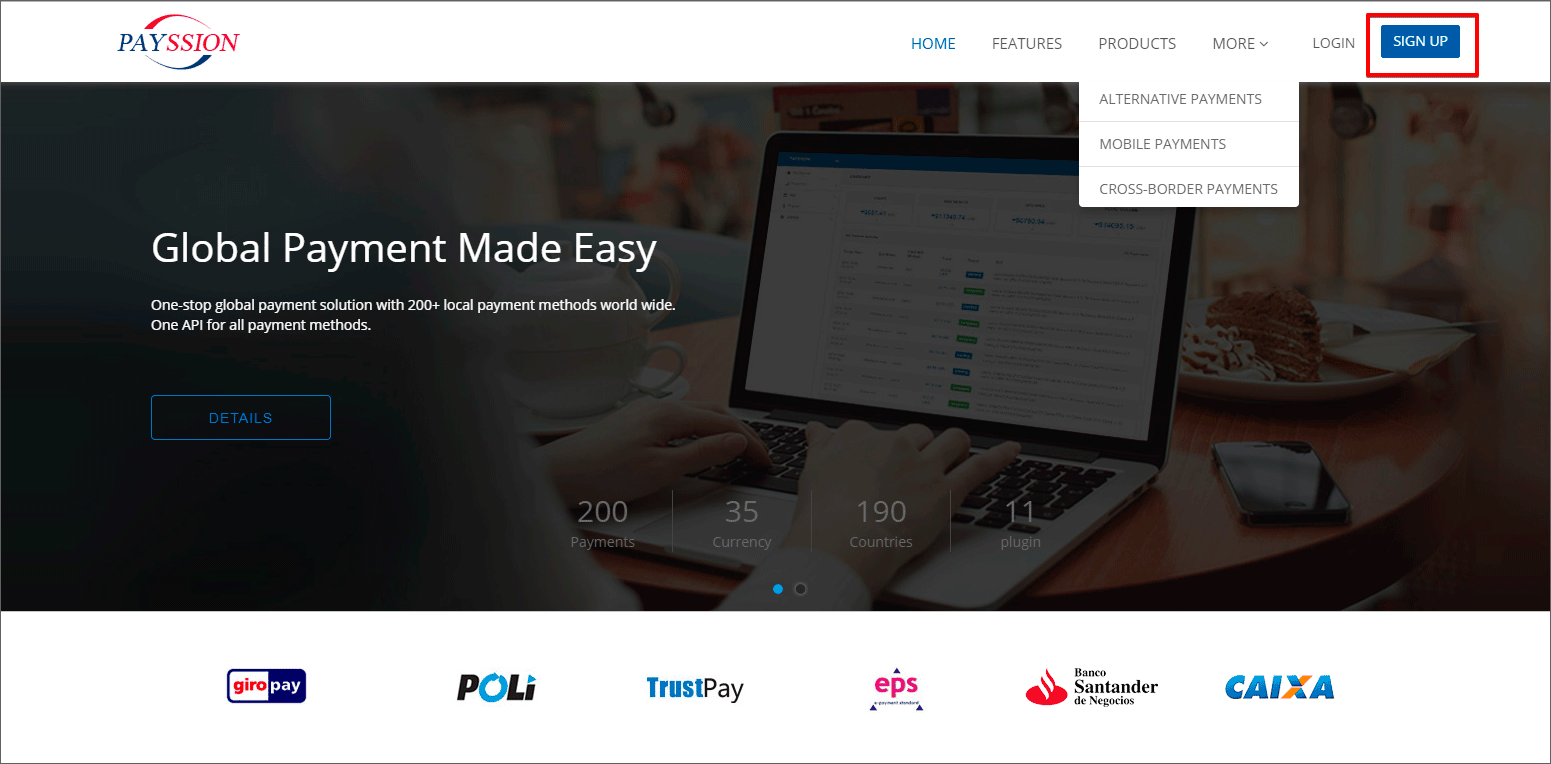
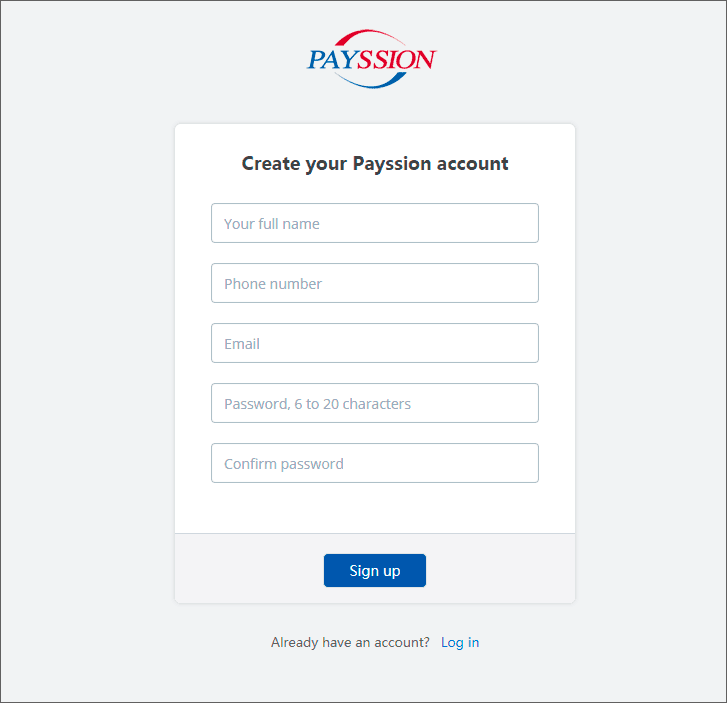
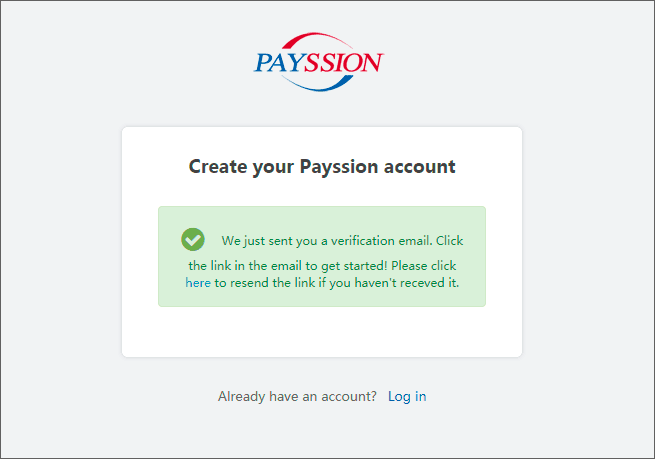
Click the link in your email to verify your account:
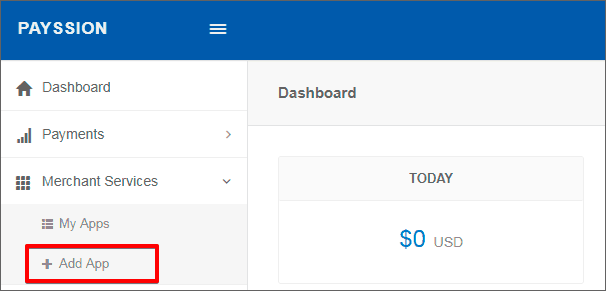
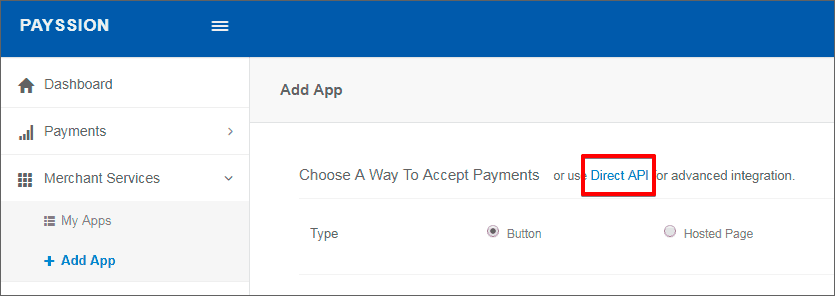
Log in your account and click Merchant Services in the left menu, then click Add App – > Use direct API.
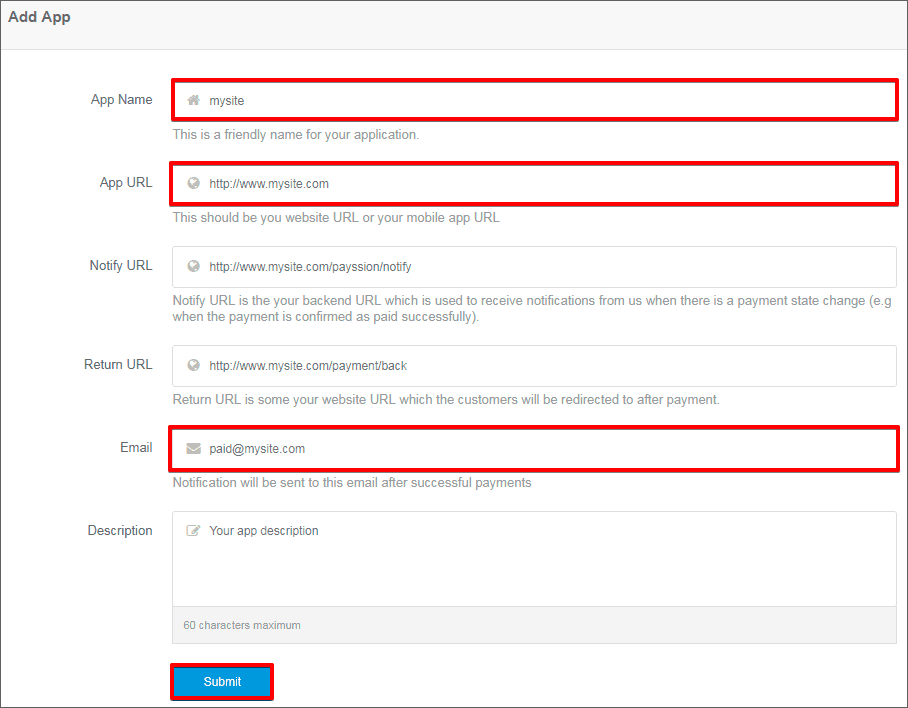
Fill in your app details as shown on the screenshot. You need to put your app name which could be the name of your store, your domain name and your email. Other fields could be remained empty. Click ‘Submit’. You will find the api_key and secret_key after creating your app.
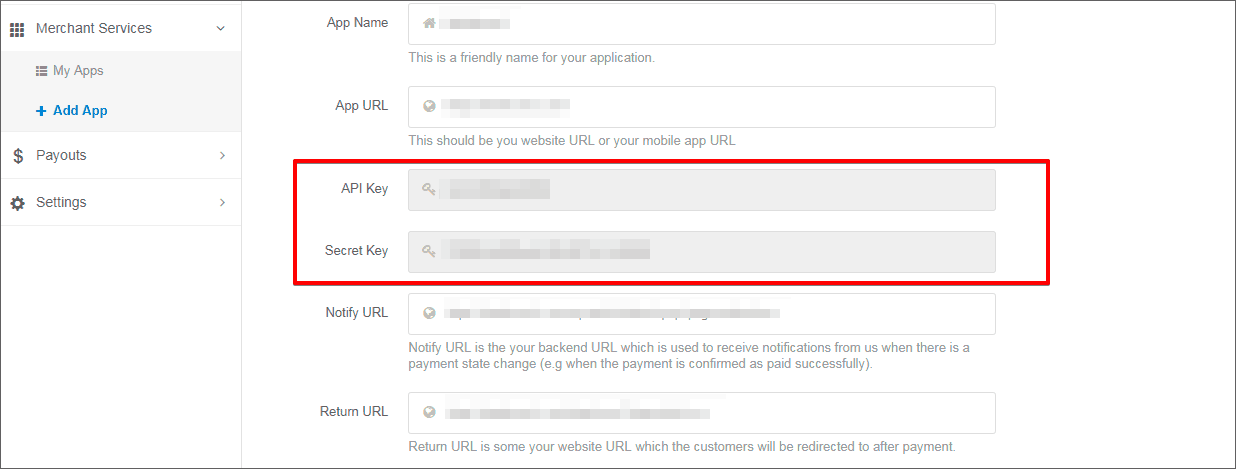
Now your account is in Pending status.

To complete a verification process and get Active status you need to fill in an application form which will be sent on your email. If you’re individual you can leave company part as N/A. So, you need to fill in these fields: Phone Number, Email, URL, Business industry, Surname, Given Name, Day of birth, Street, City, Post Code, Country, Estimated Transaction Count per month.
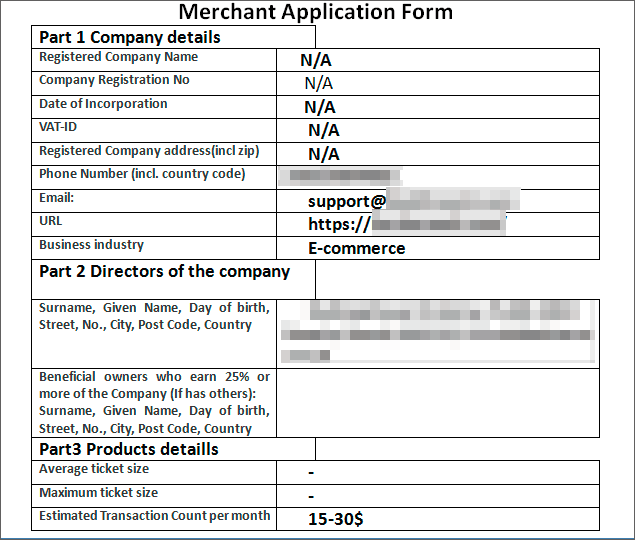
The registration normally takes less than 3 business days. After a final approval your account status will be changed to Active.
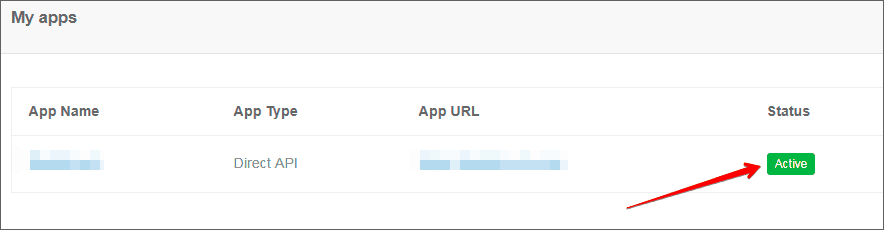
Once your account is approved you will get the list of all available PM IDs on your email. Or use this link to look through it.
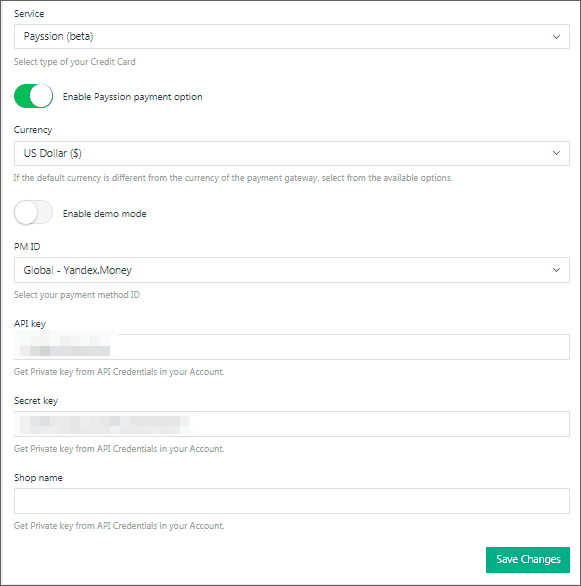
After that go to AliDropship -> Settings -> Payments -> Credit Cards -> Payssion (Beta) -> enable Payssion payment option, select Currency and PM ID of the payment solution you need, insert API key and Secret key (which you got when you created your App) and Save changes.
Related Articles
Connecting Rave Account
Connecting Rave Account Go to https://rave.flutterwave.com/signup and register your account. Set the 'Currency' as 'South African Rands (ZAR)' Use the Copy Key button to copy the API information to your store, do not try to type it, copy it straight ...Connecting PayPal Account
Connecting PayPal Account There are two possible options to connect your PayPal account - Option 1: Classic integration) and Option 2: API REST V1. We recommend trying Classic first. In case you have issues with getting payments through this ...Connecting BlueSnap account
Connecting BlueSnap account You can start with test payments before your Merchant Application is approved. Create your sandbox account You will receive email with verification link -> click it: Log in your sandbox account and go to API settings: ...Connecting Stripe Account
Connecting Stripe Account Please note! You need SSL certificate installed on your site to use Stripe. South African clients can purchase an SSL here, for any other clients it's here. To register an account with Stripe, visit https://stripe.com/ and ...Connecting 2Checkout Account
Connecting 2Checkout Account Visit 2checkout and sign up for an account. Fill out the required fields to create an account. Once you have submitted your registration request, you will receive an email confirmation with your account number and further ...