How To Add Products From My Own Suppliers?
To 'Add New Products' to your store, from the store dashboard go to:
> Products > Add New
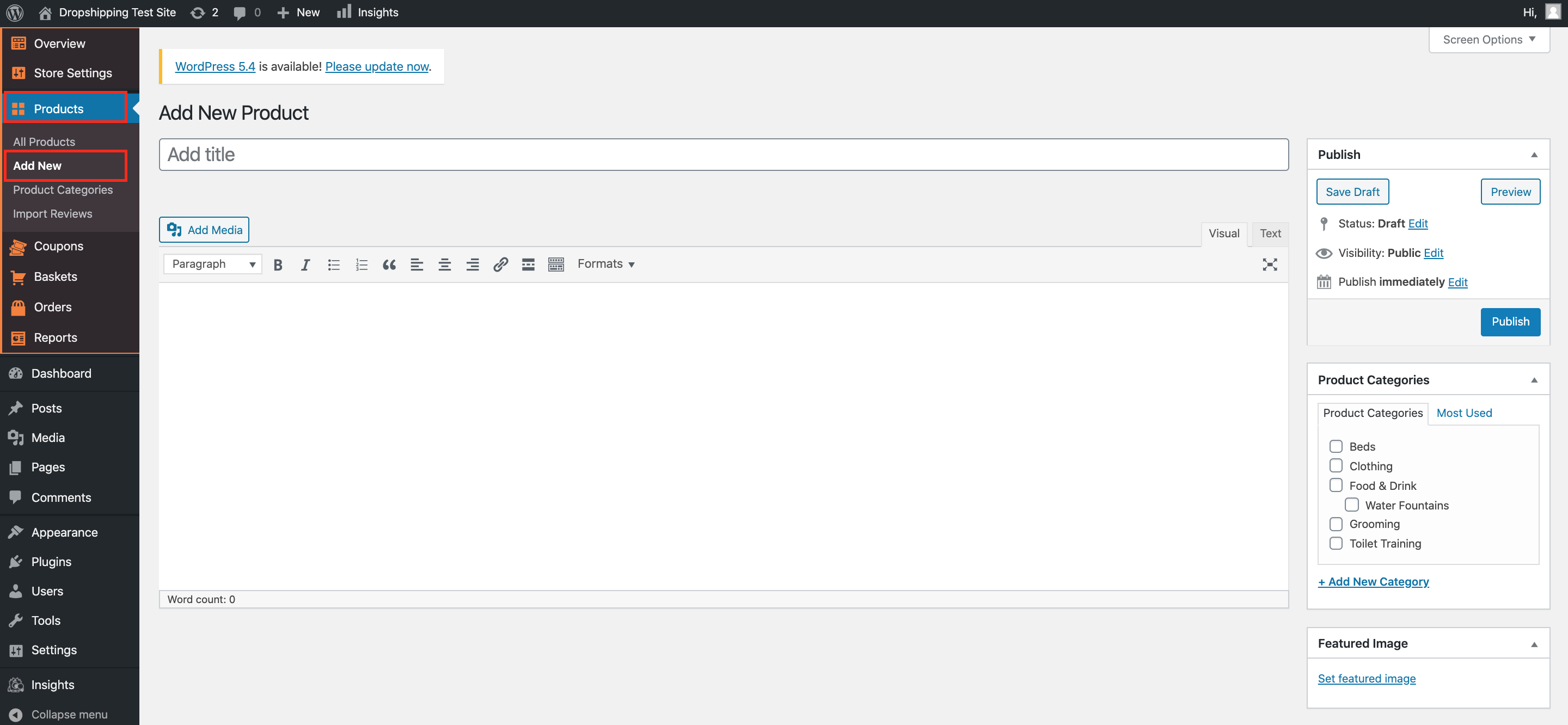
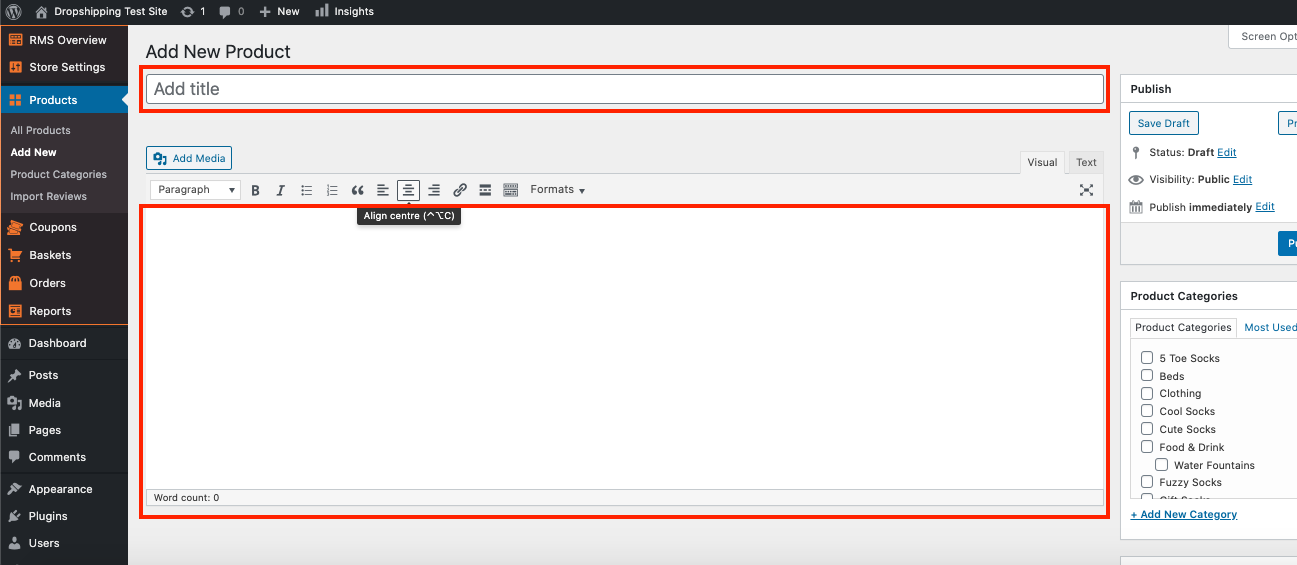
From within this page, the top text box allows you to add a 'Title' of the product and the large text box below allows you to add a 'Description' of the product:
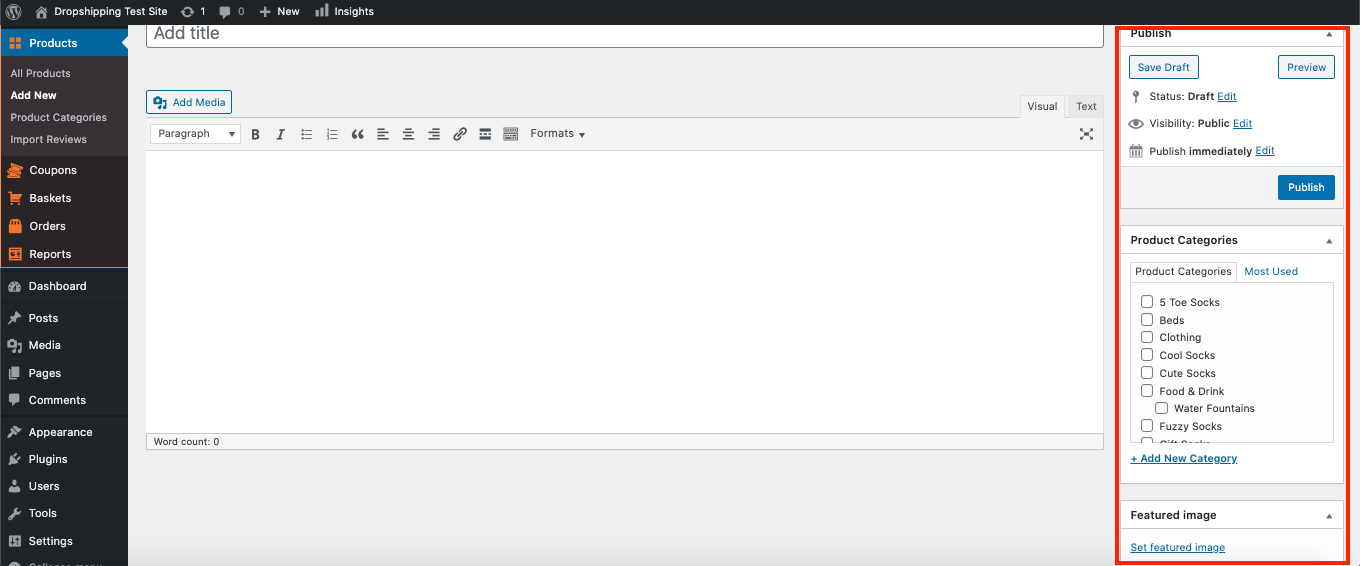
Over to the right hand side under the 'Publish' heading you can decide on the 'Status' and 'Visibility' of your product, under the 'Product Categories' tab you can select the categories you'd like your product to occupy, and the heading 'Featured Image' identifies the front cover image of the product:
Below the product description area you'll find the 'Product Details' section, here you can set the product specifics:
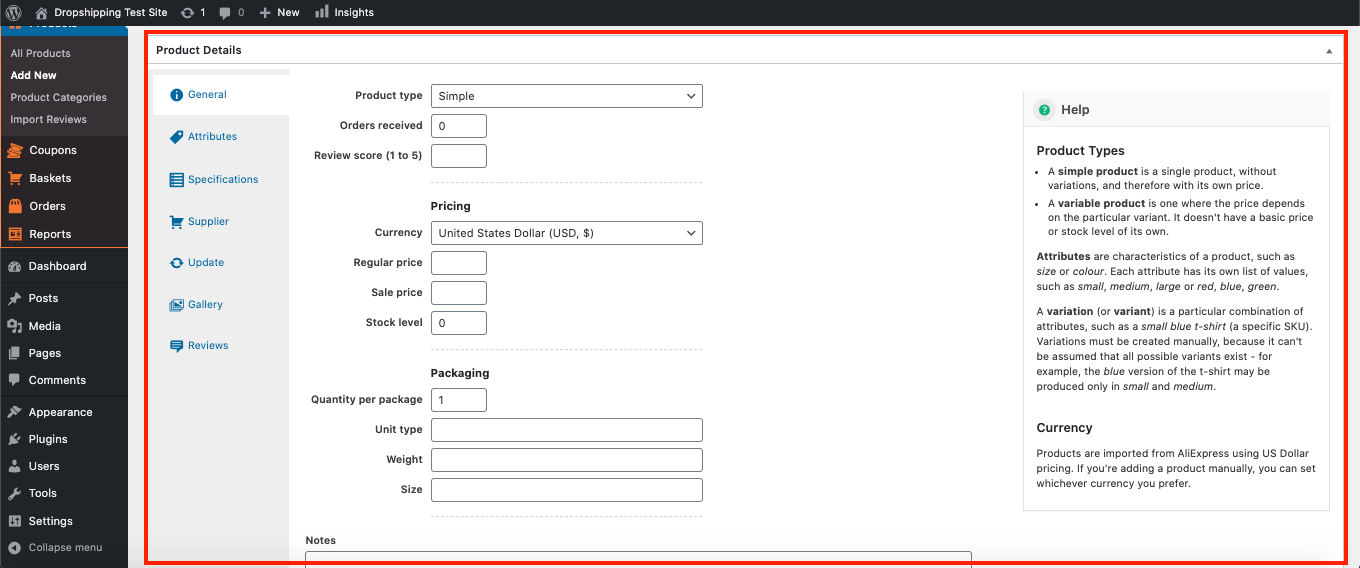
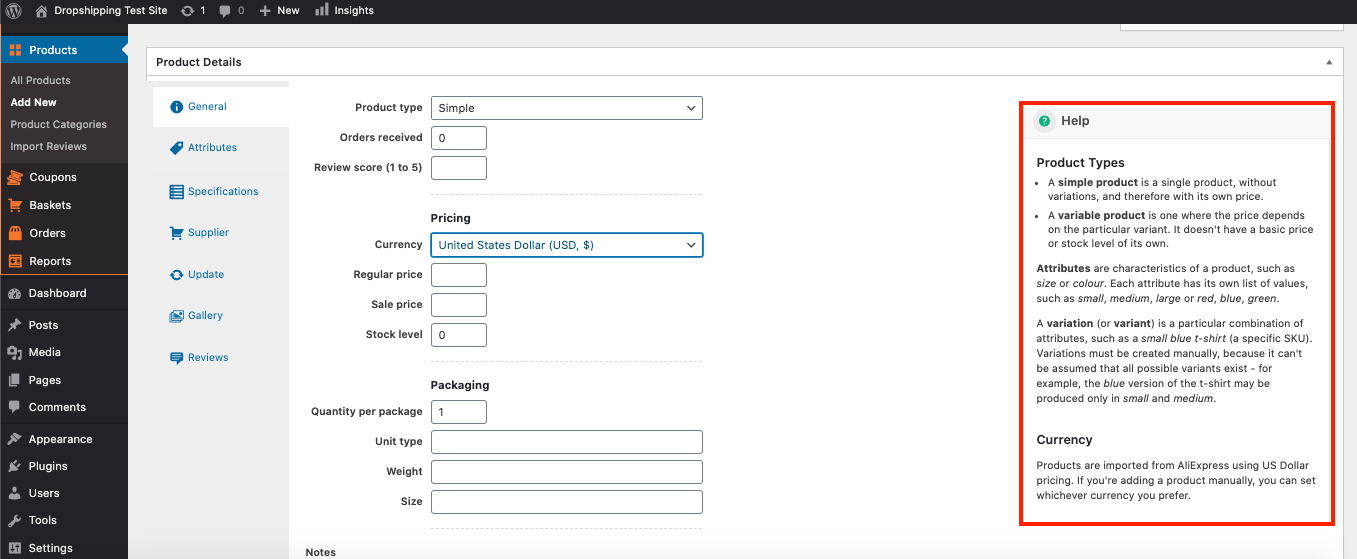
In the 'General' tab the 'Help' guide on the right explains what the different 'Product type' means:
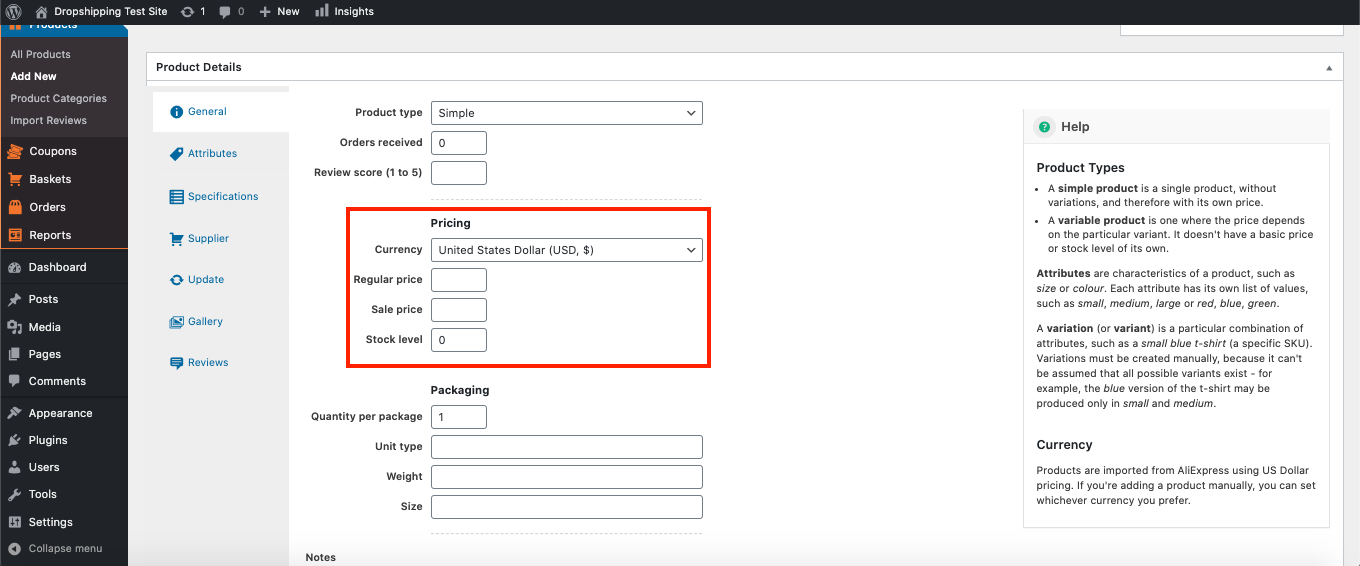
As for the other features in this tab, you can set the 'Currency', 'Regular price', 'Sale price' and 'Stock level' under the 'Pricing' heading:
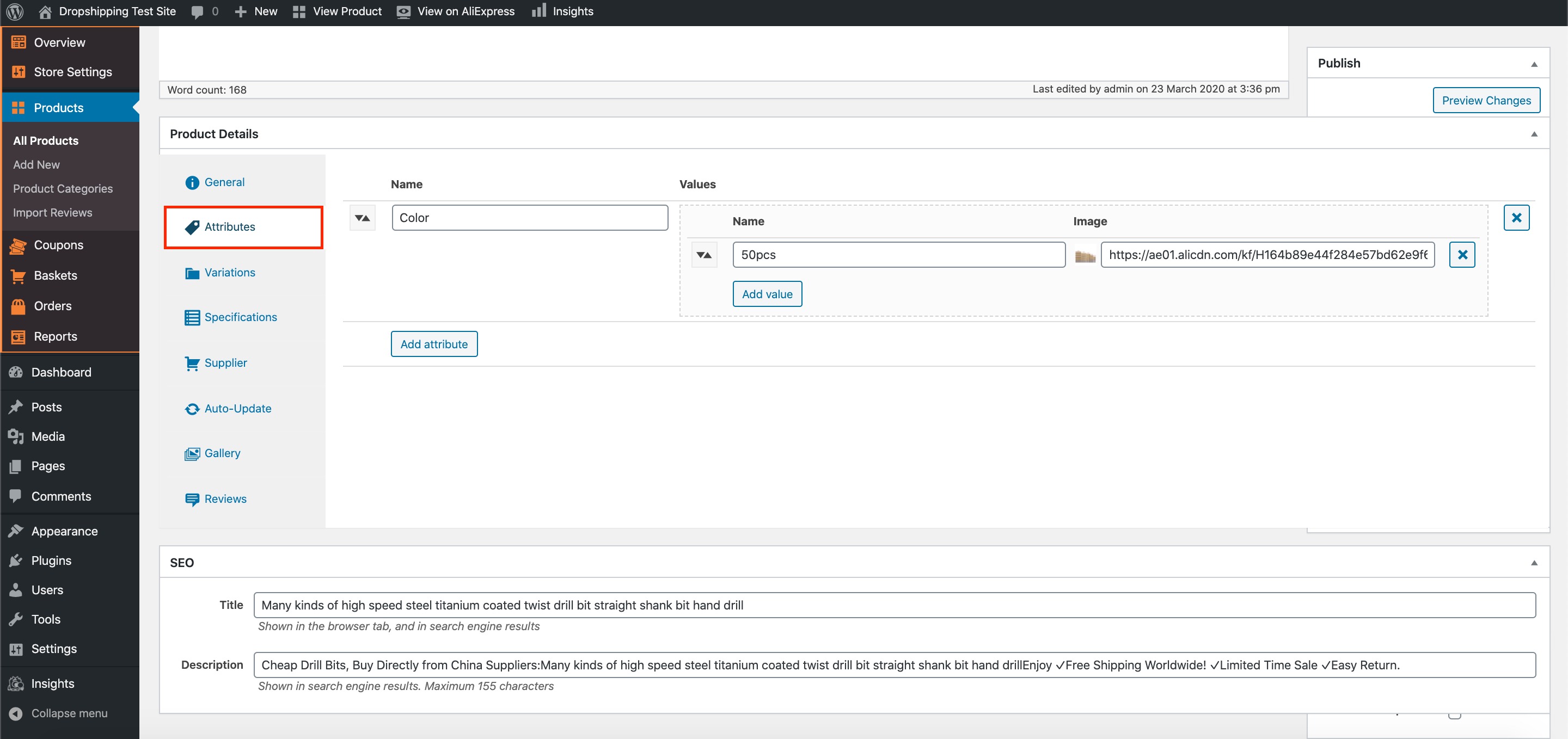
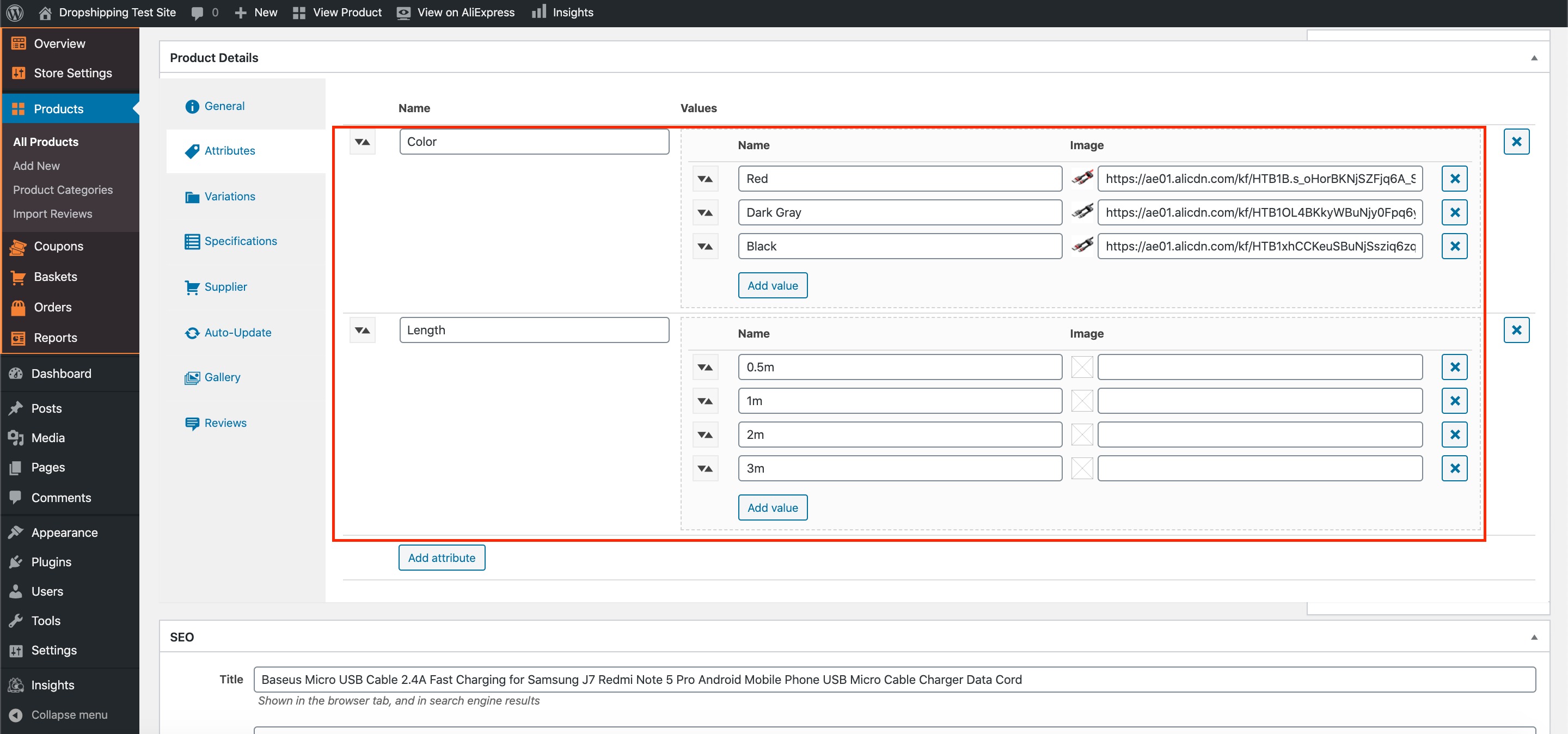
One below the 'General' tab is the 'Attributes' tab - if your product contains a few different colours, sizes etc, this is where can you create them:
To add an attribute, click 'Add attribute':
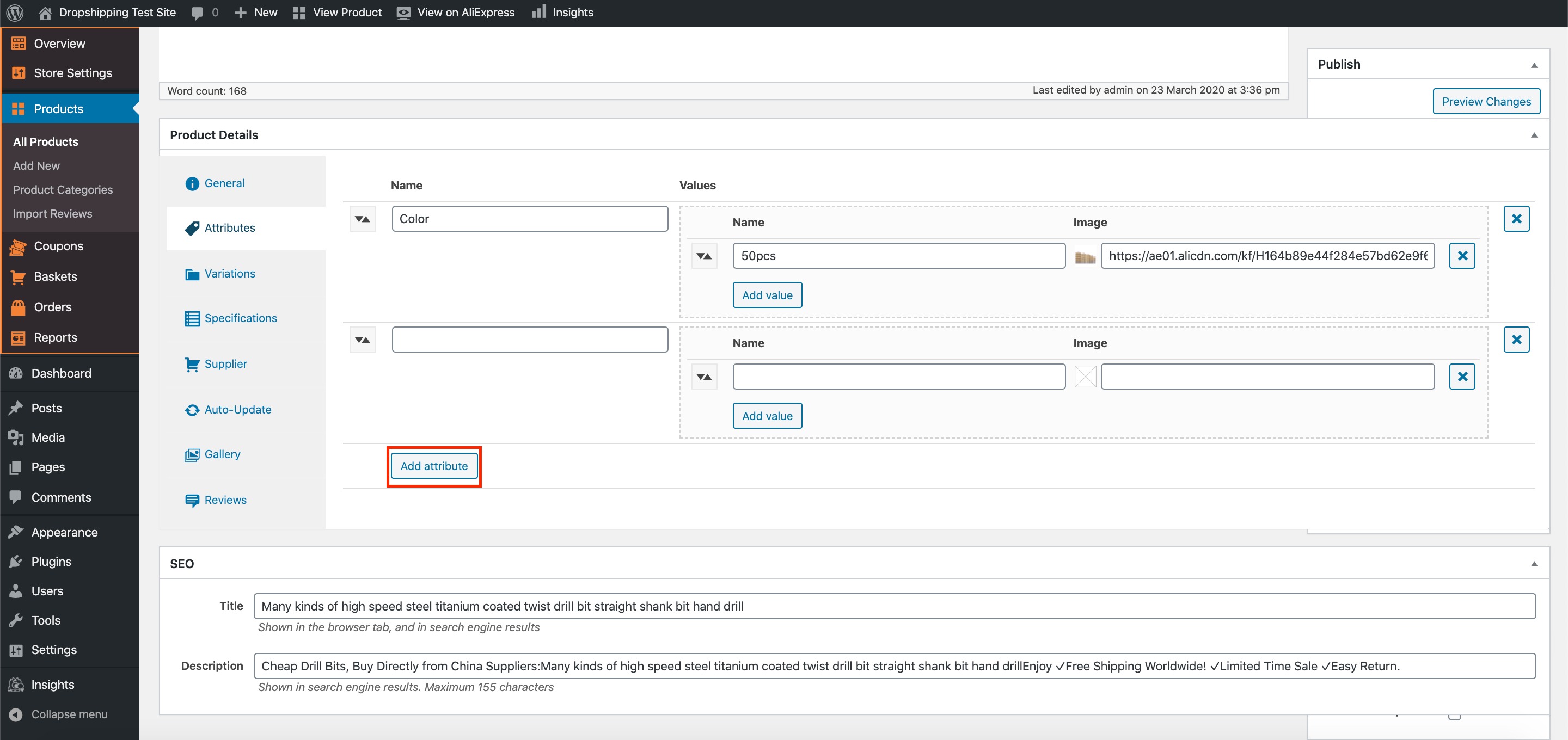
From there you can 'Name', 'Add values' and 'Images' of the different attributes the product contains. Here's an example of a USB cable with multiple colours and lengths:
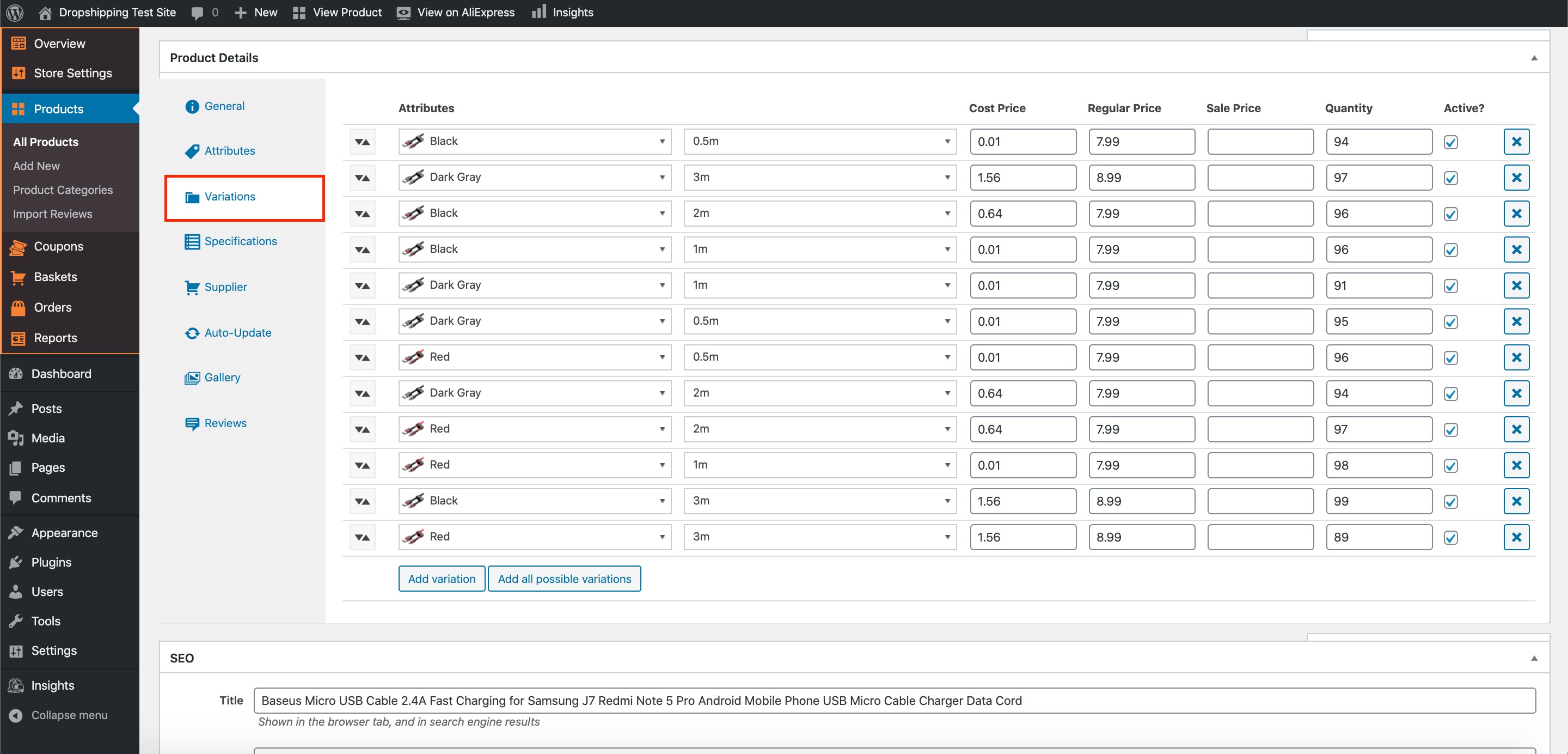
One below the 'Attributes' tab is the 'Variations' tab - this is where you set prices for each of the products attributes:
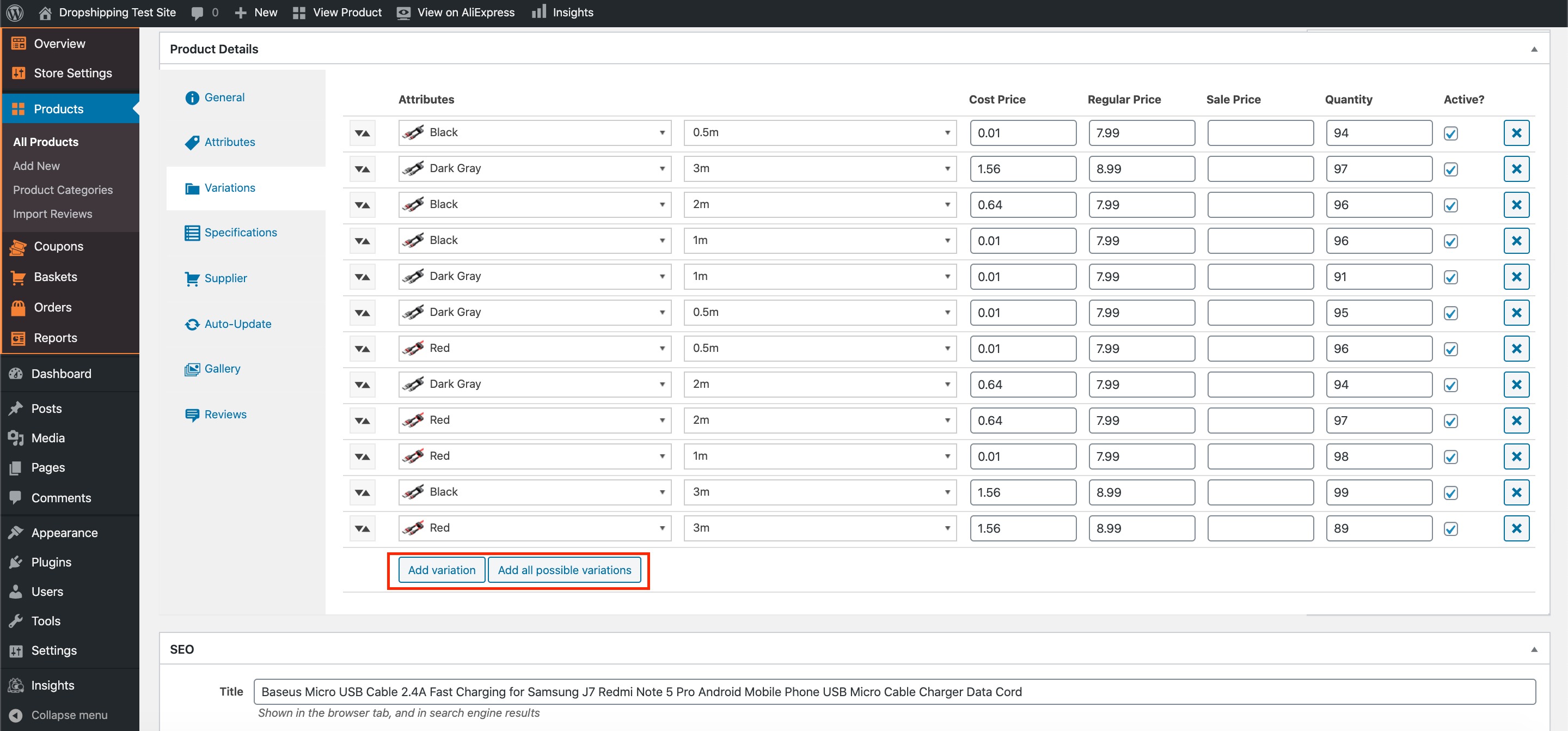
To add a variation, click 'Add variation', or to add all possible variations click 'Add all possible variations':
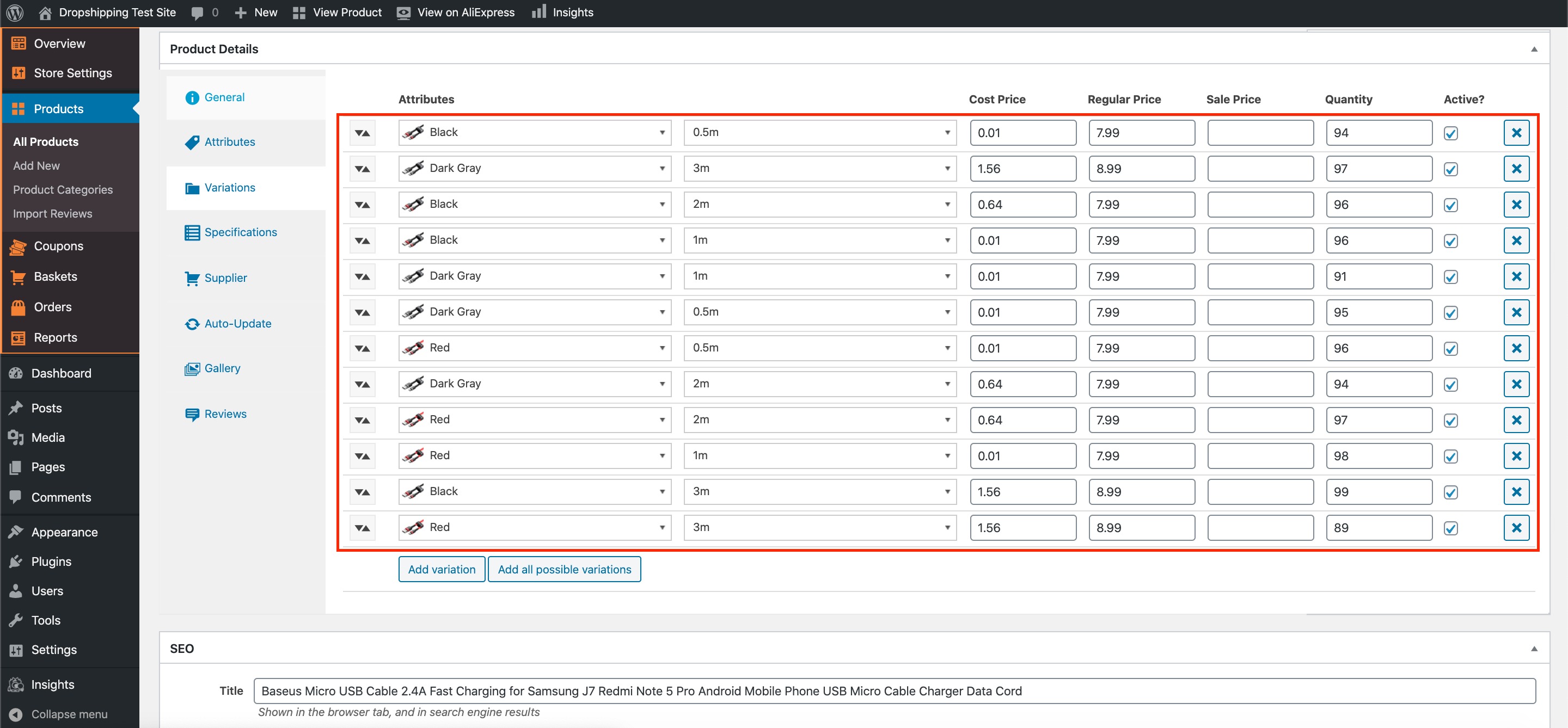
From there you can select the products 'Attributes' (colours and lengths in this case), edit 'Cost Price' (how much you pay for it on AliExpress) 'Regular Price', 'Sale Price' and 'Quantity'. To switch off a variation for the time being uncheck its corresponding tick box, to permanently delete the variation click its corresponding cross (X):
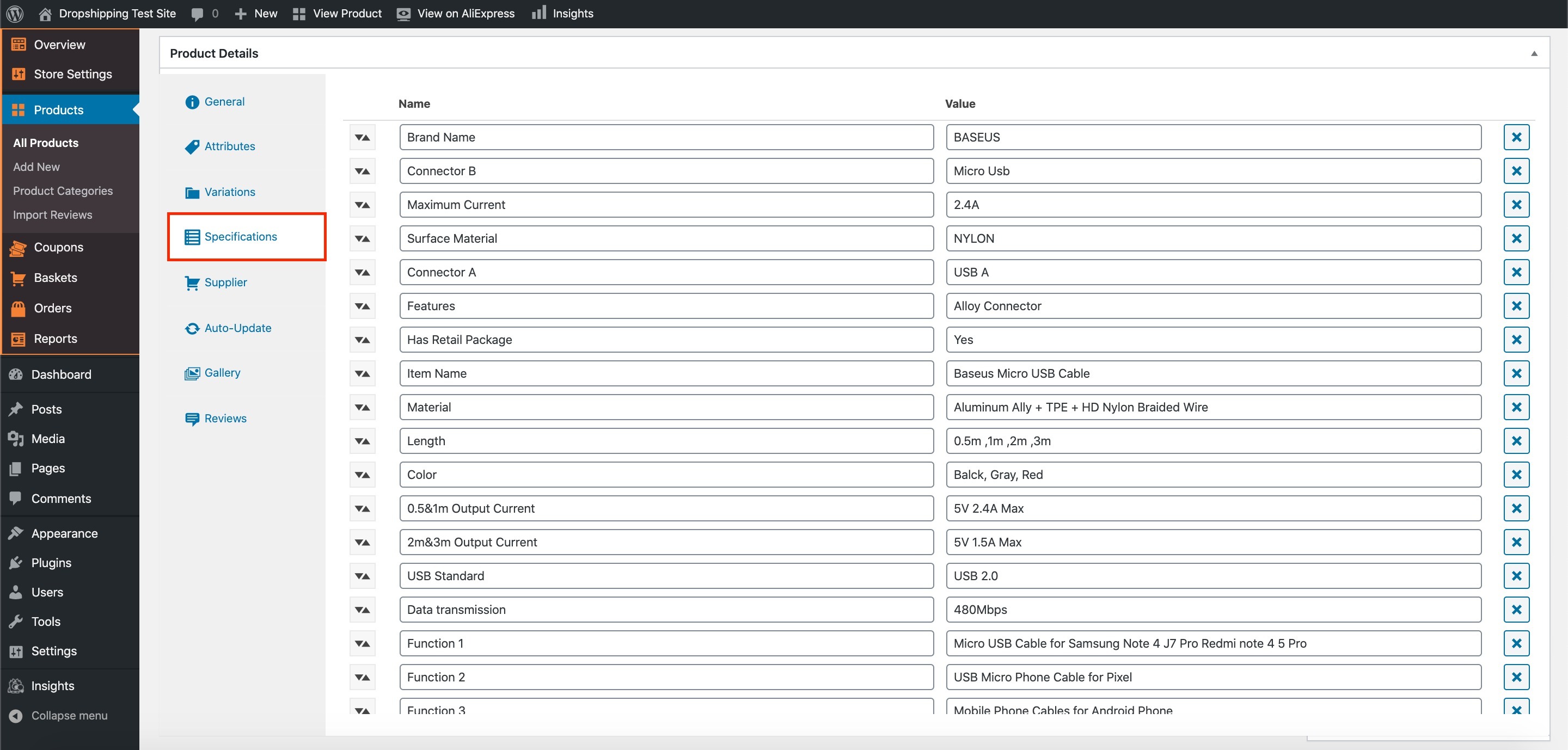
Below the 'Variations' tab is the 'Specifications' tab - this where all the products key information is stored:
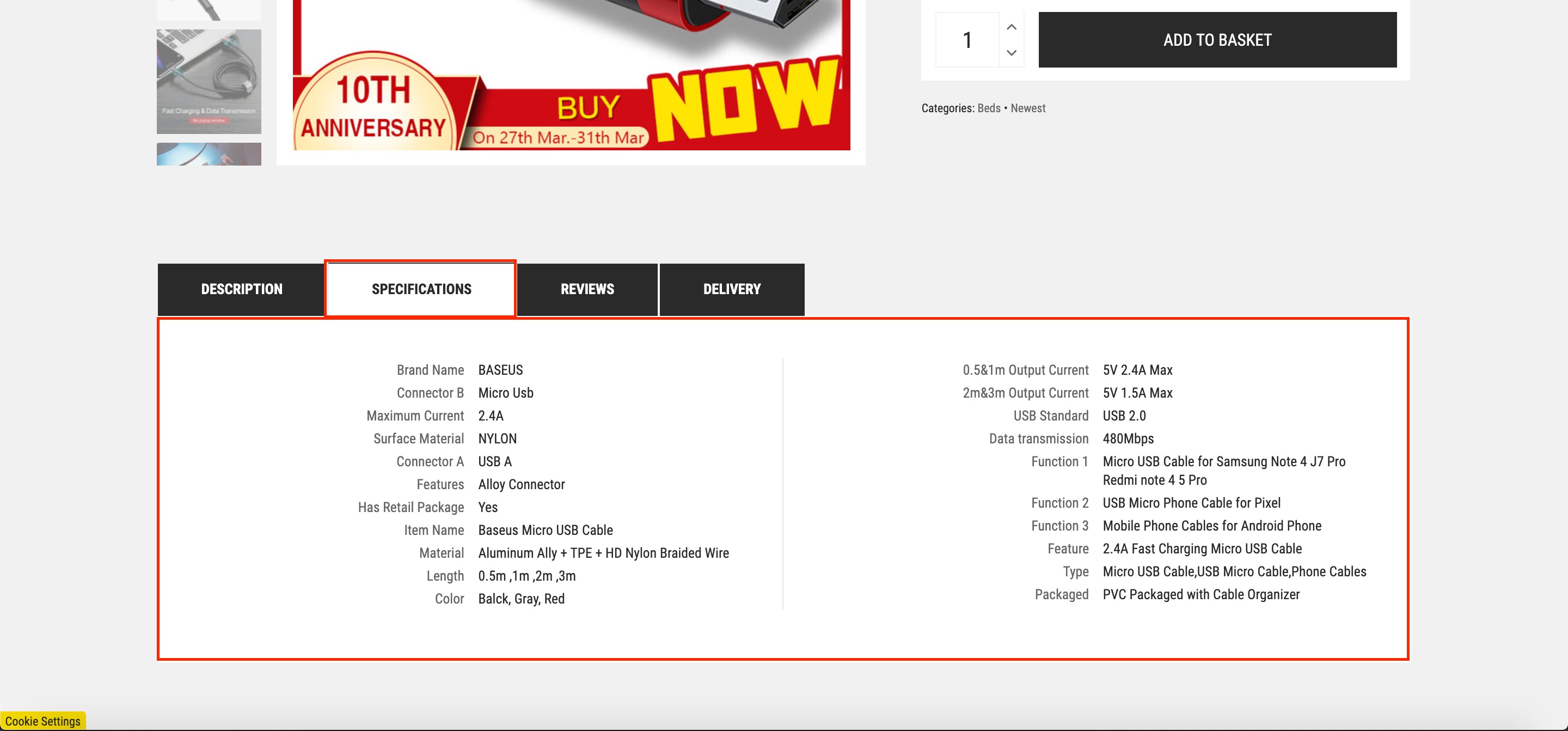
As you can, the information formulated above is shown below under the 'Specifications' tab on the product page:
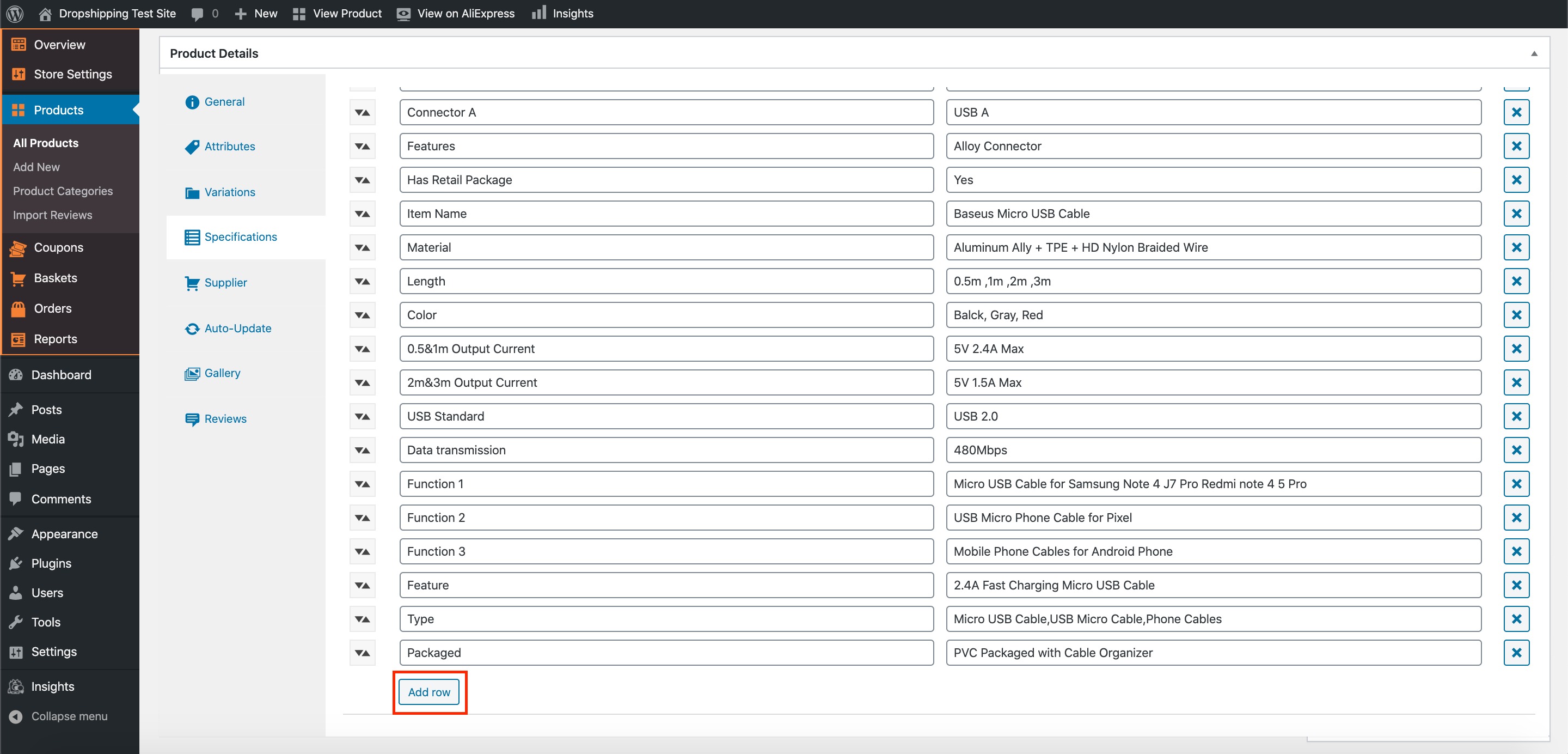
To add additional 'Specifications', click 'Add row':
The next tab down is 'Supplier' - here you can add your suppliers details:
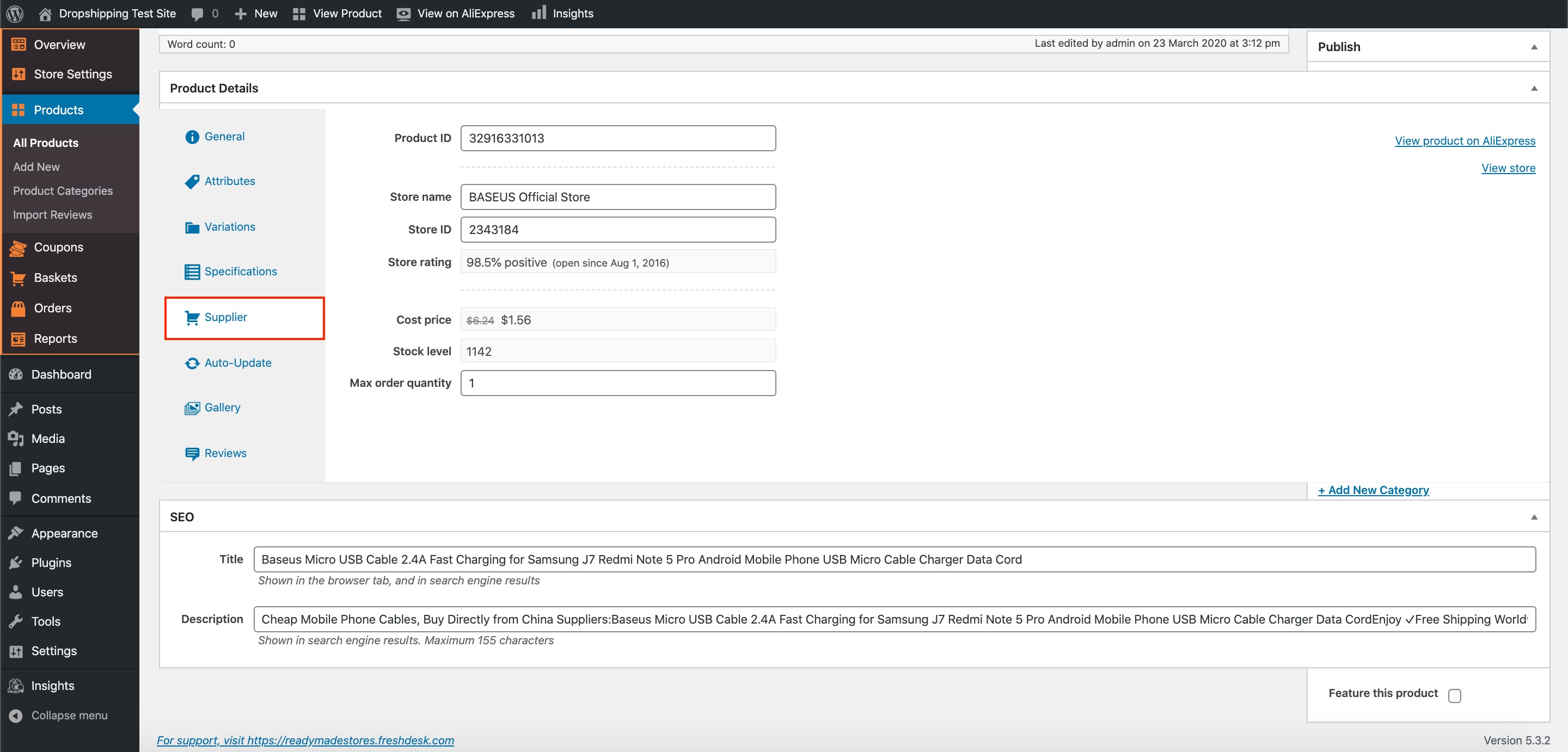
*Details such as the 'Store rating', 'Cost price' and 'Stock level' update automatically and shouldn't be altered*
The second from last tab is 'Gallery' - contained within are all the photos of that specific product:
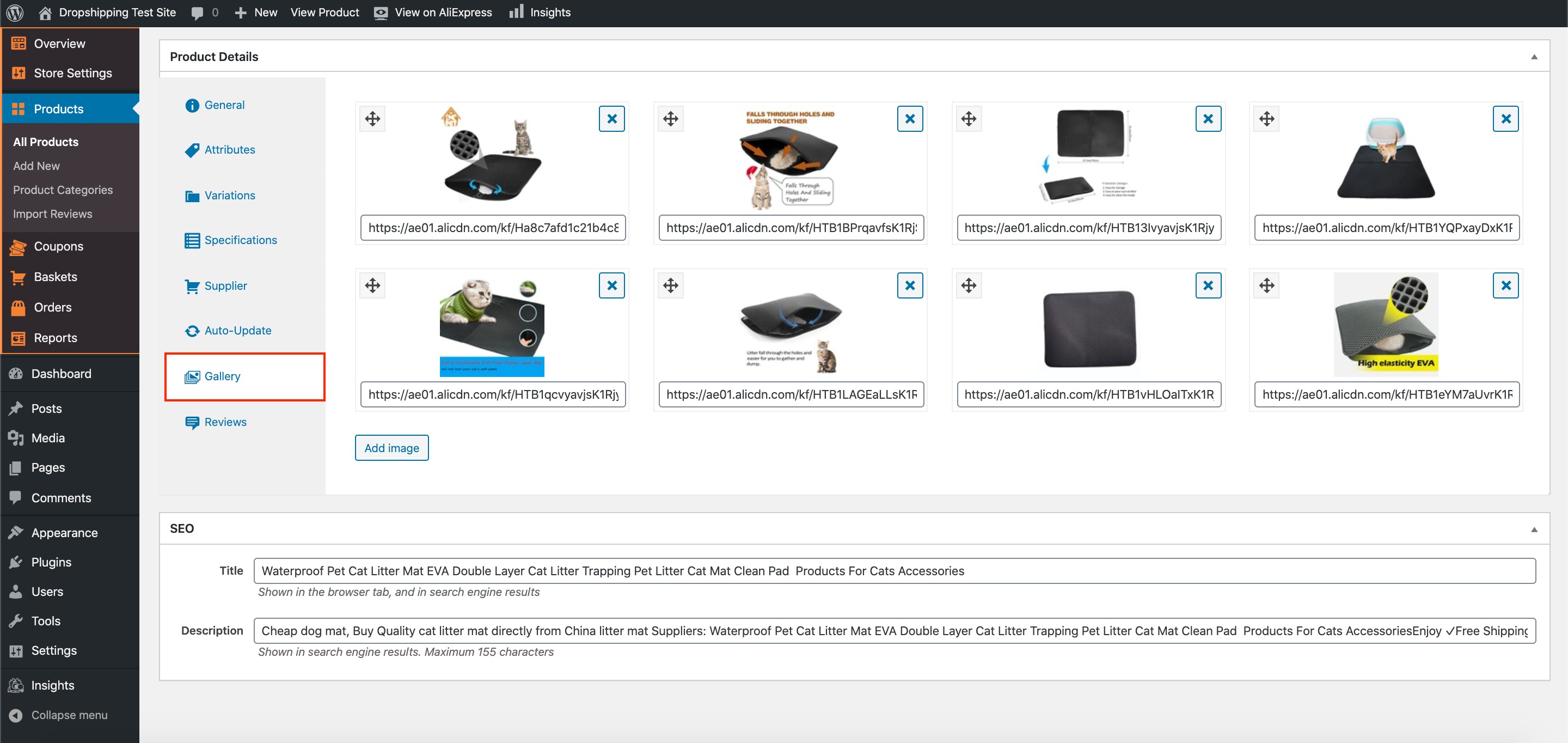
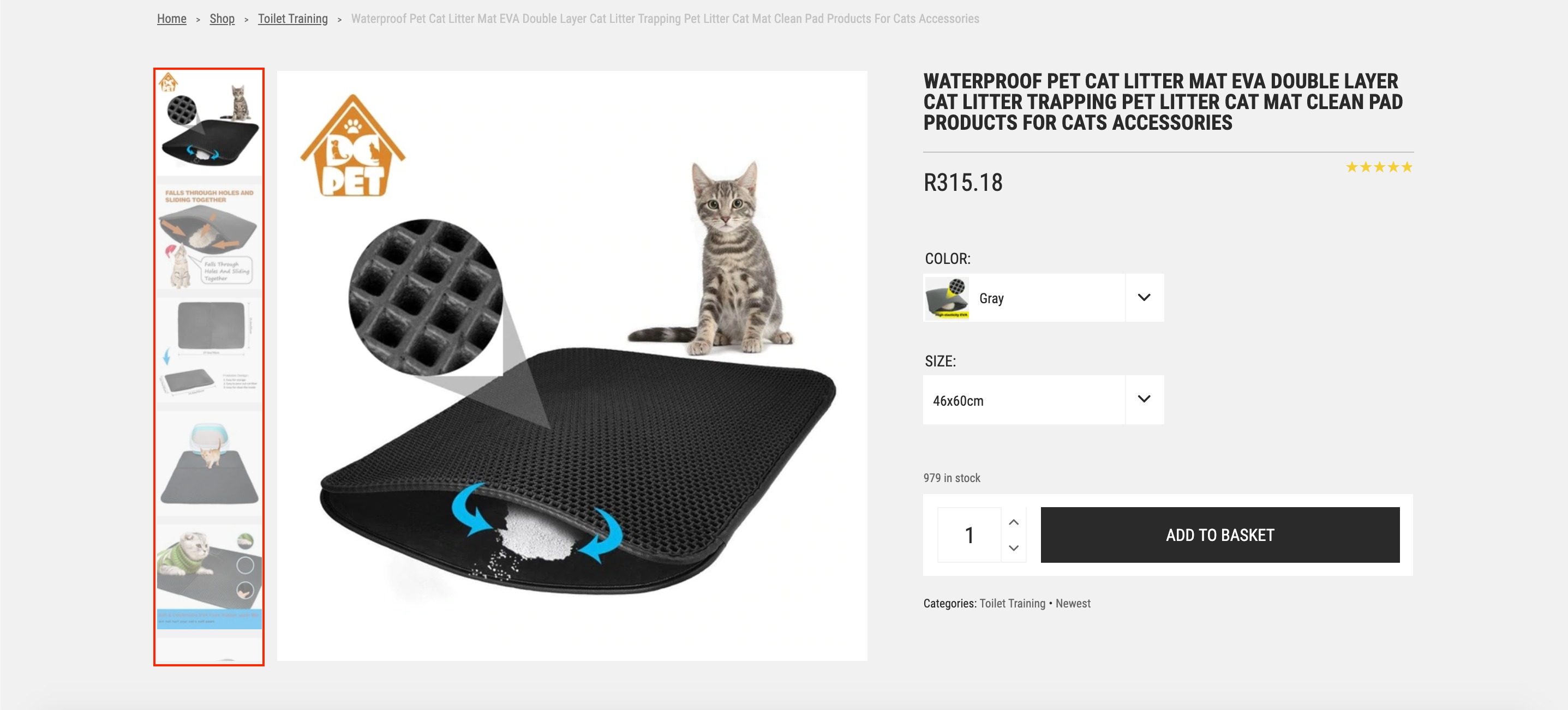
The order of the photos shown above correspond to the order of the photos on the product page:
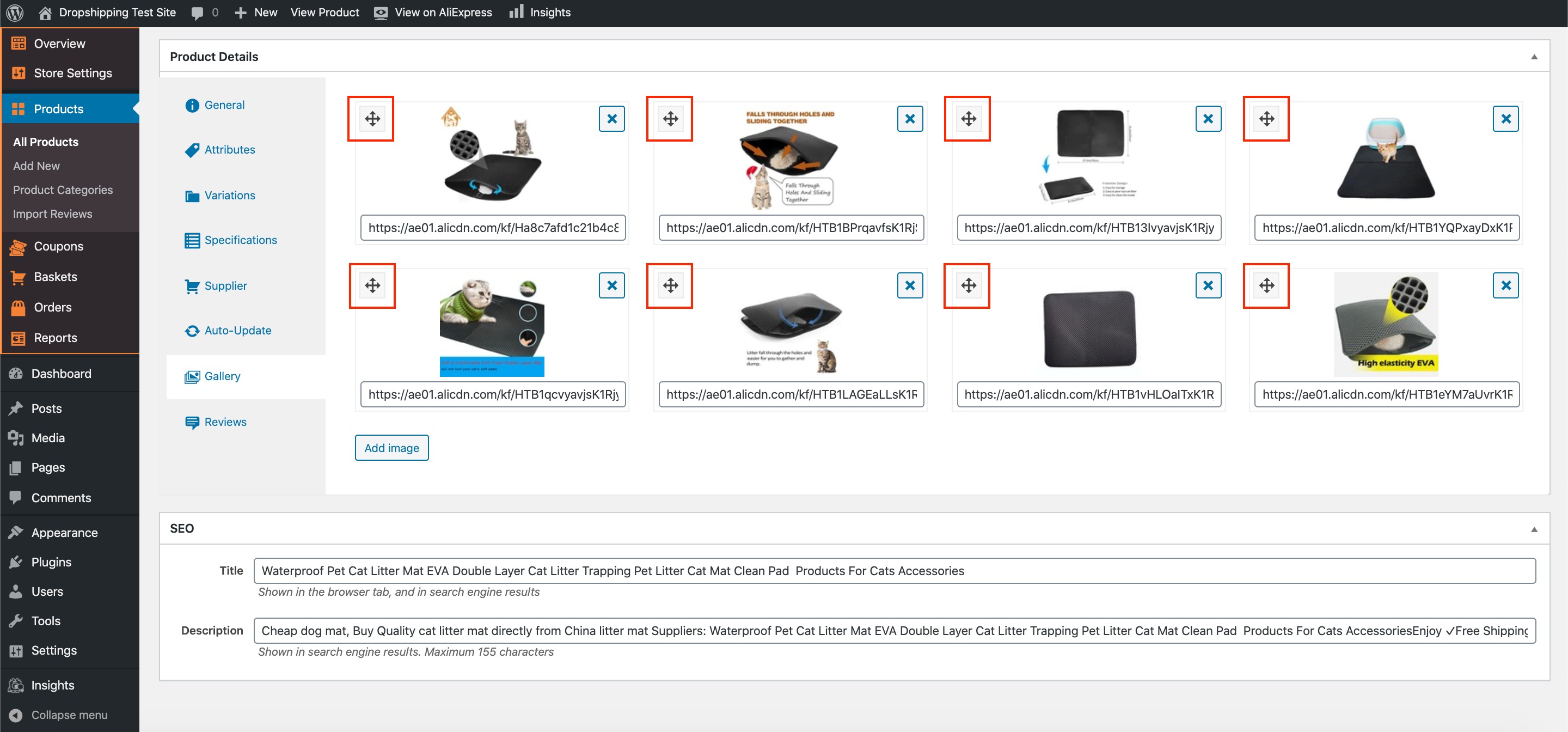
To alter the order of the images hover your cursor over the icon in the top left of a photo, then drag and drop it into your desired position:
To add more images, simply click 'Add image' at the bottom.
The final tab is 'Reviews' - inside contains the settings and criteria for publishing reviews for that individual product:
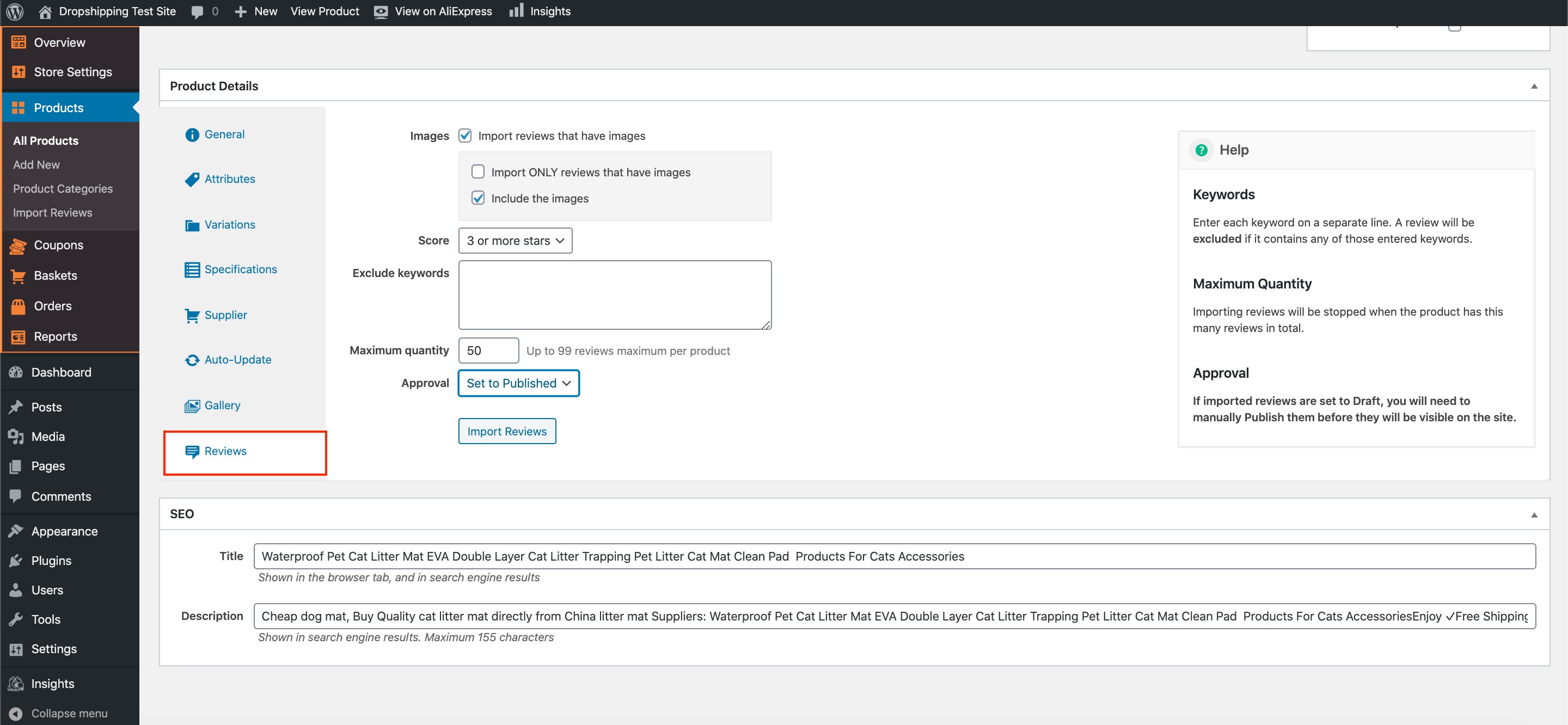
*Use the 'Help' guide on the right for explanations*
(*Once you've finished finalizing the product details, click the blue 'Publish' button*)
Related Articles
Can I Import & Sell Products From Other Websites/Suppliers?
Can I Import & Sell Products From Other Websites/Suppliers? Yes, you can sell any product from any website on your store, however, its worth noting that our stores our only able to automate the importation and order processes for products from ...Editing Products (Full Guide)
Editing Products (Full Guide) To access the 'Product Details', from the store dashboard go to: > Products > All Products From within this page find the 'Product' you'd like to 'Edit' by either scrolling through or searching for it via the search box ...Adding your own products
Adding your own products You can populate your web store with your own products, even if they are not on sale on AliExpress. Please bear in mind that these items will not be synchronized with AliExpress API and will not be updated (stock, prices, ...How To Add/Remove Products To/From Product Categories?
How To Add/Remove Products To/From Product Categories? To add/remove 'Products' to/from 'Product Categories', from the store dashboard go to: > Products > All Products From within this page find the 'Product' that you'd like to add/remove to/from a ...Updating products
Updating products AliDropship plugin provides you with the possibility to keep your product details up-to-date. With the Update option, you can check the availability of items on AliExpress and update the product’s price, stock, and variations. NOTE! ...